

Introduction
AtomX comes to the rescue for anyone working with After Effects or Premiere Pro, simplifying the process of adding effects, transitions, and graphic elements.
It is a free plugin that allows you to view ready-made templates and elements directly and add them to your project. All it asks from you is to customise them according to your needs, and that’s it!
Instead of wasting your time moving layers and handling complex settings, AtomX keeps everything organised, lets you see live previews, quickly change colours, fonts, and sizes, and ultimately has a professional, ready-to-use project. It is like a cool and efficient assistant that makes working with templates much easier.
Next, we will explore what features it has, how it works, and how it can make working with templates and graphic elements easier for you.
Features and Capabilities
AtomX is full of features that make working with templates and ready-made elements quick and easy. Its main capabilities can be summarized as follows:
- One-click template addition
Without cluttering or complicating your project, you can add templates, transitions, and text effects directly to the timeline. - Live preview
Before adding anything to the project, you can view animations and effects to make sure it’s exactly what you want. - Quick customization
Changing colors, fonts, sizes, and timing of elements is very easy, without complex layer manipulations. - Automatic project organisation
Layers and elements are automatically organised so your project remains tidy and manageable. - Compatibility with project resolution and aspect ratio
Templates automatically match your project’s resolution, whether Full HD, 4K, or Instagram Story. - Control over audio effects and transitions
You can enable or disable transition audio effects and manage audio-visual combinations more precisely.
💡 It is like a cool and precise assistant for working with templates, saving you time and making your results more professional.
How to Use
Working with it is really simple, and even beginners can quickly add templates and graphic elements to their projects. The general workflow is as follows:
- Download and install the plugin
First, download AtomX from the official website. Installation is easy, usually done using the ZXP Installer. - Open it in the software
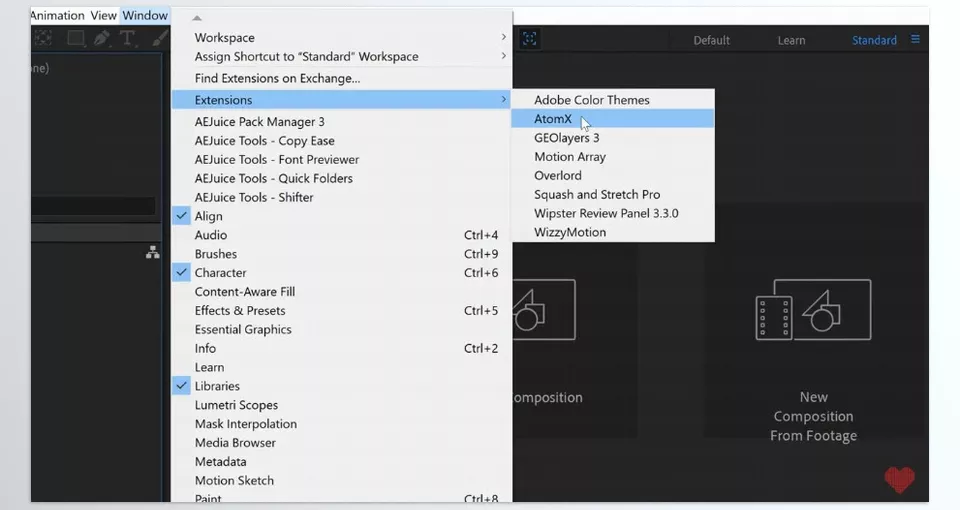
After installation, in After Effects or Premiere Pro, follow Window > Extensions > AtomX to open the plugin panel. - Browse and select templates and elements
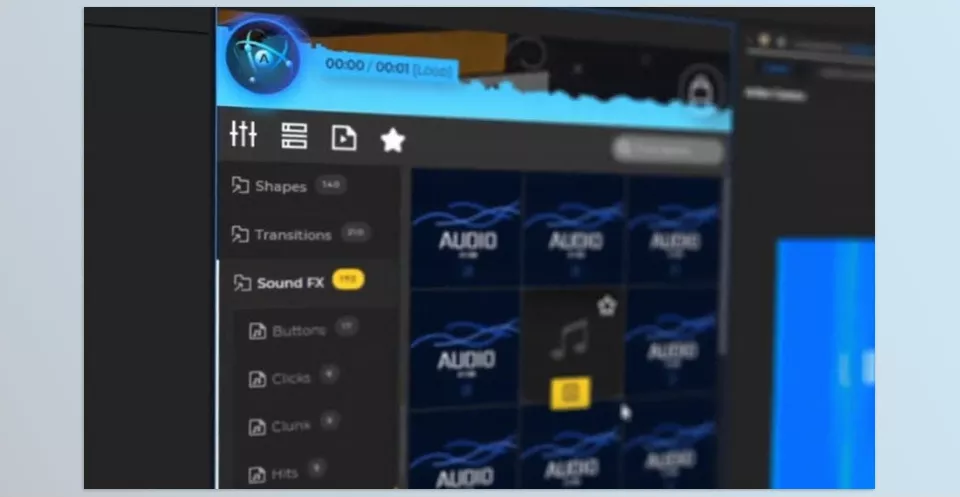
When the AtomX panel opens, you can view and select ready demo templates. These templates come with the plugin and are enough to start projects.
- If you want access to more professional templates and elements, you can download separate packages (Professional Templates) and add them to AtomX.
- Once added, templates appear in the panel, and you can view live previews to ensure it’s exactly what you want.
- Quick customization
After selecting a template, you can easily change the color, font, size, and timing of elements without complex layer manipulation. - Add to the project and automatic organisation
With one click, the template or element is added to the timeline, and AtomX automatically organises layers and elements so your project remains tidy and manageable.
💡 Tip: Even if your project is crowded, AtomX keeps everything organised so you don’t have to spend much time moving or adjusting layers. You can browse and select templates, and even if you add professional templates later, the workflow remains just as easy and fast.
Templates and Resources
When we talk about AtomX, you should know what templates are and where they come from. Templates are ready-made files that include text effects, transitions, graphic elements, and sometimes complete projects that you can easily use in your projects.
Free demo templates
- When you install AtomX, several basic templates and elements come with the plugin.
- These templates are sufficient for testing and starting projects and can be used directly.
Professional (Premium) templates
- For access to more professional templates and elements, separate packages need to be downloaded or purchased.
- Premium templates include text packs, transitions, graphic elements, and even social media-specific collections like Instagram Stories.
- After downloading, you can drag the template file (.atom or .mogrt) into the AtomX panel to add it.
💡 Tip: AtomX does not create templates itself; it provides an environment to easily browse, preview, and add ready-made templates. The more templates you have, the more useful and faster AtomX becomes.
Advantages and Limitations
Like any other tool, It has its strengths and limitations. Let’s review them:
Advantages
- Time-saving
Adding templates, transitions, and elements with one click saves a lot of time compared to moving and adjusting layers manually. - Easy to use, even for beginners
No complex design or project management skills are needed; AtomX makes everything simple and accessible. - Live preview and quick customisation
You can preview templates before adding them and quickly change color, font, size, or timing. - Automatic project organisation
Layers and elements are organised, keeping the project manageable and tidy. - Compatibility with various resolutions
Templates automatically match the aspect ratio and resolution of the project, whether Full HD, 4K, or Instagram Stories.
Limitations
- Requires ready-made templates
AtomX does not generate templates itself; for professional projects, you must download or purchase templates or separate packages. - Limited free version
Free demo templates and elements included with the plugin are limited; full access requires the premium version. - Dependency on Adobe software
AtomX only works with After Effects and Premiere Pro and is not applicable to other software.
Frequently Asked Questions (FAQ)
- Do I need motion designer skills to use AtomX?
No! One of AtomX’s advantages is that even beginners can easily use ready-made templates and elements. You don’t need professional motion design skills or complex layer management. - Can I use AtomX offline?
Yes and no. If the templates and elements you want to use are already downloaded, you can work offline. However, to download new templates or access premium templates, you need an internet connection. - Is AtomX only for templates?
Its main use is for templates and ready-made elements, but it also offers important features like live preview, quick customisation, and automatic project organisation. AtomX is not just a simple template manager; it makes working with templates much easier and faster. - Is AtomX compatible with all versions of After Effects and Premiere Pro?
It is compatible with most recent versions of After Effects and Premiere Pro, but it’s best to check your software version and AtomX requirements before installation to ensure everything works smoothly. - Can I use these templates without AtomX?
Yes! Templates can usually be used directly and added manually to a project. However, AtomX makes using templates faster, more organised, and easier, without needing complex layer adjustments.
Conclusion
In summary, it is a practical and cool plugin for After Effects and Premiere Pro that makes working with templates and ready-made elements much easier and faster. With it, you can add templates, transitions, and text effects with one click, view live previews, and quickly customise colours, fonts, and sizes without spending too much time moving layers.
If you are a beginner, don’t worry; AtomX simplifies the process, and even professional users will enjoy the speed and project organisation. The only caveat is that for professional and premium templates, you need to download or purchase them separately.
Simply put, AtomX is like a smart and efficient assistant that keeps your video projects organised, fast, and professional.
Choosing After Effects or Premiere Pro affects how you use AtomX—check out our full comparison of After Effects and Premiere Pro to see which one fits best for your workflow.





