From Cinematic Saturation to Natural Skin Tones 🎨
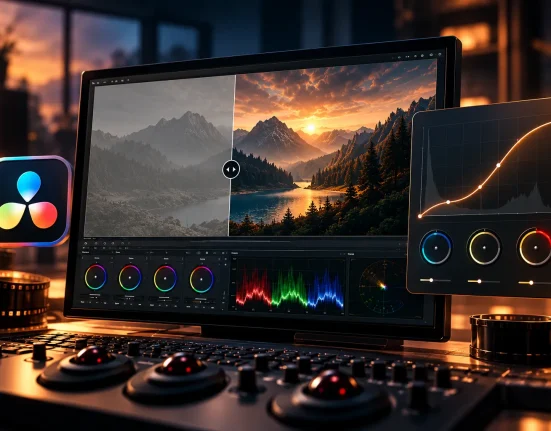
Have you seen or used the Hue/Shift Pro DCTL Plugin by PixelTools before? Sometimes, when you color correct a video, you boost the colors, but the result doesn’t turn out as you expected. For example, you make the reds more vibrant, but the skin tones change too, or you deepen the greens in the environment, only to find that some parts of the image look too dark.
This becomes even harder when you need to match the colors and mood of several shots. A general color adjustment might improve one part of the image but make another part look worse, so you have to go back and fix your previous changes.
That’s why having more control over individual colors is important in films, commercials, and music videos. You can adjust the colors you want without changing the rest of the image too much, keep skin tones and details looking natural, and create a consistent look across your footage.

How Do Hue, Saturation, and Density Help with Color Grading? 🌈
To shape a video’s color appearance more precisely, you need to understand three key concepts: Hue, Saturation, and Density. Each parameter affects a different aspect of color, and combining them correctly helps you achieve a result that looks both attractive and natural.
- Hue: Determines which color range a color belongs to. For example, you can shift plant greens slightly toward yellow or cyan, or move a garment’s red toward a warmer or cooler tone.
- Saturation: Controls the intensity and apparent purity of colors. Increasing it makes colors more vivid, while reducing it gives the image a softer, more muted look.
- Density: In this color grading tool, it controls how deep and dense colors appear. With the right adjustments, you can create richer colors without simply increasing the saturation of every color.
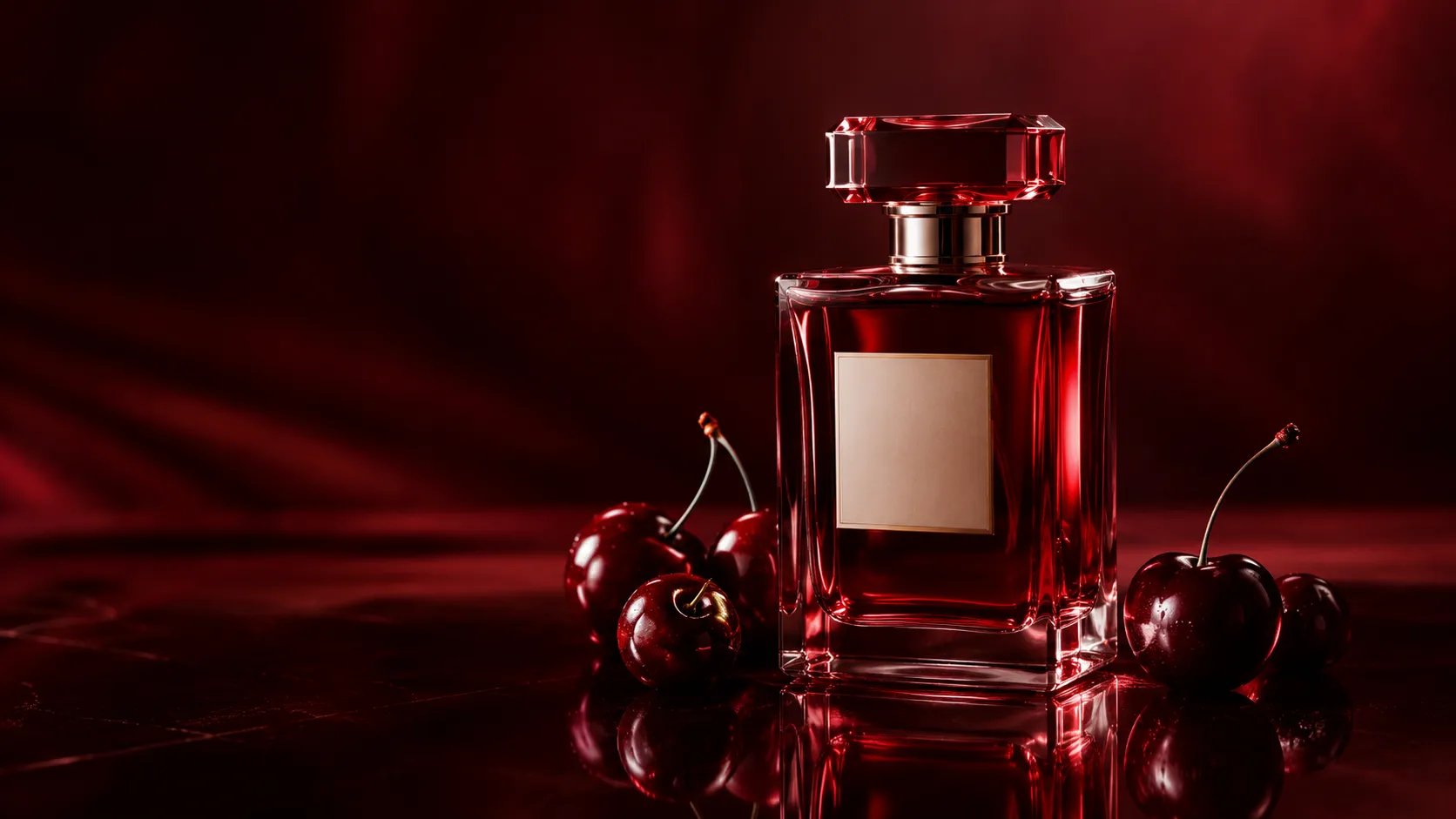
Now imagine you’re editing a perfume commercial with a dark background and red packaging. You want the product’s red to look deeper and more striking, but the model’s hand should still look natural, and the reflections on the glass should retain an appropriate appearance. Independent color controls let you adjust these elements more precisely and focus on the details that matter most, rather than making broad changes.
The same approach works for music videos, short films, and commercials, where color consistency helps establish a specific visual atmosphere while preserving image details.
Methods for Adjusting Hue and Saturation with Resolve’s Built-In Tools 🎨
You don’t necessarily need a plugin to control colors in DaVinci Resolve. The Color page includes several useful tools that you can combine to change specific colors and create the look you want:
- Hue vs. Hue and Hue vs. Sat: Used to change the hue or saturation of a specific color range. For example, you can shift plant greens toward yellow or enhance the sky’s blue.
- Qualifier: Selects colors based on Hue, Saturation, and Luminance, allowing you to apply corrections to the selected range. For example, you can isolate skin tones from the background.
- Power Windows: Restrict corrections to a specific part of the image, such as the subject’s face or the background.
- Color Wheels and Nodes: Adjust shadows, midtones, and highlights, and distribute corrections across multiple independent nodes.
By combining these tools, you can perform relatively complex corrections. For example, in a commercial shot, you can increase the product’s saturation, control the background brightness, and correct skin tones in a separate node.
Limitations of Manual Methods for Controlling Multiple Color Ranges
The challenge begins when you want to change several colors simultaneously with high precision, without letting adjustments to one color range affect other parts of the image. You may need to combine multiple curves, Qualifiers, and nodes, spending more time adjusting masks and selection ranges to avoid unwanted changes to skin tones or unnatural edges.
On top of that, separately controlling saturation and color density for each range while limiting adjustments’ effects on shadows and highlights isn’t always possible with a single adjustment. When you need to repeat these corrections across multiple shots, maintaining consistent results and achieving a unified color palette can also become time-consuming.
Hue/Shift Pro DCTL: Professional Color Control in DaVinci Resolve 🎨
Hue/Shift Pro DCTL Plug-In – Pro is a tool by PixelTools, made in collaboration with KaurH for DaVinci Resolve. It gives you more control over colors, including hue, saturation, and color density. Instead of changing the colors across the whole image, you can adjust specific color ranges to get the look you want.
This tool helps you create deep, cinematic colors, correct skin tones, and manage relationships between colors in an image more precisely. For example, you can enrich reds in a commercial, bring environmental greens closer to your desired color palette, and ensure skin tones or neutral areas aren’t affected too much. Its main advantage is that it brings specialized color controls together in a dedicated tool, giving you greater flexibility to create the look you want.
Hue/Shift Pro DCTL is a DCTL, so it’s used within the DaVinci Resolve color grading workflow and isn’t a separate editing application. The Pro version is compatible with DaVinci Resolve 19 and later and is designed for users who need more precise color control for films, TV series, commercials, and other professional content. Below, we’ll explore the tool’s main features with examples.
Independent Control of Hue, Saturation, and Density
One of Hue/Shift Pro’s most important features is its ability to control three aspects of color with greater precision: Hue, Saturation, and Density. With these controls, you can target different color ranges and adjust them according to your project’s needs instead of changing all the colors in the image uniformly.
- Hue: Changes the hue of a specific color range. For example, you can shift plant greens toward yellow or move a product’s red toward a warmer or cooler tone.
- Saturation: Controls color intensity and helps balance more vivid color ranges with softer ones.
- Density: Shapes denser, deeper-looking colors. Instead of simply increasing saturation, this approach gives you another way to control color appearance.
For example, in a nature shot, you can deepen the greens of the trees, while in a commercial shot, you can make the product’s color stand out more without increasing the entire image’s saturation. These controls are especially useful when you want to create a specific color palette and balance the main colors in the image.
Combining Additive and Subtractive Saturation for More Precise Control
Hue/Shift Pro DCTL offers two methods for targeted saturation adjustments: Additive Saturation and Subtractive Saturation. These methods help you move beyond simply increasing or decreasing overall saturation and adjust colors to achieve your desired look.
- Additive Saturation: Enhances saturation and makes selected colors more vivid.
- Subtractive Saturation: Reduces saturation and helps control colors that appear too prominent or overpowering.
Combining these methods is especially important for a cinematic look because not all colors should have the same level of saturation. For example, in a shot featuring a red outfit against a neutral background, you can enrich the red while controlling the saturation of other color ranges so the viewer’s attention stays on the subject. This approach helps create deep reds and stronger colors without uniformly increasing saturation across the entire image.
Dedicated Skin Controls for Preserving Natural Skin Tones
One of the main challenges in color correction is enhancing environmental colors without unintentionally changing the subject’s skin tones. Since orange and red ranges also play a role in skin color, adjusting them can make a face look oversaturated, orange, or unnatural.
Hue/Shift Pro DCTL provides dedicated Skin controls to make skin tone adjustments easier and more targeted. For example, in an interview with a green or blue background, you can bring the environment’s palette closer to your desired cinematic look while separately examining and correcting the speaker’s skin tones. This feature is useful for portraits, beauty commercials, narrative films, and music videos where facial appearance is particularly important.
However, dedicated skin controls don’t mean skin tones will automatically stay natural in every situation. Lighting, exposure, and the original footage color still affect the final result, so check skin tones alongside other colors after each correction.
Clean Neutrals for Protecting Neutral Colors
In some shots, elements such as gray walls, white clothing, fog, or low-saturation surfaces need to stay neutral. However, when you change the surrounding colors, these areas can also be affected and develop unwanted color casts.
Hue/Shift Pro’s Clean Neutrals feature provides more precise control and helps reduce the unwanted impact of corrections on low-saturation areas. For example, in a commercial with a gray background and a red product, you can enhance the product’s color while keeping the background as neutral as possible.
This feature is especially useful in grades where the contrast between rich colors and neutral areas plays an important role in the image composition. However, to evaluate the result accurately, examine the image under appropriate viewing conditions, since lighting and overall grading adjustments can also affect neutral colors.
Controlling Shadow Saturation with Highlight Bypass
Increasing saturation across all brightness ranges doesn’t always produce the desired result. You might deepen the colors in the shadows, but reflections on glass, light sources, or other bright areas can become oversaturated.
To control this situation, Hue/Shift Pro DCTL provides the Saturation Highlight Bypass slider. This feature allows you to limit the effect of saturation adjustments in brighter areas and keep the changes more focused on darker ranges.
For example, in a night scene with colored lights, you can saturate darker colors while reducing the impact of those changes on the highlights. This gives you greater control over the image’s color balance without designing several separate adjustment stages for every small correction.
Visual Curve UI and Color Guides
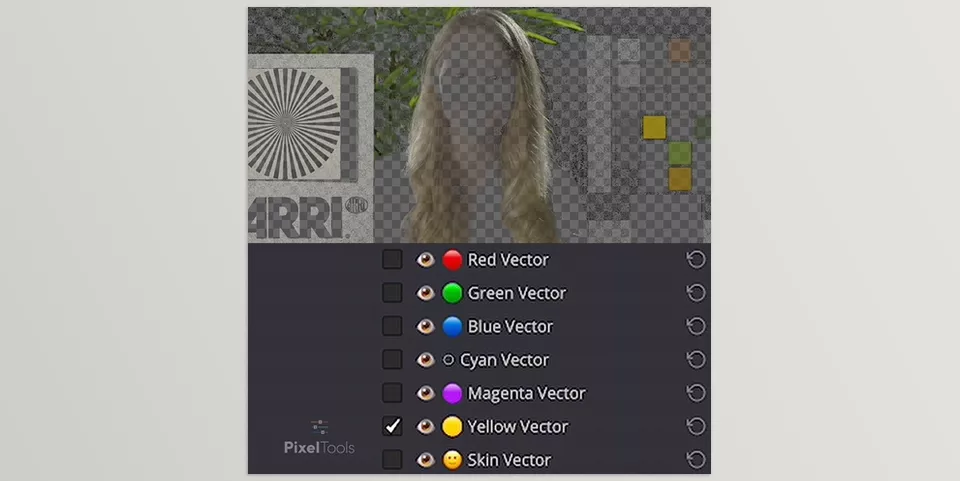
When several color ranges are close together, identifying each range and understanding how it relates to the adjustments can be difficult. Hue/Shift Pro uses a Visual Curve UI and visual color guides to make controlling curves and identifying target color ranges easier.
These guides help you make more informed decisions when adjusting similar colors, such as red and orange or different shades of green. For example, if you want to change the color of a subject’s clothing, the visual color ranges can help you identify the area that needs correction, especially when you don’t want adjacent colors to change significantly.
This interface also clarifies the relationship between the curves and the color-correction target, reducing the need to guess the right adjustment. As a result, working with multiple color controls can become more organized and easier to understand.
Compatibility with DaVinci Wide Gamut, ACES, and Different Cameras
Hue/Shift is designed for use in professional color management workflows. According to the manufacturer, it’s compatible with DaVinci Wide Gamut (DWG), ACES, and other color management workflows.
The manufacturer also states that the tool is compatible with footage from various cameras, including:
- Cinema cameras: ARRI and RED with the IPP2 workflow.
- Common content creation and filmmaking cameras: Sony, Canon, Panasonic, and Blackmagic.
- Other image formats: Apple Log and DJI.
This broad compatibility matters for projects recorded with multiple cameras or footage with different original color characteristics. However, compatibility with these sources doesn’t mean the results will automatically be identical across all files. Manage each clip’s input color space and specifications correctly before applying Hue/Shift corrections.
Designed for Professional Color Grading Workflows
Hue/Shift was developed in collaboration with PixelTools and KaurH and, according to the manufacturer, is designed for real-world film, television, advertising, and streaming content projects. The manufacturer also mentions the tool’s use in productions associated with services such as Netflix, Apple TV+, and Disney+.
The tool’s focus on precise color control, image quality preservation, and controllable looks makes it suitable for colorists, editors, and cinematographers who regularly develop and match the visual appearance of their projects. However, the final result still depends on the user’s skills, footage quality, and how the tool is adjusted.
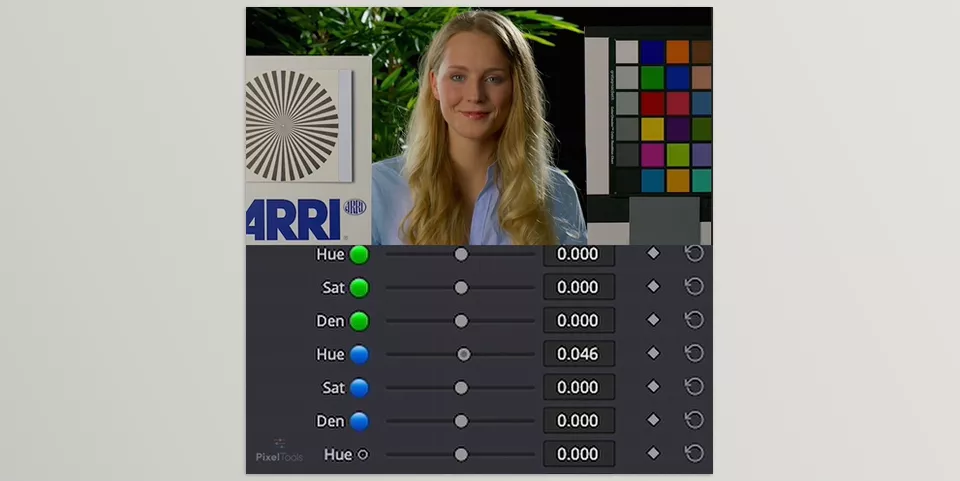
How to Create a More Natural and Professional Grade with Hue/Shift Pro ✨
To get good results from this tool, you don’t need to adjust every control right from the start. It’s better to set the image’s overall look first, then move on to finer corrections. A few simple tips can help you create richer colors without making the image look artificial.
- Correct exposure and white balance first: Before adjusting Hue and Saturation, make sure the image has appropriate exposure and white balance. Color correction on unbalanced footage is generally less predictable.
- Focus on important colors: You don’t need to change every color range. For example, in a product commercial, the packaging color and skin tones may be more important than the other colors in the scene.
- Avoid pushing Saturation too far: More saturated colors don’t always look more cinematic. Sometimes reducing saturation in one range while enhancing another creates a more balanced, attractive result.
- Evaluate color density separately from saturation: When using Density, also monitor brightness changes and the apparent depth of colors to keep shadows from becoming too heavy.
- Check Clean Neutrals and Skin: After the main adjustments, examine skin tones, white clothing, and gray surfaces to ensure the corrections haven’t unintentionally affected these areas.
- Compare the results across multiple shots: If your project contains several shots, don’t evaluate the adjustments on just one frame. Review the image throughout the shot and alongside other shots to maintain color consistency.
Greater Color Control with Less Trial and Error 🎬
Hue/Shift Pro DCTL is designed for people who want to go beyond basic color correction and gain more control over their color palette. Instead of relying on broad adjustments, you can focus on the Hue, Saturation, and Density of each color range to get closer to your desired result with greater precision.
Features like Skin controls, Clean Neutrals, and the Saturation Highlight Bypass slider help you keep skin tones and other important areas looking natural while creating rich, cinematic colors. These tools are useful for commercials, films, music videos, and any project that needs careful and consistent color grading.
Of course, DaVinci Resolve’s built-in tools are still great for simple color corrections. But if you often need more control over individual colors and want an easier way to get the look you want, Hue/Shift Pro is worth trying. There’s also a free demo version you can test in your own projects to see if its controls work well with your color grading style before you buy it.
Whether you’re new to DaVinci Resolve or have years of experience, the right tools can help you work faster and make editing easier. Check out our complete guide to the most useful DaVinci Resolve tools to discover more options for your projects.