

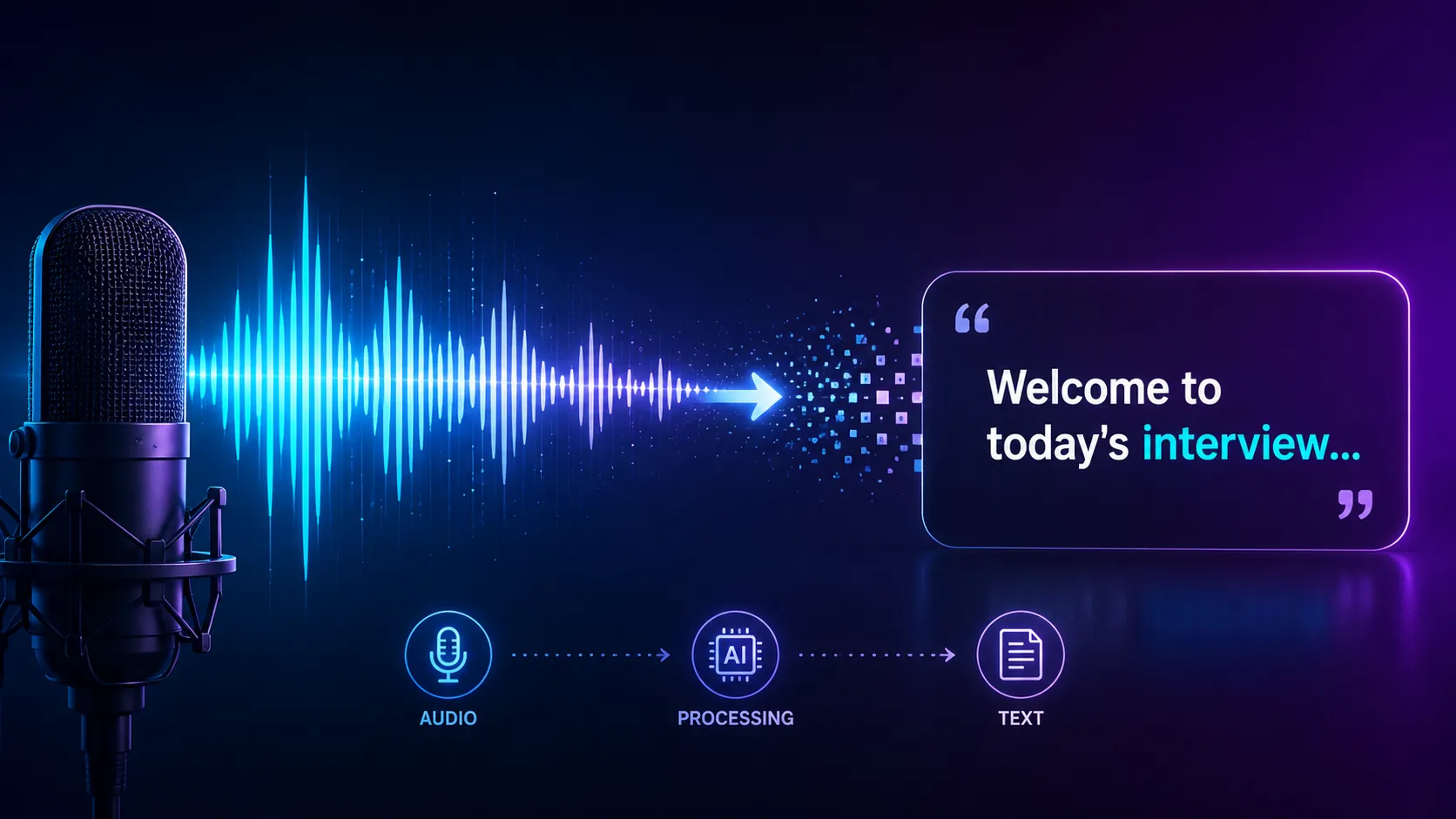
Finding a Single Sentence in a One-Hour Interview: Every Editor’s Nightmare! 😅
Are you experienced in using the Transcript Converter Plugin by aescripts? If you’ve ever edited an interview, podcast, or long-form educational video, this scene is probably very familiar to you. You’re looking for a specific sentence, scrubbing back and forth through the timeline, listening to different sections multiple times, and still not being sure where that exact part is!
The reality is that a large portion of editing time isn’t spent on creative work. A lot of time goes into finding dialogue, removing unnecessary pauses, and organizing conversations. That’s why speech-to-text tools have become some of the most popular tools among editors today, helping them save a significant amount of time. 🚀
The best scenario for editors would be to have the transcript for the video that they are editing. All they have to do is find the word or sentence that they are looking for in the transcript, and the video editing software will jump to that section of the video automatically. Furthermore, some editing software even allows editors to edit the video by simply editing the text fields! Sounds exciting, doesn’t it? 👀

What Is Text-Based Video Editing? 🤔
A few years ago, if someone told you that you could edit a video the same way you edit a Word document, it would probably have sounded strange. But today, this method has become one of the most popular features in modern editing software.
With this approach, the software converts the audio inside a video into text, allowing you to work directly with the transcript.
For example, if a speaker stumbles over their words several times during an interview or repeats a sentence, you can simply delete that section from the text, and the corresponding part of the video will be removed as well. 😍
What Can You Use It For?
✅ Faster interview editing
✅ Automatic subtitle generation
✅ Finding important parts of conversations
✅ Removing filler words and unnecessary pauses
✅ Preparing transcripts for translation
✅ Easier project review by clients
For content creators, YouTubers, documentary filmmakers, and podcasters, this feature can save hours of work.
Can You Do These Tasks Without Transcript Converter? 🎞️
Before transcript converters entered the editing industry, editors used Premiere Pro’s built-in features or various transcription services to generate subtitles. Although there are various editing plugins available today that offer significantly improved features, it is still possible to complete most projects without any additional plugins.
Some of the most common methods include:
🔹 Using the built-in Speech to Text feature
🔹 Creating automatic subtitles through the Captions panel
🔹 Searching conversations using Text-Based Editing
🔹 Using online services such as Whisper, Deepgram, or ElevenLabs
🔹 Importing SRT files and other subtitle formats manually
For many users, these tools are sufficient for everyday needs and provide access to text-based editing workflows.
Limitations That Gradually Become Apparent
The limitations of Premiere Pro’s built-in transcription tools are that the accuracy with which it transcribes audio can be frustratingly low, especially on videos with high background noise. Furthermore, while its built-in tools may be adequate for editors who do not require advanced speech recognition software, software like Whisper or ElevenLabs requires editors to spend time and effort using various platforms and file formats before the transcription can be properly loaded into Premiere Pro.
What Exactly Does Transcript Converter Do? 🔥
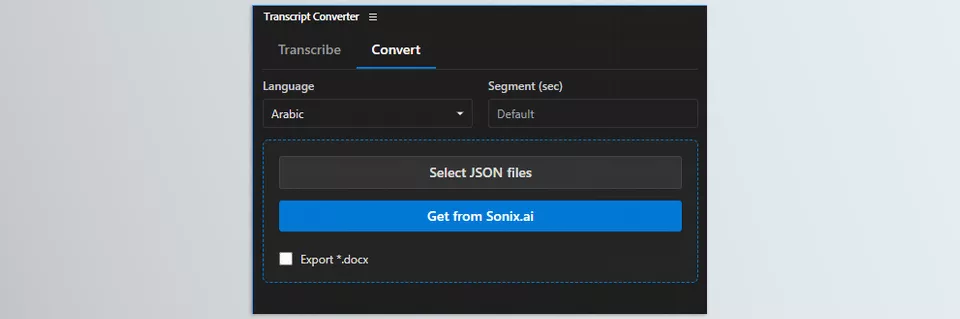
In simple terms, Transcript Converter acts as an intelligent bridge between Premiere Pro and professional speech-to-text services. This plugin helps you leverage various AI-powered engines for transcription, translation, and subtitle generation, and then import everything into Premiere in a format fully compatible with Text-Based Editing.
You might ask: Doesn’t Premiere Pro already generate transcripts? The answer is yes, but many editors prefer specialized services for certain projects. The problem is that the output from these services isn’t always directly usable inside Premiere. Transcript Converter solves this exact issue by converting outputs from different services into the format required by Premiere Pro.
In practice, this means you can spend less time on file formats, conversions, and manual imports, and more time on editing and content creation. That’s why it can provide significant time savings for long-form projects, interviews, podcasts, documentaries, and educational videos.
Key Features of Transcript Converter 🎯
Access to Multiple Powerful AI Engines 🤖
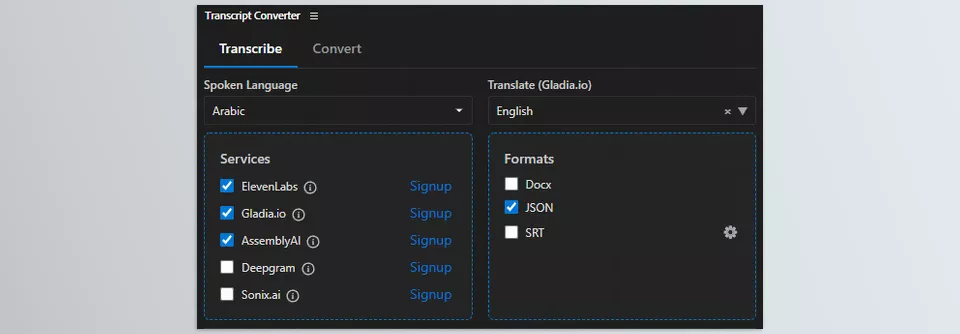
One of the biggest advantages of Transcript Converter is that it doesn’t lock you into a single transcription engine. Instead, you can choose different services depending on your project type, audio quality, or language requirements.
Supported services include:
✅ OpenAI Whisper
✅ ElevenLabs
✅ Deepgram
✅ AssemblyAI
✅ Gladia
✅ Sonix
✅ Google Chirp
Each of these services has its own strengths. Some prioritize speed, others excel at accent recognition, while some perform better in noisy environments.
Enabling Text-Based Editing with Outputs from Different Services ✨
One of the most impressive features of this plugin is its ability to convert outputs from various services into Premiere Pro’s required format.
This may sound simple at first, but it is extremely important. If a transcript file lacks the proper structure, Premiere may display only the text and not enable advanced Text-Based Editing features.
Transcript Converter handles this process automatically, ensuring that the text, timecodes, and word-to-video synchronization remain intact.
Support for Multiple Languages and Accents 🌍
If you work on Persian, Arabic, Turkish, or other non-English projects, this feature can be extremely valuable.
Because the plugin connects to multiple AI engines, you have a better chance of finding the best possible output for your target language or accent.
This feature is especially useful for international content creators, translators, and editors working with global clients.
Direct Translation into More Than 100 Languages 🌎
In newer versions, Transcript Converter goes beyond speech-to-text conversion.
The plugin can translate conversation transcripts into multiple languages and provide them directly to the user. So whether you want to prepare a Persian video for English-speaking audiences or an English-language video for Persian-speaking audiences, a significant portion of the work can be automated.
For multilingual content creation, international educational courses, and multilingual YouTube channels, this feature can save a tremendous amount of time.
Automatic Subtitle Creation and Import 🎬
Normally, after generating a transcript, you still need to import subtitle files separately and manage them within the project.
Transcript Converter also simplifies this step by automatically importing generated SRT files into Premiere Pro projects.
This removes several extra steps from your workflow and helps you reach the final result more quickly.
Word Export with Timecodes 📝
Sometimes editing isn’t the only goal.
A client may want to review the full interview transcript, a translator may need a text version, or a writer may want to use the conversations to create a script.
In these situations, Transcript Converter can generate Word documents complete with time codes, speaker names, and full transcripts, making content sharing and review much easier.
Batch Processing ⚡
If you work with large projects, you probably don’t want to process every file individually.
This plugin supports batch processing and can manage multiple files simultaneously—a feature that is especially valuable for documentary filmmakers, podcasters, and content production teams.
A Real-World Example of Transcript Converter in Action 👨💻
Imagine you’re editing a two-hour documentary that includes multiple interviews with different people. The director asks you to find every section that discusses a specific topic.
If you do this manually, you’ll likely spend hours listening to footage and taking notes. With Transcript Converter, however, you can generate an accurate transcript for the entire project, search for the desired phrase, and locate all relevant sections within seconds.
The result? Less time spent on repetitive tasks, faster editing, and more opportunities to focus on the creative side of the project. ✨
Tips for Getting the Best Results 💡
No matter how advanced transcription and AI tools become, the way you use them still has a major impact on the final outcome. By following a few simple practices, you can improve transcript accuracy and achieve more professional results.
Take Audio Quality Seriously 🎤
Even the most advanced AI engines cannot turn a noisy, echo-filled, or unclear recording into a flawless transcript. The better the recording quality, the more accurate the final result will be.
Try Multiple Engines 🤖
Not all transcription engines perform the same way. Whisper may deliver the best results for one project, while Deepgram or ElevenLabs may be more accurate for another. If the project is important, comparing multiple outputs can be worthwhile.
Review the Transcript Before Creating Subtitles 👀
Even the best AI models can occasionally misidentify names, technical terms, or uncommon words. A quick review before generating subtitles can prevent many mistakes.
Don’t Overlook Text Search 🔍
Once the transcript is ready, there’s no need to dig through the entire timeline to find a specific sentence. Simply search for the desired word or phrase and jump directly to the corresponding section of the video.
Use Transcript Segmentation for Long Projects 📑
When working with long interviews or podcasts, dividing the transcript into smaller sections makes it much easier to find specific segments and manage the overall project.
Use Transcripts for More Than Just Subtitles ✨
Generated transcripts can also be used for script writing, summarization, extracting key quotes, creating blog content, or preparing translated versions of a project.
Ultimately, the purpose of these tools is not just to convert audio into text. They help you spend less time on repetitive tasks and dedicate more energy to the creative side of editing. With a bit of experimentation and by following these tips, you can get the best possible results from Transcript Converter and other transcription services. 🚀
A Tool That Speeds Up the Editing Process 🚀
Today, transcription and text-based editing have become essential parts of professional video editing. As projects grow longer, finding dialogue, creating subtitles, and managing transcripts require increasingly more time. This is exactly where tools like Transcript Converter can make a significant difference.
Transcript Converter helps simplify and unify a workflow that is often spread across multiple services, file formats, and manual processes. From speech-to-text conversion to translation, subtitle generation, and transcript preparation for Premiere Pro, everything becomes faster and more streamlined, leaving you with more time for the creative aspects of your project. ✨
For editors who work with interviews, podcasts, or individuals who must edit videos with subtitles in various languages, the Transcript Converter Plugin for Premiere Pro will become one of the editing tools they cannot imagine being without. 🎯✨
The best way to improve your skill level in Premiere Pro is to learn the editing tools that make your workflow smoother and faster. Our guide explains each of these tools in a simple and easy-to-understand format. For more information on improving your skills and learning more editing tools for Premiere Pro, check out our Premiere Pro Tools guide now!