When a Video Looks Too Clean and Digital… ✏️
Are you familiar with what the Ballpoint Plugin by aescripts can do? Have you ever had a really good shot but felt like something was missing? The lighting is good, the framing is good, and the camera movement is exactly what you wanted, but the final result still looks too clean and digital. The video seems to be missing that artistic, handmade feeling that makes an image stick in the viewer’s mind.
Interestingly, what makes a video unique often has nothing to do with heavy effects or complex scenes. Sometimes, a few lines and hatching marks that look like they were drawn with a pen in an old notebook can completely change an image’s mood. This same style can give teasers, music videos, Reels, and even motion graphics a different and creative look that immediately grabs the viewer’s attention.
Of course, creating this kind of look from scratch isn’t nearly as simple as it looks. You need to combine several effects, add paper textures, adjust the hatching, and go through a lot of trial and error again for every shot. That is why many motion designers are looking for a way to create this style faster, more naturally, and with greater control.

What Is the Ballpoint Pen Drawing Effect? 🖊️
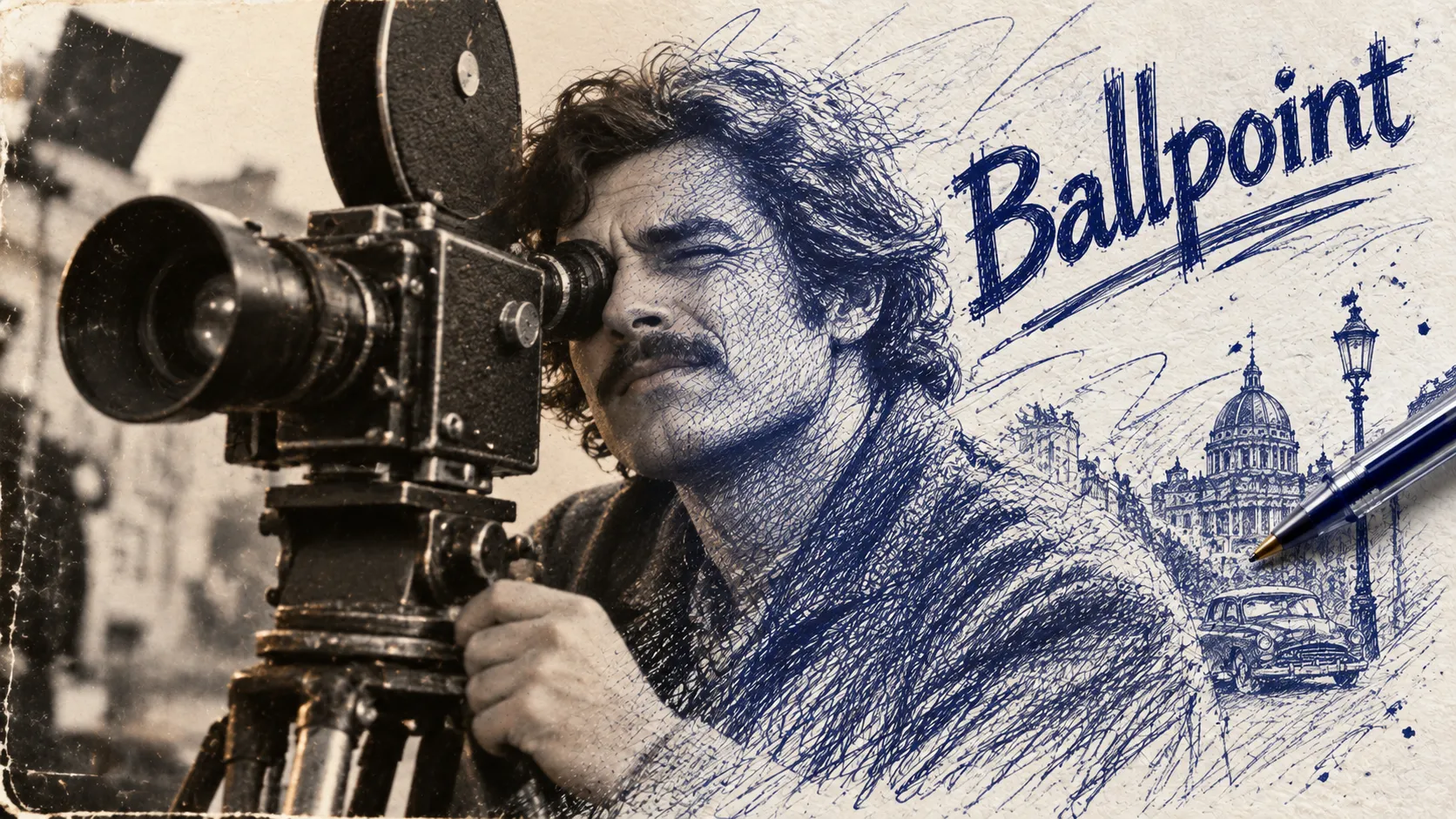
The ballpoint pen drawing effect is a visual style that turns a video or photo into an animated sketch. Instead of simply drawing outlines around the subject, it reconstructs the image’s highlights, shadows, and texture using thousands of lines and hatching marks, like an artist drawing on paper with a pen. The result is a lively, detailed image, not simply a black-and-white filter.
This style appeals because it adds a handmade feel to the image. The lines follow the form of a face, clothing, a building, or any other subject, giving the video an artistic, nostalgic, or even technical atmosphere. That is why this style is used in many motion graphics projects and creative videos instead of busy effects, helping create a distinctive visual identity.
Where Is It Useful?
- Creating creative intros and teasers
- Music videos with an artistic atmosphere
- Documentaries or educational videos with a sketchbook look
- Reels and posts designed to grab the viewer’s attention at first glance
- Reveal animations where the image gradually appears through pen-drawn lines
The main advantage of this style is that it can completely transform a video’s appearance without changing its content. In just a few moments, the same ordinary footage can look like a professional drawing on paper and give the entire project a completely different feeling.
You Can Do It Without a Plugin Too, But… 🎬
Before dedicated tools, creating a ballpoint pen drawing look meant combining several different techniques using the features available in the software you were working with. Depending on the program, the tools may differ, but the general idea is the same: first, separate the image’s details and lines; then use contrast and color adjustments to make them look like ink; and finally, add paper texture and movement.
Creating This Look with Standard Tools
For example, in After Effects, you can use Find Edges, Tint, Levels, Roughen Edges, Masks, and Keyframes; in Premiere Pro, you can get a similar result with effects like Find Edges, Tint, and Lumetri Color. Other design and editing software also usually includes tools to turn images into lines, control contrast, and add texture, and you can combine them to recreate this look.
- Extracting lines: Separating the edges and main details of the image
- Controlling contrast: Making the areas that should appear through hatching more visible
- Making the image monochrome: Bringing the colors closer to the appearance of ink and pen
- Adding texture: Using paper textures to make the result look more natural
- Blending layers: Using modes such as Multiply to combine the drawing with the paper
- Animation: Using masks, Keyframes, or similar tools to create reveals and line movement
Why Isn’t This Method Always Easy?
The problem is that these tools are usually not designed to create a realistic ballpoint pen drawing. As a result, you need to combine several different features and readjust the settings for every image or shot. When lighting, movement, or subject detail changes, the result can look completely different. On top of that, creating natural and responsive hatching, especially on moving video, is one of those tasks that can quickly turn into a long process of trial and error with conventional methods.
Ballpoint: As If Your Video Was Drawn with a Pen 🚀
That is where Ballpoint comes in. This tool transforms footage into dense, expressive lines. Instead of simply applying a basic filter, it reconstructs the image using collections of lines and hatching that resemble ballpoint pen drawings. The result can go far beyond a simple sketch, creating the feel of a drawing on old paper, a technical illustration, a sketchbook, or even a completely experimental and chaotic artwork. In addition to After Effects and Premiere Pro, Ballpoint also works with Autograph, DaVinci Resolve, and Nuke, so it isn’t limited to a single piece of software.
Turning Footage into Lines and Hatching
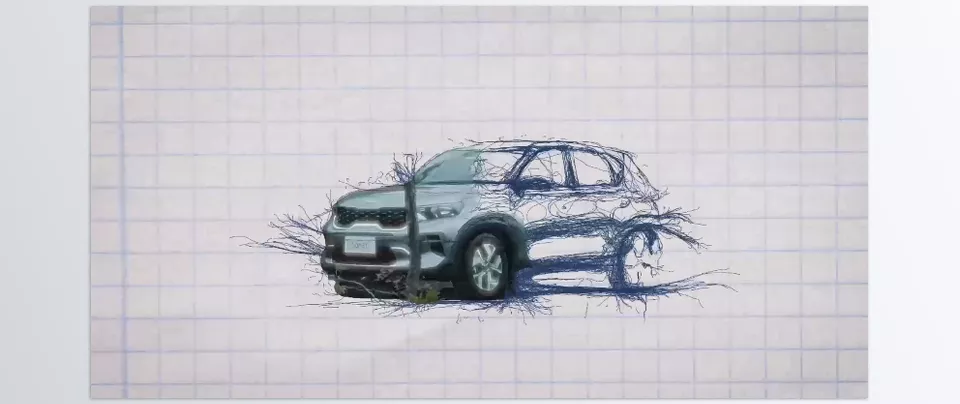
Ballpoint’s main function is to transform an image into dense, detailed Linework. Instead of simply defining subject boundaries, it creates lines across the image and transforms the footage from an ordinary image into something resembling a ballpoint pen drawing. This feature allows you to create completely different looks for portraits, cityscapes, objects, artistic videos, or even busy shots.
Lines That Aren’t Just a Fixed Filter
One interesting thing about Ballpoint is that the result isn’t completely fixed or uncontrollable. According to the developer, different settings affect the complexity, flow, and texture of the lines, and many of these controls can also be animated. Some settings are even Brush-sensitive, meaning you can change the behavior of the lines over time instead of being limited to a single fixed look throughout the entire video.
Ready-Made Presets for a Quick Start
If you do not want to configure everything from scratch, Ballpoint also includes several ready-made Presets. Styles such as Robocop, Curls, and Web create different looks; some feel more mechanical and technical, while others feel freer and more organic. These presets mainly serve as starting points, and after you select one, you can adjust the settings and customize the final look to match your project.
From Clean Lines to Chaotic Scribbles
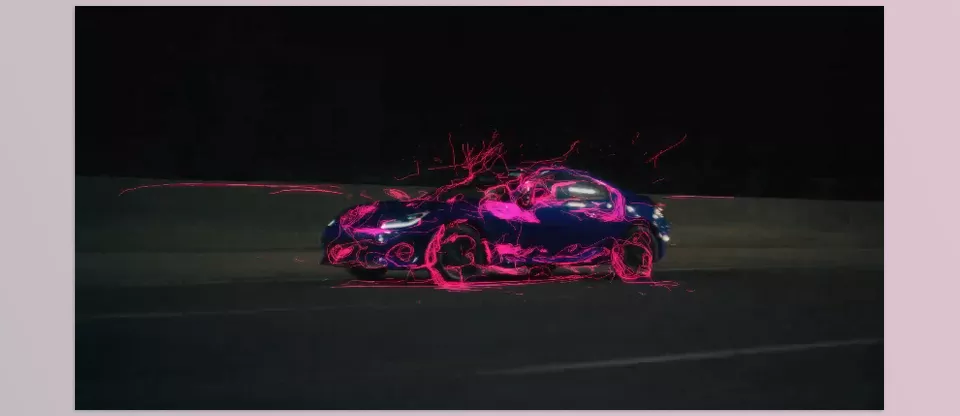
One appealing thing about Ballpoint is that you don’t always have to end up with a neat, clean sketch. By changing the settings, you can move from clear, bold lines to dense, chaotic scribbles. This means the same tool can create a technical, controlled look for one project and a completely free, artistic style for another. The developer also refers to a range of looks, from bold lines to chaotic scribbles.
Real-Time Changes with GPU Processing ⚡
Ballpoint is GPU-accelerated and displays the results of setting changes interactively. This means that when you change the parameters, you don’t need to perform a full render for every adjustment before seeing the result. You can adjust the appearance of the lines right away and quickly move between different looks. This is especially useful when you are searching for a specific style.
Full Control for Animation
Almost everything you need to create an animated look can become part of the animation. The developer says all elements can be keyframed, so you can change the behavior of the lines over time instead of using a fixed effect across the entire video. For example, you can start a shot with fewer lines and gradually increase their density or complexity.
Great for Reveal Animation ✍️
These capabilities also make Ballpoint interesting for Reveal Animation. You can make the image gradually form from lines and hatching, as if someone were drawing it with a pen on paper in real time. Whether you are revealing a portrait, logo, image, or even part of a scene, this style can create a handmade, distinctive feel.
For Very Different Styles
Ballpoint isn’t limited to one look. Depending on the settings you choose, you can use it to create a minimalist sketch, a detailed technical illustration, a busy and expressive drawing, or even the atmosphere of a Zine or sketchbook. For this reason, the tool can be useful both in motion graphics projects and in artistic videos, teasers, music videos, and experimental projects.
Suitable for Different Software
Another advantage of Ballpoint is that if you work across several programs, you don’t need a separate solution for each one. The current version is available for After Effects, Premiere Pro, Autograph, DaVinci Resolve, and Nuke, letting this effect fit into different editing, motion graphics, and compositing workflows.
A Few Tricks to Make the Result Look Better 💡
Ballpoint already handles a lot of the work quickly, but a few simple tips can make the final result look much cleaner and more natural. This is especially useful when you want a specific look tailored to your project instead of using a ready-made effect.
- Start with an image that has suitable contrast: Before applying the effect, pay attention to the shot’s highlights and shadows. When the difference between bright and dark areas is clearer, lines and hatching can define the subject’s shape more effectively.
- Choose the right preset for each shot: You do not have to use the same preset throughout the entire project. For example, Curls can work well on portraits and organic subjects, while Robocop can create a different feeling for urban or technical shots.
- Do not increase line density too much: More lines do not always mean more detail. If the hatching becomes too dense, different parts of the image can blend together, making the main subject harder to see. Increase density only to the point where details are preserved, and the image remains readable.
- Use paper texture in a controlled way: Paper texture can complete the handmade drawing feeling, but if it is too strong, it can become the main element of the image and cover the line details. It is better for the paper to act more as a background than to overpower the drawing.
- Change the intensity of the lines over time: The effect doesn’t need to stay the same intensity from beginning to end. With Keyframes, you can gradually change the density, complexity, or intensity of the lines to give the image a more dynamic feeling; this technique works especially well for Reveal Animation.
- Use different settings for different subjects: Settings that work well on a portrait may not suit a busy cityscape or a shot with a lot of movement. Adjust the line appearance based on the subject and the detail level in each shot.
Ultimately, don’t think of Ballpoint as a one-click effect; spending a few minutes matching the lines, density, and texture to the image can make a big difference in the final result.
A Unique Style Without the Hassle 🎯
Sometimes, making a video look different doesn’t require dozens of complex effects or unusual techniques. Simply turning an ordinary image into a ballpoint pen drawing can completely change the mood of the entire project. Lines, hatching, and hand-drawn textures can give even simple footage a distinctive visual personality and make it more noticeable to the viewer.
But what makes this style difficult is not the idea; it is creating it manually. To achieve this result with standard effects, you need to combine several tools, adjust contrast and lines, add texture, and readjust settings for different shots. As the project grows, these small details can take hours. Ballpoint handles much of this process in a ready-to-use, controllable way.
With Ballpoint, you can switch between looks much faster, start with ready-made presets, and then adjust the lines, density, and behavior to match your project. GPU processing, animatable controls, and support for several different software applications also mean this tool isn’t limited to one specific shot and can be used across different projects. If you want to give your videos, teasers, music videos, or motion graphics a distinctive hand-drawn look, Ballpoint can bring this style into your everyday workflow much faster.
Wondering why so many motion designers use extra tools in After Effects? Our After Effects Tools guide introduces plugins, scripts, and extensions in a simple way, so you can understand what they do and how they make everyday editing faster and easier.