

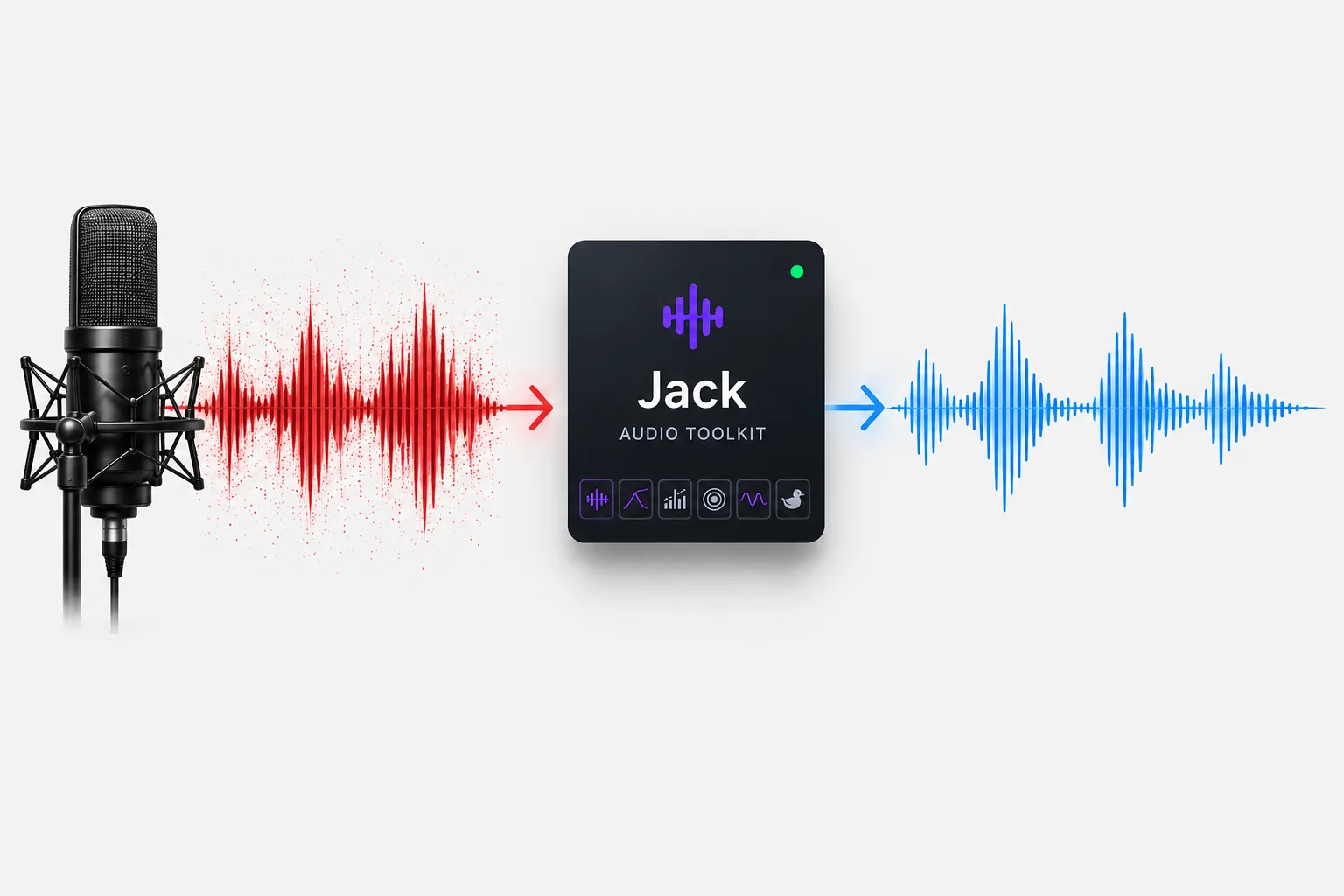
When the Visuals Look Great but the Audio Still Needs Work… 🎧
Are you familiar with what the Jack Plugin by aescripts can do? Have you ever created a video where everything looks great in terms of visuals, editing, and effects, but when you listen to the audio, you feel like it still doesn’t have that professional quality? Maybe there’s a bit of noise in the voice-over, the music slightly overlaps the dialogue, or the audio doesn’t have the clarity and balance it needs.
While the visuals of a video are important, the audio is just as crucial to the video’s success. The right dialogue, music, or sound effects can dramatically impact a video’s success and the relationship that the audience has with the content of that video.
But the problem starts when achieving good audio usually means learning several different tools and dealing with a lot of settings. Many editors and motion designers want to clean up their audio, improve its quality, and achieve a professional result faster without making their workflow more complicated.

Why Is Audio Processing Important in Video Projects? 🎙️
When we talk about improving audio during editing, it doesn’t just mean making a section louder or quieter. Professional audio is built through several stages, from cleaning up unwanted noise and adjusting frequencies to controlling volume levels and adding the right sense of space and atmosphere.
For example, imagine you’re creating an educational video. Even if the visuals, design, and animation are excellent, if the narrator’s voice isn’t clear and clean, the audience won’t be able to connect well with the content. Or in a promotional video, it’s the balance between music, dialogue, and sound effects that makes the video feel more engaging and professional.
In motion graphics, audio can also make a simple movement much more impactful. A movement, transition, or even the appearance of an element feels more alive when it’s paired with the right sound effect, helping the audience engage more with the visuals.
Common Ways to Improve Audio Without Third-Party Tools 🎚️
Before using specialized tools, most editors rely on the built-in features of Premiere Pro and After Effects to improve their audio. These tools are perfectly useful for many everyday tasks and can handle a large portion of a project’s audio needs.
Common methods for improving audio include:
- Removing noise with noise reduction effects: To reduce unwanted environmental sounds, hiss, or recorded noise.
- Adjusting frequencies with an equalizer: To make the narrator’s voice clearer, boost bass, or reduce unpleasant parts of the audio.
- Using a compressor: To control the difference between very loud and very quiet sounds and create a more consistent output.
- Adding reverb and audio effects: To create a sense of space, depth, and specific moods in the audio.
These methods can produce good results for simple, short projects, but when the number of audio files increases or the project requires more precise adjustments, the workflow can become a little more difficult.
The Challenges of Manually Adjusting Audio in Professional Projects 🎧
The main problem is that as a project gets bigger, the number of adjustments and corrections also increases. Applying noise reduction to every audio file individually, adjusting frequencies, configuring the compressor properly, and moving between different panels can take up a lot of editing time.
On top of that, finding the right settings for every sound isn’t always simple because each recording has different conditions. A setting that works well for one file might not produce good results on another. As a result, part of the project’s creative time ends up being spent on small audio corrections instead of design and editing.
Jack: A Small Audio Studio Inside Premiere Pro and After Effects 🎧
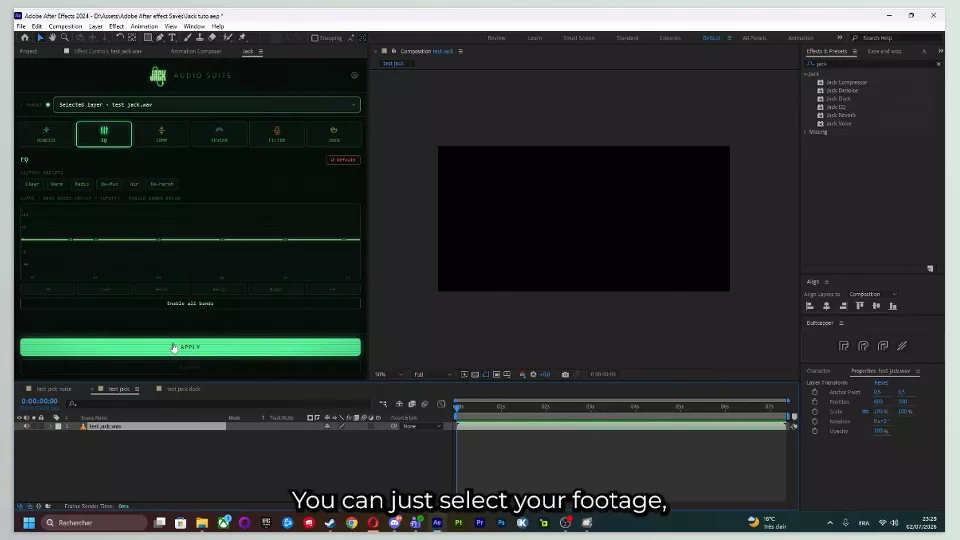
Jack is a professional audio toolkit for Premiere Pro and After Effects that brings several important audio processing features together in one simple and organized panel. The main idea behind this tool is that editors and motion designers shouldn’t have to constantly switch between different effects or complicate their workflow just to improve audio. Instead, they can clean up audio, improve its quality, and prepare it for final output right where they’re already editing.
This tool includes six main sections, each designed to address a common problem in audio projects. From removing unwanted noise and adjusting audio quality to creating creative effects and balancing music with dialogue, everything is available within one integrated environment.
Noise Removal: When Recorded Audio Sounds Cleaner 🎙️
One of the most common problems in video projects is unwanted noise in recorded audio. Fan noise, environmental sounds, microphone hiss, or background noise can prevent dialogue from sounding as clear as it should.
The Denoise section in Jack is designed specifically for this purpose. This feature helps reduce unwanted sounds so the main audio, especially the narrator’s voice, sounds clearer and more natural. The key point is that the goal isn’t just to remove noise; preserving the audio’s natural character also matters so the final result doesn’t sound artificial.
This feature is especially useful for projects such as educational videos, video podcasts, interviews, social media content, and even videos recorded with basic equipment. In many cases, a simple noise correction can significantly improve the final quality of a project.
Adjusting Audio Quality with Frequency Controls 🎚️
Every sound is made up of different frequencies, and sometimes achieving professional audio requires boosting or reducing certain parts. For example, a narrator’s voice might sound slightly muffled, music might need more bass, or certain frequencies might make the audio sound dull and tiring.
The EQ Curve section in Jack gives you more control over these frequencies. With this tool, you can make vocals clearer, fine-tune the lower frequencies of music, or reduce parts that negatively affect audio quality.
This feature becomes especially important when you have several different audio layers in a project, such as dialogue, background music, and sound effects that need to work together to create a balanced and pleasant mix.
Controlling Audio Levels with a Professional Compressor 🔊
One common issue with recorded audio is that some parts sound very loud while others are too quiet. For example, a narrator might speak softly in one sentence and suddenly become much louder in the next.
The Compressor section in Jack helps control these differences in audio levels and create a more consistent output. By adjusting parameters such as compression intensity, response time, and output level, you can make the audio easier to hear throughout the entire video.
This feature is highly useful for narration, multi-person dialogue, educational videos, advertisements, and any project where audio clarity is especially important. The final result is audio that sounds more professional, balanced, and pleasant to listen to.
Adding a Sense of Space with Reverb 🎧
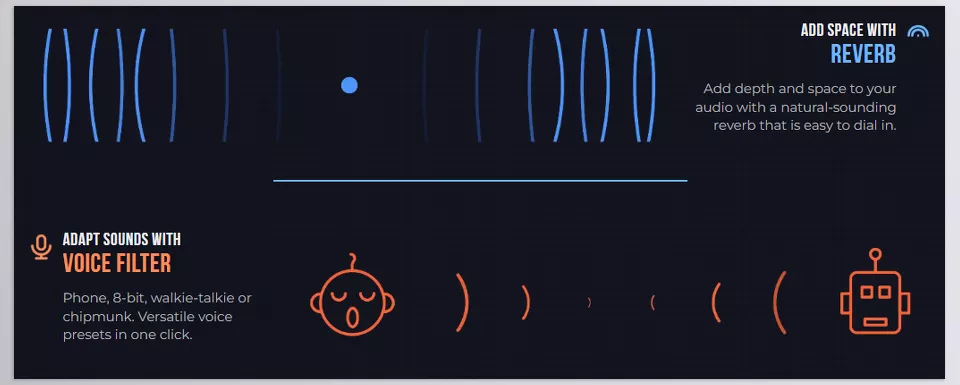
Sometimes raw, unprocessed audio can sound too dry and simple. That’s where the Reverb effect comes in. Reverb adds audio reflections to create a sense of space and depth, making the sound feel more natural.
Using this section, you can give the audio the feeling of different environments, such as a large space, a small room, or a more cinematic environment. Of course, it’s important to use this effect in moderation because too much reverb can make the audio sound distant and reduce dialogue clarity.
This feature can significantly impact the final result in motion graphics, promotional videos, narrative videos, and projects that need a particular mood or atmosphere.
Creating Creative Sound Effects by Changing the Character of Audio 🎙️
Audio doesn’t always have to sound natural and realistic; sometimes you need to create a unique and different sound to make a project more engaging. The Voice Filter section in Jack is designed for exactly this purpose.
With this feature, you can change the character of a voice and create effects such as telephone audio, walkie-talkie sound, digital voices, cartoon-style voices, or other creative effects. This allows you to achieve a different sound more quickly without dealing with complicated settings.
This feature is especially appealing for creative motion graphics, entertainment videos, animation projects, promotional videos, and content that requires audio-based character development.
Balancing Music and Dialogue with the Duck Feature 🎵
One of the constant challenges in editing is balancing background music with the narrator’s voice. If the music is too loud, the dialogue gets lost, and if it’s too quiet, it loses its impact.
The Duck section in Jack makes this process easier. This feature automatically lowers the volume of music or background audio while dialogue is playing and then returns it to its previous level when the speaking ends.
This feature is very useful for promotional videos, tutorials, vlogs, and any project where the combination of music and speech is important because it allows the audience to focus on the main content without difficulty.
All the Essential Audio Tools in One Place, Right Inside Your Editing Environment ✨
One of Jack’s main strengths is bringing these six important tools together in a single panel. Instead of going through several different effects for every small adjustment, you can handle most of your project’s audio work faster and more efficiently within Premiere Pro or After Effects.
For editors and motion designers who spend a lot of time working with audio, having a toolkit like this can make the workflow smoother and leave more energy for the creative parts of the project.
A Few Tips for Getting Better Results from Audio Tools 🎚️
Having good audio processing tools is only half the story; what makes the final result more professional is how you use those tools. With a few simple tips, you can make your audio sound more natural, cleaner, and better synchronized with the visuals.
- Fix the main audio first: Before moving on to interesting effects and creative changes, first address the main audio problems such as noise, uneven volume levels, or poor recording quality. Clean audio always creates a better foundation for further processing.
- Don’t overuse effects: Sometimes less gives you better results. Overusing effects such as reverb or audio filters can make the sound feel unnatural and artificial. The goal is for the effect to improve the audio, not become the main focus of the audience’s attention.
- Balance the music with the dialogue: In projects where music and speech are playing at the same time, the music doesn’t always need to play at maximum volume. What matters is that all audio elements are balanced together so the audience can hear the dialogue without difficulty.
- Use effects with a purpose: Every audio change should have a clear reason. For example, use reverb to create a sense of space, use a voice filter to create a specific character, and use a compressor to control audio levels, rather than simply adding an effect just for the sake of having one.
Ultimately, making a project’s audio sound professional depends less on the number of effects you use and more on choosing the right ones and using them in moderation. When you know when and why each tool should be used, even small changes can have a major impact on the quality of the final output.
When the Audio Becomes as Professional as the Visuals 🎯
Often, the difference between an ordinary project and a truly professional result comes down to small details. Your visuals, color grading, and animation might look excellent, but if the audio isn’t clean and balanced, the final feeling you want to communicate to the audience won’t fully come through. Clear dialogue, properly adjusted music, or a well-placed sound effect can help the audience connect more deeply with the project.
This is where Jack can make the workflow much easier. Instead of using several different tools for every audio correction and spending a lot of time dealing with complicated settings, you can handle tasks such as noise removal, audio quality improvement, dialogue level control, music adjustment, and sound effect creation directly inside Premiere Pro and After Effects. This means more focus on ideas and creativity instead of getting caught up in repetitive settings.
If you’re someone who cares about the final quality of your projects, you shouldn’t treat audio as just a secondary element. Professional audio can multiply the value of your work and make the final output feel much more impactful. By bringing essential audio tools together in one simple environment, Jack helps you reach the level of quality you expect from a professional project more quickly.
Jack is just one of many tools that can make your editing and motion design workflow faster and more efficient. If you want to explore more ways to improve your workflow, check out our guides to After Effects tools and Premiere Pro tools, where you can discover different types of tools designed for everything from animation and effects to editing, automation, and productivity.





