

What Are After Effects Tools and What Are They Used For?
work quicker and achieve more professional results. These Tools permit the automation of processes, specialized effects, and quicker speeds that surpass the limits of what can be done within the application.
With Tools, you can:
- Avoid mundane tasks
- Accomplish more complex effects
- Assemble a professional project even faster
- Potentially transform your entire creative approach.
Tools are the hobbyist’s crutch and the expert’s gateway to creation.
Main Types of After Effects Tools
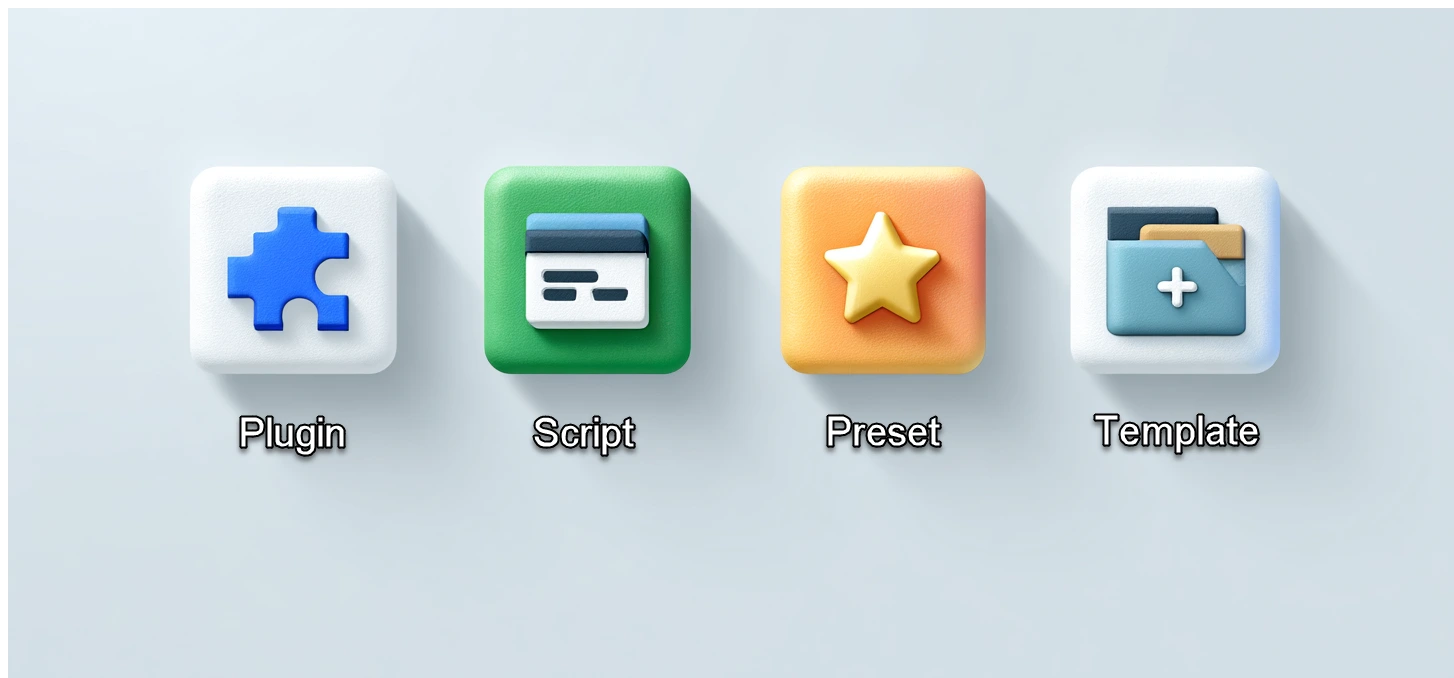
Tools in After Effects fall into four main categories. Let’s explore the main types of After Effects Tools to understand their unique roles.
- 🔌 Plugin
- 📜 Script
- 🎛️ Preset
- 📁 Project Template
In the next section, we’ll take a deeper look at each one with practical explanations.
Full Explanation of Each Tool Type
🔌 1. Plugin — The Most Advanced Type of Tool
What is it?
Plugins are software modules written in languages like C++ using the After Effects SDK. These powerful After Effects Tools add entirely new capabilities to the program—like a new visual effect or advanced rendering method.
What does it do?
It can add a new visual effect, simulate 3D environments, enhance rendering performance, and more.
Real-World Example:
Let’s say you want to create realistic rain or fire. After Effects doesn’t offer this natively, but a plugin can do it in seconds—with more control and better results than you’d get using built-in tools alone.
📜 2. Script — Automating Repetitive Tasks
What is it?
A script is a plain text file written in ExtendScript or JavaScript that tells After Effects to perform a series of actions automatically. As After Effects Tools, scripts can save hours by automating complex sequences.
What does it do?
It can:
- Import images or audio in bulk
- Create and organize layers
- Automate time-based animations
- Build custom user interfaces (UI)
Real-World Example:
Imagine you have 100 audio files and want to generate subtitles. Instead of doing it manually, a script can read your transcript file and create all the subtitles with accurate timing—automatically.
🎛️ 3. Preset — Saving and Reusing Effect Settings
What is it?
Presets are saved effect or animation settings that can be reused across projects. No coding, no installation—just design and save.
What does it do?
If you’ve created your own camera shake or applied a text pop-up that you want to use in the future, you can save it as a preset and apply it to different projects in a matter of seconds.
Real-World Example:
You’ve designed a fade-in animation for photos. Instead of recreating it every time, save it as a preset. Then just drag and drop it onto new layers—done!
📁 4. Project Template
An After Effects project already created for you that’s lined up and organized for easy modification because all you have to do is replace text, logos and images.
What does it do?
Templates are made for:
- YouTube channel Intro
- Logo Reveal
- Photo Slideshows
- Product advertising videos.
Real-World Example:
A client needs a product advertisement for their company. You’ve created a template for the type of advertisement they’re looking for. All they need to do is drop in their logos and text, and in minutes, they have a refined video.
How to Develop Each Type of Tool
🔌 Developing Plugins
Prerequisites:
- Knowledge of C++
- After Effects Software Development Kit (AE SDK)
- Visual Studios or other IDE’s
- General understanding of graphics programming and image processing
Steps to Creating a Plugin:
- Set up AE SDK and development environment.
- Determine desired effect/desired addition.
- Write code for graphics processing method (what to do with each pixel)
- Compile the code into
.aex(Windows) or.plugin(macOS) - Debug and use in After Effects.
To better understand the plugin development process, watch the tutorial video below that walks you through the key steps of creating a plugin for After Effects.
For detailed official documentation on After Effects plugin development, you can visit Adobe’s developer guide here. This method is for advanced developers—not typical motion designers.
📜 Developing Scripts
What You Need:
- Knowledge of JavaScript or ExtendScript
- Code editor (ExtendScript Toolkit or VSCode)
- Familiarity with the After Effects scripting API
Steps to Create a Script:
- Create a
.jsxfile - Write functions using AE’s scripting API (e.g.
app.project,layer.property) - Automate tasks like comp creation, keyframing, layer management
- Test via
File > Scripts > Run Script Filein After Effects - Optionally, build a UI panel using HTML/CSS for better UX
For the official documentation on writing After Effects scripts, check out Adobe’s scripting guide here.
🎛️ Developing Presets
What You Need:
- Basic familiarity with After Effects effects and animation tools
- No programming needed
Steps to Create a Preset:
- Apply your effect or animation to a layer
- Select the layer
- Go to:
Animation > Save Animation Preset - Save as
.ffx - Use later from the Effects & Presets panel via drag and drop
📁 Developing Project Templates
What You Need:
- Experience in building organized AE projects
- Good naming conventions and design layout
Steps to Create a Template:
- Build the project with placeholders (text, images, logos)
- Organize comps, folders and assets
- Label editable areas like
Edit Here - Save the project as
.aep - Compile a user guide (PDF or README file)
- Compress everything to sell/distribute
Final Thoughts
Tools allow you to accomplish more with less in After Effects.
Tools range from the most simplistic of presets to high-priced plug-ins and everything in between and are applied for various reasons:
- Presets are for easy, simple reuse
- Templates are for full, ready-made projects
- Scripts are for in-depth professional automation
- Plugins are for entirely new functionality
Now that you understand the full picture, you can decide where to start:
Do you want to design stunning templates? Write powerful scripts? Or build performance-driven plugins?
Now that you have the technical skills in After Effects, don’t forget the power of color correction to enhance mood and style. For further reading on color grading, visit our color grading post. After Effects Tools allows you to work faster and get more professional looking results. These features allow for automation, complicated effects and enhanced productivity beyond what’s available within the program.



