

When Text Is No Longer Just “Text” 🎬
Are you familiar with the features of the FontObj Plugin by aescripts? You’ve probably wanted to create an eye-catching 3D title for your project at some point; for example, a brand name that has real thickness, with light moving across its edges, or one that you can apply materials like metal and glass to. There are different ways to do this inside After Effects, but sometimes the final result isn’t quite what you’d expect from a real 3D model.
This difference becomes more noticeable when you want to bring the text into a more serious workflow, where shading, lighting, and materials play an important role. At this point, it’s no longer just the 3D appearance of the text that matters; the letters themselves need to have real geometry so you can have more control over the final result.
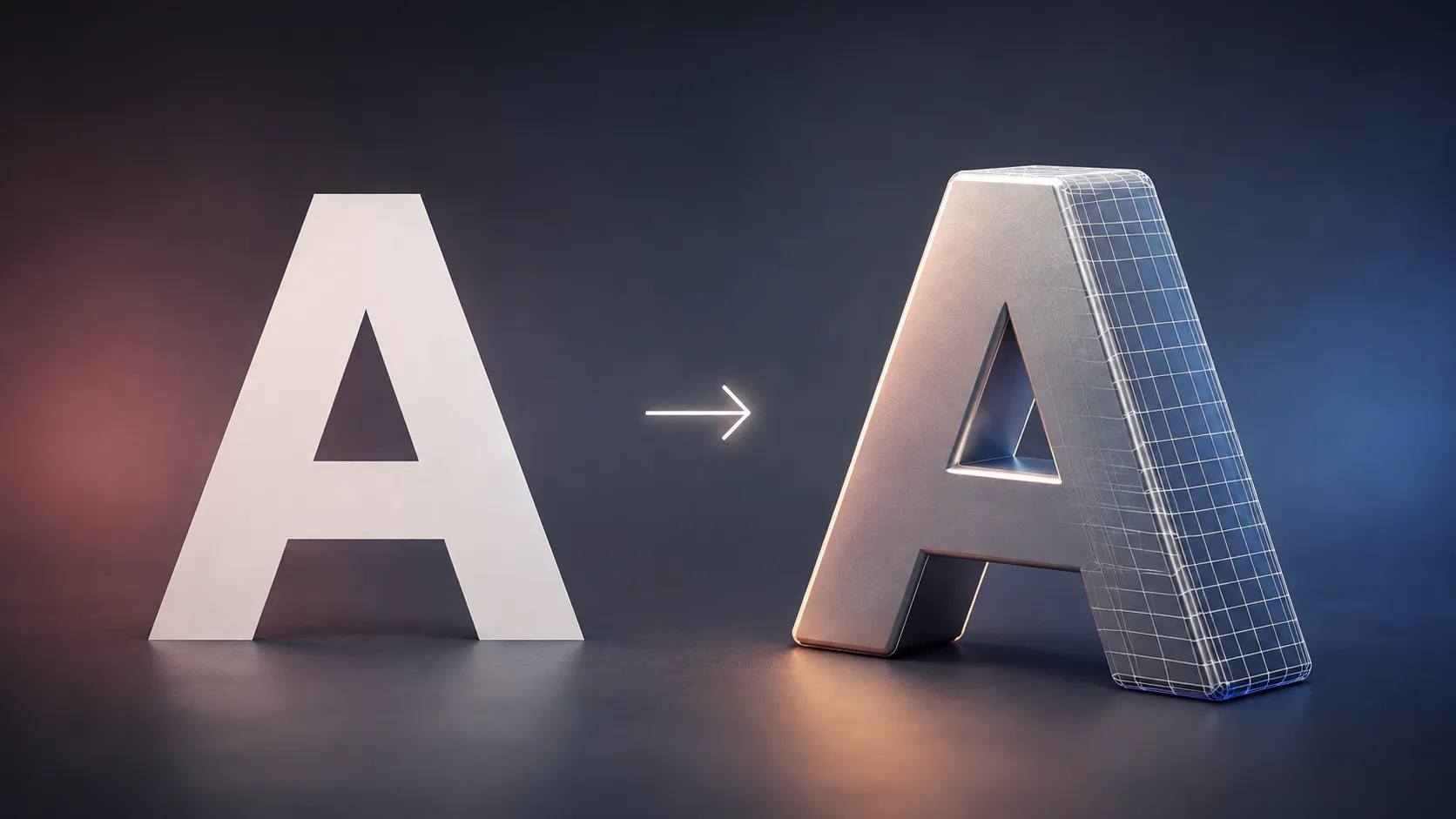
This is where converting text into a real 3D mesh can really come in handy. Instead of settling for just the 3D appearance of text, you can turn the letters themselves into geometry and then work more freely with materials, lighting, and 3D workflows.

What Does Real 3D Text Mean? 🤔
When we talk about regular text, we’re essentially dealing with a collection of letters and font-related information. But in a real 3D model, the letters are converted into geometry, meaning each character can have surfaces, edges, and depth, and can be treated like a 3D object.
For example, imagine you have the word MOTION. You can add depth to its letters, adjust the spacing between them, and then bring that geometry into a 3D workflow. Now, light can react to the surfaces and edges of the letters, and 3D materials can create a more realistic appearance.
This capability is useful for different types of projects, from creating 3D titles and logotypes to cinematic titles, advertising motion graphics, 3D typography, and projects where text needs to be placed alongside 3D objects.
The main advantage is that the text is no longer just a graphic element; it becomes a piece of geometry that can move into the next stages of a 3D workflow.
Common Methods for Creating 3D Text 🛠️
There are several ways to turn text into a 3D object, and depending on the type of project, you can use different methods. If your goal is simply to create volumetric text inside After Effects, the software’s built-in features can handle much of the job. But if you need an actual Mesh, you’ll usually have to turn to 3D software.
- 3D Text in After Effects: You can use 3D features, Extrusion, materials, lights, and cameras to add depth to text and create a 3D appearance.
- Cinema 4D: You can turn the text into a 3D object, adjust the thickness and shape of the letters, and then bring the model into your workflow.
- Blender: You can create the text as a Text Object, add depth to it, and then convert it to a Mesh to get real 3D geometry.
- Other 3D software: Depending on the project, you can use different modeling tools to create and export text geometry.
What’s the Problem With These Methods? 🤔
For a serious 3D project, these methods are completely practical. But if you only want to convert some text from inside After Effects into real geometry, moving between multiple applications can make your workflow unnecessarily long. You have to set up the text and font again, manage the thickness and letter spacing, export the model, and then import it back into your main project. Especially when you need to revise the text or change its settings several times, this back-and-forth can quickly become time-consuming.
FontObj: Directly Convert Text Into 3D Geometry 🚀
This is where FontObj comes in, simplifying the entire process of converting text into a 3D model inside After Effects. FontObj is a CEP Extension for After Effects that converts text into real 3D geometry using OpenType Parsing and ultimately allows you to export it directly in OBJ format. This means that instead of rebuilding your text from scratch in a 3D application, you can prepare it in the same environment where you design and animate it and convert it into a 3D mesh.
Create the Text, Adjust It, and Export an OBJ
The workflow with FontObj is very straightforward. You open the tool panel through Window > Extensions > FontObj, select your desired font, and enter your text. Then you can adjust the properties of the output geometry and finally save the OBJ file to your desired location with a single click.
- Font: Select the font you want to use to create the geometry.
- Text: Enter your desired text directly inside the panel.
- Size: Set the letter size so the geometry dimensions match the needs of your project.
- Extrude: Determine the depth and 3D thickness of the letters. This allows the text to go from a flat form to volumetric geometry.
- Tracking: Control the spacing between letters, which is especially important for adjusting the composition and word spacing before exporting.
- Export Scale: Adjust the scale of the geometry you export so the model enters the next stage of the workflow at the appropriate dimensions.
- Export OBJ: After adjusting the settings above, you can export the final geometry directly in OBJ format.
The important thing is that FontObj doesn’t just give you an image or render of the text; it processes the letters using the font information and converts them into Mesh Geometry. Because of this, the OBJ output can then be used in 3D and material-based workflows.
Export Each Letter Separately 🎯
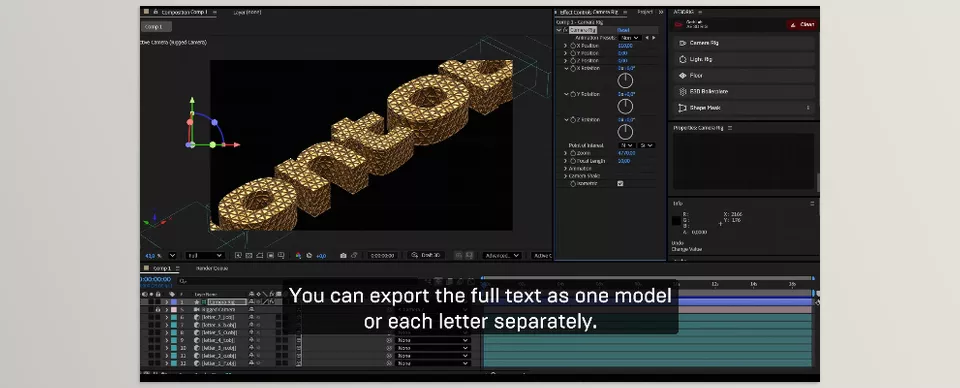
One of FontObj’s useful features is the Export Letters option. When you enable this option, instead of exporting the entire phrase as a single OBJ file, the letters are exported separately, giving you an individual OBJ file for each letter.
This feature is especially useful for Per-Letter animations. For example, imagine you have a five-letter word and want each letter to enter the frame at a different time, rotate independently, scale up, or follow a different motion path. When each letter is available as independent geometry, controlling these kinds of animations becomes much easier.
That’s why Export Letters isn’t just a simple export option; it can provide more flexibility in projects where typography is a central part of the animation.
Bring the Output Back Into After Effects 🔄
FontObj doesn’t stop at exporting. The Import option allows you to bring the generated OBJ file back into your After Effects project. If you enable Auto Import, after exporting, the model can automatically be imported into the project and Active Composition.
This feature is especially useful for workflows where you don’t intend to keep the model outside After Effects for long. You create the text, generate the OBJ, and then bring the model back into the project to continue working, without having to manually locate and import the exported file every time.
Suitable for Professional Materials and Shading ✨
One of the most important uses of FontObj becomes clear when you want to bring text into a more serious Material and Shading workflow. In these types of projects, having real geometry is very important because you want light and materials to react to the actual surfaces and volume of the letters.
FontObj has also been designed with After Effects 2026 and Substance-based workflows in mind. You can convert text to OBJ inside After Effects and then use its real geometry to create material-based looks. This becomes particularly useful for things like metallic typography, glossy surfaces, specialized materials, or any project where precise shading on the letters matters.
The main advantage here is that the text is no longer simply a Text Layer or a 3D appearance inside After Effects; it becomes real geometry that can be used throughout the rest of the 3D workflow.
A Lightweight and Direct Extension for After Effects
FontObj is provided as a CEP Extension for After Effects and is compatible with After Effects 2020 through 2026. For installation, you can use the aescripts + aeplugins Manager or install it using a ZXP Installer.
After installation, you only need to enable script access to file writing and the network in the After Effects settings, and then you can access the panel through Window > Extensions > FontObj. This means the entire tool essentially lives within the same working environment where you create the text and animations for your project.
An Important Note for Professional Workflows
FontObj shows its real value less when you’re simply creating basic 3D text and more when real text geometry is part of the project workflow. Combining controls such as Size, Extrude, Tracking, and Export Scale with OBJ export, separate letter exports, and Auto Import gives you a relatively direct path from typing a word to getting usable 3D geometry.
This way, you can prepare the text exactly according to your project’s needs, separate the letters if necessary, convert the geometry to OBJ, and bring it back into After Effects or move it into the next stages of your 3D and material creation workflow.
A Few Tips for Better Output 🎯
Exporting text as a 3D model isn’t just about clicking the Export button; a few simple settings can have a major impact on the cleanliness of the geometry and the final result. If you pay attention to these points before exporting, you’ll also have fewer problems later when animating and applying materials.
- Don’t increase Extrude unnecessarily. More thickness doesn’t always mean a better result. For delicate titles, less depth usually creates a cleaner look.
- Adjust Tracking before exporting. Letter spacing has a major impact on the final appearance of the model, especially with large words and logotypes.
- Use Export Letters for letter-by-letter animations. If you know each letter will need to behave differently, it’s better to export the letters separately from the beginning.
- Take the output scale seriously. Before bringing the model into a 3D workflow, adjust Export Scale according to your project so you don’t have to resize the model unnecessarily later.
- Choose an appropriate font. Fonts with highly complex or delicate forms may create more complicated geometry, so for heavy 3D projects, choosing simpler fonts can make the model easier to manage.
Ultimately, it’s best to review the text, letter spacing, thickness, and scale based on the final use before exporting. These few small adjustments can make the model you get much more ready for the next stages of your workflow right from the start.
A Shorter Path to Creating 3D Text ✨
FontObj makes converting text into real 3D geometry much faster and more straightforward. You prepare the text and font inside After Effects, make the adjustments you need, and export directly to OBJ, without having to move between multiple applications for a simple task.
Features like Export Letters, Extrude and Tracking controls, and Auto Import also give you more control over the output and your workflow. Especially for projects where the text is going to be part of a 3D scene or a material-based workflow.
Ultimately, if you’re looking for a fast and direct way to convert After Effects text into real geometry, FontObj simplifies exactly the step that would normally require multiple tools and several separate stages. If you’re looking for a fast and direct way to convert After Effects text into real geometry, give FontObj a try and see how it can simplify creating and using 3D text in your projects.
Are you curious about the different kinds of tools that can enhance your After Effects workflow? Our After Effects tools guide introduces the main categories, including plugins, scripts, presets, and project templates, so you can better understand what each type offers.



