

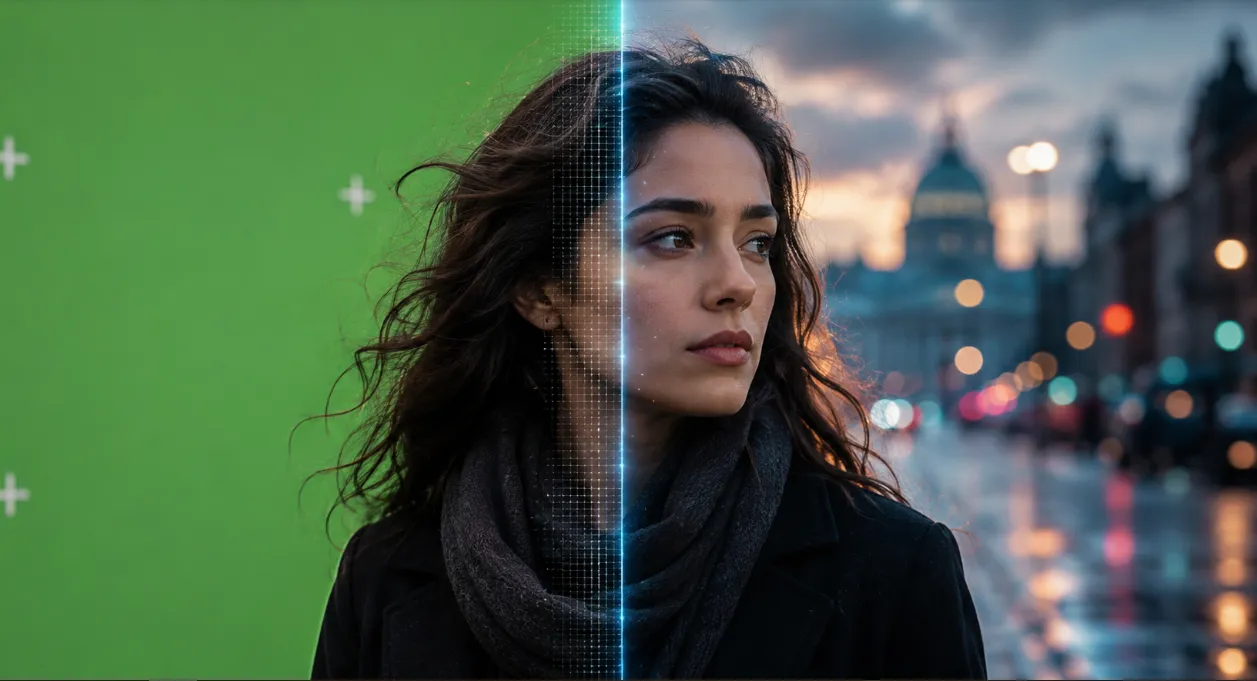
When Green Screen Isn’t Quite That Simple!
Have you ever created anything using the CorridorKey by blace.ai Plugin in aescripts? If you’ve worked with video and VFX, you’ve probably dealt with a Green Screen at least once. At first glance, everything seems pretty simple: you remove the green color, isolate the subject, and place it over a new background. But when fine hair, complex edges, Motion Blur, and subtle details come into play, things are no longer that simple.
Some footage Keys very cleanly and may only need a few simple adjustments, but some shots can be seriously time-consuming. You might have to constantly refine the Matte, clean up the subject’s edges, or manually fix certain areas with Masks and different tools so the result doesn’t look artificial.
On the other hand, even when the subject is isolated well, there may still be a green halo around the hair or on the clothing. These small details become even more noticeable when you place the subject over a new background, making the image feel less natural and cohesive. This is where a faster, more accurate keying method can make the job much easier.

What Exactly Is Keying, and Where Is It Useful? 🎬
Simply put, Keying means separating a subject from a background with a specific color, usually green or blue. The software detects that color and removes it so you can replace it with another image or video.
For example, imagine you filmed someone in front of a green screen and now you want to place them in the middle of a busy street, a 3D environment, or even a completely fantasy scene. With Keying, the green screen is removed, and only the subject remains.
This technique is used in VFX, advertising, music videos, YouTube content creation, and many other projects. The cleaner the Key, the easier and more natural it becomes to composite the subject with the new background.
You Can Do It Without a Plugin, but It’s Not Always Easy
You definitely don’t need to reach for a plugin right away to remove a Green Screen. After Effects and Premiere Pro both have good built-in tools for this, and for many projects, they work perfectly well. The workflow usually looks like this:
- Keylight in After Effects: You select the screen color and use the Matte-related settings to clean up the subject area.
- Advanced Spill Suppressor: Use this to reduce any remaining green or blue color around the subject’s edges.
- Ultra Key in Premiere Pro: Use this to quickly remove a Green Screen or Blue Screen and create a usable Key.
- Mask and Matte: For more difficult shots, you can manually refine certain areas to get a more accurate result.
When Simple Keying Is No Longer Enough
The problem starts when the footage isn’t captured under ideal conditions. Fine, scattered hair, Motion Blur, shadows on the screen, or green light spilling onto the edges of the subject can prevent the initial Key from coming out clean. At that point, you usually need to spend more time refining the Matte, adjusting the edges, masking problematic areas, and removing Spill. And even after all that work, some areas may still look artificial, especially when you have a large number of shots and have to repeat the same steps across multiple videos.
CorridorKey: When AI Enters the Keying Workflow 🤖
CorridorKey by blace.ai is a professional Keying tool for After Effects and Premiere Pro that uses artificial intelligence models to make separating subjects from Green Screens and blue screens faster and easier. The tool works with specially trained AI models that, in addition to removing the screen, handle fine details, subject color, lost pixels, and even unwanted colors on the subject.
One important thing about CorridorKey is that blace.ai’s high-speed, fully C++-based engine handles all of this processing. This means processing happens on your system, and your footage isn’t sent to the cloud or an external server. Hardware acceleration support also allows you to use your system’s GPU to speed up processing.
One-Click Keying: A Faster Start to Your Workflow
One of CorridorKey’s main features is that creating a high-quality Key doesn’t require you to dive into dozens of different settings right from the start. The tool is designed for One-Click Green Screen Keying, and its AI model can handle much of the subject detection and separation process on its own.
This is especially useful when you’re dealing with a large number of shots. Instead of constantly adjusting colors, Mattes, and settings manually for every piece of footage, you can get a usable initial result faster and move on to final refinements only if needed.
Multiple Dedicated AI Models for Keying
CorridorKey doesn’t rely on a single basic color-detection method and comes with several trained AI Models. The latest version also includes the dedicated BlaceKey model, which is designed as a unified model for working with both Green Screens and Blue Screens.
This model is optimized for processing speed and preserving image details, with the goal of isolating subjects across different shots without requiring constant changes to your Workflow.
Better Preservation of Fine Details, Especially Hair
One area where the difference between traditional Keying and an AI model really becomes noticeable is in the subject’s fine details. Stray hair, complex edges, and areas without clearly defined boundaries due to Motion Blur are usually among the most difficult parts of working with a Green Screen.
CorridorKey is trained to preserve these details and can even work with a Rough Garbage Matte. This means you don’t need to create an extremely precise and painstaking Matte just to get started. You can define the general area of the subject and let the AI model handle more of the separation process.
Repairing Transparent and Lost Pixels
One problem with Keying is that some of the subject’s information may be accidentally removed along with the screen. This can make certain areas overly transparent or cause fine image details to disappear.
CorridorKey uses an AI model to Repair Transparent Pixels. The model attempts to recover Foreground information in areas damaged during keying, so the final Matte is cleaner and better prepared for the Compositing stage.
Restoring the Subject’s Original Color 🎨
Sometimes the problem isn’t just that parts of the subject get removed; the subject’s own color can also be damaged during the Keying process. This issue is especially noticeable in highly detailed areas, hair, and sections with Motion Blur.
CorridorKey’s AI model is trained to restore foreground color, so it can bring back the subject’s original color. As a result, once separated from the screen, the subject is less likely to look washed out or artificial and can be composited more easily with the new background.
AI Despill for Removing Excess Green and Blue
One common problem with Green Screens is that the screen’s color can reflect onto the subject itself. For example, you may see a green halo around the hair or the edges of clothing, or the green color may affect the skin.
The new BlaceKey 1.5 model also provides AI-based Despill. This means that, in addition to Keying, the tool can intelligently correct unwanted screen color remaining on the Foreground and simplify the Despill Workflow.
Difficult Details Made Easier Even with a Garbage Matte
Sometimes, to isolate a subject, you don’t need to precisely define every edge with a detailed Mask and Matte from the very beginning. CorridorKey is designed to extract subject details even when working with a Rough Garbage Matte.
This feature is useful when the background is busy or when part of the image requires you to limit the processing area. In these situations, you can define the general region and let the AI identify the details within that area more effectively.
Fast Rendering Speed ⚡
One of the strengths the developer emphasizes with CorridorKey is its processing speed. Instead of relying on a purely CPU-based Workflow, the tool uses a C++ engine and hardware acceleration to process footage faster.
CorridorKey supports Apple Silicon, and on Windows, NVIDIA and AMD GPUs can be used for Hardware Acceleration. According to the benchmark provided by the developer and tests performed on an RTX 3090, this version can be around 2 to 4 times faster than the free CorridorKey plugins.
For someone with only a single Green Screen shot, this difference may not matter. But when you’re dealing with dozens or hundreds of shots, reducing the processing time for each shot can add up to significant time savings.
Fully Local Processing, with No Footage Uploads 🔒
Another important feature of CorridorKey is that image processing happens entirely on your own system. This means you don’t need to upload your footage to an online service in order to use the AI models.
This is especially important for personal projects, commercial work, or projects involving sensitive video files, because the data never leaves your system and blace.ai’s Local engine handles processing.
A Simple Interface for Greater Control
Even though CorridorKey is powered by AI models and a powerful processing engine, its interface is intentionally kept simple. You have access to a few key parameters that let you control and refine the output when needed, without navigating a complicated system of settings.
This combination makes it useful for both users who want to quickly key a Green Screen and those who want greater control over the final output.
Direct Collaboration Between Corridor Crew and blace.ai
CorridorKey is the result of a collaboration between Corridor Crew and blace.ai. The dedicated CorridorKey model, developed through this collaboration, is integrated into the blace.ai engine and made available for use in popular VFX environments, namely After Effects and Premiere Pro.
As a result, what you get isn’t simply a basic Keyer; it’s a combination of dedicated AI models, a C++ engine, hardware acceleration, and a simplified Workflow for Keying.


A Few Tips for Getting a Cleaner Key 🎯
CorridorKey makes many parts of the Keying process easier, but a good result doesn’t depend on the tool alone. The quality of your footage and a few simple considerations during filming and processing can significantly improve the final result.
- Start with clean footage. Even lighting and a screen without wrinkles or strong shadows make it easier to separate the subject from the background.
- Keep the subject away from the screen. The closer the subject is to the screen, the greater the chance of green light reflecting onto the skin, hair, and clothing. A little extra distance can also make Despill easier.
- Check edge details. Even if AI has handled most of the work, it’s a good idea to closely inspect the hair, clothing edges, and areas with Motion Blur before the final output to make sure nothing has been lost.
- Enable GPU acceleration. If you have an NVIDIA system, enabling Mercury GPU Acceleration and CUDA can help improve performance and speed up processing.
- Make some manual adjustments for difficult shots. AI won’t solve every situation perfectly. If a shot is particularly complex, using Masks or manual refinements alongside CorridorKey can produce a cleaner final result.
Ultimately, the goal is for CorridorKey to handle the heavy and repetitive parts of Keying so you can focus only on the areas that genuinely need refinement. This way, your workflow becomes faster while you still maintain full control over the final image.
So, Who Is CorridorKey Really For? 🎬
When you work with Green Screens frequently, removing the green color itself isn’t the only thing that takes up your time. Cleaning up hair, edges, color halos, and details lost during Keying can take a lot of time for every shot. Especially when you have a large number of shots, these small refinements can quickly become very time-consuming.
CorridorKey simplifies this tedious part of the process with AI. From isolating the subject and preserving details to repairing lost pixels, restoring original color, and intelligent Despill, many tasks you would normally do manually can be done faster.
If you only occasionally work with a simple Green Screen, the built-in tools in After Effects and Premiere Pro are probably enough for you. But if you regularly work with VFX and Compositing and deal with difficult shots or large amounts of footage, CorridorKey can take a significant amount of the time and hassle out of Keying. The trial version is also a good opportunity to see how much of a difference it makes with your own footage.
Are you curious about the different kinds of tools that can enhance your After Effects workflow? Our After Effects tools guide introduces the main categories, including plugins, scripts, presets, and project templates, so you can better understand what each type offers.





