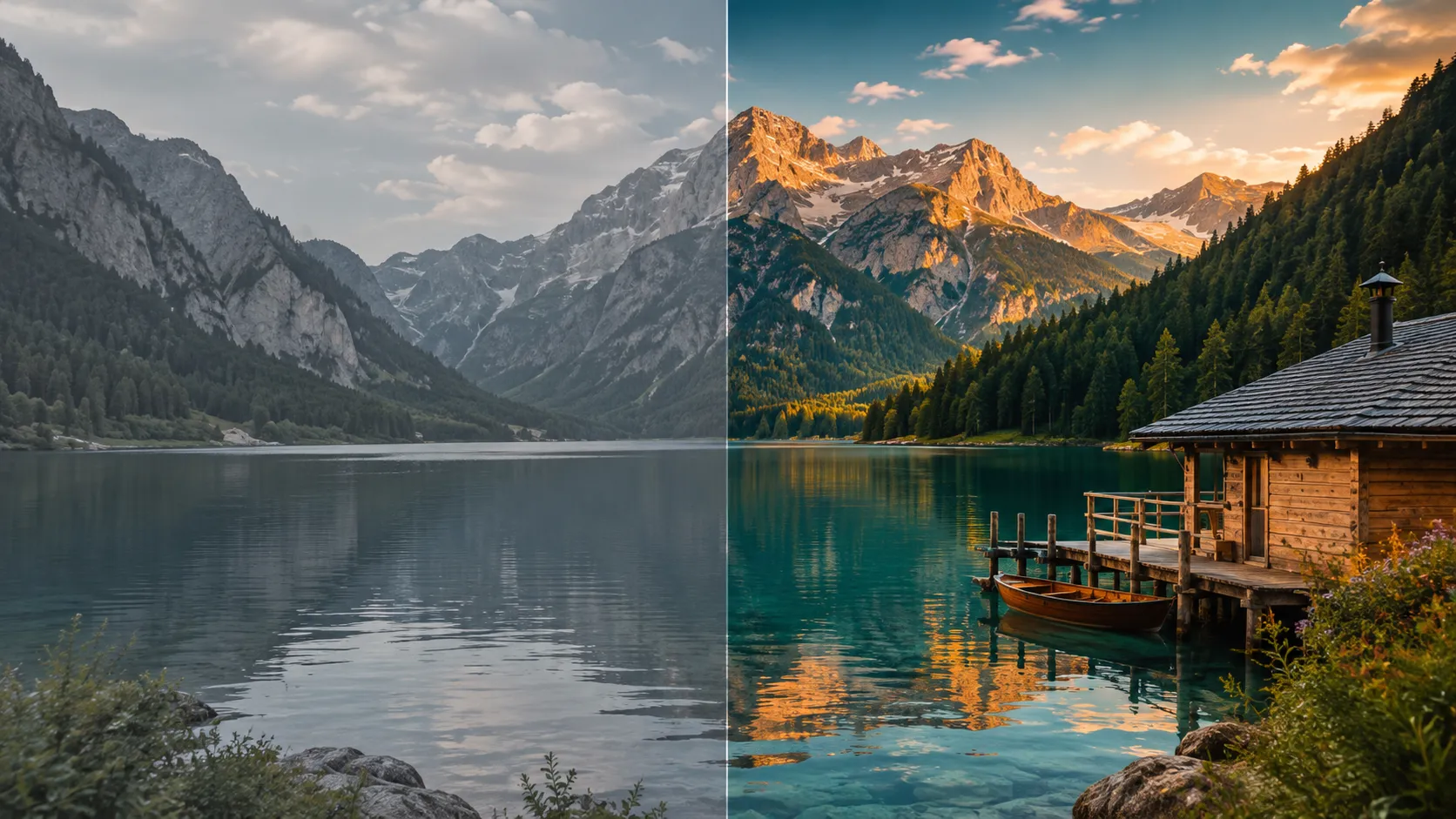
How to Give Videos a Cinematic Look with Richer Colors? 🎨
Have you ever included the FILMFLOW Plugin by Anton Hangschlitt in your workflow? When you’re editing a promotional video, a travel vlog, or an everyday clip, you might want richer colors, softer contrast, and an overall cinematic feel. But achieving this combination isn’t always easy. Sometimes, increasing saturation makes the colors look too intense, or adjusting contrast affects the details in the bright and dark areas of the image in ways you don’t want.
To achieve this look, you need to control several elements at the same time, from color intensity and contrast to color consistency across different shots. For example, in a travel video, you might want the colors of nature to look vibrant and rich while keeping the image soft and pleasing. Or, in a promotional video, you might want a consistent color treatment that makes every shot feel like part of a distinct visual style.
A ready-made color style can save you a lot of time. Instead of adjusting colors, contrast, and depth from scratch, you can start with a look you like and tweak it to fit your footage. It also makes it easier to keep the colors consistent across different shots and projects.

What Is Color Grading, and How Does It Create a Cinematic Look? 🎞️
Color grading is a stage of the editing process where you shape the final appearance of the colors in an image. It’s not just about changing colors; saturation, contrast, shadow details, and the way highlights are displayed also affect the result.
For example, in a travel video, you can make the colors of the environment look more vibrant while keeping the contrast soft. For a product advertisement, the right color treatment helps colors appear richer and gives the image greater visual depth. Even in an everyday video, you can create a more consistent look across shots recorded under different lighting conditions by establishing a distinct color style.
One way to achieve this result is through a Film Look, a color grading style that aims to recreate the visual feel of cinematic films by controlling contrast, color saturation, and image tonality. However, a film-like appearance doesn’t depend on a single filter. The final result also depends on the quality of the footage and how the colors are adjusted.
Common Color Grading Methods in DaVinci Resolve 🛠️
To create a cinematic look in DaVinci Resolve, you can use the built-in tools on the Color page to adjust the image’s colors and contrast from the ground up. Several key tools are available, each controlling a different part of the color grading process:
- Color Wheels: By adjusting Lift, Gamma, and Gain, you can control the shadows, midtones, and highlights in the image.
- Curves: Use these to fine-tune contrast and control brightness across different tonal ranges.
- Color Warper: This allows you to change color tonality and saturation and adjust specific colors more precisely.
- Nodes: You can manage different stages of color correction, contrast adjustment, and final look creation in separate nodes.
- Gallery and Stills: By saving the color look of a shot, you can use it as a starting point for grading other shots.
Why Can Manual Color Grading Be Time-Consuming? ⏳
Although DaVinci Resolve’s built-in tools give you extensive control over colors, achieving the right combination of rich saturation, soft contrast, and a cinematic look may require a lot of trial and error. When you have multiple shots recorded under different lighting and shooting conditions, you can’t apply every setting to all of them without checking the results. The adjustments might look great on one shot, but on another, the colors could become oversaturated or image details might not look the way they should. Also, if you want to repeat the same style across different projects, you need to manage your settings carefully and spend time adapting them to each piece of footage.
FILMFLOW: A Color System for Creating a Cinematic Look 🎬
If you want your videos to have richer colors, softer contrast, and greater visual depth, FILMFLOW PowerGrade & LUT Pack is a collection that can make this process easier. It provides a film-inspired color style that you can use with different types of everyday footage, from travel videos and vlogs to promotional content and social media clips.
FILMFLOW isn’t limited to a single software application; it’s designed to work with different workflows. The collection includes an adjustable PowerGrade for DaVinci Resolve, a LUT pack for other editing applications, and several LUTs designed for the Blackmagic Camera app on iPhone. Let’s look at each part separately to see what it offers.
FILMFLOW PowerGrade: Control Your Cinematic Look in DaVinci Resolve 🎨
If you work with DaVinci Resolve, the PowerGrade is the main option in this collection for grading your videos. A PowerGrade is a ready-made, customizable color system that lets you start with a pre-designed look and then adjust it according to your footage and personal preferences.
The main features of this section include:
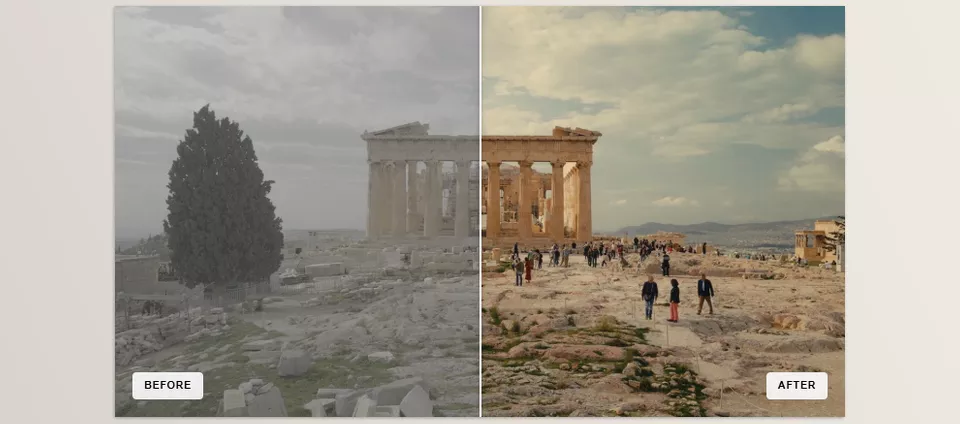
- Rich, Saturated Colors: FILMFLOW focuses on creating powerful, appealing colors that make the image look more vibrant. This makes it a strong starting point for travel videos, nature footage, and promotional content.
- Soft Contrast: Instead of harsh, aggressive contrast, this product focuses on smoother transitions between bright and dark areas to create a more film-like result.
- Greater Visual Depth (Rich Depth): The combination of rich colors and soft contrast helps create a more cohesive image with greater visual depth, without requiring you to design every adjustment from scratch.
- Customizable PowerGrade: The product’s ready-made look is a starting point, not a fixed result. You can adjust its settings to suit the lighting, colors, and conditions of your footage and get closer to your desired result.
- Two Additional Color Styles: Alongside the main FILMFLOW look, two additional versions with warm and cold tones are included, giving you more options for different visual moods.
- Complete Workflow Demo: The collection also includes a demonstration and tutorial video that shows the color system in action and helps you understand how to use it.
For example, if you’re editing a promotional video, you can start with the main style and then adjust the settings to match the product’s colors and the scene’s lighting. For a travel clip, try the warm look for a more inviting atmosphere, or use the cold look for a different mood. In both cases, PowerGrade’s customization lets you adapt the result to your project’s needs.
FILMFLOW LUT Pack: Use a Ready-Made Style Across Different Software Applications ✨
If you edit in software other than DaVinci Resolve, the LUT Pack lets you use FILMFLOW’s color look in compatible applications.
A LUT is a predefined set of color transformations that can change the appearance of colors in an image. Instead of manually adjusting every setting to create a specific style, you can apply a LUT to a clip and make additional corrections if needed.
The features in this section include:
- Main FILMFLOW LUT: For using the collection’s original color look in compatible software.
- Warm Style LUT: For situations where you want the image to have a warmer feel.
- Cold Style LUT: For creating a cooler look that differs from the main style.
- Simple Application Process: You import the LUT file into your software and apply it to the footage you want, so you don’t have to build all the color settings from scratch.
- Software Installation Guides: Installation guides are provided for Premiere Pro, Final Cut Pro, and CapCut Desktop, helping you incorporate the LUTs into your workflow.
This section is especially useful for editors who work with multiple applications or want to maintain a shared color identity across a series of videos. For example, if you’re creating several related social media videos, use the main LUT as a starting point, then adjust exposure, white balance, and effect intensity for each clip.
However, applying the same LUT to every shot doesn’t necessarily produce the same result. If the videos differ significantly in lighting, white balance, or recording conditions, it’s best to correct them before applying the LUT so the colors look more natural and consistent.
FILMFLOW Monitoring LUTs: Preview Colors While Recording with an iPhone 📱
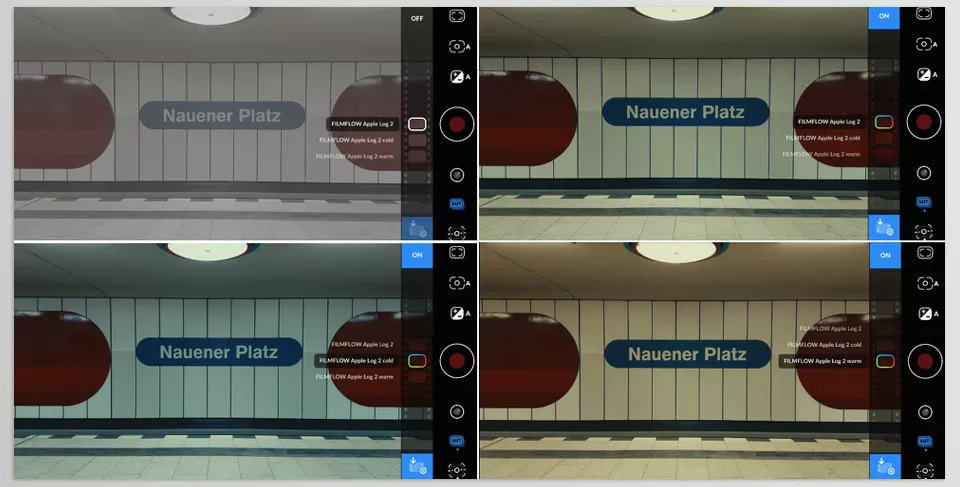
This collection also includes a set of LUTs designed for the Blackmagic Camera app on iPhone. This section is intended for people who shoot video on their phones and want a better idea of how their desired color look will appear while recording.
The features in this section include:
- Preview the FILMFLOW Style While Recording: You can view your desired color look through a Monitoring LUT in the Blackmagic Camera app and get a better idea of the final visual result before you finish filming.
- Option to Record with the LUT Applied: According to the creator’s description, you can also apply the LUT to the recorded image, allowing you to adapt your mobile workflow to your project’s needs.
- Dedicated Installation Guide: A guide is also provided to help you set up and use these LUTs.
Imagine you’re recording a travel vlog or a short promotional video with your iPhone. By previewing the color style, you can better understand while recording whether the image matches the look you’re aiming for. This feature helps you make decisions about the visual style earlier and gives you a clearer starting point during the editing stages.
However, a Monitoring LUT isn’t the same as permanently recording that exact look into the original file. How the colors are saved depends on your recording settings and the way you use the LUT. Test your intended workflow before recording your main project.
What Does FILMFLOW Offer Overall? 🚀
FILMFLOW’s main advantage is that it gives you a consistent color style through several different methods: an adjustable PowerGrade for DaVinci Resolve, a LUT pack for Premiere Pro, Final Cut Pro, and CapCut Desktop, two additional warm and cold looks, and Monitoring LUTs for Blackmagic Camera on iPhone. The complete workflow demo and installation guides also make it easier to work with the different parts of the collection.
This means that whether you want greater control over color grading in DaVinci Resolve or want to get closer to your desired look using a ready-made LUT in another application, you can start with the FILMFLOW style and adapt it to your project’s conditions. This collection is especially useful for people who like rich colors, soft contrast, and a cohesive film-like appearance and don’t want to repeat every step from scratch each time.
🎯 How to Create More Natural, Cinematic Colors with FILMFLOW PowerGrade and LUTs
FILMFLOW helps you reach your desired color look faster, but to make sure the final result works well with your footage, there are a few things to keep in mind. This is especially important when you want rich colors and soft contrast without making the image look oversaturated or unnatural.
- Correct Exposure and Color Before Applying FILMFLOW: First, adjust the exposure and white balance so the color style is applied to an image with suitable base settings.
- Adjust Saturation to Suit Your Footage: If skin tones or colors in the scene become too intense, reduce the color intensity to preserve image details.
- Check the Settings for Each Shot: Even if you’re using the same PowerGrade or LUT, differences in lighting and recording conditions may mean that each clip needs separate adjustments.
- Choose Between Warm and Cold Styles Based on the Video’s Mood: The Warm look can work well for intimate, inviting scenes, while the Cold look is useful for creating a different atmosphere. Match your choice to the colors already present in the image.
- Review the Result Throughout the Video: Don’t rely on a single frame. View several shots together to make sure the colors and contrast remain consistent throughout the video.
Ultimately, it’s best to treat FILMFLOW as a starting point for color grading and adjust its settings according to each project’s conditions. This way, you can benefit from the product’s ready-made color style while preserving the natural appearance of your footage and consistency between shots.
A Simpler Way to Create a Film Look 🎞️
If you edit videos regularly, you probably know that achieving an appealing color look involves more than choosing a few colors. Adjusting contrast, controlling saturation, and matching shots takes time, especially when you want the final result to maintain a distinct visual style across multiple projects.
FILMFLOW simplifies this process by providing an adjustable PowerGrade for DaVinci Resolve and ready-made LUTs for other applications. The main style, two additional warm and cold looks, and LUTs for Blackmagic Camera on iPhone also give you more options for managing the color appearance from recording through editing.
Ultimately, if you like rich colors, soft contrast, and a film-like appearance and want to reach a suitable starting point for Color Grading more quickly, FILMFLOW can be a useful option for your workflow. You can start with the ready-made style, adapt it to your footage, and gradually work toward your desired color look.
For DaVinci Resolve users who want to speed up editing, boost productivity, and get more out of the software, our latest article on essential DaVinci Resolve tools is a valuable resource worth exploring.