Ready-Made Effects in DaVinci Resolve: From Text Glow to Shattering Graphics 🎬
Have you experimented with different Effects in the Effects Core Pack by NeoEditFX? Sometimes, clean editing and good color grading aren’t enough to make a video more engaging. Visual details like light moving across a logo, glowing text edges, or a title breaking into pieces can completely change a project’s look, especially in promotional videos, music videos, and motion graphics.
Creating these effects from scratch isn’t always easy. You may need to combine several tools and layers, tweak numerous settings, and test the result multiple times to get the look you want, even for a simple effect.
Doing the same effects over and over can take a lot of time. Using ready-made effects that you can easily add and customize saves you from repeating the same steps, so you can spend more time on the creative side of your projects.

✨ How Do Visual Effects Make Motion Graphics More Engaging?
Visual Effects are tools that change the look of an image, text, or graphic element by adding light, depth, texture, or movement. In motion graphics, these effects help simple, flat elements attract more attention and fit the video’s overall style.
For example, imagine you’re creating a promotional video for a digital product. You can add a moving light sweep to a logo to give it a sleek, modern look, or create raised edges to separate the main title from the background. In a music video, separating RGB colors or shattering text can also support the energetic, rhythmic feel of the visuals.
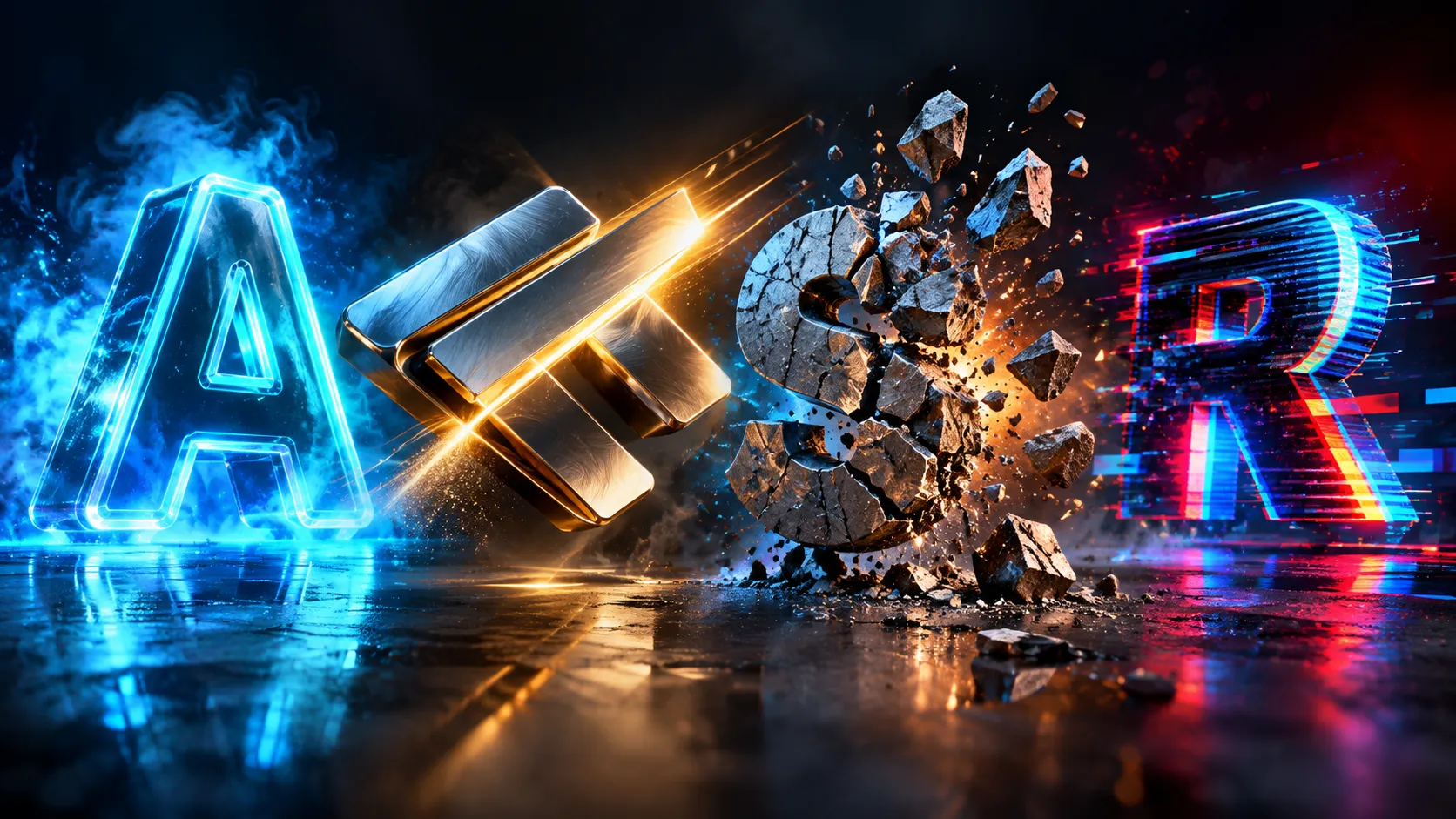
The key is that each effect serves a purpose. Glow creates a luminous look, Bevel adds edge depth, and Shatter makes elements look like they’re breaking apart. Choosing the right effects helps you create a more intentional design and direct the viewer’s attention toward important elements without cluttering the image.
🛠️ How to Create Glow, Light Sweep, and Shatter Effects Using DaVinci Resolve’s Built-In Tools
You can create a wide range of visual effects in DaVinci Resolve without installing plugins. The built-in tools in Edit and Fusion offer various ways to create lighting, change colors, add depth to graphics, and build more complex effects. Depending on the effect you want, you can use the following methods:
- Creating Glow and lighting effects: Use the Glow node in Fusion to add glow to text and graphics, then adjust the light’s intensity and spread.
- Creating a Light Sweep on logos and text: Combine masks, gradients, lighting tools, and keyframes to simulate a strip of light moving across graphic elements.
- Creating raised edges on graphics: Use shadows, lighting tools, and Fusion’s 3D capabilities to add depth to text and logos and give them a more dimensional appearance.
- Creating a Chromatic Aberration effect: Separate the color channels and shift their positions to create an RGB Split effect on text or video.
- Shattering text and graphic elements: Use particle tools and geometry-based methods in Fusion to create a Shatter effect and control how the pieces of a graphic appear.
⏳ Why Isn’t Creating Effects Manually in Fusion Always Fast?
The main challenge with these methods is the time and number of adjustments required to achieve the desired result. For example, creating a Light Sweep may require setting up a mask and animation, while creating a Shatter effect involves preparing and controlling a more complex structure. Plus, if you want to use the same effects across multiple projects, you may need to repeat settings or modify structures you’ve used before. So, although the built-in tools give you plenty of creative freedom, using them for repetitive effects can slow down your editing and motion graphics workflow.
🚀 Introducing Effects Core Pack: 16 Ready-Made Effects for DaVinci Resolve
Effects Core Pack is a collection of 16 DaVinci Resolve effects that helps you change the look of your text, logos, videos, and motion graphics more easily. From creating multi-layered glow and moving light sweeps to separating RGB colors, adding long shadows, and shattering graphics, this collection gives you a variety of effects that can take time to create manually.
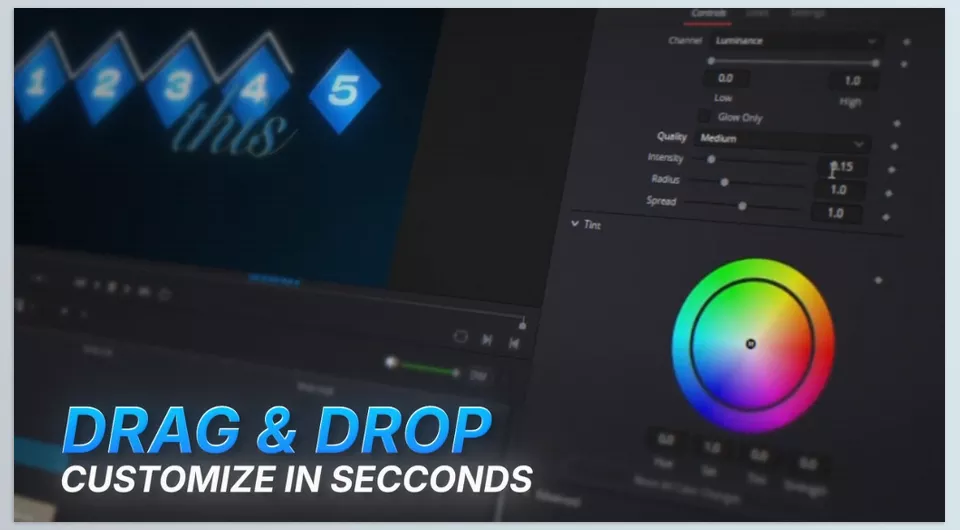
Using the Effects Core Pack is simple. Just search for Neo in the software’s Effects panel, drag your desired effect onto a clip, and adjust its settings in the Inspector panel. For normal effect use, you don’t need to create keyframes or build a complex node structure in Fusion. However, if you work with Fusion, you can also use the effects as nodes.
The collection is compatible with DaVinci Resolve 20 and later and works in both the Free and Studio versions on Windows and macOS. The effects use the GPU for processing and are designed to work directly on the timeline. In addition to the 16 effects, a complete tutorial with 16 chapters is included. By clicking the Tutorial button for any effect, you can go directly to its corresponding instructional section.
✨ Lighting and Glow Effects for Logos and Motion Graphics
This category of Effects Core Pack is useful when you want text, logos, or graphic elements to stand out from the background and look more visually appealing.
- Glow — Multi-Layered Glow: Adds light and glow to text and graphic edges. This effect is designed to keep glowing elements more defined instead of making the image look blurred like a simple, uniform Glow effect. It works well for titles, illuminated logos, and glowing graphic elements.
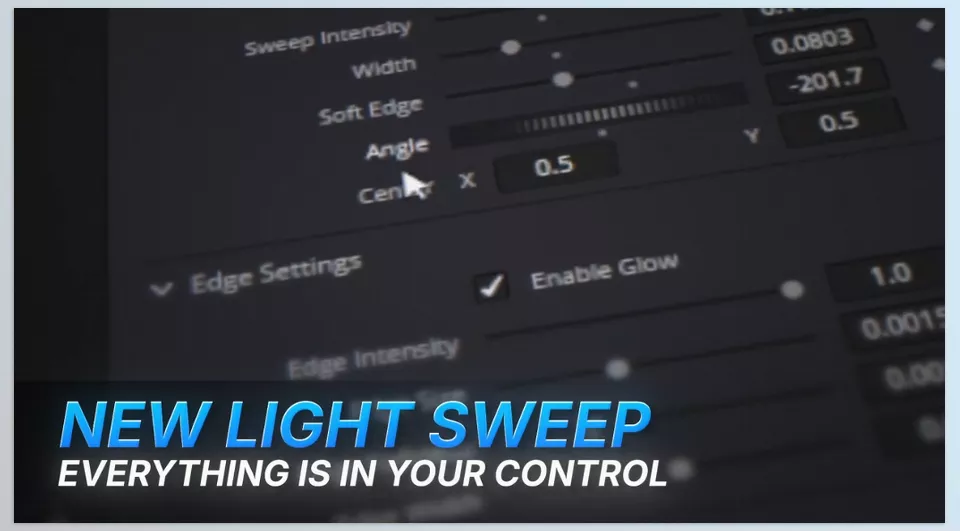
- Neo Light Sweep — Moving Light Strip: A strip of light moves across text or graphics, giving them a glossy, luminous appearance. Use it to introduce a logo, reveal a title in a promotional video, or add subtle movement to motion graphics.
- Reflection — Reflection: Creates a reflective appearance on text, logos, and graphic elements. This effect can give a design a glossy, polished look and works well for promotional titles and metallic logos.
- Halftone — Dotted Texture: Changes the appearance of an image or graphic using dotted patterns similar to those found in comic book prints and graphic posters. It’s useful for creating distinctive intros, music videos, and retro-feeling designs.
- Long Shadow — Long Shadow: Creates an elongated shadow extending from text or graphics, giving flat elements more depth and visual emphasis. This effect works well for large titles, digital posters, and bold graphic designs.
💎 Embossing Effects for Added Depth and Detail
If you want text and graphics to look less flat, or to add depth and visual interest through lighting and shadows, these effects can help.
- Bevel — Beveled Edges: Gives the edges of text, icons, and logos a raised, beveled appearance, adding more visual depth to flat elements. It’s useful for 3D-style logos and promotional titles.
- Emboss — Surface Embossing: Creates raised and recessed details, making text or graphics look as if they’ve been pressed into or raised from a surface. This effect works well for textured designs, distinctive titles, and graphics with a printed appearance.
- Inner Glow — Inner Glow: Creates a luminous effect inside elements or near their inner edges. It’s useful for emphasizing letter shapes, icons, and graphics that need controlled internal lighting.
- Inner Shadow — Inner Shadow: Adds shadows inside elements, giving text or graphics a greater sense of depth and making them appear recessed. Use it to create contrast between the surface of letters and their edges, or to give a design an inset appearance.
The difference between these effects lies in how they change the graphics. Bevel focuses mainly on edge shape, Emboss creates the impression of a raised surface, and Inner Glow and Inner Shadow help control lighting and shadows inside elements.
🌈 Color and Distortion Effects for Distinctive Styles
This category of Effects Core Pack is useful when you want to move away from the usual appearance of an image and give it a different digital, graphic, or colorful style.
- Chroma — Color Spectrum Separation: Creates a Chromatic Aberration effect by separating the RGB color channels. According to the developer, this effect is designed to produce controlled color separation rather than simply shifting red and cyan dramatically. It can be used on text, motion graphics, and footage.
- Glitch — Digital Distortion: Creates a glitch effect that makes an image look like digital interference. This type of effect can give titles and videos a technological, energetic feel and can be used in intros and music videos.
- Tri-Tone — Three-Tone Color Grading: Creates a color style by using different colors in the shadows, midtones, and highlights of an image. This type of color grading helps you establish a distinct graphic look for a video and align its visuals with the project’s visual identity.
- Lens Distort — Lens Distortion: Changes the shape of an image using distortions such as Barrel and Pincushion, making the image appear either bulged outward or compressed inward. This effect is useful for creating unusual visual movement, camera-inspired styles, and altered graphic appearances.
💥 Creative Effects for Breaking Apart and Reshaping Graphics
Alongside lighting, color, and depth, Effects Core Pack also offers effects for reshaping elements and creating distinctive visual treatments.
- Shatter — Shattering Text and Graphics: Makes text, titles, or graphic elements appear to break into pieces. Use it to create distinctive title entrances or exits, promotional video endings, and destructive-style motion graphics. According to the developer, DaVinci Resolve doesn’t have a direct built-in tool for creating this exact effect.
- Paper Curl — Paper Curl: Creates an effect that looks like a corner of a sheet of paper curling or turning back. This effect is useful for paper-inspired designs, creative title reveals, and visual transitions that resemble turning a page.
- Stroke — Outline Strokes: Works with outlines around elements and creates line-based effects on graphics. You can use this type of effect in logo design, to emphasize shapes, and in motion graphics where lines play an important role in the composition.
The Effects Core Pack collection contains 16 effects in total. However, the available information about each effect’s exact functionality isn’t equally detailed. As a result, some effects require more technical information from the developer to fully understand their controls and precise behavior.
⚙️ Using Effects in Edit and Fusion
One key feature of the Effects Core Pack is that you can use its effects in two environments. If you mainly work in the Edit page, you can find your desired effect by searching for Neo, drag it onto a clip, and adjust its available parameters in the Inspector. This approach is useful when you want to try several effects quickly or apply an effect to different sections of the timeline.
If you’re more comfortable working in Fusion, you can also use the effects as nodes and place them alongside other image compositing and effects-processing steps. However, being able to use the Effects Core Pack collection in both environments doesn’t necessarily mean that every effect is available in exactly the same way in both pages. How you use it depends on the effect.
🎯 Pro Tips for Using Glow, Light Sweep, and Shatter in DaVinci Resolve
To make ready-made effects genuinely improve your project, identify which parts of the image need more visual emphasis instead of using every effect in the same scene. A few simple tips can help the final result look more cohesive and natural.
- Choose the effect based on your goal: Light Sweep or Glow works well when you want to draw attention to a logo, while Shatter offers a different approach for introducing a high-energy title.
- Control the intensity of Glow: Too much glow can make text edges hard to read. Adjust the settings so the light remains visible while preserving the original shapes of the letters and graphics.
- Use Bevel to add depth, not clutter: Raised edges usually look better on logos and short titles. If every element in the image looks raised, attention may shift away from the main subject.
- Match Chroma to the video’s style: Color separation works well for digital and glitch-inspired visuals, but using it too heavily in formal or minimalist videos may clash with the overall design.
- Match effects to the editing rhythm: If you’re using an effect to emphasize a title or logo, coordinate its appearance with the music, beat, or an important moment in the video.
- Test an effect on one clip before using it throughout the project: Start with a short sample to make sure its appearance, clarity, and compatibility with the footage meet your expectations.
Ultimately, it’s better to use ready-made effects as part of your design rather than just to fill the image with different visual treatments. When every effect has a clear reason for being in the project, the result becomes both more engaging and more professional.
🏁 Effects Core Pack: A Faster Way to Create Visual Effects in DaVinci Resolve
If you regularly work with titles, logos, and motion graphics, you’ve probably spent more time than expected trying to achieve a simple visual effect. You can create glow, moving light, and more complex effects manually in Fusion, but when these needs recur across projects, ready-made tools can make your workflow more organized and efficient.
With 16 ready-made effects, Effects Core Pack makes it easier to add multi-layered glow, Light Sweep, raised edges, RGB color separation, and shattered graphics to your projects. You can also use the effects in Edit and Fusion, so you can work in your preferred workflow without a complex process for every simple change.
The collection works with DaVinci Resolve 20 and later. If you create titles, lighting effects, and motion graphics, reviewing examples of each effect can help you decide which features are genuinely useful for your projects and whether Effects Core Pack can cut down on repetitive tasks.
If you regularly work with DaVinci Resolve and want to edit your projects more efficiently while achieving more professional results, don’t miss our in-depth article where we introduce some of the most practical and powerful DaVinci Resolve tools.