When You Want to Brighten Shadows Without Making the Image Look Flat 🎬
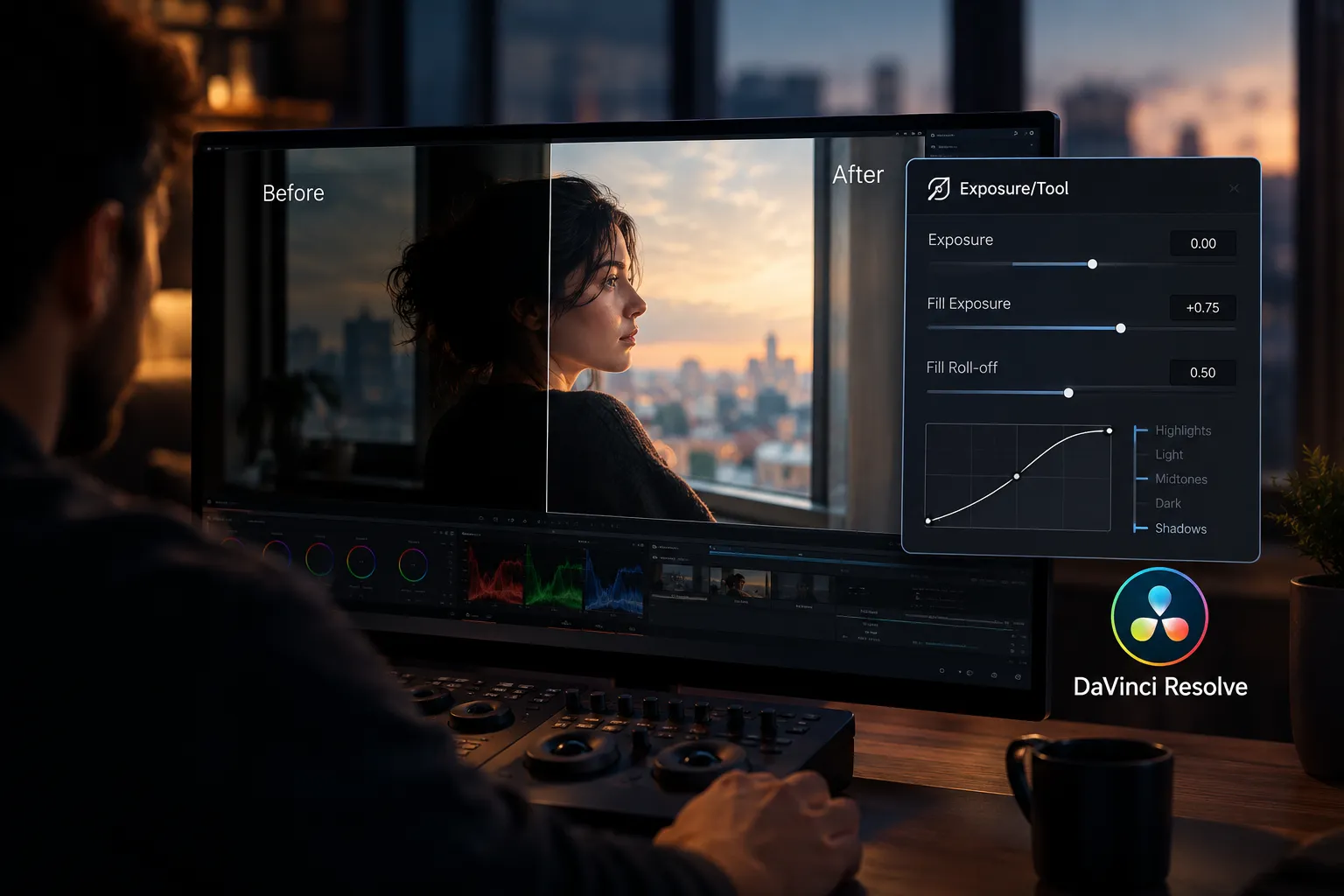
Do you know about PixelTools’ Exposure/Tool DCTL by PixelTools? Imagine you’re color grading a promotional video. The subject is standing next to a window, with plenty of light coming in from outside, but their face is in shadow. When you increase the overall exposure, the face becomes more visible, but the details in the window disappear, and the natural look of the image changes. On the other hand, if you try to adjust only the shadows, the dark areas may start to look gray, throwing off the image’s contrast.
This problem can also come up when matching shots in a music video or short film. For example, you might have two consecutive shots of the same subject, with one recorded slightly darker than the other. The exposure difference becomes obvious when you cut between them. In this situation, you need to adjust exposure precisely, recover as much shadow detail as possible, and preserve the image’s depth and natural blacks—all without tweaking several settings and repeatedly reassessing the results every time you make a change.

What Does Exposure Adjustment Mean in Color Grading? 💡
Exposure refers to how much brightness the camera captures. When you correct the color and lighting of your video in DaVinci Resolve, make sure the image isn’t too dark or so bright that its details disappear. But it’s not just about brightening or darkening the entire image. Sometimes you need to brighten the shadows without making bright areas, like the sky, windows, or lights, too bright.
For example, imagine you’re editing a video of an indoor space where plenty of light enters through a window, but the subject’s face remains in shadow. If you brighten the entire image, the window may no longer look natural. This is where separate control over exposure and shadows comes in handy, letting you reveal more facial detail while preserving the rest of the scene’s brightness.
This is useful across various types of projects, including promotional videos, music videos, short films, and documentaries—especially when you’re working with multiple shots recorded at different exposure levels and want them to look consistent side by side. The more precisely you can control image brightness, the easier it becomes to match shots before moving on to creating your desired color look.
Common Ways to Adjust Lighting in DaVinci Resolve 🎨
DaVinci Resolve includes several useful tools for correcting image lighting and brightness, so you can get good results without installing any plugins. Depending on whether you want to brighten the entire image or work specifically on shadows and highlights, you can use the following tools:
- Offset: Adjusts the image’s overall brightness and is a good starting point for exposure correction.
- Lift, Gamma, and Gain: Lift adjusts darker areas, Gamma works with the midtones, and Gain adjusts brighter areas. However, each control’s precise effect also depends on your project settings and color space.
- HDR Wheels: For more targeted control over different brightness ranges, use controls such as Shadows, Dark, Light, and Highlights.
- Curves: Adjust the brightness curve to shape the image’s contrast and gain more control over the relationship between dark and bright areas.
Why Can Manual Exposure Adjustment Be Time-Consuming? ⏳
These tools can deliver great results. With some experience, you can achieve a great deal of control over your image. However, when you want to adjust exposure precisely in stops while brightening shadows without unintentionally affecting the rest of the image, you may need to combine several different controls and repeatedly check the results. This takes more time when you’re working with multiple shots recorded under different lighting conditions, and reproducing the same adjustments across different projects isn’t always easy. That’s why a tool that combines exposure control and shadow brightening in a single node can make this part of Color Grading simpler and faster.
Introducing Exposure/Tool DCTL: Precise Exposure and Shadow Control in DaVinci Resolve ✨
The Exposure/Tool DCTL Plug-In is a PixelTools product for DaVinci Resolve that lets you adjust overall image exposure and shadow brightness with greater control. Instead of combining several different tools to achieve the right exposure, you can access the main exposure and Fill controls through a single node.
This tool helps colorists bring footage to a balanced starting point before creative color adjustments—from correcting underexposed footage to matching shots recorded under different lighting conditions. Exposure/Tool can also simplify your Node Tree structure and reduce the need for certain separate nodes and adjustments.
Adjusting Exposure in Precise Camera Stops 🎚️
One of Exposure/Tool DCTL’s main features is exposure control based on Exposure Stops. This approach lets you adjust light by specific values. For example, you can increase a shot’s exposure by half a stop or more precisely correct the exposure difference between two consecutive shots.
Imagine that the first shot in a sequence is slightly darker than the second. By adjusting exposure in stops, you can more easily correct the difference between the two shots, making the brightness change less noticeable when cutting between them. This approach is useful for workflows that require precise, repeatable adjustments.
Brightening Shadows Without Increasing the Brightness of the Entire Image
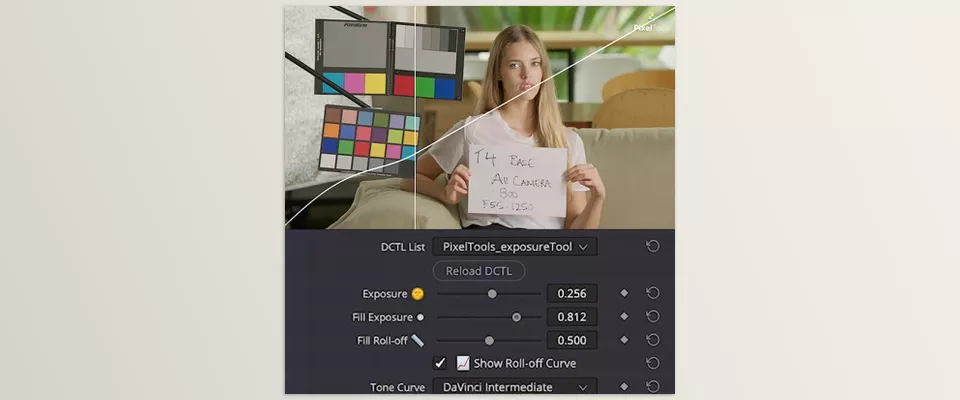
Fill Exposure is one of this plugin’s key features. This control lets you increase the brightness of areas below Middle Gray without having to brighten the entire image by the same amount.
For example, if a subject’s face, the texture of dark clothing, or details in an indoor space are in shadow, you can use Fill Exposure to brighten these areas while maintaining better control over the brightness of other parts of the image. This feature helps reduce your reliance on multiple separate adjustments when opening up the shadows.
However, how much detail you can recover depends on the quality and information captured in the footage. If an area contains no recorded detail at all, no adjustment can fully restore that missing information.
Shaping Light Transitions with Fill Roll-off
When you brighten shadows, the adjustment should transition naturally into the brighter parts of the image. If this transition isn’t controlled properly, the image’s contrast may weaken, or the midtones may appear excessively bright.
Fill Roll-off lets you shape how gradually the effect of Fill Exposure decreases. With this feature, you can determine how the additional brightness applied to the shadows transitions into other brightness ranges, giving you greater control over preserving image depth.
One feature in this section is the Roll-off curve display. When enabled, it shows how the curve behaves as you adjust it and makes it easier to see which brightness ranges Fill Exposure affects. This is useful when you want to open up the shadows without making the entire image look flat.
Preserving Blacks and Preventing Washed-Out Shadows
One problem you may encounter when adjusting lighting with Offset or some of Resolve’s other controls is a rise in the black levels. When this happens, areas that should remain dark start to look gray, lose depth, and the image loses its original contrast.
Exposure/Tool DCTL has its own exposure-adjustment behavior to help reduce this problem, letting you control image brightness without unintentionally raising the black levels. This feature is particularly useful for cinematic footage, low-light scenes, and images where deep shadows play an important role in the overall look.
However, the final result depends on the footage itself, the color space, and the extent of the adjustments. It’s therefore a good idea to check the black levels and contrast after adjusting exposure.
Compatibility with DaVinci Wide Gamut, ACES, and Color-Managed Workflows
Exposure/Tool DCTL is designed for use in color-managed workflows and is compatible with DaVinci Wide Gamut / DaVinci Intermediate and ACES. This allows you to use it in projects where color space transforms and color management play an important role in the grading process.
The tool also supports common Log formats from various camera brands, including:
- ARRI LogC3 and LogC4
- RED IPP2
- Sony S-Log2 and S-Log3
- Canon Log
- DJI D-Log
- Panasonic V-Log
Exposure/Tool DCTL also uses a Transfer Function list similar to those found in other PixelTools products. This compatibility helps you align your color space settings with your project’s workflow. However, you still need to select the appropriate option and consider the node’s position relative to color transforms. Support for a particular format doesn’t mean you can bring any footage into your Node Tree and expect consistent results without proper color management settings.
Faster Workflow with Blackmagic Design Panels and Fixed Node Trees
If you use compatible Blackmagic Design hardware panels for Color Grading, Exposure/Tool DCTL can make accessing its controls faster. According to the developer, you simply apply the tool to the desired node and use the panel’s FX button on a compatible panel to access it more easily.
This feature is useful for colorists who prefer working with a hardware panel rather than constantly using the mouse and navigating software windows. Also, if you use a consistent Node Tree structure across your projects, you can place Exposure/Tool DCTL in a specific position and reuse the same workflow across projects.
Since exposure and Fill controls are combined in a single node, you may be able to remove some separate nodes and keep your grading structure more organized. However, how much this simplifies your Node Tree depends on your workflow and the tools you were previously using.
Get Started Faster with the Base Setup PowerGrade
Exposure/Tool DCTL also includes a Base Setup PowerGrade to help you get started. Instead of building everything from scratch, you can use this structure as a starting point and modify it to suit your project.
This is useful for anyone who wants to incorporate Exposure/Tool into their workflow for the first time. Start by reviewing the ready-made structure, then gradually integrate the settings you need into your workflow.
Overall, Exposure/Tool is designed for anyone who wants to adjust exposure more precisely, control shadows more independently, and spend less time combining multiple tools to achieve a balanced image. The trial version also lets you test the Exposure, Fill Exposure, and Fill Roll-off controls on your own footage before purchasing and see how well they fit your workflow.
Precise Exposure and Fill Roll-off for More Natural Grading in DaVinci Resolve 🎯
To keep your image looking natural, it’s best to use Exposure/Tool DCTL as part of a proper Color Grading workflow. A few simple tips can help you get results faster while maintaining greater control over the final look.
- Check your color space first: Make sure your footage and Node Tree match your project’s color workflow. The order of color space transforms and the use of DCTLs are important.
- Start with small adjustments: Increase or decrease exposure gradually and check the results at different values. Large changes may cause parts of the image to become excessively bright or dark.
- Adjust Fill Exposure carefully: The goal isn’t to brighten every shadow. Add only enough Fill to reveal important details without losing the image’s sense of depth.
- Don’t overlook Fill Roll-off: If the image looks too flat after brightening the shadows, check the Roll-off curve to make the brightness transition more natural.
- Review shots side by side: When matching the exposure of multiple shots, don’t focus on just one frame. Review the image throughout the clip and watch the cuts between shots to make exposure differences less noticeable.
- Separate lighting correction from creative grading: First, adjust exposure and the image’s overall balance. Then move on to artistic contrast, color saturation, and creating the final look. This helps you maintain better control over the result.
Finally, remember that no tool can fully restore lost image information. Exposure/Tool delivers the best results when the footage contains sufficient information and its settings are adjusted to suit the conditions of the specific image.
Can Exposure/Tool DCTL Make Exposure Adjustments Easier in Your Projects? 🚀
If you often adjust lighting or match colors between shots in DaVinci Resolve, Exposure/Tool DCTL can save you time. You can use it to change the overall brightness and adjust dark areas with the Fill Exposure feature. This makes it easier to get the look you want without using several different tools.
This tool is particularly useful when working with Log footage or when you have an established Node Tree structure for your projects. For example, when you need to match the exposure of multiple shots, clear, repeatable controls can help you reach your desired result faster and spend less time experimenting with settings.
Exposure/Tool is not a tool that everyone needs. If DaVinci Resolve already has everything you need, you may not need this plugin. But if you want more control over exposure and shadows, it can be a good option.
You can try the free demo first and see how it works with your videos. This way, you can decide if you want to buy it.
If you’re also a DaVinci Resolve user and you’re looking for ways to make your editing workflow faster, smoother, and more professional, we strongly recommend checking out our detailed article on the best DaVinci Resolve tools and features you shouldn’t miss.