

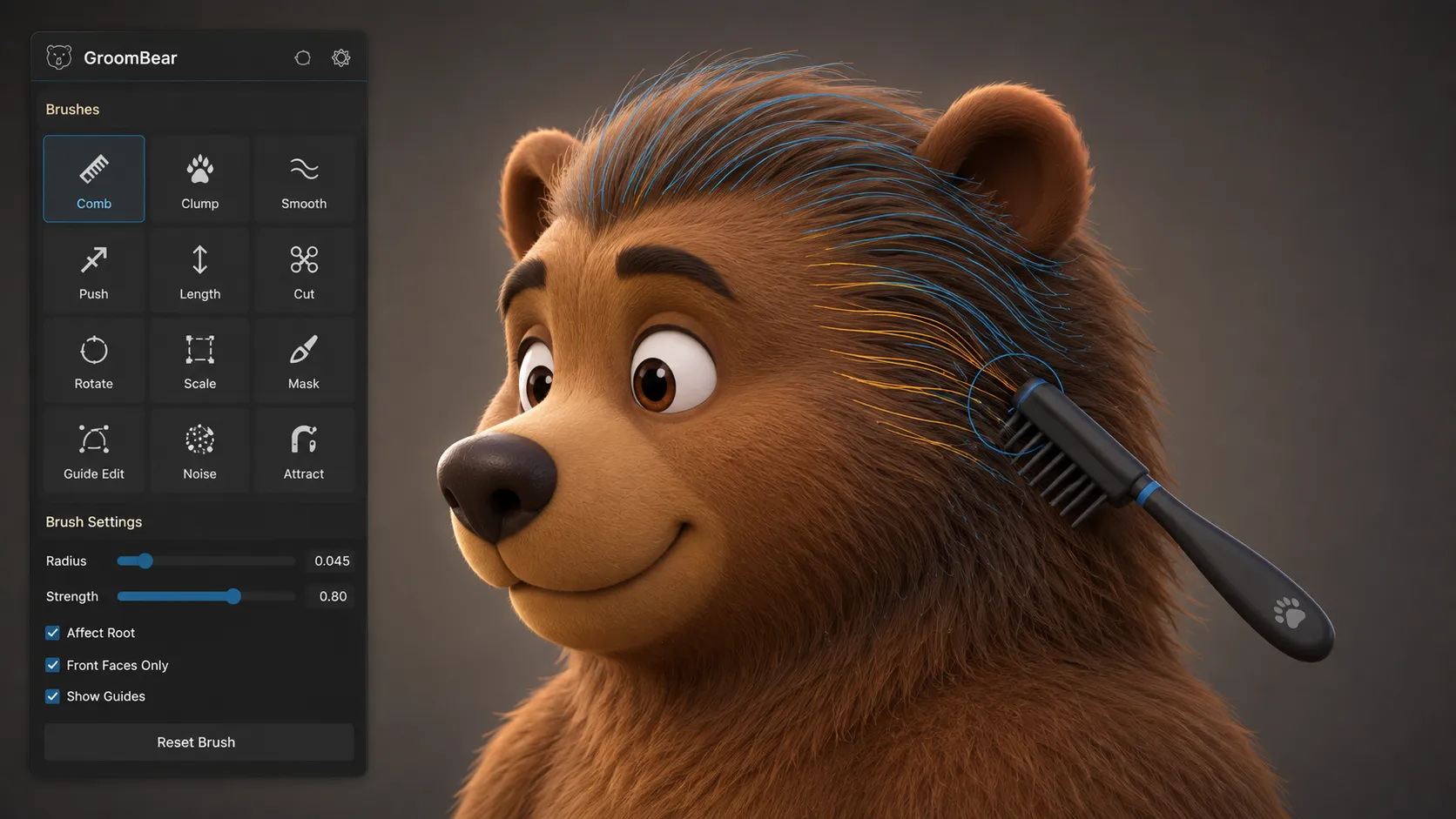
When Creating Hair Takes More Time Than You Think ✂️
Have you had a chance to try the GroomBear Toolkit for Houdini by Gumroad? If you’ve ever worked on hair, fur, or even feathers in Houdini, you’ve probably found yourself spending more time fixing and adjusting Hair Guides than on the actual design. One moment you need to comb the hair, then you need to change its shape, and a few minutes later you’re back adjusting the same area again. This back-and-forth is completely normal in larger projects.
Houdini itself has excellent Groom tools, and you can do almost anything you want with them. But as the number of hairs, details, or characters increases, you find yourself constantly switching between brushes, nodes, and different settings, which can keep your workflow from moving as quickly as you’d expect.
If you’re only working on a small project, this might not be very noticeable. But when you have multiple characters or different projects on your plate, those few extra clicks and constant switches can add up to hours of lost time. That’s why many Groom Artists look for a way to achieve the same quality with a faster, smoother Workflow.

What Exactly Is Groom and What Is It Used For? 🐻
Simply put, Groom is the process of designing and styling hair, fur, beards, mustaches, eyebrows, or even feathers on a 3D model. In this process, Hair Guides are created first. These are lines that define the direction, length, and overall shape of the hair, and the hair system is then generated based on those Guides.
This method gives you much more control over the appearance of the hair. For example, if you’re designing long hair for a character, you can precisely adjust the direction of the hair flow, its volume, curls, or even how it forms into separate clumps. Or if you’re working on a lion, bear, or any other furry creature, you can make its fur look more natural and lifelike.
Another important use is creating Hair Cards for games. In most games, Hair Cards are used instead of millions of individual hair strands so that the hair can still look good without putting too much strain on the hardware. That’s why having clean, well-organized Guides has a major impact on the quality of the final output.
You Can Also Groom with Houdini’s Built-In Tools 🛠️
The good news is that you don’t necessarily need GroomBear to create hair, fur, or Hair Cards. Houdini itself has one of the most powerful Groom systems and provides a complete set of tools for this type of work. If you’re familiar with Houdini’s nodes and built-in tools, you can handle almost every stage of Grooming without any additional plugins.
With Houdini’s built-in tools, you can:
- Create and edit Hair Guides.
- Comb hair and fur and change their direction.
- Adjust the length, thickness, and shape of the hair.
- Use different brushes to refine the Groom.
- Generate Hair Cards or other Geometry needed for game engines.
So Why Do Some People Use GroomBear? 🤔
The problem starts when projects become larger and more complex. The more hair, characters, or rounds of editing you have, the more often you have to switch between different nodes, brushes, and settings. Each switch might only take a few seconds, but when the same process is repeated over and over throughout a project, it slows you down and disrupts your focus. That’s exactly why tools like GroomBear were created—not to replace Houdini’s Groom system, but to make the same Workflow faster, more organized, and easier to use.
GroomBear Toolkit: A Tool That Makes the Workflow Smoother 🚀
GroomBear Toolkit is a professional collection of tools for Houdini designed primarily to speed up the Grooming process. This plugin doesn’t add some strange new capability to Houdini. Instead, it brings the tools you work with every day together in a more organized and faster environment. The result is that you spend less time switching between nodes and searching for tools, allowing you to focus more on designing the look of the hair and fur.
✂️ Almost All Your Groom Tools in One Place
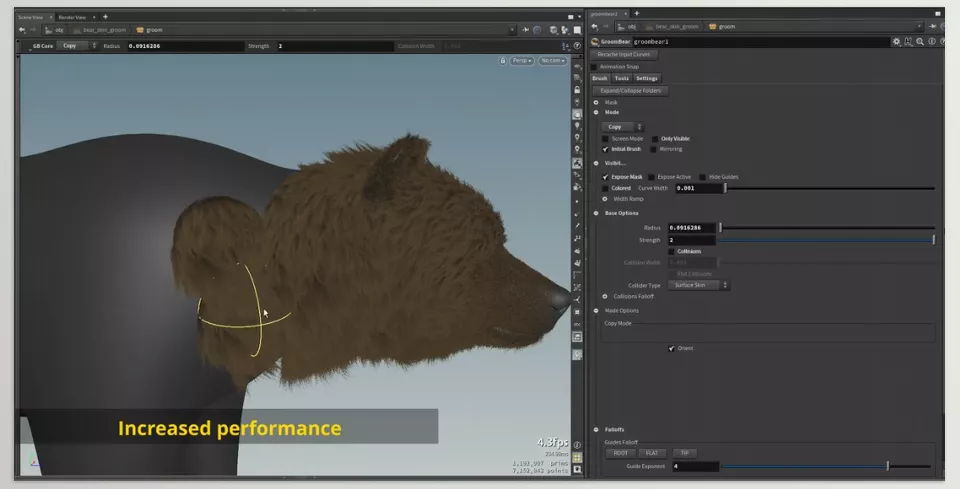
One of GroomBear’s most important features is that it brings the most commonly used Groom tools together inside a single Groom Node. Instead of switching between multiple nodes for every change, you can handle most of your everyday tasks from the same environment and maintain a more organized Workflow.
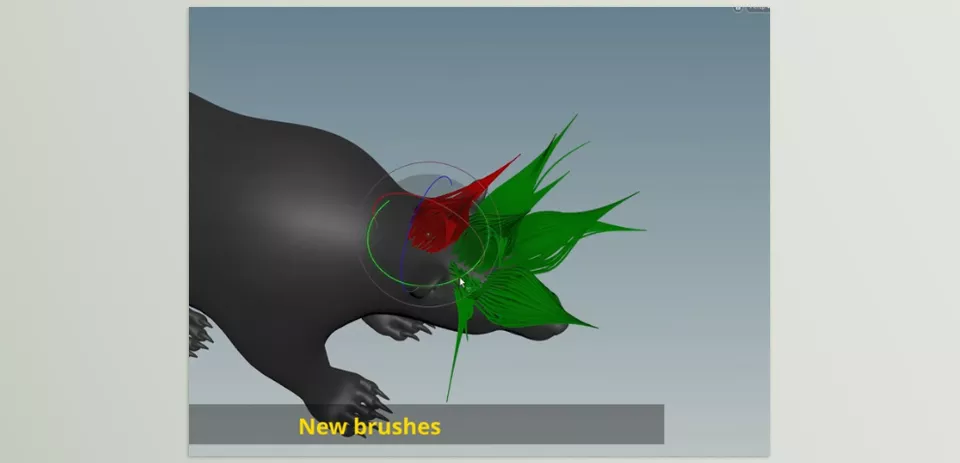
The tool gives you a complete collection of Brushes needed for Grooming, from combing and drawing new Guides to moving, rotating, scaling, trimming, smoothing, clumping hair, creating twisting effects, masking, and even precisely editing Guides. In addition, some Brushes also include Sub Brushes, giving you more control over details and making it easier to achieve the result you want.
Another interesting point is that GroomBear is designed as a Digital Asset and also offers a certain degree of customization. This means you can adjust the workspace and Workflow to some extent based on your own needs.
🧑🦱 From Long Hair to Fur and Feathers
Whether you’re designing a character’s hairstyle, an animal’s fur, or even the feathers of a fantasy creature, GroomBear is built for all of these scenarios. The plugin’s tools aren’t limited to short fur and are also highly useful for creating long hair, beards, mustaches, eyebrows, and various complex Grooms.
The variety of Brushes makes it easy to control hair volume, change its flow direction, or style different sections more naturally—something that has a major impact on the final quality of the character.
🛠️ Create Hair Cards and Geometry with a Few Clicks
Another useful GroomBear feature is the Cards Node. This node can convert the Hair Guides you’ve created into different types of Geometry, such as Hair Cards, Planes, Feathers, or Tubes. This feature is especially valuable for people working on game projects because it makes an important part of the Hair Card creation process faster and simpler.
Instead of spending a large portion of your time preparing Geometry, you can reach the desired output faster and spend more time improving the final quality of the model.
⚡ A Faster Workflow Without Changing the Way You Work
One of GroomBear’s appealing features is its support for a Radial Menu. This means your most frequently used tools are always within easy reach, so you don’t have to constantly switch between different nodes or panels. This might not feel particularly significant on smaller projects, but when you spend hours grooming multiple characters, saving even a few clicks can add up to a significant amount of time.
Ultimately, GroomBear’s most important feature is that it doesn’t try to replace Houdini’s own Groom system. The plugin simply puts the tools you use every day into a smoother and faster Workflow, so you can spend less energy managing tools and focus more on creating natural-looking hair and fur.
A Few Tips to Make Your Results Look More Natural 💡
Having good tools alone isn’t enough. What makes the final result look more professional is how you use them. Following a few simple tips can both speed up your work and give you cleaner, more natural-looking results.
- Build the overall shape of the hair first. Before getting into the details, establish the overall direction, volume, and shape of the hair. This will reduce the need for major corrections later on.
- Don’t overdo Clumping. Excessive clumping of hair strands usually makes them look artificial. It’s better to increase the amount gradually until you achieve a more natural result.
- Save Smooth for the final stages. Once the overall shape of the hair is complete, use Smooth to soften the flow and make the Guides more consistent so the final result looks more realistic.
- Organize the Guides before creating Hair Cards. The cleaner and more organized your Hair Guides are, the higher the quality of the final Hair Cards will be, and the less time you’ll have to spend fixing them later.
- Customize the Radial Menu based on your needs. Keep the tools you use most often within easy reach. It might seem like a small change at first, but it can save you a lot of time on longer projects.
Ultimately, the best way to achieve natural-looking Grooms is not to rush and to work step by step. When you handle the overall shape, details, and refinements in order, you’ll have more control over the hair, and the final result will look more professional and natural.
When Speed Becomes Just as Important as Quality 🎯
Houdini itself has one of the best Groom systems, and almost everything GroomBear Toolkit does can also be achieved using its built-in tools. But the main difference is that you don’t always need to be looking for new capabilities. Sometimes, what truly affects the quality of your day-to-day work is simply making your existing Workflow faster and easier.
If you work with hair, fur, or Hair Cards every day, you probably know that your time isn’t spent on design alone. A large portion of it is lost switching between nodes, changing tools, and performing repetitive tasks. GroomBear was built for exactly this reason: to shorten that process and let you focus more on creating natural, high-quality hair instead of managing your tools.
This plugin might not add a revolutionary new capability to Houdini, but those fewer clicks, faster access to tools, and a smoother Workflow really start to make a difference after a few projects. That’s why, if Grooming is an important part of your daily work, GroomBear Toolkit can become one of those tools that eventually makes you say, “I wish I’d started using it sooner.”
If you also work with Blender, Hair Brick Pro offers a similar approach to GroomBear. While GroomBear streamlines Grooming in Houdini, Hair Brick Pro makes working with Blender’s Hair Curves faster and easier. You can learn more in our Hair Brick Pro article.
