


Conquering the World of Masks: Tools That Will Change Your Workflow
Working with a Mask in After Effects can quickly become complex and frustrating, especially on larger projects. Especially when your projects get bigger or you have tons of masks to manage, it often feels like you’re fighting the software instead of unleashing your creativity.
When you want to precisely move mask points, animate them, or handle many masks in a project, controlling them can become really frustrating. Sometimes the software gets sluggish, or you have to wait forever to see your changes, killing the flow and joy of working. This is one of the reasons many professionals look for better ways to handle a Mask in After Effects efficiently.
I’m here to tell you: you’re not alone. Many people face these same issues, but fortunately, there are professional, well-designed solutions that make your work much easier. Plugins and scripts exist to solve these problems—making mask handling faster, more flexible, and more enjoyable.
In this article, we will explore some of the best tools that help you take full control over your masks, create animations with ease, and eliminate confusion over layers and masks. With these tools, your projects will not only progress faster but also improve significantly in quality and creativity.
To get a broader understanding of the kinds of tools available in After Effects, check the article we’ve linked at the bottom.
What Are Masks and Why Should You Master Them?
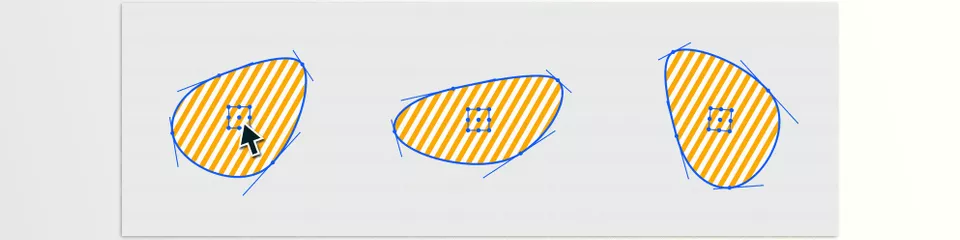
A Mask in After Effects is like a magical cutout or window that lets you show or hide parts of a layer. Imagine having a piece of paper with a shape cut out—when you place it over your footage, only that shape is visible and everything else is hidden.
Masks give you the power to isolate certain areas, apply effects, or create animations.
Starting out, masks might seem confusing because you have to move points, resize, or reshape them. But once you learn, you can work on your projects creatively and professionally.
What Can You Do with Masks?
Understanding the full potential of a Mask in After Effects allows you to create effects that are both precise and expressive.
- Show or Hide Specific Parts of an Image or Video:
Masks act like a frame that shows only a portion of the image while hiding the rest. For example, you can reveal just a person’s face and hide the background. - Create Interesting and Creative Effects:
Masks let you isolate parts of a clip to blur, recolor, or add glow and light effects selectively. - Animate Desired Parts of the Image:
Masks can be animated by changing their shape or position over time, like a circle that grows gradually to reveal the image. - Combine Multiple Layers and Images:
When working with several layers, masks help select different parts from each to create attractive composites. - Make Precise Cuts for Correction and Retouching:
Masks help you target exact areas for correction or repositioning within an image.
Main Challenges of Mask Control in After Effects Without Plugins
While After Effects provides basic functionality, mastering a Mask in After Effects without plugins is often overwhelming.
- Difficult Management of Many Masks:
Big projects with many masks across layers become hard to control and find. After Effects lacks simple tools for organizing and managing multiple masks at once. - Complex and Slow Mask Animation:
Changing mask shapes frame-by-frame requires adjusting each point individually, which is time-consuming and error-prone. - Limited Precise Control Over Mask Parameters:
After Effects offers restricted options for moving, rotating, scaling, or adjusting mask opacity, usually requiring point-by-point adjustments without much flexibility. - Difficulties Working in 3D Space:
Masks mostly operate on 2D layers, making mask control in 3D space and camera synchronization very limited and unprofessional. - No Advanced Tools for Combining and Moving Masks:
Functions like converting masks into different shapes, merging multiple masks, or separating them into new layers aren’t straightforward in After Effects itself.
Golden Solutions for Mastering Masks in After Effects
After all the hassle and struggles, it’s time to discover solutions that truly transform your workflow. Here are five of the best plugins designed for professional and precise mask control in After Effects. Each tool solves major problems in its unique way, speeding up your work and boosting quality.
I recommend reading carefully — you might find exactly the tool you’ve been searching for.
1. BAO Mask Avenger — Unrivaled Control Over Mask Points
If controlling individual mask points in After Effects has felt like a nightmare, Mask Avenger turns that nightmare into a dream! BAO Mask Avenger plugin lets you move each mask point with amazing precision, animate them smoothly, and ensures flawless motion.
It drastically changes how you deal with each Mask in After Effects, especially when precision is required. Moreover, Mask Avenger’s advanced baking system speeds up After Effects when working on heavy projects with many masks, so you don’t have to worry about slowdowns.
It’s the perfect companion for those dealing with complex mask-heavy projects who want to save time on manual adjustments.
2. Mask Transformer — Smart and Precise Mask Editing
One of the biggest challenges with animated masks is fast and accurate editing. Mask Transformer offers a set of helper tools that make tasks like rotating, scaling, or moving masks effortless—no need to tweak every point manually.
This plugin is ideal for users wanting professional-level changes to masks without wasting time on intricate details. Even if your projects have many animated masks, Mask Transformer allows easy modifications to entire masks or parts of them.
3. Advanced Mask Editor 2 — All-in-One Tool for Animated Masks
For a comprehensive solution to manipulate animated masks, Advanced Mask Editor 2 is perfect. It offers professional features such as combining multiple masks, mirroring mask shapes, and copying selected parts.
This means you can easily merge several masks, extract portions, and reuse them elsewhere in your project. The tool makes mask editing much more flexible and creative, especially for complex and large projects that require accuracy and efficiency.
4. Mask & Layer Splitter — Smart Management of Masks and Layers
One of the biggest headaches in mask-heavy projects is masks getting lost or chaos between layers. Mask & Layer Splitter plugin revolutionizes project management by letting you split each mask into separate layers.
You can time your layers as you wish, set precise start and end points, and batch rename for neat organization. Mask & Layer Splitter is designed for those who want to manage complex projects like a pro architect—controlling every mask and layer exactly where it belongs.
5. Aescripts Mask Null — Centralized and Simple Mask Control
When you have many masks needing similar adjustments, managing each one separately is tedious and exhausting. That’s where Aescripts Mask Null helps.
By creating a central Null controller, you can manage position, scale, rotation, and even opacity of all masks from one place. This lets you apply synchronized changes quickly without editing each mask individually, making workflows simple and fast.
This tool is essential for projects with many similar masks or when you want to implement global changes swiftly.
If you want to explore more After Effects mask plugins, check out our 5 Best After Effects Mask Plugins to Boost Your Workflow article.
Summary
All these plugins save you from repetitive and complicated tasks, give you full professional control over masks, and let you focus entirely on creativity and project quality instead of software struggles.
Quick Reference Table for Mask in After Effects Tools
| Plugin Name | Key Features | Best For | What Problem It Solves |
|---|---|---|---|
| BAO Mask Avenger | Precise point control, smooth animation, baking for faster performance | Complex projects with many masks | Hard manual point adjustments, slow performance |
| Mask Transformer | Rotate, scale, move masks easily, helper tools for quick edits | Users needing fast, accurate mask edits | Time-consuming manual mask transformations |
| Advanced Mask Editor 2 | Combine masks, mirror shapes, copy mask parts | Editing animated masks flexibly | Complex mask animations, combining multiple masks |
| Mask & Layer Splitter | Split masks into separate layers, batch renaming, timing control | Managing many masks and layers | Layer clutter, messy mask management |
| Aescripts Mask Null | Central control of position, scale, rotation, opacity of all masks | Projects with many similar masks | Tedious individual mask edits, need for unified control |
Each of these tools improves your experience working with a Mask in After Effects, no matter the scale of your project.
From Frustration to Freedom:
When working professionally with masks, time and precision are everything. The plugins introduced here act as smart, powerful assistants that not only speed up and simplify your work but also elevate your creativity and output quality to the level you’ve always dreamed of.
With these tools, you no longer waste time hunting mask points or struggling with clumsy animations. Each plugin intelligently solves After Effects’ complex and time-consuming problems—from precise control and smooth mask animation to multi-layer management and advanced editing.
Ultimately, these plugins give you the freedom to focus on your creativity, not software limitations. If you want faster workflows, better quality, and easier mask handling, using these tools is a smart and essential choice that will transform your work experience and make your projects truly professional.
If you’d like to explore more about the various tools available in After Effects, don’t miss our full guide The Ultimate Guide to After Effects Tools.



