When a Simple Line Can Make Your Entire Motion Graphic More Engaging 🎨
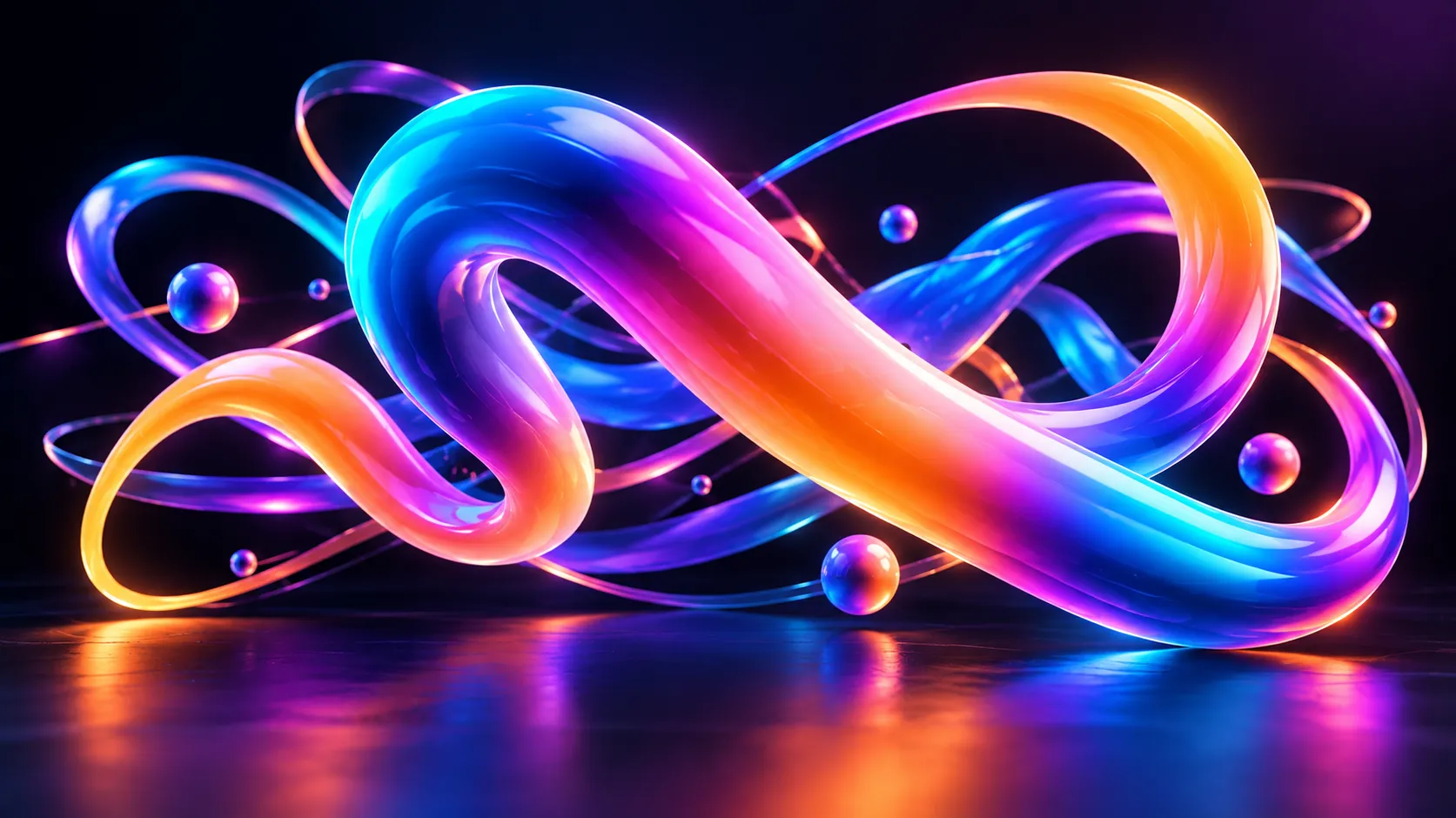
Have you come across the Thicc Pro Plugin by aescripts before? Colorful, animated lines can make a motion graphic much more engaging, from lines that move around a logo to colorful paths that give an image a distinctive look through changes in thickness and color combinations. You can even bring these lines into a 3D space so they gain depth and perspective as the camera moves.
But creating these effects can take more work than you might expect. Changing the thickness of a line, blending different colors, or making lines move with your animation and camera often means adjusting a lot of settings. And if you want to use the same effect again, it can get pretty time-consuming.
Having all these controls in one place makes things easier. You can change how your lines look and move, try different styles, and spend less time making the same adjustments over and over.

What Is a Graphic Stroke, and Where Can You Use It? ✏️
A Stroke is a line or outline placed along a path. The path can follow a logo’s shape, the outline of text characters, a simple curve, or even a camera’s movement path in 3D space. By changing the line’s thickness, color, shape, and movement, you can turn a simple path into an engaging graphic element.
One of Stroke’s most important features is the ability to change its thickness along the path. For example, you can create a line that starts thin, thickens in the middle, and then thins again toward the end. This change in thickness gives the line movement a dynamic feel and keeps the animation from looking uniform.
Gradients also play an important role in how these lines look. Instead of keeping the entire path a single solid color, you can blend several colors along it. For example, you can create a line that starts blue, transitions to purple in the middle, and ends pink. When this gradient is animated along with the path, the result can be very appealing for modern motion graphics and abstract effects.
However, Strokes are not limited to decorative line design. This feature can be useful in a variety of projects:
- Logo Animation: You can gradually reveal graphic paths so that a logo is drawn with an engaging motion or colorful lines form around it.
- Animated Typography: By adding colorful Strokes to text, you can make the characters stand out and create a distinctive style for video titles or promotional teasers.
- Infographics and Charts: Connector lines, motion paths, and colorful curves can present information more clearly and draw the audience’s attention to important sections.
- 3D Motion Graphics: By placing paths in 3D space, you can create lines that move through the scene’s depth and change their appearance with the camera’s viewing angle.
- Graphic Transitions: Lines that are drawn across the image, expand, or transform into different shapes can be used to connect two scenes or create a custom transition.
The important point is that the more control you have over line thickness, color, and behavior, the more freedom you have to create different styles. That’s why professional Stroke tools can be an important part of a motion graphics designer’s workflow.
How to Create Gradient Strokes in After Effects Without Plugins 🎛️
After Effects provides several built-in tools for creating graphic and animated lines. By combining them, you can achieve appealing results. Depending on the type of effect you want to create, you can use the following methods:
- Shape Layer and Stroke: Use the Pen Tool to draw your desired path, then use the Stroke settings to define the line’s color, thickness, and appearance.
- Trim Paths for Path Animation: By animating the Start, End, and Offset values, you can make a line draw itself gradually, move along a path, or appear in different ways.
- Gradient Fill and Color Effects: To create color combinations, you can use Gradient Fill in a Shape Layer or effects such as 4-Color Gradient to change your design’s appearance.
- Keyframes and Graph Editor: Adjust keyframes and control movement speed to smooth line animations and fine-tune timing.
- Masks and Text Animators: For more customized effects, you can also use masks and text animations. For example, you can create a line that moves around text characters or gradually takes shape as the text appears.
By combining these tools, you can create a variety of effects, from logo animations and decorative lines to graphic transitions and animated color paths. ✨
What Are the Limitations of Creating Complex Lines with Built-In Tools? ⚙️
Although After Effects’ built-in tools work for many projects, things get more complicated when you want to control several advanced features at once. For example, precisely changing the thickness along a path may require multiple layers or additional adjustments. On the other hand, Gradient Fill usually applies colors based on the shape’s boundaries, so creating a gradient that follows a path precisely is not always straightforward. Aligning lines with 3D camera perspective, creating dashed lines with different thicknesses and colors, and repeating numerous paths with independent settings can also take a lot of time. In these situations, managing layers and keyframes gets harder, and changing one part of an effect may require adjusting other parts as well. Therefore, if you regularly work with gradient Strokes, variable thicknesses, and 3D paths, using a specialized tool can make the process simpler and easier to control.
Thicc Pro: Professional Control Over 2D and 3D Strokes 🚀
Thicc Pro is a plugin for Adobe After Effects that lets you create graphic lines with variable thickness, color gradients, and actual 3D geometry. With this tool, you can control the appearance of Strokes in great detail, from thickness and pen shape to color combinations, various dashed lines, and paths that align with camera perspective.
The interesting thing is that Thicc Pro brings different line design and animation features together in one package. This means you can start with a simple line for logo animation and move on to creating 3D paths, gradient typography, and complex effects with hundreds of repeated lines.
Stroke Thickness Control: From Uniform Lines to Complex Curves 📏
One of Thicc Pro’s key features is precise control over line thickness along a path. Instead of keeping the Stroke at a constant thickness throughout the entire path, you can specify how thick or thin each section should be. This plugin gives you four main options for controlling thickness:
- Constant Width: Choose this mode if you want the line to maintain the same thickness along its entire path. It’s useful for connector lines, simple paths, and designs that require a uniform appearance.
- Start & End: With this mode, you can adjust the thickness at the beginning and end of the path separately. For example, you can create a line that starts thin and gradually becomes thicker, or vice versa.
- Start, Middle & End: This mode lets you control the thickness at the beginning, middle, and end of a line. It’s a suitable option for creating a path that’s thicker in the center and thinner at both ends.
- Graph Editor: If you need more precise control, you can use the thickness graph and adjust its shape along the path. This mode is especially useful for designing Strokes with subtle and complex variations.
For example, in a logo animation, you can create a line that starts thin, thickens as it moves, and then thins again toward the end. These changes keep the path from looking uniform and make the movement more engaging.
Creating Color Gradients with the Built-In Gradient Editor 🎨
Thicc Pro has a built-in gradient editor that lets you control the color details of a Stroke. You can blend multiple colors along a path, change their positions, and adjust the gradient’s appearance to suit your project’s style.
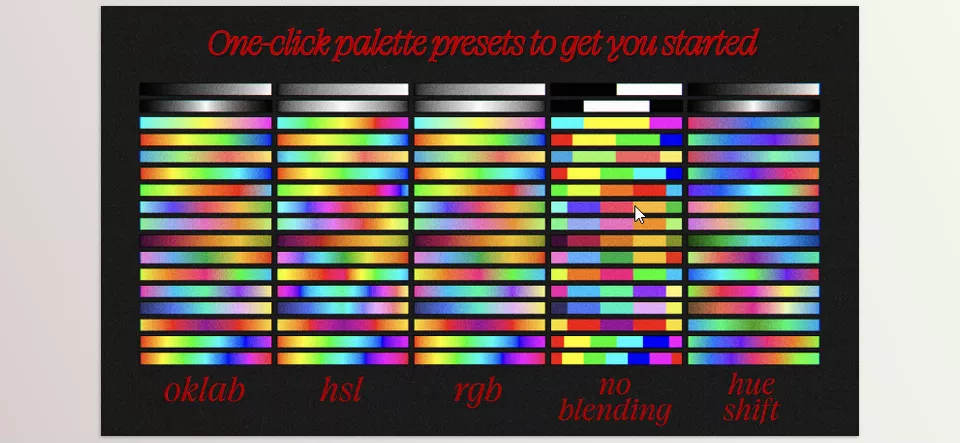
This editor supports RGBA colors, which means you can incorporate the alpha channel, or transparency, into your color combinations in addition to red, green, and blue. It also provides several options for controlling the color space and how colors blend together.
- RGB, HSL, and Oklab: You can choose your preferred color space. Each color space represents and blends colors differently, and choosing the right one can affect the final gradient.
- Auto Gamma Correction: This feature helps correct how colors blend so the gradient produces a more suitable result in the color space being used.
- Hue Shifting: By changing the Hue, you can shift the gradient’s colors and create new combinations without manually changing each color individually.
- Cycling and Mirroring: By cycling colors and mirroring the gradient, you can create repeating color patterns and continuous variations.
- Palette Presets: Ready-made presets help you reach your desired color combination faster. Instead of starting from scratch, you can experiment with different palettes.
- HDR and 32bpc Color Precision: The plugin also supports HDR color values with brightness levels beyond the usual range. This feature is useful for creating very bright effects and controlling colors more precisely.
For example, you can create an animated path that transitions from blue to purple and then pink, with the color combinations continuously shifting as the line moves. By adjusting Gamma, the color space, and Hue Shifting, you can change the appearance of the same path in different ways.
Blending Gradients and Creating Animated Color Palettes 🌈
Color control in Thicc Pro isn’t limited to choosing several colors and setting their positions. The plugin also lets you adjust the amount of gradient blending, allowing you to switch between different color appearances.
By changing the Gradient Blending value, you can control how colors blend together. For example, if you want colors to merge smoothly and seamlessly, you can use more blending. However, reducing Blending allows you to explore more distinct color combinations.
The Loop, color repetition, and Hue Shifting features also help you create a variety of palettes. These settings are useful for animations in which colors change continuously or a gradient pattern needs to repeat seamlessly.
The live preset preview also lets you quickly check the effects of changing Blending, Hue, or Gamma. If you need more ready-made palettes, the GradientHub tool offers more than 650 gradient palettes and is compatible with Thicc Pro. However, GradientHub is a separate tool.
Creating 3D Lines with XYZ Control and Camera Perspective 🎥
One of Thicc Pro’s key features is creating strokes that exist in 3D space and work with the After Effects camera.
For 3D motion paths, you can control each vertex’s X, Y, and Z coordinates. This means the path isn’t limited to a 2D plane; it can also move in the scene’s depth.
For example, imagine you want to create a colorful line that starts in front of the camera, twists and turns through space, and moves toward the background. By using a 3D path and a camera, you can create this effect and align the line’s appearance with the scene’s perspective.
This feature is especially useful for abstract motion graphics, glowing paths, technological lines, and animations where movement through the image’s depth is important.
Using Shape Layers, Masks, Text, and Motion Paths 🚀
When creating Strokes with Thicc Pro, you can use different sources, so you don’t have to build every path from scratch.
- Shape Layer: You can use vector paths to create Strokes with your desired thickness and gradients. The plugin also supports nested groups and vector transforms, helping preserve the structure of complex paths.
- Mask: You can use mask paths as sources for generating Strokes and align the lines with your desired shapes.
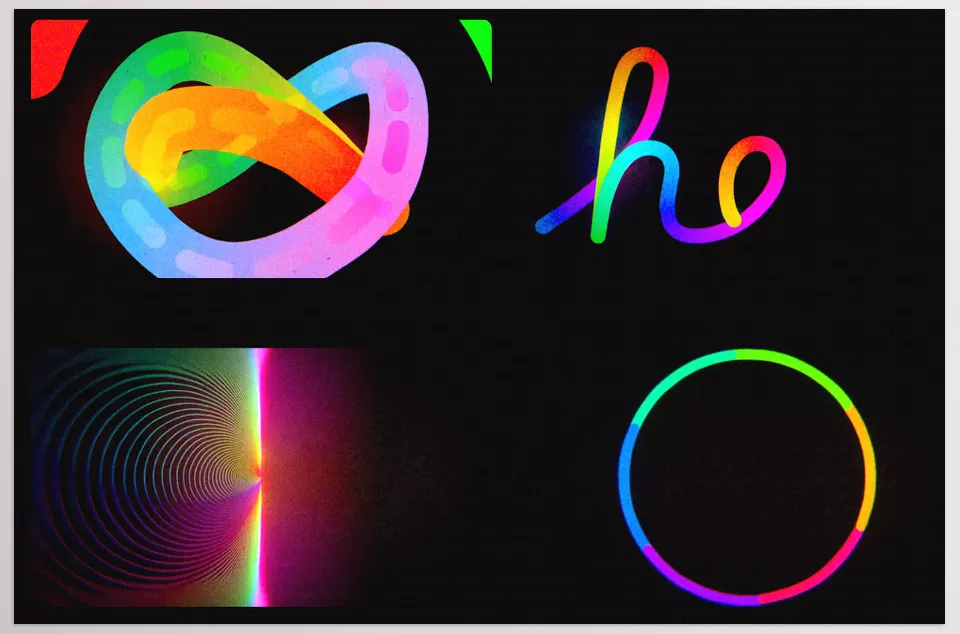
- Text Layer: Create gradient Strokes along the contours of text characters. When you change the text, the lines update automatically, so you don’t need to rebuild all the paths when revising a title or creating multiple versions of a design.
- 3D Motion Path: You can use 3D motion paths with control over each vertex’s coordinates, allowing lines to exist in 3D space and follow the camera’s perspective.
Compatibility with After Effects Text Animators also allows you to combine Strokes with text animations. For example, you can create text whose characters gradually appear while gradient lines move along their contours.
Creating Dashes and Dots with Independent Thickness and Color
Sometimes, instead of a continuous line, you need a path made up of multiple segments or dots. Thicc Pro lets you create Dashes and Dots in both 2D and 3D.
The important point is that each dashed segment can have its own actual geometry. You can also change the thickness and gradient of different sections for a more varied look.
For example, you can create a 3D path made up of colorful segments with different thicknesses that moves through the depth of the image. Alternatively, by shortening the Dashes, you can create a dotted pattern and use it in an informational animation or digital effect.
Combining Dashes and Dots with Trim Paths also lets you control how different sections of a path appear and move. This allows you to create dashed lines that gradually appear, travel along a path, or are used in a graphic transition.
Choosing Pen Shapes, Caps, and Joins for Different Styles ✏️
The final appearance of a Stroke depends on more than just its color and thickness. The pen shape, line endings, and how different sections of the path connect can also completely change the result.
Thicc Pro lets you combine different pen shapes and line endings:
- Round Pen: Creates lines with a softer appearance.
- Flat Pen: A flat pen for designing geometric lines and distinctive styles.
- Round Cap: A rounded line ending that gives lines a softer appearance.
- Projecting Cap: A projecting line ending that extends beyond the path’s end.
- Butt Cap: A flat line ending that stops exactly at the end of the path.
- Sphere Pen: A 3D spherical pen for creating paths with a more volumetric appearance.
You can combine these options in different ways, such as using a flat pen with rounded ends or a round pen with flat ends. These combinations help you change the line’s visual style without modifying the path itself.
There are also three main options for connecting different sections of a path:
- Miter Join: An angled connection that creates sharp corners.
- Round Join: A rounded connection that softens corners.
- Bevel Join: An angled connection that turns a sharp corner into a short, beveled surface.
By choosing the right combination of Pen, Cap, and Join, you can create a different appearance for each project, from smooth, curved lines to angular, geometric designs.
Creating Graphic Transitions with Trim Paths
By combining Thicc Pro with Trim Paths, you can create transitions based on line movement and drawing. To do this, simply set a few keyframes to determine which part of the path appears at each moment.
For example, you can design a line that starts in a corner of the image, moves across the screen, and expands into a larger graphic element. Because the Stroke can have variable thickness and a gradient, the result goes beyond a simple line and develops a more distinctive appearance.
Continuous Rasterization also helps maintain vector path quality when scaling or using them at different resolutions and aspect ratios. This feature is useful when designing transitions that need to be used in multiple output formats.
Repeating Hundreds of Paths with the Built-In Repeater ⚡
Some effects require many copies of a path, which may differ in timing, color, thickness, or position. Creating all these copies manually can be time-consuming.
Thicc Pro includes a built-in Repeater that lets you generate hundreds of path copies. With this feature, you can vary timing, Hue, width, thickness, and transforms across copies.
For example, you can turn a single path into multiple colorful lines that move one after another while gradually changing their color or thickness. This feature is especially useful for creating graphic waves, repeating patterns, trailing lines, and abstract effects.
According to the developer, the GPU processes the repeated copies in a single draw call. This approach is designed to handle large numbers of copies of a path, making complex effects more efficient to create.
Faster Processing with GPU and Multi-Frame Rendering
When a project has many Strokes, gradients, and animated paths, preview and rendering speed matter. Thicc Pro is optimized for GPU use and supports Multi-Frame Rendering (MFR) in After Effects.
Along with 32bpc HDR color processing, the plugin is designed to handle complex effects and produce highly detailed lines. The developer states that, on modern hardware, including an M4-equipped MacBook, it can process 4K video at 30 frames per second faster than real time under specific conditions.
However, final speed depends on hardware, path complexity, and project settings, so it’s best to evaluate performance in your own project.
Maintaining Line Quality at Different Resolutions
One important aspect of vector line design is maintaining quality when the image is resized. With support for vector transforms and Continuous Rasterization, Thicc Pro lets you use Strokes at different sizes and aspect ratios.
This matters when you want to prepare a logo animation or transition for several output formats. In these situations, you can adjust the path to fit the new dimensions and composition while maintaining the lines’ appearance at a suitable quality level.
Overall, the combination of vector paths, variable thickness, adjustable gradients, and 3D features gives Thicc Pro a useful set of tools for projects that require precise control over lines.
Practical Tips for Adjusting Gradients and Stroke Thickness in Thicc Pro 🎨
To make your animated lines look appealing and match your motion graphics style, keep these tips in mind when working with Thicc Pro.
- Use the Width Graph for Precise Thickness Control: Instead of changing thickness uniformly, use the width graph to emphasize key sections of the path. For example, make the beginning or end of the line thinner to improve the feel of the movement.
- Animate Gradients with Hue Shifting and Mirroring: By gradually changing colors and cycling the gradient, you can make a static path feel more dynamic without making the path itself more complex.
- Use the Repeater to Create Variable Patterns: Repeating a path while changing its color, thickness, or position can be useful for creating parallel lines and rhythmic effects.
- Align Dashes with Perspective in 3D Lines: When a Stroke moves through the scene’s depth, the size and spacing of Dashes affect the sense of depth. Check the result from the camera’s angle to make the pattern look more natural.
By focusing on these features, you can use Thicc Pro’s specialized capabilities to give your lines more controlled movement and appearance without cluttering your design.
More Control Over Lines, More Creative Freedom in Motion Graphics 🚀
If you regularly work with colorful lines, variable Strokes, animated typography, or 3D paths in After Effects, you probably know that achieving the desired result involves more than simply drawing a path. Controlling thickness, color combinations, line endings, and camera alignment can take up a significant amount of design time. Thicc Pro brings these capabilities together in a specialized tool, making these details easier to manage.
One of this plugin’s main advantages is its combination of precise Stroke appearance controls with features such as advanced gradients, Dashes and Dots, the Repeater, and support for 3D paths. This makes it useful for a variety of projects, including logo animation, infographics, typography, transitions, and abstract motion graphics. GPU processing and Multi-Frame Rendering also matter for workflows that need faster processing.
If you mostly work with simple Shape Layers and basic Strokes, After Effects’ built-in tools might be all you need. But if you want more control over line thickness, gradients, and 3D shapes, Thicc Pro gives you more options to work with.
If you’re new to After Effects, figuring out which tools you actually need can be confusing. Our After Effects Tools guide explains plugins, scripts, extensions, presets, and other tools in simple terms, so you can understand what each one does and choose what works for your projects.