
When Working with the Timeline Takes Longer Than the Animation Itself 🎬
Have you tried the Keystone Plugin by aescripts? The bigger your project gets in After Effects, the more layers and keyframes you have to manage, and the timeline gradually becomes a separate task. Maybe you just want to bring in a few layers with a specific time gap, move a few keyframes, or change the order of your layers, but for each one, you have to go through several steps manually.
The problem gets worse when a project has many elements. A small timing change can mean adjusting several keyframes again, going back to the Graph Editor, or fixing the layer order. None of these tasks is difficult on its own, but repeating them can eat up a lot of project time.
In motion graphics, you sometimes spend more time organizing and syncing animations than creating them. A tool that speeds up these repetitive tasks makes the timeline easier to manage and helps you work much faster.

What Exactly Do Keyframes and Layer Controls Mean? 🎯
In After Effects, you create much of your animation with keyframes. A keyframe determines the value of a property such as position, scale, rotation, or opacity at a specific moment. When a project contains multiple layers and many keyframes, coordinating all these changes can become time-consuming.
For example, imagine you have ten text titles that need to enter the frame one by one. You can set a different start time for each one to create a stepped movement, commonly called a “stagger.” Or you might have several shapes that need to move at the same time, but with each one starting slightly later than the previous one.
Tasks such as aligning elements, creating delays between animations, moving groups of keyframes, changing multiple keyframe values, and organizing layers can be very useful in these types of projects. The goal is to gain more control over your animation’s timing and structure without repeating several manual steps for every small change.
Manual Methods for Controlling Keyframes and Layers 🛠️
After Effects provides the tools you need to manage keyframes and layers, so you don’t necessarily need an external tool for these tasks. For example, you can select several keyframes and move them to change the animation timing, or use the Graph Editor to adjust the speed and smoothness of the movement more precisely. To synchronize multiple layers, you can also manually change keyframe start times and create gaps between animations.
Depending on what you want to do, you have different methods available:
- Moving Keyframes: Select a group of keyframes and move them to a new time in the timeline.
- Adjusting Motion: Use the Graph Editor to control the animation’s speed, acceleration, and smoothness.
- Creating a Stagger: Move the start of each layer’s animation forward or backward relative to the previous layer.
- Changing the Anchor Point: Use the Anchor Point tool to change a layer’s rotation center and scaling point.
- Organizing Layers: Manually move layers in the timeline to achieve the desired order.
- Creating a Null Layer: Create a Null Layer and use it to control or synchronize different elements.
- Using Expressions and Scripts: Use these when you want to automate operations across many elements.
When the Number of Layers and Keyframes Gets High ⏳
These methods work well for small projects, but as the project grows, manual tasks increase. When you have dozens of layers and hundreds of keyframes, even a simple change like delaying the start of several animations can require selecting, moving, and checking keyframes multiple times. On the other hand, if you want to change the timing after adjusting the motion, you may need to go back to the Graph Editor and adjust settings again. So the main issue isn’t a lack of tools; it is that doing these tasks manually takes more time and increases the chance of errors on busy projects.
Keystone 3: A Complete Toolkit for Managing the After Effects Timeline ⚡
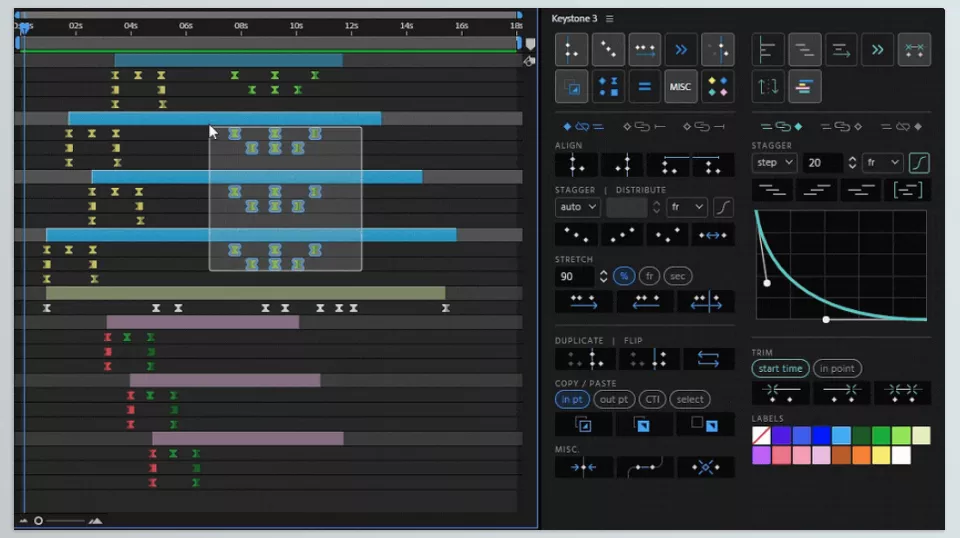
Keystone 3 is a specialized panel for managing keyframes and layers in After Effects that brings together a large collection of tools motion designers need in one environment. From aligning and moving keyframes to creating staggers, adjusting motion speed, organizing layers, changing values in groups, and controlling the Anchor Point, you can handle much of your daily timeline work directly from this panel.
Keystone focuses on tasks that may be simple on their own but can take a lot of time when repeated throughout a project. That is why, rather than being a single-purpose feature, the tool works more like a toolkit for managing the timeline faster, especially when your project contains a large number of layers and keyframes.
Stagger: From Simple Delays to Curve Control 🎞️
One of the key parts of Keystone 3 is its ability to create staggers, or time gaps between the animations of different layers or keyframes. This technique is widely used in motion graphics, for example, when you want several titles, Shapes, or graphic elements to enter the scene one by one.
Normally, you can manually move the start of the keyframes for each layer, but Keystone gives you more control over how these gaps are distributed. In the third version, we also added a Bézier curve controller for staggering, letting the timing distribution move away from a completely linear pattern.
This means the gap between layers doesn’t have to be identical. For example, you can make the first layers enter with larger gaps and then reduce the gap between layers, or set the movement so the spacing becomes wider toward the end.
Keystone 3 also adds three new methods for calculating stagger, giving you more control over how keyframes are distributed. In addition, a Cumulative mode has been added, which can help you create different patterns in stagger timing distribution.
As a result, the stagger feature in Keystone isn’t just a tool for moving keyframes backward or forward; you can also control the shape of their timing distribution.
Three Different Modes for Controlling Keyframes and Layers 🎯
One of Keystone’s important features is that you can perform different operations using three different scopes. This becomes important when you have multiple layers and properties selected at the same time.
By default, Layer Scope is active. In this mode, keyframes inside each layer are grouped relative to one another. This preserves each layer’s structure separately, and the operation runs on the keyframes within that layer.
Hold Alt while clicking to switch to Property Scope. In this mode, keyframes are considered by Property. For example, you can manage the keyframes of a specific Property across multiple layers together.
The third mode is Global Scope, which is activated by holding Shift. In this mode, it treats all selected keyframes or layers as a single group.
These three modes let you perform the same operation in different ways, depending on your project structure, without rebuilding your layer and keyframe selection from scratch every time.
Moving Keyframes Without Breaking Easing 🎚️
One common problem with keyframes is that changing their timing isn’t always as simple as moving a few points on the timeline. When you have carefully adjusted Easing and motion curves, changing the timing can mean adjusting the movement again.
Keystone handles the necessary calculations so that when you move keyframes, it preserves the Easing and motion curves.
For example, imagine you have fully adjusted a title’s entrance and the starting and ending speeds are exactly what you want. If you later decide that the entire animation should play a few frames earlier or later, Keystone can move the keyframes while preserving the motion settings.
This feature is especially useful in projects where, after completing the animation, you frequently need to synchronize the Timing with music, narration, or other parts of the video.
Constant Speed and Tangent Control 🚀
Keystone also supports Constant Speed, a feature you can use to synchronize movement speed and adjust Tangents.
In many animations, achieving a consistent speed between several keyframes requires manual adjustments in the Graph Editor. Keystone makes this process easier and helps you adjust tangents more consistently.
The key point is that Constant Speed settings are also preserved when you use other Keystone features. So you do not have to redo all your speed settings from scratch after every change.
Linking and Unlinking Keyframes and Layers 🔗
One feature that may seem simple at first but can be very useful in everyday Workflow is the ability to link and Unlink keyframes and layers.
With this feature, you can maintain the connection between different elements for certain operations and separate them when needed. This is especially useful when several parts of an animation need to move together, but you need independent control over them at certain stages.
In complex projects, this connection type can make it easier to manage different groups of keyframes and layers.
Changing Keyframe Values in Groups 🔢
Sometimes the problem isn’t timing; you simply want to change the value of several keyframes. For example, you may have several Position keyframes and want to increase all their values slightly.
The Keyframe Values section is designed for exactly this purpose. You can perform different operations on selected keyframes, including adding a value, multiplying a value, and rounding numbers.
Imagine you have several Keyframes for Scale and want to change all of their values slightly. Instead of opening each Keyframe separately and adjusting its value, you can apply the desired operation to the entire group.
This feature is useful for quick adjustments and group changes, especially in projects with many keyframes.
Organizing Layers in Different Ways 📚
As the number of Layers increases, finding the right order in the Timeline can become time-consuming.
The Layer Order section in Keystone 3 supports this part of the Workflow and offers different ways to organize Layers.
This feature can be useful in projects with many Text Layers, Shape Layers, Pre-comps, or similar elements. Instead of moving Layers one by one in the Timeline, you can use the panel’s sorting methods to organize them more quickly.
Anchor Point Control and Null Creation from One Panel 📍
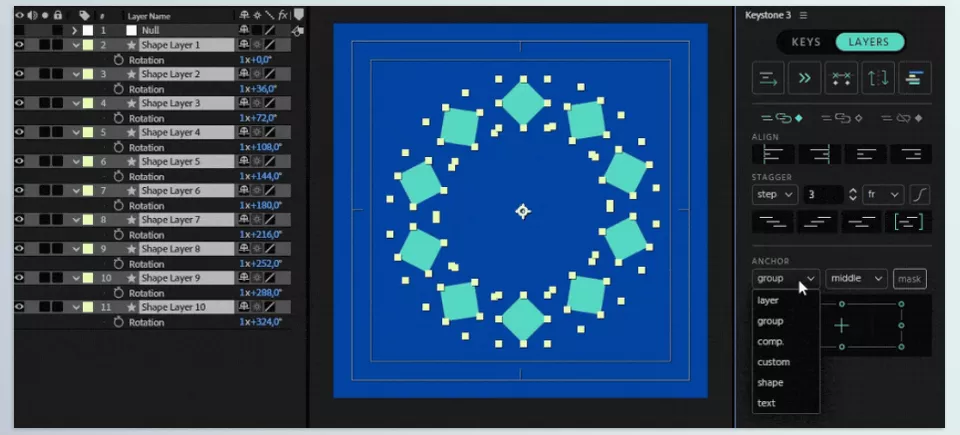
In the third version of Keystone, we also added a dedicated Anchor section. Through this section, you can move the Anchor Point and determine its position with more control.
You can apply this feature to individual Layers, groups of Layers, the entire Composition, or exact coordinates. Keystone also lets you control the internal Anchor Point of Shape Layers and Text Layers.
You can also create a Null Layer directly from inside Keystone. By using Ctrl/Cmd + Click, you can create a Null and use it to control or synchronize different elements of the project.
This section is especially useful when an element’s Anchor Point needs to be positioned precisely relative to a specific location or group, and you don’t want to do this manually for many layers.
Organizing the Panel with Sections 🧩
Keystone 3 doesn’t focus only on Timeline tools; you can also adjust the panel for different Workflows.
Keystone organizes its parts into separate Sections, and you can expand or collapse them. In the third version, shortcuts have been added to quickly show or hide Sections, so only the tools you need at that moment remain visible on screen.
You can even use Ctrl/Cmd + Click to collapse all Sections at once.
This feature is useful when you keep the panel open next to After Effects and don’t want your workspace cluttered with options you don’t need right now.
Arrange the Panel Around Your Workflow 🧱
Another Keystone 3 feature is the ability to reorder sections. You can move sections with drag and drop and arrange the panel structure around how you work.
For example, if you work mostly with Stagger, Keyframe Values, and Anchor, you can place these sections higher and keep the tools you use less often lower down.
As a result, Keystone isn’t just a fixed collection of tools; you can also adjust its appearance and order to match your Workflow.
One Panel for Repetitive Timeline Tasks ⏱️
Together, these features make it clear that Keystone 3 focuses on one specific part of After Effects: fast, precise Timeline management.
Instead of switching tools or sections for every task, you can use one panel to stagger, align, move keyframes, preserve easing, set constant speed, change values, organize layers, control the Anchor Point, and create nulls.
This may not make a huge difference in small projects, but as the number of Layers and Keyframes increases, you repeat these small operations again and again. In these situations, having this collection of tools in one environment can make your daily Workflow faster and more organized.
Tips for Better Use 💡
Keystone 3 is most useful when you use its features based on the animation type and your project’s structure. A few simple tips can help you get cleaner and more professional results from this tool:
- Do not always make the Stagger linear: If all layers start with exactly the same gap, the movement can look too predictable. By using the Bezier curve control, you can change the timing between layers and create a more interesting rhythm.
- Adjust the motion first, then change the timing: Once the smoothness and motion curve reach the desired result, use the keyframe movement tool to move the animation forward or backward. This helps prevent your motion settings from getting messed up again.
- Choose the right Scope: Before running any operation, decide whether you want keyframes managed separately within each layer, a specific property to change across multiple layers, or all selections to move as a single group. Choosing the right scope helps ensure the result is exactly what you expect.
- Keep the Timeline organized: If your project has many layers, use the layer sorting features to make finding elements and managing the animation easier. An organized timeline can greatly improve your workflow, especially in busy projects.
- Keep only the Sections you need open: You do not need to keep every Keystone section open all the time. Close the Sections you use less often and keep the frequently used ones accessible so the panel doesn’t get cluttered, and you can find the tools you need faster.
With these simple tips, you can make Keystone fit your workflow more closely and use its features not only to complete tasks faster, but also to gain more precise control over your animation workflow.
More Control Over the Timeline 🎯
In After Effects, many keyframe and layer tasks aren’t complicated; what takes time is repeating them over and over. When you work with many layers and keyframes, manually moving them, creating staggers, organizing layers, or adjusting timing can take hours.
Keystone 3 brings these tools together in one panel and offers faster ways to stagger, align, move keyframes, organize layers, change values, and control the Anchor Point.
If a large part of your daily work in After Effects involves the timeline, keyframes, and layers, Keystone’s value becomes clear: not because these tasks are impossible without it, but because it can shorten repetitive work and make project management more organized.
Starting with After Effects doesn’t have to be confusing. Our After Effects Tools guide walks you through the software’s essential tools, explains what they do, and helps you choose the right ones for your projects.