

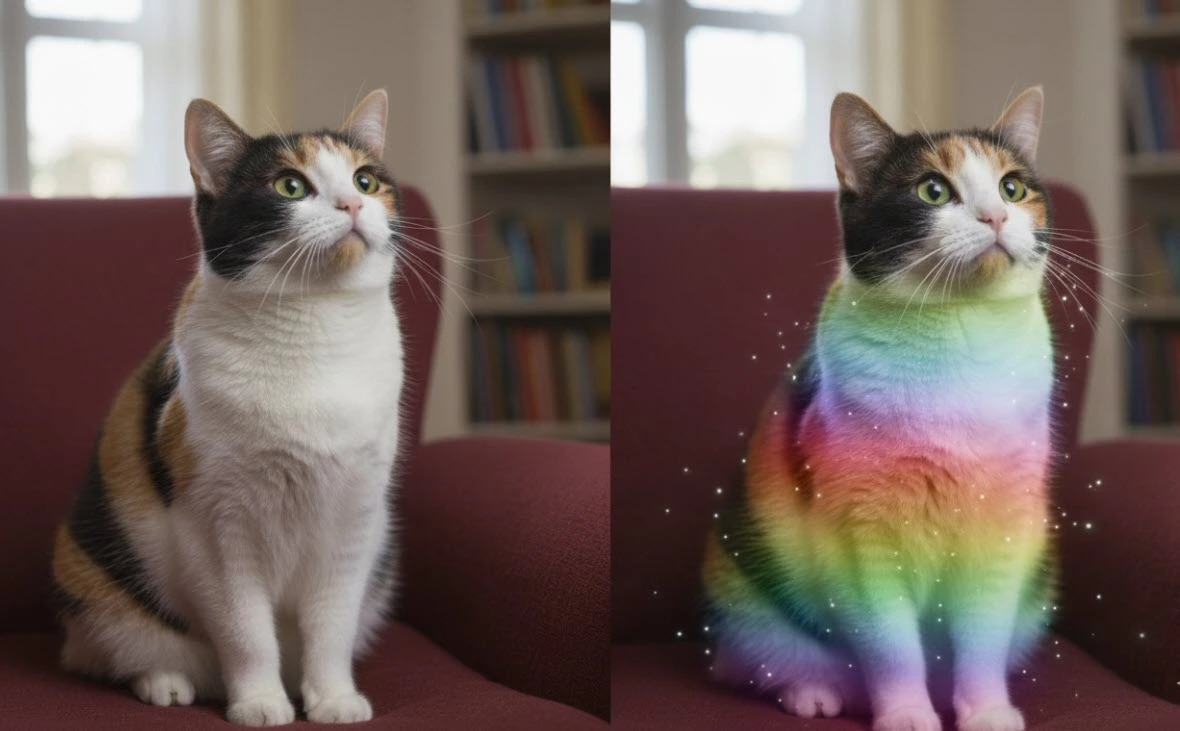
When the Effect Doesn’t Stay in Place!
Do you know what a Lockdown Plugin can do? Have you ever wanted to put a design or logo on someone’s clothing, only to see it separate from the surface the moment the fabric moves or wrinkles, making it look artificial? 😅 Or, for example, you want to add an effect on a face, like a tattoo or digital makeup, but when the person smiles or frowns, the effect doesn’t stay in place, ruining the whole result. This problem is familiar to many designers and motion graphics artists when they want to add something to an image that moves naturally with the surface.
The truth is, surfaces like fabric, skin, or anything stretchable and deformable are always a big challenge for tracking. Default After Effects tools usually only work well on flat surfaces, and when complex deformation comes into play, the task becomes extremely difficult and time-consuming. This is where professional tools are needed—tools that can attach an effect or image so it looks like it was always part of that surface and moves naturally with every motion.

Definition and Main Applications of Warping Surfaces Tracking
In the world of visual effects and motion graphics, there is an important technique called Warping Surfaces Tracking. Simply put, this technique allows you to attach an image, effect, or digital object to a surface in a video, so it moves and deforms along with the surface. It doesn’t matter if the surface stretches, bends, or wrinkles; your effect must experience the same changes to appear natural and realistic.
This becomes crucial when you want to keep something permanently and convincingly on a moving surface. For example, when adding a tattoo or digital makeup on an actor’s skin, it must fully match the facial expressions. Or when placing a design on clothing, it should move with the folds and stretches of the fabric. Without this synchronization, the effect looks like a separate sticker on the image, giving an artificial impression.
📌 Common applications of this technique include:
- Adding tattoos, makeup, or special effects on skin and faces.
- Placing logos, designs, or images on clothing, fabric, and textile objects.
- Working with flexible objects like balloons, rubber, or animal skin.
- Creating special and creative effects in advertising, music videos, and cinematic works.
In short, whenever you deal with a soft, living, or dynamic surface, warping surfaces tracking becomes a key tool for making your projects look more realistic.
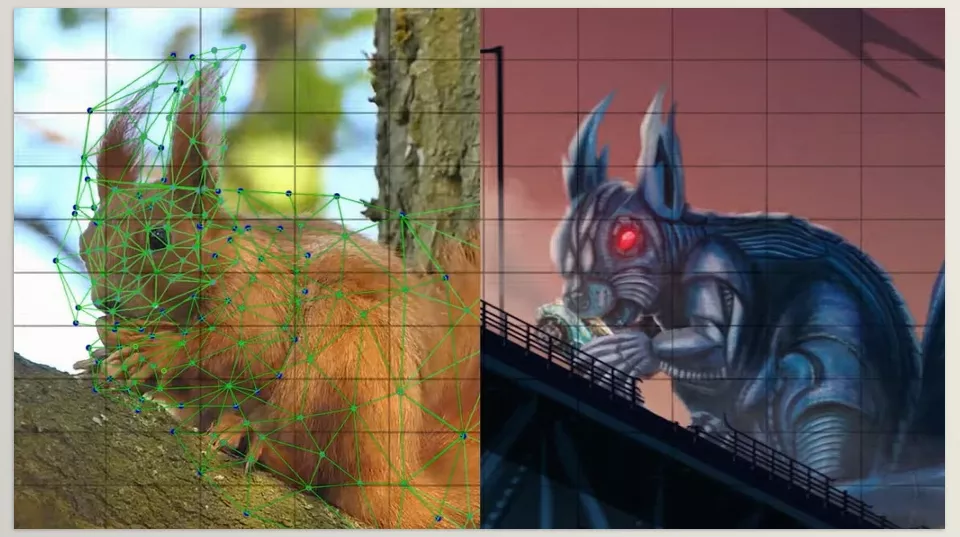
Challenges of Tracking on Moving Surfaces
For those working with After Effects, basic tracking tools are always available. Even Mocha AE, which comes bundled with After Effects, allows precise tracking of flat surfaces like monitors, boards, or mobile screens. These tools work well for surfaces with fixed shape and structure, quickly following the video’s movement.
But when it comes to surfaces that constantly deform—like clothing that wrinkles, fabric that stretches, or an actor’s face changing shape with muscle movement—traditional tracking methods are not enough. In such cases, automatic tracking often fails, and effects separate from the surface or look artificial. To fix this, you need to create masks frame by frame or manually apply adjustments, which is time-consuming, exhausting, error-prone, and usually still doesn’t look completely natural.
As a result, traditional methods are better suited for fixed surfaces, and when the surface is complex and dynamic, professional tools specifically designed for this task are necessary.
Smart Solution for Moving Surfaces
This is where Lockdown Plugin comes in! 🎉
This After Effects plugin is designed to solve the problem of tracking effects on surfaces that move and deform. With Lockdown Plugin, you can attach effects or images to a surface so that they appear as part of that surface, even when it stretches, bends, or wrinkles.
Key features of Lockdown Plugin:
- Warping Surfaces Tracking: Effects move with the surface and look natural.
- Stable Composition: Makes retouching or painting easier without everything breaking.
- Photoshop Integration: Use Generative Fill on moving videos.
- 3D Export to Blender or Cinema 4D: Attach 3D objects to surfaces and sync them with motion.
- Relight: Change the lighting of the tracked surface to make effects look more realistic.
With Lockdown Plugin, complex projects become easier and faster, eliminating the need for frame-by-frame manual adjustments.
Simple Tricks for a Professional Result
To make your work look more natural and precise, here are a few simple yet practical tips:
- Track parts of the surface with more detail or contrast; this allows the software to follow the surface movement more easily.
- After tracking, apply some smoothing to the mesh so the effects move naturally and edges appear smooth.
- If working with a 3D project, exporting Alembic to Blender or Cinema 4D can work wonders by synchronizing 3D objects with the surface movement.
- Always check the video at real playback speed before the final render to ensure effects are fully synced with the surface motion.
By following these simple tips, your work will look more natural and professional without spending excessive time on manual corrections.
Why No Professional Designer Works Without This Tool
If you truly want your projects to look natural, professional, and smooth, tracking moving and flexible surfaces without proper tools can be extremely difficult and time-consuming. Even the best skills cannot replace a fast and reliable method to synchronize effects with surface motion. Without the right tool, you end up spending hours on manual fixes and details, and the final result still may not appear fully natural.
Having a reliable solution like Lockdown Plugin allows your energy and time to focus on creativity rather than technical fixes. When your work is precise, synchronized, and dependable, you can concentrate more on ideas and creative designs, giving your projects higher quality and impact.
In simple terms, the right tool is not just an option—it’s a necessity for any designer or motion graphics artist who wants to deliver professional and realistic results. Once you experience it, you realize how difficult and limited working without it was, and how much it can transform your workflow and output.
Explore our After Effects tools guide to enhance your skills and achieve more professional project results.



