

When Layers Are Not Always in Place…
Did you ever come across the Positioner Plugin? When it comes to motion graphics work, you’ve experienced this dilemma: layers are not in the right position! Text shifts, images resize, logos are not on-screen where you’re anticipating.
And when you decide to change the scene size or aspect ratio, everything falls apart; layers drift apart, layouts break, and you might spend hours fixing everything just to get it back in order.
Imagine creating an advertising project or intro: text must align with the logo, the background image should always stay in place, and any change in the scene shouldn’t ruin the whole project. Without the right tools, it’s like assembling a puzzle blindfolded—every small piece can go in the wrong place and nullify all your efforts.
This is exactly where motion graphic designers look for a way to keep layers always in the right position and proportion, even when the project becomes complex or sudden changes in scene dimensions occur.

What is a Composition and Why It Matters
Let’s keep it simple: in After Effects, we have something called a composition, which you can think of as the canvas or scene where everything is placed. Text, images, logos, and shapes all sit on this canvas, and you can animate or add effects to them.
Simply put: a composition is the scene where your project takes place.
Here are a few examples to visualize it:
- When you place a logo, a text, and an image in sequence, the composition ensures everything stays in the right place and at the correct size.
- You can have multiple layers side by side, and everything remains organized and aligned.
- When the project grows, nested compositions allow you to divide and control everything efficiently.
- If you want the project to work on both mobile and desktop, compositions help layouts adapt automatically to changes in screen size.
Why is this important?
Without compositions, even the simplest projects can quickly become messy and disorganized, consuming a lot of your time.
For example, imagine creating a digital greeting card: the greeting text, background image, and logo must all align perfectly. The composition acts as the main canvas where everything is arranged, and with smart tools like The Positioner Plugin, everything stays organized automatically and effortlessly.
You Can Do It Without Plugins… But It’s Hard
Everything in After Effects can be done manually, even without plugins. You can move layers one by one, resize them manually, and with patience, you can create your project properly.
Another method is using Expressions—small pieces of code you can add to layers to automate certain behaviors. For example, you can make a text stick to the edge of the screen, or automatically adjust its size when the scene resizes.
But what are the real problems?
- Time-consuming and tiring: Moving and scaling multiple layers one by one can take hours.
- Clutter and mess: Even a small change in the scene can disrupt everything, forcing you to readjust manually.
- Requires coding knowledge: Using Expressions requires some understanding of coding logic, otherwise it can cause headaches instead of simplifying your workflow.
- No automatic responsiveness: When creating projects for different screen sizes (mobile, desktop, etc.), everything must be manually adjusted again.
In short: you can work without a plugin, but it’s very time-consuming and prone to errors. In large projects or tight deadlines, these problems can quickly become a nightmare.
The Positioner Plugin: Easy, Accurate, and Fast
When your motion graphics projects get complex, moving and resizing layers can be exhausting. This is where The Positioner Plugin comes in, making everything easy, fast, and precise. Let’s see what this plugin can do and how it simplifies your workflow:
1. Pinning Layers (Pin to Layers / Pin to Comp Edges)
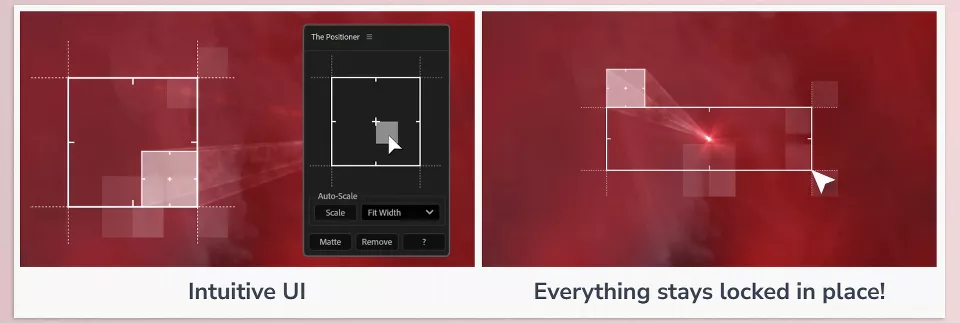
- You can pin layers to the composition edges or other layers’ edges.
- Even when the scene resizes or layers move, everything stays in place.
- Perfect for text, images, logos, and shapes.
2. Auto-Scale
- Layer sizes automatically adjust relative to the scene or other layers.
- No more wasting hours resizing layers manually.
- Even if the scene changes from horizontal to vertical, everything remains proportionally correct.
3. 10 Different Scaling Modes
The Positioner Plugin includes 10 scaling modes covering every scenario:
- Fit: Layer fits inside the scene boundary.
- Fit Width / Fit Height: Width or height fills completely.
- Fill: Layer fills the entire target space.
- Stretch / Stretch Width / Stretch Height: Layer stretches to fill space.
- Shrink / Shrink Width / Shrink Height: Layer shrinks to fill the space.
These modes let you scale any layer—text, image, or shape—exactly as you want.
4. Padding and Size Limits
- Add padding to layers to maintain distance from edges or other layers.
- Padding can be uniform or set individually (left, right, top, bottom).
- Set minimum and maximum layer sizes to prevent them from being too big or too small.
5. Lock Text Height
- Lock the height of long or multiline text so the appearance doesn’t break when resizing the scene, font, or text.
6. Compatibility with Box It!
- Box It! is a great tool for creating text boxes, chat boxes, footnotes, and dynamic elements.
- The Positioner Plugin fully supports Box It!, making it easy to align and arrange Box It! layers.
- Note: Auto-Scale is not supported for Box It! layers.
7. Rotation Support
- When layers rotate, the Positioner Plugin keeps their position relative to edges and preserves all offsets.
- Rotate layers without breaking the layout.
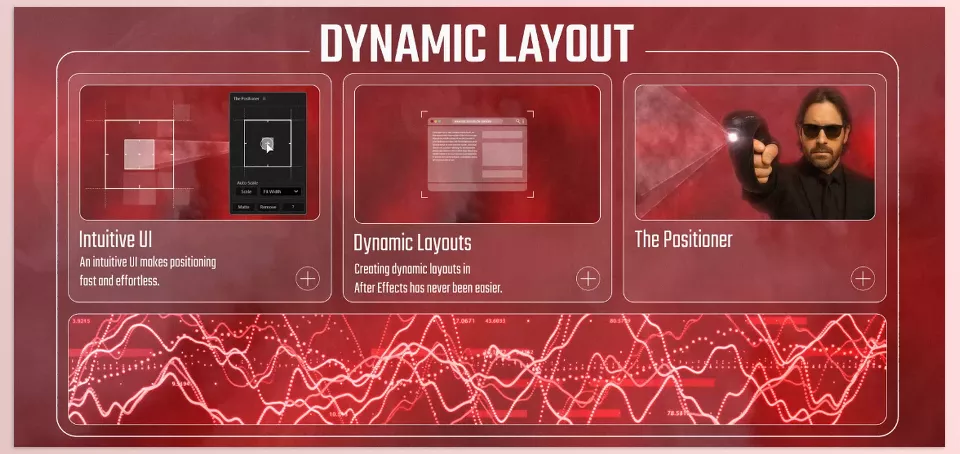
8. Intuitive UI
- Everything is in a simple, easy-to-understand panel.
- With a few clicks, you can pin layers, scale them, and set distances.
- Even beginners can use it easily without writing Expressions.
9. Responsive Layouts
- Combining Pin, Auto-Scale, scaling modes, and Padding ensures layouts are responsive.
- When the scene resizes or new layers are added, everything adjusts automatically, keeping the project clean and professional.
The real impact:
- Arrange text, logos, images, and shapes on any scene and be confident that everything stays in place.
- No more manually moving and scaling each layer.
- Projects remain tidy, organized, and professional, even with scene changes or added layers.
- The Positioner Plugin acts like a precise assistant, multiplying your speed, accuracy, and convenience.
How Professionals Use It
Lock Text Height
- Lock the height of long texts while allowing width or position to change.
- Benefit: Text remains readable and organized across different aspect ratios.
Smart Use of Padding
- Set padding uniformly or individually (left, right, top, bottom).
- Benefit: Elements placed together maintain natural spacing, giving a professional look.
Preserve Position When Rotating
- Rotate layers while the Positioner Plugin keeps their position and spacing relative to edges or other layers.
- Benefit: Ideal for dynamic effects and rotational animations.
Combined Use with Box It!
- Place text or graphic layers inside Box It! and use The Positioner Plugin for quick alignment and sorting.
- Benefit: Even with text changes or new elements, everything remains organized automatically.
Responsive Layouts for Multi-Dimensional Projects
- Use Auto-Scale and Pin for projects that appear on multiple screen sizes (mobile, tablet, desktop).
- Benefit: Each element maintains proper proportion and spacing automatically.
Quick Testing and Preview
- Before final rendering, resize the composition and move layers to test Pin and Auto-Scale functionality.
- Benefit: Ensures everything remains responsive and organized in all scenarios.
By following these tips, layer layouts will not only stay precise and tidy but also make your projects appear more professional and flexible. Investing a little time to set these options correctly saves significant effort later and reduces headaches.
The Result? Your Work Is Always Ready!
Using the Positioner Plugin, motion graphics projects are created faster and easier. No more hours moving or resizing each layer manually—everything is done with a few clicks, letting you focus on creativity and real design.
Layers always stay in place and aligned, even when the scene size or ratio changes. Your projects remain clean, organized, and responsive, eliminating worries about unexpected layout shifts.
With features like Auto-Scale, Pin, and Padding, there’s no need for manual adjustments. Every layer—text, image, or logo—is placed precisely where you want and remains proportionate to the scene.
Ultimately, the Positioner Plugin is an intelligent, precise, and reliable assistant that keeps everything in line and professionalized, ready for any client deliverable, so once everything is finalized regarding animations, spacing, and creativity, there will be no more accidental mishaps with positioning or the size of the layers anymore!
Transform the way you work in After Effects by exploring our complete guide on AE Tools, which details every essential plugin, script, and add-on that professionals use to speed up their workflow and elevate their projects.



