


Natural Movements, Hassle-Free
Have you ever worked with the Ease and Wizz Plugin? Do you know the problem with most animations? Their movements feel lifeless! An object goes from one point to another, but very often, its motion looks stiff and artificial. For example, a ball should accelerate at first and then slow down before hitting the ground. Without proper control, it moves across the screen at a constant speed, and it’s simply uninteresting.
Sometimes we think we can fix this with simple keyframes or manual adjustments. But the reality is that the result is either half-baked or it takes hours to make it feel a bit more natural—and even then, it still doesn’t have that real-life feel.
Imagine bringing a logo onto the screen or making text appear in a professional style. Without control over the speed curve, it either enters the screen too fast and oddly, or so slow and boring that the viewer loses interest.
So the question is: how can we make movements natural, engaging, and quick to create, without spending hours wrestling with keyframes?

What is “Easing” and Why Does It Matter?
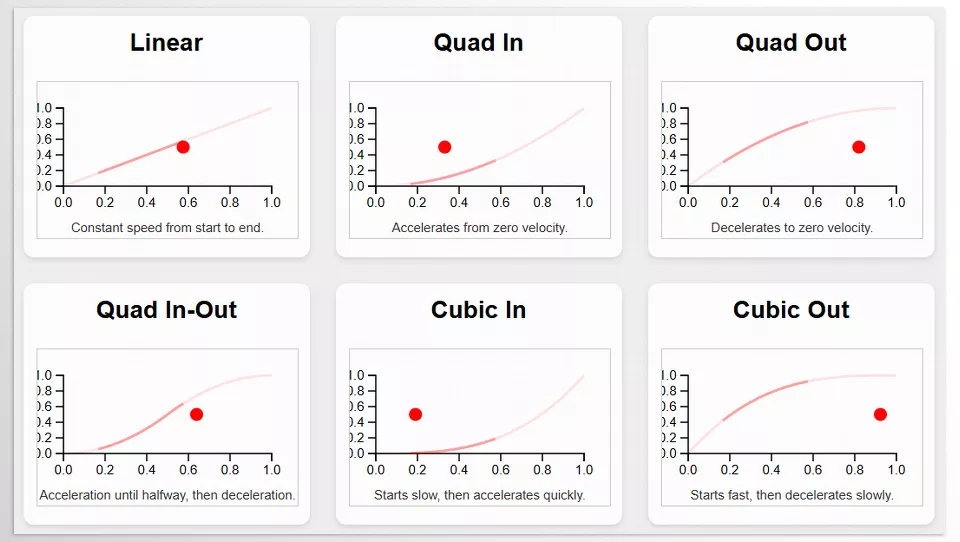
Simply put, Easing is the method of changing speed between two points in animation. An object moves from point A to point B, but it doesn’t always travel at a constant speed. It can start slowly, accelerate, decelerate before stopping, or even have a small bounce.
For example, imagine throwing a ball. If its speed is constant, the movement looks stiff and artificial. But if it accelerates at first and gradually slows before hitting the ground, the motion looks natural and alive. Exactly what the human eye expects!
Practical Applications
- Character movements: When a character walks or moves their hand, Easing makes the movement feel natural and lively, not robotic.
- Text and logo slide effects: When text or logos enter or exit, the motion becomes smooth and attractive, catching the viewer’s attention.
- Smooth changes in color or scale: When a circle grows, or an object changes color, Easing makes these changes pleasing and fluid, not sudden or tiring.
In short, Easing makes your work look more professional, engaging, and natural. Even small motion details subtly give the scene a sense of realism.
How to Do It Without a Plugin
If you want to work without any plugin, After Effects has built-in tools. For example, you can use Easy Ease, enter the Graph Editor, and adjust curves manually. You can even change the keyframe interpolation type to make movements smoother.
However, these methods aren’t always fast or easy:
- Working with graphs is time-consuming: You have to carefully adjust curves in the Graph Editor for movements to look natural. Even a small mistake can make a motion look stiff.
- Curve limitations: After Effects only has a few preset curves. If you want a special bounce or elastic motion, you’ll spend hours tweaking curves to get the desired result.
- Keyframe adjustments are a hassle: If you add or move a keyframe after hours of tweaking, all your curves get disrupted, and you have to start adjusting from scratch.
In short, using built-in tools is possible but slow, tedious, and sometimes unpredictable. That’s why many people look for a faster, easier way to achieve natural and appealing movements.
Ease and Wizz: Professional Motion Control
Now that we understand how time-consuming and frustrating keyframe work can be, it’s time to introduce a professional tool: Ease and Wizz Plugin. This plugin is essentially a set of expressions for After Effects that gives you professional easing methods, making your motions smooth, natural, and quick to create.
Main Applications
Precise Motion Curve Control (Easing)
- Linear: Simple, straight motion
- Exponential: Starts slowly and accelerates, or vice versa
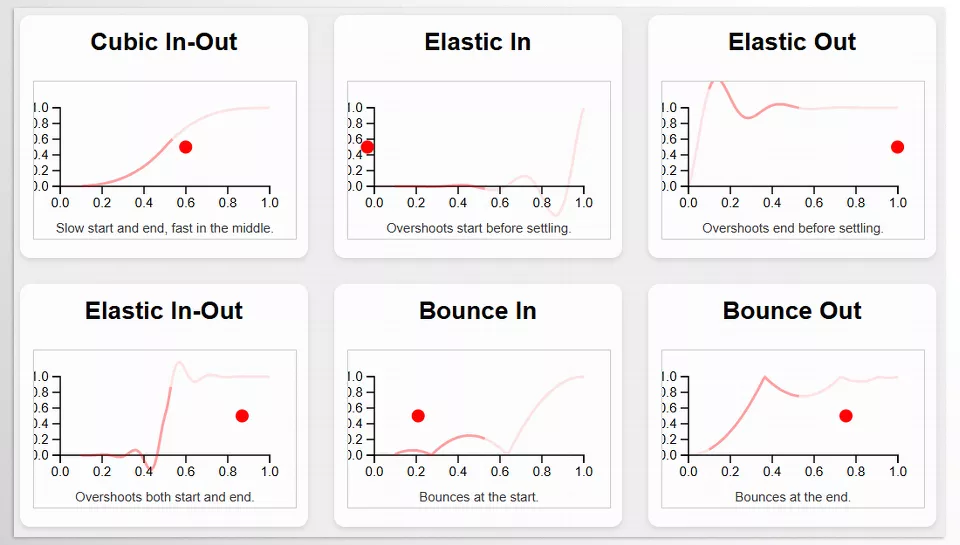
- Bounce: Bounces and oscillates like a ball
- Elastic: Smooth, springy motion
- Sine, Cubic, Quart, Quint, and many advanced curves
Usable on Any Property
- Position
- Scale
- Rotation
- Opacity
- Color
- And virtually any property you want to animate
Automatic Updates
When you move or add keyframes, curves update automatically. No need to readjust everything manually.
Dockable Palette
A convenient panel that’s always at hand, without getting lost in menus or searching for expressions.
Combining and Layering Curves
You can combine Bounce and Elastic, or apply multiple easing types on a single property for complex movements.
Workflow Improvement
Working with keyframes becomes faster, with no need for manual curve adjustments. Perfect for motion graphics, advertisements, logo animations, character animation, and visual effects.
Real-Life Examples
- Logo entrance: Want it smooth and stylish? Ease and Wizz Plugin make the motion simultaneously accelerating and flexible.
- Text slides or fades: Movements appear smooth, engaging, and professional.
- Character motion: Bounce and Elastic make weight and momentum feel real, not artificial.
- Color, size, or opacity changes: Different curves make changes pleasing and fluid, without the user noticing manual adjustments.
Key Takeaways
- This tool makes all your movements look professional, smooth, and natural.
- Even when making later changes, easing is maintained without needing to redo adjustments.
- Suitable for any project, from simple motion graphics to complex animation and VFX.
Ease and Wizz Plugin make animation faster, more precise, and enjoyable. No more wrestling with the Graph Editor or rebuilding curves. With a handy panel and professional curves, you can design every movement naturally, attractively, and professionally.
Natural Movements with a Few Simple Tricks
Once you start using Ease and Wizz Plugin and want your motions to feel natural and lively, here are some professional tips:
Organize Keyframes First
Always set the main keyframes first. If anything is out of place, even the best curves won’t make the movement look right. Imagine throwing a ball; if the start and end points are wrong, no Bounce or elasticity can make it natural.
Combine Bounce and Elastic for Lively Motions
These curves together create very appealing and lively motions. For example, a text appears and slightly bounces, or a logo has a soft jump without looking artificial.
Minor Curve Adjustments Add Realism
Sometimes, just a small curve change makes a motion feel real. For example, a circle slows down slightly before stopping, or a character accelerates a bit slower, adding a sense of naturalness.
Simplicity Over Over-Effects
Complex and busy movements may look attractive, but often feel artificial. A simple, smooth, and calculated motion always looks better and more professional.
Use Presets and Ready-Made Modes
Ease and Wizz Plugin has several presets you can quickly test to see which motion feels natural. Then you can tweak the curves slightly according to your needs.
Test Motion in the Actual Composition
Always review motions on the main scene, not just in the timeline. Sometimes what looks good in the Graph Editor appears stiff or odd on screen.
Maintain Coordination with Other Elements
When multiple elements move simultaneously, make sure their curves are synchronized. This ensures the entire scene feels natural and fluid.
Ultimately, the secret to natural and professional motion isn’t just the tool; it’s in the small details and simple principles. By organizing keyframes, smartly combining Bounce and Elastic, and making minor curve adjustments, you can create lively and attractive motions. Always aim for simplicity and precision, and check motions in the main scene for natural and coordinated results. Even the simplest animations can feel real and professional with these tips.
Smooth and Professional, Hassle-Free
Finally, Ease and Wizz Plugin make your animations feel very natural, smooth, and appealing without spending hours in the Graph Editor or adjusting keyframes manually. No more building curves for every small motion or redoing everything after changing keyframes.
With this tool, you can focus on creativity and design, spending your time on big, engaging ideas instead of tedious, repetitive fixes. Movements become more natural and coordinated, even for complex motion graphics, logo animations, or character animations.
If you want your work to look professional and visually appealing, the Ease and Wizz Plugin is truly a worthwhile experience. Even a few minutes of using it can have a huge impact on your final project quality, transforming animations from stiff and artificial to lively and fluid.
If you want to fully understand After Effects and explore every plugin, script, and preset that can expand your creative possibilities, our comprehensive guide about After Effects Tools is your perfect starting point.



