

Who Has the Patience for 200 Keyframes?
Are you familiar with using the iExpressions Plugin by aescripts? Have you ever wanted to create a simple animation, only to realize after a few minutes that your timeline is filled with tiny and large keyframes? Or tried to make several layers move in sync, but with the smallest change, the entire rhythm falls apart, and you’re forced to readjust everything? That’s when the work stops feeling creative and turns into repetitive, time-consuming corrections.
The truth is, many animations have “behavior.” They have delays, reactions, and dependencies. But we usually simulate these behaviors with dozens of manual keyframes. Even a small change can make the structure fragile and send you back to the timeline to fix everything from scratch.
The problem isn’t your creativity or your skill. The problem is that the tools aren’t always as smart as our ideas. As projects become bigger and more professional, simply moving layers isn’t enough anymore — you need to define “logic” for the motion. That’s where making animation intelligent becomes a serious topic.

The Hidden Brain Inside After Effects
Simply put, an Expression is a short piece of code that makes a property change automatically and intelligently.
Instead of adding dozens of keyframes for every movement, scale, or color change, you tell the software what logic to execute. From that moment on, the animation doesn’t just play — it behaves according to that logic.
In fact, expressions are like a “hidden brain” inside After Effects. For example, you can make a ball always follow the mouse, have 10 icons appear one after another with a delay, keep a logo perfectly centered even if the comp size changes, or control the color of multiple layers with a single controller. You can even create natural, spring-like animations without spending hours adjusting the Graph Editor.
Why does this matter? Because your speed multiplies, last-minute changes become easier to apply, your projects become cleaner and more structured, and you can build smart, editable templates.
But there’s one catch… using expressions means entering the world of coding — and that’s where many people stop.
The Old Methods: Either Keyframes or Coding
Before smart tools entered the scene, we usually had two options:
Either animate everything with keyframes or write expressions manually.
With the keyframe method, you have to:
- Copy the animation
- Add a delay separately for each layer
- Adjust timing manually
- Go back and fix everything again with every change
If you wanted to work more professionally, you had to write expressions — meaning you needed some JavaScript knowledge, understand how to reference layers, and deal with errors.
Both methods are possible… but they’re not always easy.
🔹 The Problem Starts When the Project Gets Bigger
As long as the project is small, everything feels manageable. But once the number of layers increases or the client says, “Just make it a little faster,” that’s when the trouble begins. Keyframes fall apart, timing gets messy, or the expression you wrote throws an error and drives you crazy.
Gradually, instead of focusing on the feeling and rhythm of the animation, you get stuck in repetitive fixes and technical details — and that’s when you realize there must be an easier way.
Introducing the iExpressions Plugin
This is exactly the point where the iExpressions Plugin comes in.
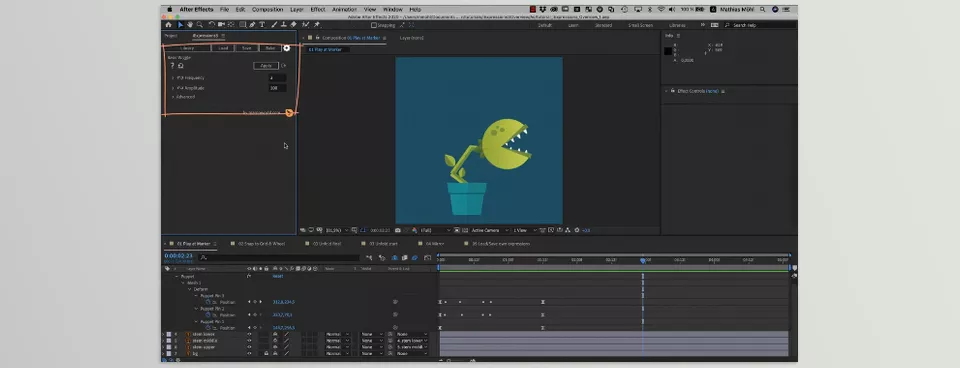
This tool is designed for After Effects, so you can use the power of expressions without getting involved in coding. Instead of typing commands and struggling with errors, you select and adjust everything from a simple graphical panel. In other words, instead of writing code, you just define how the animation should behave.
This tool helps your projects become more structured, controllable, and flexible. Especially when working with rigs, templates, or multi-layer projects, having an intelligent system instead of dozens of scattered keyframes truly makes a difference.
🎛 Over 100 Ready-to-Use Expressions
Almost every behavior you would normally write an expression for is ready and adjustable:
- Wiggle (controlled random motion)
- Loop (smart animation looping)
- Delay (creating a delay between layers)
- Link to Layer (connecting properties together)
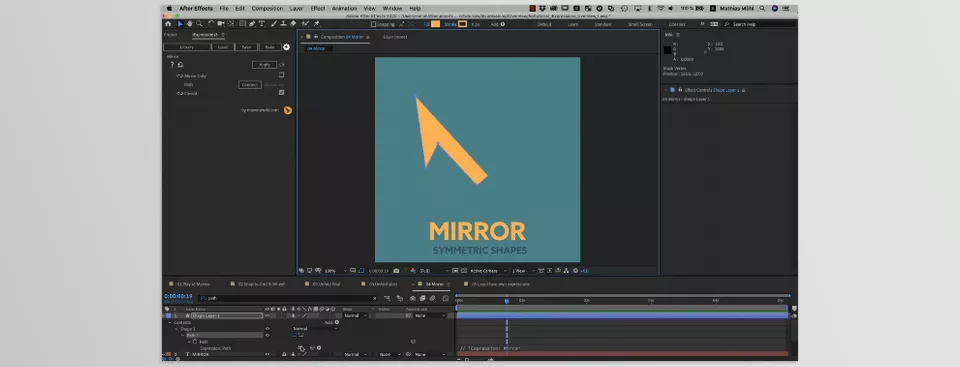
- Mirror (creating symmetry)
- Snap (snapping to grid or specific points)
- Spring Animation (natural, elastic motion)
- And dozens of other practical tools
All with a simple interface and no need to write code.
🦴 Rigging and Control Systems
To build dynamic and controllable structures, you can use features like:
- Character rigging
- Automatic Walk Cycle
- Smart layer linking
- Creating a central controller with sliders
This way, instead of animating each element individually, you build a system where everything works together in harmony.
🎨 Advanced Color Control
If your project is color-dependent, this section is extremely useful:
- Linking multiple-layer colors together
- Controlling brightness and saturation from a single point
- Creating smart color transitions
This means changing colors across multiple parts of a project with just one simple adjustment.
📐 Shape and Path Tools
For working with shapes and paths, it provides various capabilities:
- Creating wavy and dynamic lines
- Generating automatic arrows
- Designing symmetrical shapes
- Connecting layers with curves
🌊 Modern Spring Animations
For UI design and modern motion work, you can easily create Spring movements — soft, natural, and responsive animations — without spending hours in the Graph Editor.
One Important Advantage
An attractive point is that even if you give the project to someone who doesn’t have the iExpressions Plugin installed, the animations will still work correctly. It also runs smoothly inside Premiere and MOGRT files.
That means you’re not dependent on the tool — you’re just benefiting from its intelligence.
How to Use It More Professionally
Now that you’re familiar with the capabilities of the iExpressions Plugin, here are a few practical tips to help you use it more professionally and cleanly. These are things that truly help in real projects:
✔ Use a Central Controller
In every project, create a Null Object as a control center and place all sliders, color controls, and important parameters there. Then link the other layers to this controller.
This keeps your project organized and allows you to apply changes from one place instead of multiple scattered layers.
✔ Build Systems, Not Single Animations
Instead of animating multiple layers separately, fully design one and connect the others to it using Delay or Link.
This way, you build an intelligent structure where any change to the main layer updates the others automatically, making your project more flexible.
✔ Use Spring for UI and Modern Motion
Spring movements make animations feel more natural and professional, especially in app and interface projects. Instead of struggling with the Graph Editor, simply adjust the Spring intensity and speed to achieve a smooth, modern motion.
✔ Test Before Fully Baking
If you plan to bake the expressions into keyframes at the end, test everything first — speed, timing, and controllers. Because after baking, you won’t have the same flexibility and intelligence as before.
These tips may seem simple, but in serious projects, these exact details are what define the difference between an average result and a professional one.
Is It Really Worth It?
If you don’t enjoy writing code, frequently build templates, design rigs, or your projects are becoming more complex every day, a tool like iExpressions Plugin can truly be useful for you.
Especially when delivery speed matters and multiple revisions are expected, having an intelligent system instead of dozens of scattered keyframes makes a big difference.
iExpressions Plugin isn’t meant to replace your creativity or create amazing animation on its own. The idea, design, and sense of motion still come from you.
But it helps your ideas be executed faster, cleaner, and with a more professional structure — without your mind getting stuck in repetitive technical details.
In the end, being professional isn’t just about working hard. Often, it means working smart. If a tool can increase your speed and make your projects more flexible, at the very least, it’s worth trying 😉
Take a deeper look into After Effects with our practical After Effects Tools guide, where we share trusted plugins, essential tools, and workflow strategies that make complex projects easier.



