

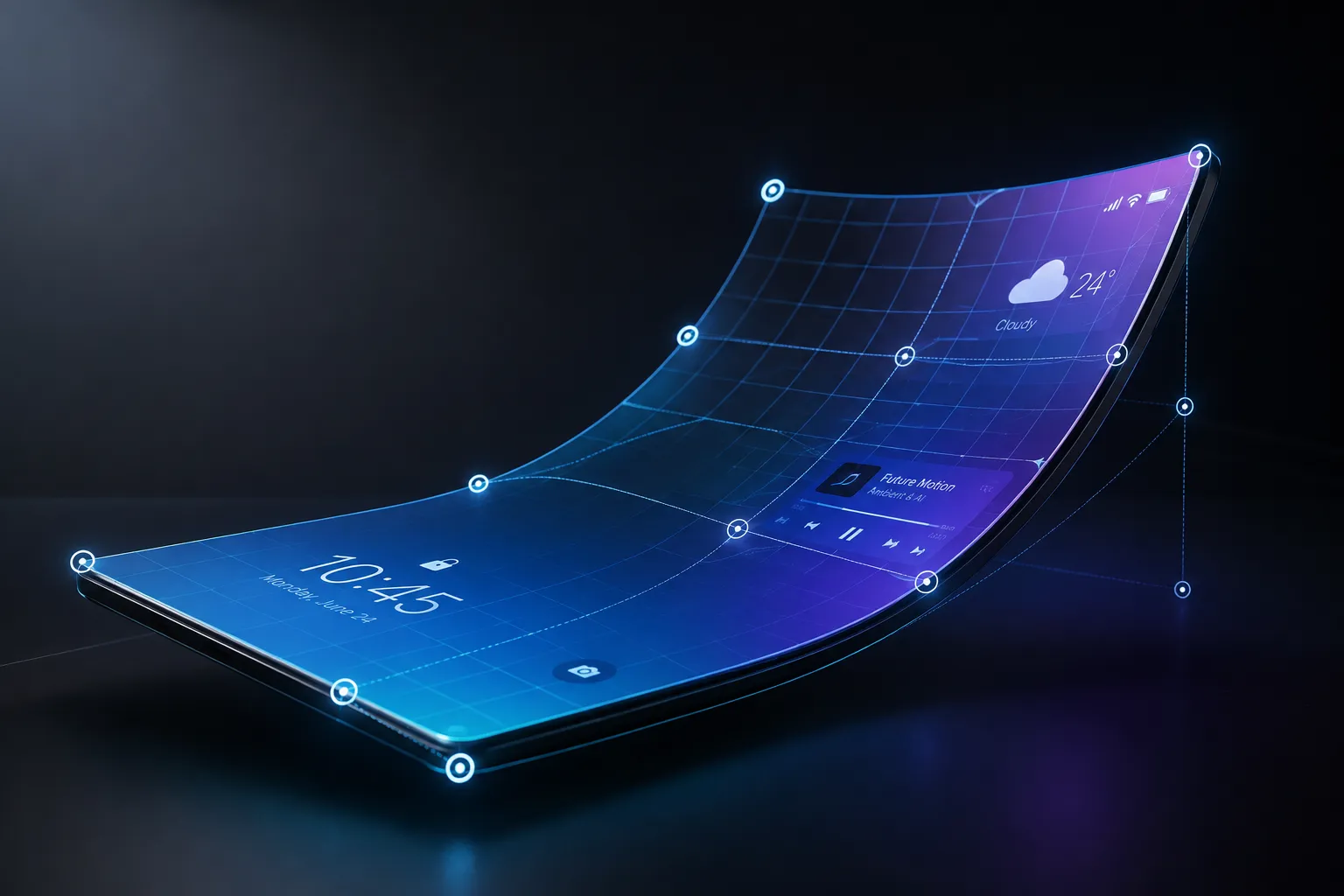
Creating Curved 3D Animations in After Effects; When Surfaces Actually Deform 🎬
Are you aware of the Foldspace Plugin by aescripts? You’ve probably been in the middle of a motion design project where you wanted a simple surface—such as a card, poster, package, or screen—not to behave like a flat layer, but to actually bend, fold, roll, or change shape as the camera moves.
The problem starts when simply rotating or moving a 3D layer is no longer enough. For example, if you want a brochure to open from the middle, a box to fold into shape, or a digital screen to bend like a real object, you usually have to rely on a combination of Warp effects, masks, multiple layers, and manual tricks just to simulate that behavior.
While these functions are helpful for relatively simple projects, more complex projects that require greater control over the deformation of your 3D elements or more intricate movements will require much more effort with the current methods in After Effects. Having a tool that lets you animate the 3D layer itself will make it easier and more creative to create these types of projects.

What Exactly Are Curved 3D Surfaces? 🤔
Normally, most of the layers we use in After Effects are flat. Even if you place a layer in 3D space, it still remains a flat plane that can only rotate or move.
However, in professional projects, there are many situations where the surface itself needs to deform. For example, a poster bending in the middle, a mobile screen becoming curved, or a box opening and closing.
Curved 3D surfaces allow you to create these kinds of forms. Instead of simply moving a flat plane, you actually modify the geometry of the surface itself.
This capability is useful in many different projects, including:
- 📦 Product and Packaging Animation: Creating animations such as opening boxes, folding brochures, or changing the shape of packaging.
- 🖥️ UI and Display Design: Building curved screens, 3D panels, or modern interface transitions.
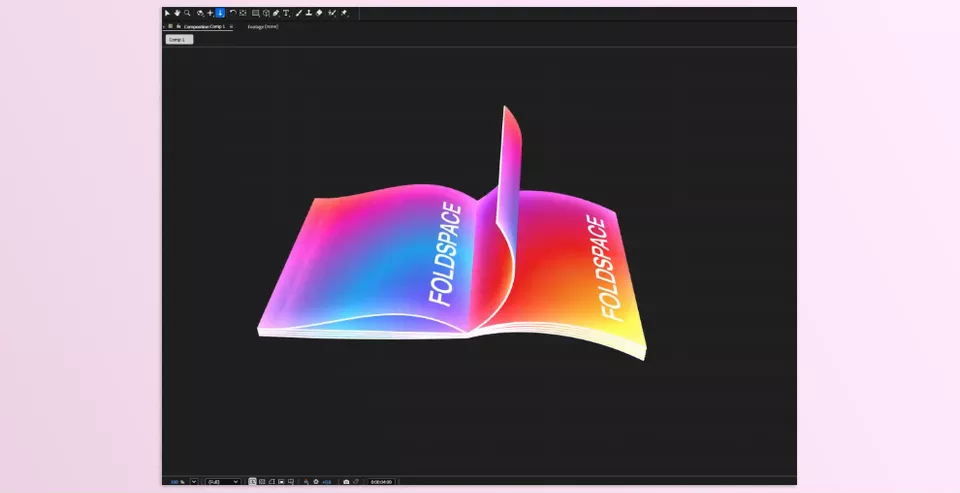
- 🎨 Abstract Motion Graphics: Creating forms that move like fabric, paper, or flexible surfaces.
- 🎬 Commercial Advertisements: Producing unique animations that would normally require a lot of time to simulate using traditional techniques.
The biggest advantage of this approach is that the motion looks more natural because the object itself is deforming, rather than simply applying a few effects to a flat image.
Common Methods for Creating Curved Surfaces in After Effects 🛠️
After Effects includes several useful tools for deforming layers and creating 3D-style animations. By combining them, you can achieve many different ideas. For simpler projects, these built-in tools are usually sufficient and can produce solid results.
For example:
- 3D Layers: By converting layers into 3D, you can move them within 3D space, rotate them, and combine them with cameras and lights. This method works well for rotating cards, screens, or graphic elements.
- Mesh Warp: When you want to slightly bend an image or layer or give it a wavy appearance, this effect can help. It’s a good option for simple deformations and controlling different parts of an image.
- Bezier Warp: Used for creating quick bends on layers. For example, when you want an element to have a slight curve or a softer appearance.
- Puppet Tool: This tool lets you place control points on different parts of a layer and move each section independently, similar to a simple rig for deformation.
- CC Bend It: A fast way to bend layers, mostly used for simple animations such as bending a line, shape, or graphic element.
Using these tools, you can create many attractive effects, especially when the project isn’t too complex and only requires simple deformations.
When You Need More Control Over the Surface, the Limitations Begin ⚠️
The challenge begins when you want to control a surface like a true 3D object. For example, a panel where every corner moves independently, a brochure that folds in multiple stages, or a surface that changes shape several times throughout the animation. At this point, you’re usually forced to combine multiple layers, masks, pre-compositions, and various effects just to simulate the appearance of a curved surface.
In reality, these techniques mainly create the illusion of three-dimensionality rather than giving you actual control over the surface itself. As projects become larger and the motion more detailed, everything becomes harder to manage, and achieving a natural-looking result requires significantly more time.
Foldspace; True 3D Surface Control Inside After Effects 🚀
Foldspace is a plugin for After Effects that allows you to create curved 3D surfaces, modify their shape, and animate them like real objects. What makes this tool interesting is that, instead of working with a flat layer and trying to simulate bending with multiple effects, you get an actual 3D surface whose shape you can control directly.
Imagine you want a brochure to open from the middle, a card to bend, a display screen to deform like a real object, or a sheet to roll like paper. Creating these types of animations in standard After Effects is possible, but it usually requires numerous workarounds. Foldspace makes this process more direct by allowing you to build and animate the surface geometry itself.
Building 3D Surfaces with Complete Shape Control 🎨
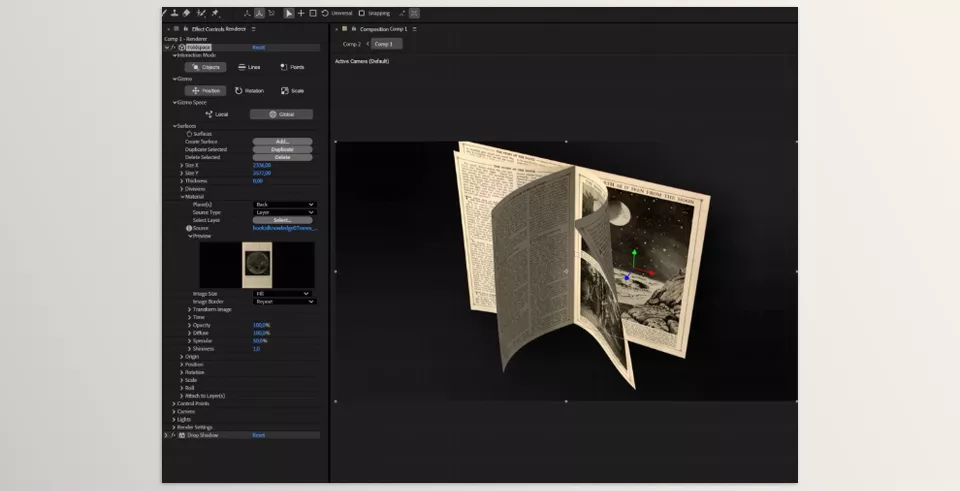
One of Foldspace’s most important features is that it lets you create surfaces that are much more than simple flat planes. Every surface in the plugin is built using 16 control points, and each point can be moved freely within 3D space.
This means that instead of simply rotating a layer or applying a small Warp effect, you can genuinely reshape the surface. For example, you can create a wavy panel, folded paper, abstract forms, or even simple 3D structures made from multiple connected surfaces.
Another great aspect of Foldspace is that every surface can be edited independently. If your project contains multiple surfaces, each one has its own controls, allowing you to make changes without affecting the others.
There is also no limit to the number of surfaces you can create, allowing you to build multiple surfaces within the same 3D environment and create more complex scenes.
Using Any Image or Video as a Texture 🎬
One of Foldspace’s practical features is that you’re not limited to filling surfaces with solid colors. You can use any layer from your After Effects project as a texture on a 3D surface.
For example, you can place a graphic design onto a 3D card and bend or animate it, display a video on a curved screen, or apply a brand logo to animated packaging.
In addition, Foldspace lets you control the materials of different parts of a surface independently. If a surface has thickness, you can customize the appearance of its front, back, and side faces separately.
To make everything look more realistic, you also have controls for reflections, glossiness, transparency, and the surface’s response to lighting. These details help the final result appear much more like a real object rather than simply an image placed onto a 3D form.
Creating Complex Animations with the After Effects Animation System 🎬
One of the features that makes Foldspace especially attractive for motion designers is its direct integration with After Effects’ native animation system. You don’t need to switch to another environment or learn a complicated workflow—you can continue using the same keyframes, layers, and controllers you’re already familiar with.
In Foldspace, both the surfaces themselves and their control points can be linked to other After Effects layers. This means you can connect the movement of a Null Object to a surface’s deformation, build controllers for bending objects, or even create simple rigs for 3D animation.
This makes Foldspace more than just a surface creation tool—it also becomes an animation tool that enables much more precise and controllable motion.
Easier Control with a Dedicated Interface Inside After Effects 🖱️
Working with 3D objects can become difficult and time-consuming as the number of controls increases. To solve this, Foldspace includes its own dedicated interface inside After Effects, allowing you to work directly with surfaces in the Viewport.
When the effect is selected, controls for moving, rotating, and scaling become available, allowing you to manipulate the surface with your mouse just like a real 3D object.
These controls support both Local and Global modes, meaning you can either focus on the object itself or make adjustments relative to the entire 3D scene. This becomes especially useful in projects containing multiple surfaces and objects, making scene management much easier.
Creating Roll and Twist Animations with the Roll Modifier 🌀
One of Foldspace’s practical features is the Roll Modifier, designed to create rolling and twisting surface animations.
Instead of manually animating every control point to roll a sheet or transform a surface into a tubular shape, you can create these movements with just a few simple adjustments. Parameters such as Angle, Tilt, and Radius allow you to control the degree of rotation, the twist angle, and the surface curvature.
This tool is especially useful for animations such as rolling paper, opening and closing folded forms, or creating unique 3D transitions, while also reducing the time required to build them.
Integration with Cameras, Lights, and Faster Rendering 💡
Foldspace isn’t limited to surface creation—it also integrates seamlessly with After Effects’ 3D environment. This means you can use native After Effects cameras and lights to make the surfaces you create blend naturally into your scenes.
In addition, Foldspace uses GPU processing to maintain better viewport performance and rendering speed when working with heavier scenes. The plugin uses Vulkan on Windows and Metal on macOS for processing and is also compatible with Multi-Frame Rendering in After Effects.
Support for 32bpc color depth also ensures that image detail and color accuracy are preserved at a higher quality in projects where color fidelity is especially important.
A Few Tips for Better Results with Foldspace 💡
Foldspace is a powerful tool for creating 3D forms and complex movements, but like any other tool, the final result does not depend only on the tool itself. The way you design movement, choose the degree of deformation, and pay attention to small details can make a big difference between an ordinary output and professional animation.
To achieve a more natural and professional result, a few simple tips can help a lot:
- Design the movement first, then add the details.
Before getting into complex settings, define the overall movement path of the surface. When you know how the object is supposed to move, adjusting the form and final details becomes much easier. - Do not use excessive bending.
Strong deformation does not always make the result more attractive. In many cases, a small and controlled bend looks more natural and professional. - Take lighting and materials seriously.
Details such as light reflections, shadows, and surface glossiness have a major impact on the overall realism of the result. Even a simple form can look much more appealing with proper lighting. - Build surfaces with purpose.
You do not always need to create complex geometry. It is better to modify only the parts that matter to the movement or camera angle, so you have more control, and the project remains lighter. - Use the After Effects 3D camera.
Combining surface deformation with camera movement can add depth to the scene, making the animation look more three-dimensional and realistic.
Ultimately, the best result is achieved when you do not use Foldspace only for creating complex forms, but treat it as part of the motion design process. When the form, lighting, camera, and animation are properly adjusted together, even a simple surface can become an attractive and professional element in the project.
When You Want More Control Over Movement 🎯
In many motion projects, what separates an ordinary result from a professional one is not only the number of effects or the project’s complexity. Often, small details such as how a surface bends, folds, or changes shape with camera movement make the final result look much more attractive and realistic.
After Effects already provides good tools for creating animations and different effects, but when you want more control over the form of a 3D surface, conventional methods gradually become limited. This is where tools like Foldspace can make the workflow easier and allow you to execute ideas that would otherwise be too time-consuming to do manually or too difficult to control.
If you often work with motion graphics, promotional teasers, or 3D animations inside After Effects, features such as precise control over surface points, creating curved forms, and direct integration with AE’s own animation system can give you more freedom to create more imaginative movements. Sometimes, this extra control over the details is exactly what turns a simple animation into an impressive result.
Curious about the difference between After Effects plugins, scripts, presets, and templates? Visit our in-depth After Effects Tools guide to discover how each type of tool works and find out which ones best fit your editing and motion design workflow.



