When the Gimbal Movement Is Good, but Something Is Still Shaking 🎥
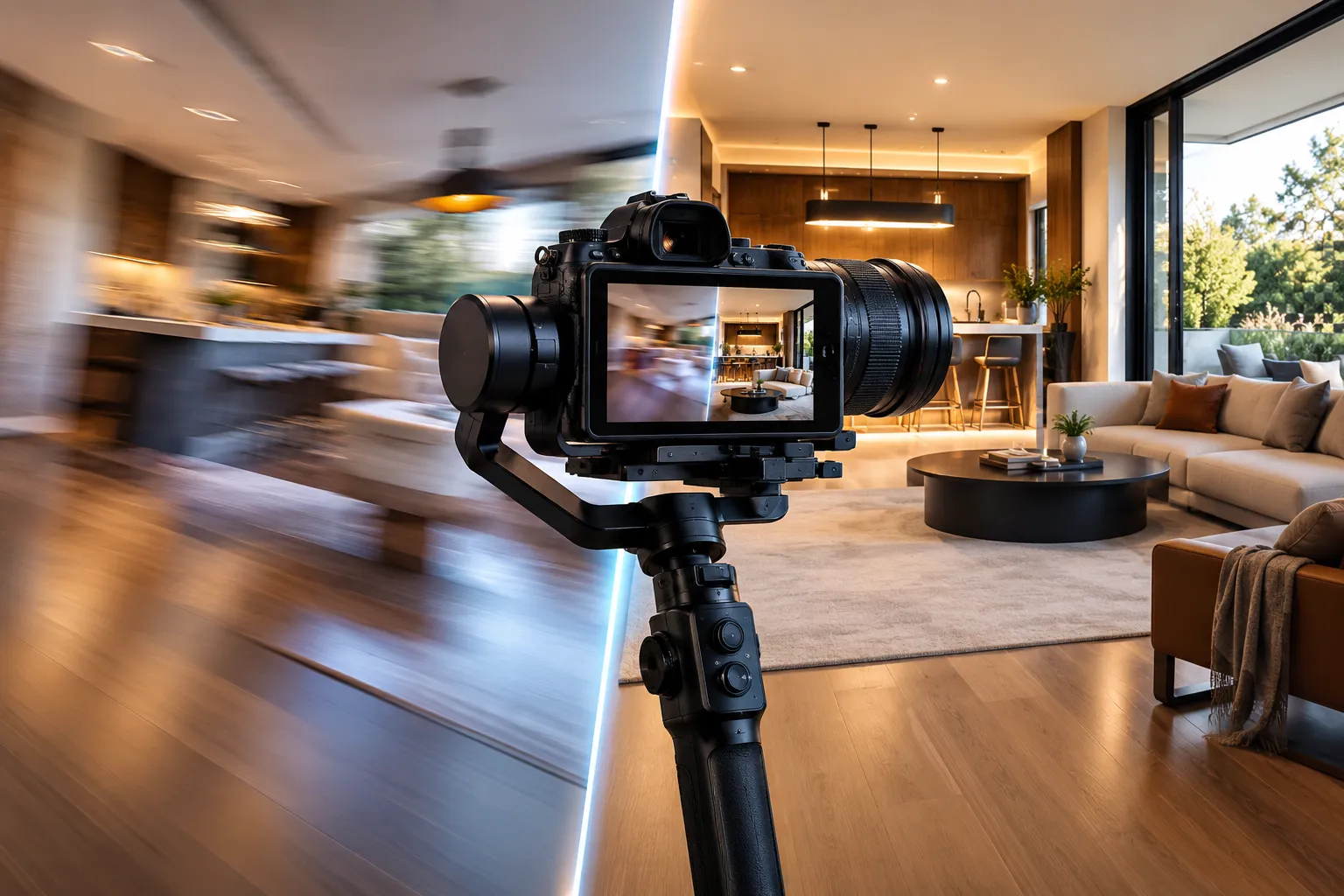
Are you familiar with the tools inside the Stabilizer Fusion Macro by Van Beek Films? Have you ever shot a real estate video with a Gimbal and, at first glance, everything seems fine, but when you play it back, you notice a few small shakes and Micro-Jitters? Especially when you’re walking inside a house, moving between rooms, or panning across an interior space, these small movements can take away from the Smooth and professional feel of the footage.
Interestingly, even a Gimbal can’t always give you completely flawless movement. You may still get some shake when you’re walking, changing direction, or rotating the camera. In Real Estate videos, where smooth, clean camera movement is usually very important, these shakes can be more noticeable than you might think.
Now imagine that for every shot, you have to go through Tracking, adjust the Stabilization settings, and test the result several times. With a lot of shots, this can quickly become time-consuming. This is where a ready-made workflow in DaVinci Resolve can help you control these extra shakes faster, without removing the camera’s original movement.

How Does Stabilization Remove Small Shakes from Footage? ✨
Video stabilization finds unwanted camera movement and corrects it as much as possible. Instead of showing small shakes, up-and-down movement, or extra motion in the shot, the image becomes smoother and more stable while the camera’s main movement stays in place.
For example, imagine you’re filming a house and moving from the living room into the kitchen with a Gimbal. Your movement path is good, but the footage still has a small amount of shake while you’re walking. Stabilization can reduce this shake so the movement between rooms looks smoother and cleaner.
This technique is especially useful for Handheld Footage, Gimbal shots, Pans, Walkthroughs, and Real Estate videos. Especially when you don’t want camera shake to distract the viewer and want the main focus to remain on the house, architecture, or subject.
Common Methods for Stabilization in DaVinci Resolve 🎬
Before using ready-made tools, DaVinci Resolve offers several ways to reduce footage shake. Depending on the shot, you can use simpler tools on the Edit page or, for more control, go into Fusion and use Tracking.
- Stabilization in Edit: In the Edit page, you can run the Stabilization tool on a clip from the Inspector section. Resolve analyzes the image movement and tries to reduce unwanted shake.
- Tracker in Fusion: For more complex shots, you can go into Fusion and use the Tracker tool to follow the movement of a specific point or area in the image. You can then use the Tracking data to control and correct the movement.
- Manual Motion Adjustment: In some shots, you can also manually correct part of the shake using Transform, Position, and Zoom. This method gives you more control, but naturally, each clip requires separate adjustments.
As a result, Resolve has strong stabilization capabilities even without additional tools, and for many standard shots, it’s often enough.
Why Doesn’t Manual Stabilization Always Go Quickly? ⏱️
One of the challenges is that every piece of footage behaves differently. A simple shot with clear points may be very easy to track, but in a more complex shot, choosing the right method and adjusting the parameters can take more time.
On the other hand, if you regularly work with Handheld footage or camera movements, repeating these steps for many clips can slow your workflow. This is especially true in Real Estate projects, where you may have a lot of Walkthroughs and Pans.
That’s why a ready-made workflow available directly in Fusion can simplify many of these repetitive adjustments.
Stabilizer: A Faster Way to Smooth Camera Movement in Resolve 🎯
Stabilizer (Fusion Macro) is a ready-made tool for DaVinci Resolve designed to reduce unwanted shake and smooth footage movement. This tool works directly in Fusion and suits shots where the overall camera movement is good, but micro jitter, Handheld Shake, or remaining Gimbal shake is still visible.
One of its main advantages is that you don’t need a separate Plugin to use Stabilizer. This tool is provided as a Fusion Macro and uses DaVinci Resolve’s built-in tracking and stabilization capabilities. This lets you stabilize faster and more efficiently, all within the same environment where you edit your project.
Suitable for Real Estate Shots and Camera Movements 🎥
The Stabilizer is designed for Real Estate Videography, where smooth camera movement matters. For example, when you’re moving through a house, going from one room to another, or panning across an interior space, even small shakes can reduce the visual quality of the work.
Of course, its use isn’t limited to Real Estate videos, and it can help with any footage with Handheld Movement, Gimbal movement, or small camera shakes. In fact, anywhere the main movement of the shot is good but there’s extra instability, this tool can become part of the Workflow.
Point Tracker: An Option That Also Works with Resolve Free
Stabilizer provides two different tracking methods. The first option is Point Tracker, which is built using DaVinci Resolve’s Native tools.
A key advantage of this version is that it doesn’t have this limitation in DaVinci Resolve Free, so users can also use this method for Stabilization. Point Tracker follows specific points in the image to gather the data needed for motion correction, making it a useful option for shots with suitable trackable points.
This means that if you’re only using the free version of Resolve, you can still use an important part of Stabilizer’s capabilities and use a more ready-made Workflow to reduce footage shake.
Intelli Tracker: More Advanced Tracking for Resolve Studio
The second option is Intelli Tracker, which is designed specifically for DaVinci Resolve Studio. This version uses more advanced Tracking capabilities in Resolve Studio and is intended for shots that require more accurate Tracking and more refined data.
For simple footage, Point Tracking can be sufficient, but when camera movement gets more complex or regular Tracking doesn’t give you the result you want, Intelli Tracker can be a better choice. This process can help create smoother, more natural Stabilization in complex shots.
Strength, Smoothing, and Motion Response: More Control Over Stabilization 🎛️
One useful feature of Stabilizer is that you don’t have to stabilize all footage at the same intensity. The tool lets you control Strength, Smoothing, and Motion Response, so you can adjust Stabilization behaviour for each shot.
Strength controls the amount of correction, so you can specify how strongly Stabilization should affect unwanted movement. For a shot with only micro jitter, you usually don’t need heavy correction, while shakier Handheld footage may require more Stabilization.
Smoothing controls how much it softens movement. This option is especially useful for Real Estate shots because the goal is usually to smooth camera movement while keeping it natural-looking.
Alongside these, Motion Response helps you adjust how Stabilization responds to the movement in the image. As a result, depending on the shot, you can find a better balance between very smooth movement and faster, more responsive movement.
A Workflow Inside Fusion, Without a Separate Plugin ⚡
Stabilizer is provided as a Fusion Macro and is used directly inside the Fusion environment. So you don’t need to install an external plugin; the tool becomes part of the Fusion Workflow.
Installation is also done by copying the Macro files into the folder related to DaVinci Resolve Fusion. The necessary files for setup and use are included, along with an installation video that explains the steps.
Overall, the main idea behind Stabilizer is to turn the Stabilization process from a repetitive and time-consuming task into a more ready-made Workflow; from simple shots that can be corrected with Point Tracker to more complex footage that can benefit from Intelli Tracker in Resolve Studio. This flexibility, along with control over Strength, Smoothing, and Motion Response, lets you adjust the tool to the type of movement and shake in each shot.
How to Get More Natural Stabilization? ✨
To keep the final result from looking too artificial, adjust Stabilization to match the camera’s original movement. A few simple tips can make a big difference:
- Keep the original camera movement: If the camera is intentionally moving to the left, the goal is to remove the shake, not to completely stop the movement.
- Don’t raise Strength too much: Heavy Stabilization can cause more Crop or unnatural movement in the image.
- Choose the right Tracking method for complex shots: In footage with clearer points, Point Tracking can be enough; for more complex shots, you can use Intelli Tracker.
- Match Smoothing to the type of shot: A Walkthrough should be smooth, but it should still preserve the feeling of camera movement.
- Check the result in real motion: Don’t just look at a single still frame; watch a few seconds from the beginning to the end of the shot to see whether the movement remains natural.
In the end, the best Stabilization is the one the viewer doesn’t notice; the image should simply look cleaner and smoother without removing the camera’s natural movement.
When Stabilization Doesn’t Become a Problem Itself 🎬
If you regularly work with Handheld, Gimbal, or Walkthrough shots, you probably know the main problem isn’t always the shake itself; it’s having to track and adjust Stabilization settings across several shots in a row. Stabilizer organizes this process inside Fusion, so instead of repeating steps, you can get a smooth, usable image faster.
On the other hand, you don’t have to correct every shot the same way. If you’re using Resolve Free, Point Tracker gives you a simpler path to stabilization, and if you have Resolve Studio, you can use Intelli Tracker and take advantage of more advanced Tracking for complex shots. This flexibility makes it easier for the tool to fit your Workflow and the type of project you’re working on.
Most importantly, Stabilizer isn’t just about removing movement; you can use Strength, Smoothing, and Motion Response to match the result to the shot type. This means you can keep the movement smooth and natural for a calm Walkthrough, while applying more correction to shakier Handheld footage. If clean, smooth camera movement matters to you and you don’t want to set up Stabilization from scratch every time, this Macro can be a useful tool in your everyday Workflow.
Hundreds of tools are available for DaVinci Resolve, each designed to solve a different creative challenge. Instead of guessing what they do, explore our comprehensive guide to DaVinci Resolve Tools and discover which tools are worth adding to your workflow.