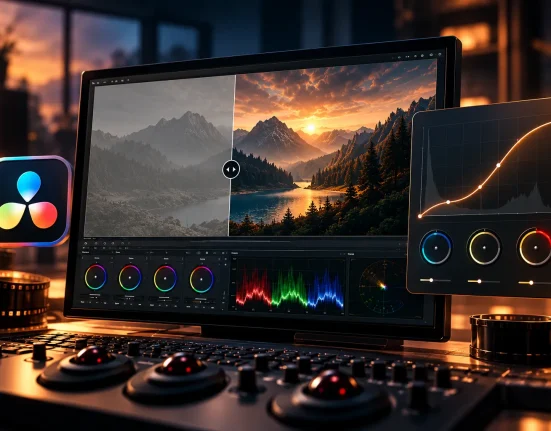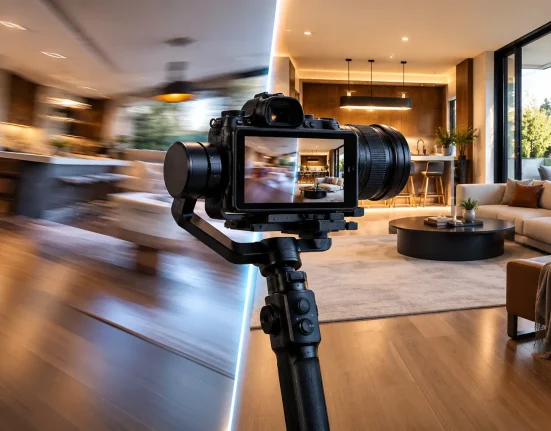
When a Simple Cut Looks Too Ordinary…
Have you ever heard of the CineWhip Plugin by Van Beek Films? Imagine you have two shots that need to be connected with a fast, energetic movement. For example, one shot from a street cuts to the next; the camera quickly moves right, and the next shot continues with the same feel. This is where a Whip Transition can turn an ordinary cut into a much more dynamic transition.
But what makes this transition appealing isn’t just the fast movement of the image. Motion Blur, the speed of the movement change, Zoom, Rotation, and how the image enters and exits all need to be adjusted properly so the result looks smooth and controlled rather than artificial.
If you want to build this kind of transition from scratch for every project, you may end up spending more time than expected dealing with Keyframes and different settings. So the question is: how can you create the same look faster without dealing with complicated settings?

What Exactly Is a Whip Transition and Where Is It Used?
A Whip Transition is a type of fast transition in which the image moves rapidly in one direction, and the next shot appears as a continuation of that same movement. This technique usually adds speed, energy, and motion to the edit.
For example, in a travel video, you can use a fast camera movement to the right to move from one location to the next. In sports videos, you can also place this type of movement between two fast moments in a match to maintain the edit’s rhythm.
Motion Blur is also very important in this type of transition. When the image moves at high speed, Blur makes the movement appear smoother and more natural, making the change between the two shots feel less like a “sudden cut.”
How to Create a Whip Transition Without a Plugin?
You don’t necessarily need a plugin to create a Whip Transition. DaVinci Resolve includes tools you can combine to create fast movement between two shots. The simplest method is to use the Transform settings and Keyframes in the Edit Page, then change the image position over several frames.
To control the look of the movement, you can also use different options:
- Position: Move the image to the left, right, up, or down to create the main Whip movement.
- Zoom: Enlarge the image to fill the frame and create a stronger sense of movement.
- Rotation: Add a slight rotation to create more dynamic movement.
- Keyframe and Easing: Control the speed of the movement and how it starts and ends.
- Motion Blur in Fusion: If you need more precise Blur and greater control over the movement, you can go into Fusion and adjust the effect there.
By combining these tools, you can create a decent Whip Transition and even change its look and speed to suit each project.
Why Does Creating This Transition Manually Become Time-Consuming? ⏱️
The problem isn’t that DaVinci Resolve can’t create a Whip Transition; it gives you all the tools you need. The issue becomes apparent when you need to repeat the same process across many shots. Adjusting several Keyframes, matching movement speed, changing easing, adding Motion Blur, and, when necessary, adjusting Zoom, Rotation, and Crop for each transition quickly becomes repetitive and time-consuming. Especially when you want several Transitions with a similar look, you have to repeat the same settings or copy and modify previous ones.
CineWhip: A Ready-Made Whip Transition in DaVinci Resolve 🎬
This is where CineWhip comes in. CineWhip is a Transition Preset for the Edit Page in DaVinci Resolve, designed for creating fast and cinematic Whip Transitions. This tool lets you use a ready-made structure instead of building the movement, Blur, and additional transition settings from scratch, then adjust each part to fit your project.
CineWhip is specifically designed to make working with Whip Transitions faster and provides a collection of controls for movement, Blur, and framing. You can also do all of this directly in the Edit Page without needing to build a Node Tree in Fusion.
Fast and Real-Time Motion Blur 💨
One of CineWhip’s main features is Real-Time Motion Blur, which is optimized for Whip Transitions. Motion Blur makes the transition between two shots appear smoother and more natural during fast image movement, giving the motion a more consistent feel.
The important point is that, according to the product description, this tool’s Motion Blur is designed to be faster and lighter than Fusion’s built-in Motion Blur. As a result, you can see the movement result more quickly while working on the timeline, and you don’t necessarily need to go into Fusion settings to create the Blur you need.
Three Cinematic Motion Curves for a Quick Start 🎞️
CineWhip includes three cinematic Motion Curves. These Curves control how movement speed changes throughout the transition and keep the motion from being a simple, linear shift.
With three ready-made Curves, you don’t have to design the movement curve from scratch every time. You can choose one of the available options and, if necessary, later modify the movement behavior using the available controls.
This feature is especially useful when you have several Whip Transitions in a project and want to quickly achieve a ready-made and consistent movement.
Full Easing Control for Precise Movement Adjustment ⚙️
If the ready-made Curve doesn’t match the rhythm of your shot, you can adjust the easing. This section allows you to control more precisely how the movement starts, accelerates, slows down, and ends.
In a Whip Transition, image movement isn’t the only important factor; how the image reaches high speed and comes back from it also affects the feel of the movement. With Easing controls, you can adjust this behavior to your project’s needs and move beyond a completely default motion.
As a result, CineWhip isn’t a fixed transition you have to use exactly as-is; you can adjust the movement behavior to match your shot and editing rhythm.
Zoom and Rotation for More Control Over Movement 🔍
In addition to the main movement, CineWhip also provides Zoom and Rotation controls.
With Zoom, you can adjust the amount of image enlargement during the Transition, while Rotation lets you add the rotation you need to the movement. These two controls help ensure the Whip look isn’t limited to a simple Position movement and let you create different visual behavior.
At the same time, these settings can also help match the movement to the framing of the shots when applying a fast Transition.
Crop for Hiding Unwanted Artifacts ✂️
Fast movements can sometimes create Artifacts that are less noticeable in a normal Transition. CineWhip provides an adjustable Crop specifically for this purpose.
With Crop, you can remove parts of the image from the frame that might look undesirable during fast movement. Combined with Zoom and Rotation, this control helps the final result look cleaner and makes it easier to match the Transition with the two shots.
Combining Movement Controls in a Ready-Made Transition 🎯
One practical aspect of CineWhip is that it doesn’t just provide Motion Blur, Motion Curve, Easing, Zoom, Rotation, and Crop separately and force you to build them from scratch; these settings are available within a ready-made Whip Transition.
As a result, you can apply the transition first, see the result on the timeline, and then change only the parts you need. For projects with multiple fast transitions, this workflow can reduce manual, repetitive adjustments.
No Fusion Required; Directly in the Edit Page ⚡
One of CineWhip’s important features is that you don’t need Fusion to use it. This Preset is designed directly for the Edit Page, allowing you to apply and adjust the Transition right there.
This is particularly important for editors who do most of their work in the Edit Page, because they don’t need to enter the Fusion environment or build a separate Node Tree to create a Whip Transition.
In fact, CineWhip aims to make all the main controls required for this type of Transition available within the editing environment itself.

How to Create a More Natural Whip Transition ✨
To make a Whip Transition look like more than a fast movement and feel like part of the edit, keep a few points in mind as you adjust it. These small details can significantly affect the movement’s final feel.
- Match the direction of movement between the two shots 🎬: If both shots move in the same direction, the transition will look more natural. For example, when the first shot moves to the right, it’s better for the next shot to continue in the same direction.
- Don’t overdo the Motion Blur 💨: Too much Blur can remove image details. The goal is to make the movement look fast and smooth, not to make the image completely blurred.
- Use Easing to adjust the rhythm of the movement ⚙️: Not all Whip Transitions need to move at exactly the same speed. By changing the Easing, you can control how the movement starts and ends and give the Transition a smoother or faster feel.
- Choose the Zoom amount carefully 🔍: A slight Zoom can help hide unwanted edges and Artifacts created during the movement, but too much Zoom may affect the shot’s original framing.
- Match the Transition to the overall rhythm of the video 🎞️: A Whip Transition works better when it matches the energy and speed of the edit. You don’t need to use it between every shot; using it at points where you genuinely need a fast transition creates a more consistent result.
Ultimately, you can use CineWhip’s ready-made settings as a starting point and then adjust them slightly based on the movement of the shots, framing, and rhythm of the project. This way, you can prepare the transition faster while matching the video’s overall feel more closely.
Why Does CineWhip Make Creating Whip Transitions Faster? 🎬
You can create a Whip Transition with DaVinci Resolve’s own tools, but manually adjusting Keyframes, Motion Blur, Easing, and framing for each shot can be time-consuming. CineWhip shortens the process by providing a ready-made, editable Transition.
It’s not just a fixed preset. You can change the Motion Blur, Motion Curves, Easing, Zoom, Rotation, and Crop to make the transition work better with your video. This makes it easier to get the look you want without creating the transition from the beginning.
More importantly, you can do all of this directly in the Edit Page, so you don’t need to go into Fusion to use CineWhip. If you regularly work with dynamic videos and fast-paced edits, this tool can make the repetitive process of creating Whip Transitions much easier.
Whether you’re new to DaVinci Resolve or already use it regularly, knowing its different tools can make your work much easier. Our detailed DaVinci Resolve Tools guide explains these tools and helps you build a faster and simpler workflow.