When a Regular Curve Doesn’t Give You That Filmic Feel 🎞️
Are you aware of the Filmic/Contrast DCTL Plugin by PixelTools? Have you ever adjusted the Contrast of your footage, but no matter how much you tweak the Curve, the Highlights still feel too harsh, or the Blacks look overly deep? Especially when you’re looking for soft, controlled Contrast with a Film-like feel, changing a few points on the Curve doesn’t always give you a predictable result.
Here, what matters isn’t just the amount of Contrast; it’s the shape of the Tone Curve itself. How soft the Shadows are, how much the Blacks are lifted, and the slope of the Highlight Roll-off can completely change the image’s final look. And if you want to quickly try different behaviors, such as a modern Contrast, Soft Film, or even Looks that are close to Film Stocks, creating and adjusting each Curve manually can become time-consuming.

What Exactly Does a Tone Curve Do? 📈
A Tone Curve is a key method for controlling the relationship between an image’s input and output brightness. By changing the shape of the Curve, you can control how bright or dark different parts of the image are; for example, you can soften the shadows, shape the Midtones, or move the Highlights toward brightness in a more controlled way.
This is especially important in Color Grading, because a cinematic image isn’t created simply by increasing Contrast. How the image moves from Black to Midtone and from Midtone to Highlight can strongly affect depth, the softness of the light, and even the image’s overall character.
Where Does Filmic/Contrast DCTL Come in Handy?
Precise control over the Tone Curve isn’t only useful for creating a specific cinematic look; across different projects, it can help you better match the behavior of the Shadows, Midtones, and Highlights to the overall feel of the image. Depending on the type of project, you can use this type of Contrast to achieve different results:
- Cinematic Footage: To create a softer Contrast Curve with controlled Highlights and better-shaped Shadows.
- Commercial and Advertising: When you want the image to look clean and professional without making the Contrast feel overly digital.
- Narrative Videos: To shape the image’s depth and bring the Tones closer to a Filmic appearance.
- Look Development: When you want to establish a clear foundation for contrast behaviour before creating a Look or LUT.
- Footage from Different Cameras: Especially in projects where Footage from different sources and cameras enters the Workflow.
How to Create a Filmic Look with Curves and Contrast/Pivot? 🎚️
DaVinci Resolve provides tools to shape contrast and image Tones, and you can get close to a Filmic result without additional tools. Depending on how much control you want over the image, there are several common methods:
- Custom Curves: By creating an S-Curve, you can increase Contrast and, by adjusting different parts of the Curve, also control the behavior of the Shadows and Highlights. To create softer Blacks, you can slightly raise the lower part of the Curve.
- Contrast/Pivot: These two controls help you quickly adjust the image’s overall contrast and set the point around which the Contrast is shaped. With the right combination, you can reach your desired Contrast more quickly.
- Lift/Gamma/Gain: With these controls, you can separately adjust the Shadow, Midtone, and Highlight ranges and shape the relationship between different parts of the image’s Tone.
- HDR Wheels: For more precise control over different brightness ranges, HDR Wheels let you adjust specific parts of the Tone Range.
Why Does Creating Filmic Contrast with Built-in Tools Take Time? 🤔
Although Resolve’s built-in tools are fully capable, reaching a specific and repeatable Contrast Curve isn’t always as simple as increasing Contrast. When you want softer Highlights, controlled Shadows, and Midtones that still look natural, you usually have to adjust several tools together and constantly review the result. And if you want to try and compare several different Filmic Contrast styles, building each version manually can take more time and require more trial and error.
Filmic/Contrast DCTL; Filmic Contrast Control in One Node 🎬
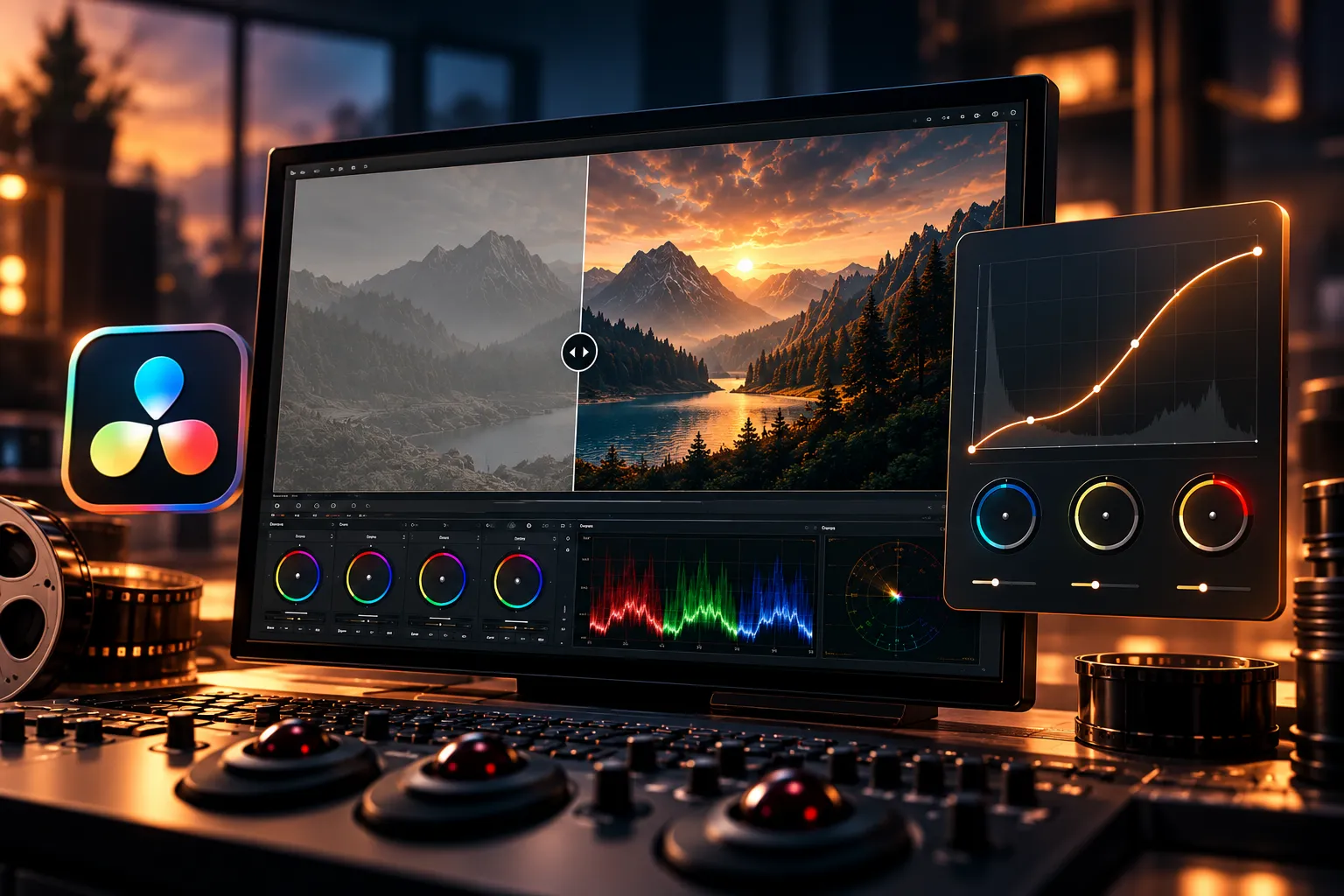
Filmic/Contrast™ is a DCTL for DaVinci Resolve designed to shape Contrast with a Film-like feel. Instead of building everything from scratch to achieve a specific Tone Curve, this tool gives you a Scene-referred Curve Engine that lets you control the behavior of the Shadows, Midtones, and Highlights more precisely.
The tool focuses on creating controlled, filmic contrast: Highlights can have a softer Roll-off, Shadows can be shaped, and final Contrast can be adjusted to match your Footage. This process happens in a single Node and can make the contrast part of your workflow simpler and faster.
Scene-Referred Curve for More Precise Tone Control 📈
At the core of Filmic/Contrast DCTL is a Scene-referred Curve Engine designed for creating Filmic Curves. This system lets you control the overall shape of the Contrast without being limited to simply increasing the image’s overall contrast.
This becomes especially important when you want to create a specific balance between the Shadows, Midtones, and Highlights while maintaining Contrast and keeping a more natural behavior in the bright and dark ranges.
Lifted Blacks for Soft, Matte Shadows 🌑
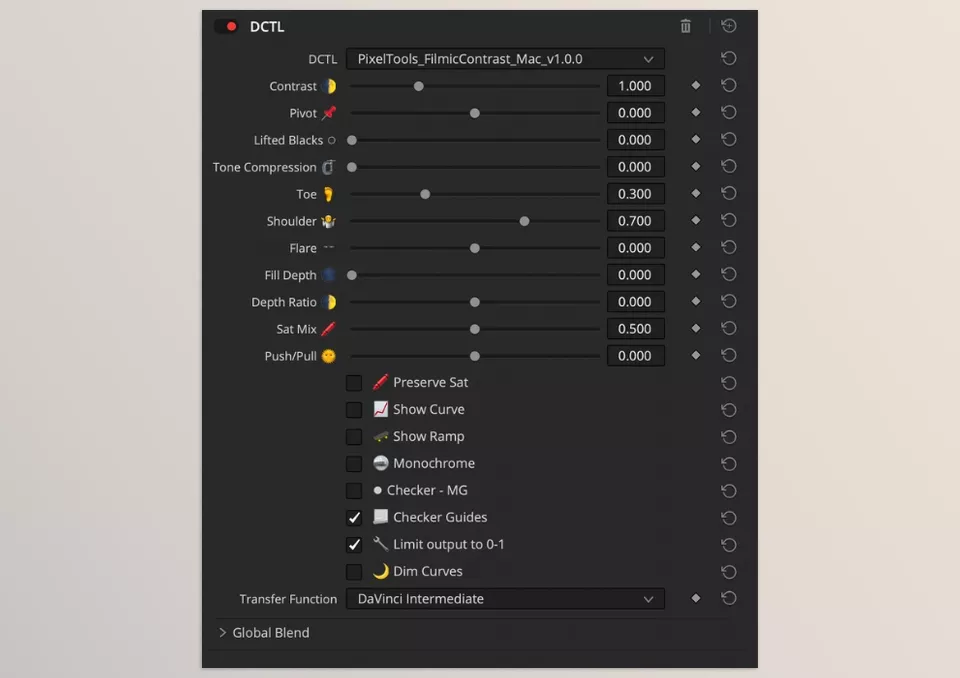
With the Lifted Blacks Control, you can raise the image’s Blacks slightly and give the Shadows a softer, more Matte appearance. This control is useful when you don’t want the Blacks to feel overly deep and harsh and want a softer Film Look.
The important point is that you don’t have to directly adjust the Black point on the Curve to create this effect; the dedicated Lifted Blacks control gives you this part of the Look separately.
Five Ready-to-Use Curves for a Quick Start 🎞️
Filmic/Contrast™ comes with Five Curated PowerGrade Curves, each of which can provide a different starting point for Grading:
Modern
Soft Film
ENR Bleach
Kodak 2383
Fuji 3510
These ready-made Curves mean you don’t have to build everything from scratch for every project. You can choose one of these Starting Points and then Fine-tune the result based on the lighting, camera, and look you want.
Visual Curve UI for Seeing Changes During Grading 👀
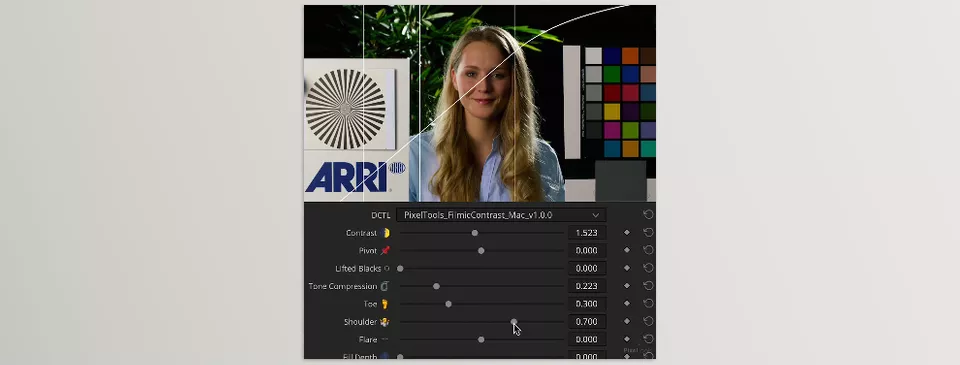
One practical feature of the tool is the Visual Curve UI. This interface uses a Greyscale Ramp and On-screen Overlays to make it easier to see Curve changes while adjusting them.
As a result, you don’t have to make decisions only by looking at the final image; the Interface itself also provides more visual information about how the Tone is changing. This can make fine-tuning the Curve faster and easier to understand, especially when you want to know exactly how your changes are affecting different areas of the image.
Designed for DaVinci Wide Gamut and Color Managed Workflows 🎨
Filmic/Contrast™ is also designed for professional Color Management Workflows and is compatible with DaVinci Wide Gamut (DWG). You can also use it in Workflows based on ACES, RCM, and CST.
This means the tool isn’t limited to a single type of Workflow and can also be used in projects where Color Management is an important part of the Grading process.
Compatibility with Different Cameras and Formats 🎥
For image input, Filmic/Contrast™ isn’t limited to a specific brand either. The tool is designed to work with different sources, including:
ARRI
RED with IPP2
Sony
Canon
Panasonic
Blackmagic
Apple Log
DJI
In addition, any Input that is managed through RCM or Color Space Transform (CST) within the Workflow can also be used in this process.
A Film Contrast Curve in One Node 🎯
One of the main Workflow advantages is that Filmic/Contrast™ can provide a Film Contrast Curve in a single Node. This means you don’t need to create several separate steps for the Curve, Lifted Blacks, and similar adjustments to build this part of the Look.
This structure also keeps grade management more organized, especially when a project has many shots and you want a specific Contrast stage that’s easy to adjust or move. The product itself is specifically described as “A Film Contrast Curve, In One Node.”
More Than a Ready-Made Curve; Controls for Fine-Tuning 🎛️
Filmic/Contrast™ isn’t just a collection of ready-made Looks. The tool gives you the Curve as a starting point, then lets you adjust the Contrast to match your Footage.
As a result, if a ready-made PowerGrade works for your project, you can start with it; and if the result needs changes, the tool’s own controls are available for Fine-tuning. This flexibility means the final result doesn’t have to be limited to a Preset’s default appearance.
Included Files and Purchase Options 📦
The Filmic/Contrast™ package includes more than just a DCTL file. According to the product information, the package includes:
- One Custom DCTL Plug-in File
- One Alternate version named “No Icon” DCTL Plug-in File
- Six PowerGrade DRX Files
- User Guide in PDF format
The product is also compatible with DaVinci Resolve 19+ and includes Free Lifetime Updates. This is a one-time purchase, with no monthly or yearly subscription.
One Important Note Before Using It ⚠️
Filmic/Contrast™ is a DCTL, and according to the developer’s information, using DCTLs requires DaVinci Resolve Studio. So if you’re using the free version of Resolve, you should consider this before purchasing.
Overall, Filmic/Contrast™’s main strength is that it brings several key parts of the Film Contrast creation process into one focused Workflow: a Curve Engine for shaping Tones, Lifted Blacks control, ready-made Curves, a visual interface for Fine-tuning, and compatibility with different Colour Management Workflows. The result: instead of building all these steps from scratch, you get a ready-made structure and can focus your main effort on adjusting the Look to match each shot.
How to Get a More Natural Result with Filmic/Contrast™? ✨
To make Filmic Contrast work well, approach the settings with a clear goal rather than simply trying to make the Contrast stronger.
- Fix the Exposure First: Before shaping the Contrast Curve, make sure the footage’s overall Exposure is reasonable. The Curve isn’t meant to fix an Exposure problem.
- Keep the Highlights Soft: If the bright areas of the image quickly reach pure white, the result can look artificial. One advantage of a Film-style Curve is softer control over this area.
- Use Lifted Blacks Carefully: Raising the Blacks can create an attractive Matte feel, but if you push it too far, the image may look lifeless and lack depth.
- Choose the Right Curve for the Project: Think of the different PowerGrades as Starting Points. For example, a soft, filmic look isn’t necessarily suitable for all Footage.
- Match the Contrast to the Shot Content: A portrait shot, a street scene, and a commercial image may require very different levels of Contrast. Using the same settings for every shot doesn’t always produce the best result.
Ultimately, the goal is for Contrast to give the image character, not to become the first thing the viewer notices.
More Precise Contrast, Without Extra Trial and Error 🎯
When the goal isn’t simply to increase contrast, and you want to give the image’s Tone a specific shape, Curve control becomes very important. DaVinci Resolve’s built-in tools can handle this, but creating and comparing different Curves can be time-consuming.
Filmic/Contrast™ consolidates this process into a single Workflow, from ready-made Filmic Curves and Lifted Blacks to a visual interface and precise Tone control. As a result, you can reach that point faster, with contrast that’s controlled and has the Filmic feel you’re looking for.
If you regularly work with Colour Grading in DaVinci Resolve and a significant part of your Workflow goes into shaping Contrast, this DCTL can be a specialized and practical tool for this stage of Grading, especially when you want to quickly try and compare several types of Film Contrast.
If you’re also a DaVinci Resolve user and you’re looking for ways to make your editing workflow faster, smoother, and more professional, we strongly recommend checking out our detailed article on the DaVinci Resolve tools and features you shouldn’t miss.