

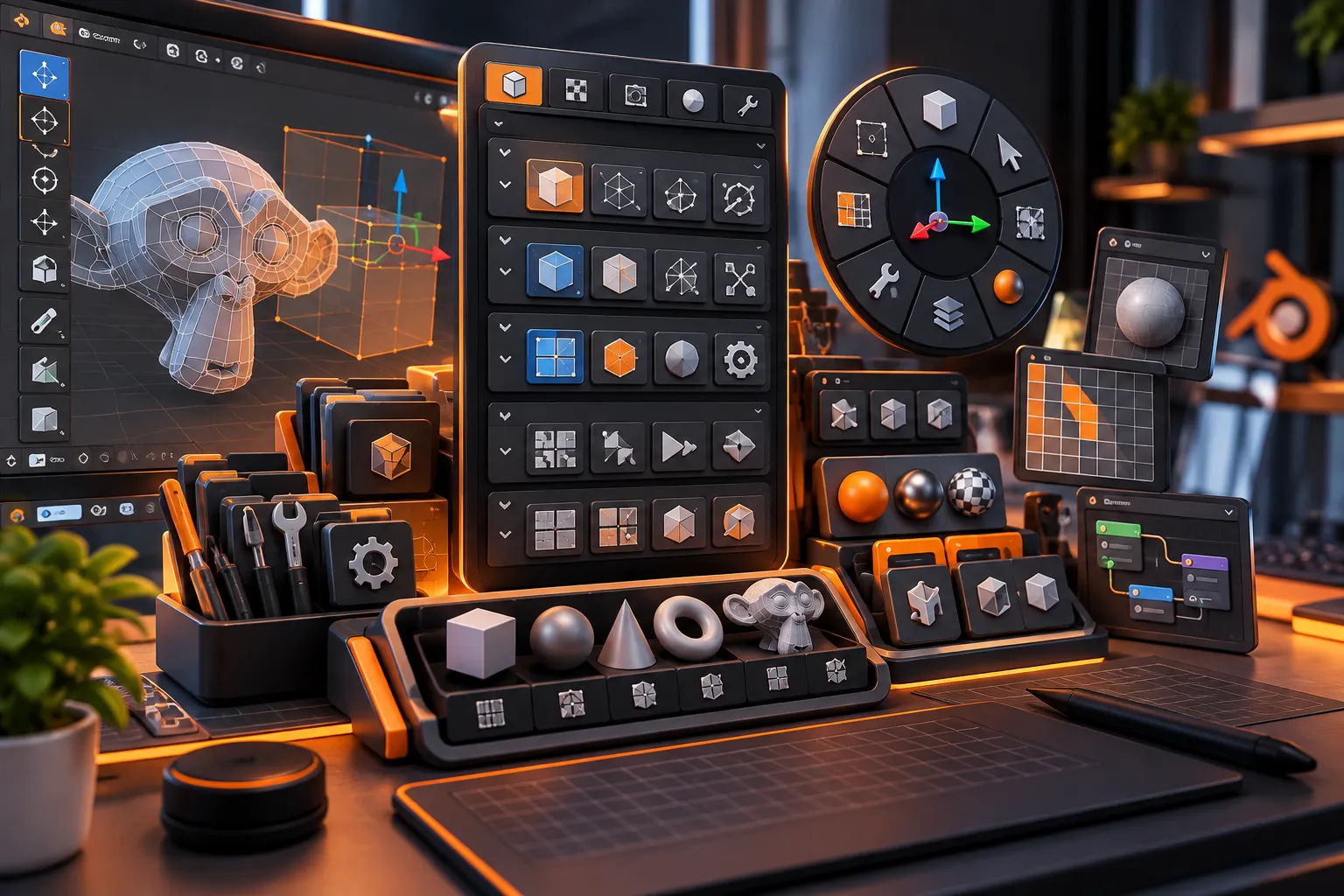
When Tools Are Scattered Everywhere, Work Gets Slower
Have you ever included the keKit Add-on by Superhivemarket in your workflow? In Blender projects, the problem usually isn’t that a specific task is difficult; more often, what takes time is all those small, repetitive tasks. Selecting multiple objects, changing the display mode, switching between tools, running several commands one after another, or repeating a simple Workflow can happen over and over again in the middle of a project.
On the other hand, Blender has a lot of tools, but finding the best path for every task isn’t always quick. This is especially true when you’ve built your own personal Workflow and want the tools you use most to be exactly where you expect them.
This is where having a centralized collection of tools can make a difference; instead of going through several separate steps for every small task, you can have the tools you need together in a more organized environment. 🎯

Why Is a Tool Kit Useful for Blender? ⚙️
A Tool Kit in Blender is a collection of tools that lets users simplify everyday tasks. Unlike a specialized Add-on that usually focuses on a specific area such as Sculpting or Rigging, a Tool Kit can cover several different workflow types.
This can be useful for Modeling, 3D Design, Motion Graphics, and even everyday tasks inside the Viewport. For example, imagine that you regularly work with a large number of objects and need to run several commands one after another to perform a specific operation. If you turn these steps into a tool or Macro, running the Workflow can become much faster.
On the other hand, Pie Menus are also useful for quickly accessing a set of related commands. Instead of searching through different menus to find an option, you can have related tools available in a radial menu.
How Can You Make Frequently Used Blender Tools More Accessible Without an Add-on? ⚙️
Blender provides many tools by default to speed up your workflow. You can use Hotkeys, built-in menus, Operators, Workspaces, the N-panel, and various Viewport tools.
For repetitive tasks, you can also customize some operations using Python or Blender’s built-in features. You can even define custom Shortcuts for certain commands and arrange the workspace to some extent according to your needs.
But the problem starts when these customizations increase. You have to decide which commands are worth assigning Shortcuts to, which operations can be combined, and how to manage the tools without creating clutter.
Some Workflows also require several steps in a row, and performing them manually, especially in large projects, can turn into a repetitive task. So, Blender’s built-in tools are fully capable, but creating a personalized and integrated Workflow may require more setup and work.
keKit: Several Useful Tools for a Faster Workflow in Blender 🧰
keKit is a General Tool-Kit Add-on for Blender that brings together a collection of Scripts, Tools, Macros, and Pie Menus. Its goal is to give you practical tools and faster paths for different tasks, while letting you customize your Workflow to a large extent to fit your needs.
The important point is that keKit is not a fixed, unchangeable collection. Its structure is modular: the tools are organized into separate Modules, and you can enable the sections you need and disable the ones you don’t use. As a result, you don’t have to keep all of the Add-on’s features active in your working environment.
Various Scripts and Tools for Everyday Tasks
The main part of keKit is a collection of Scripts and Tools. These tools simplify tasks in Blender and help you run frequently used operations faster.
The advantage of this approach is that keKit doesn’t focus on just one limited area of Blender. Instead of developing only one specific feature, it brings together a collection of small and practical tools that can be used across different Workflows, from everyday tasks inside the Viewport to certain stages of Modelling, UV, Shading, and scene management.
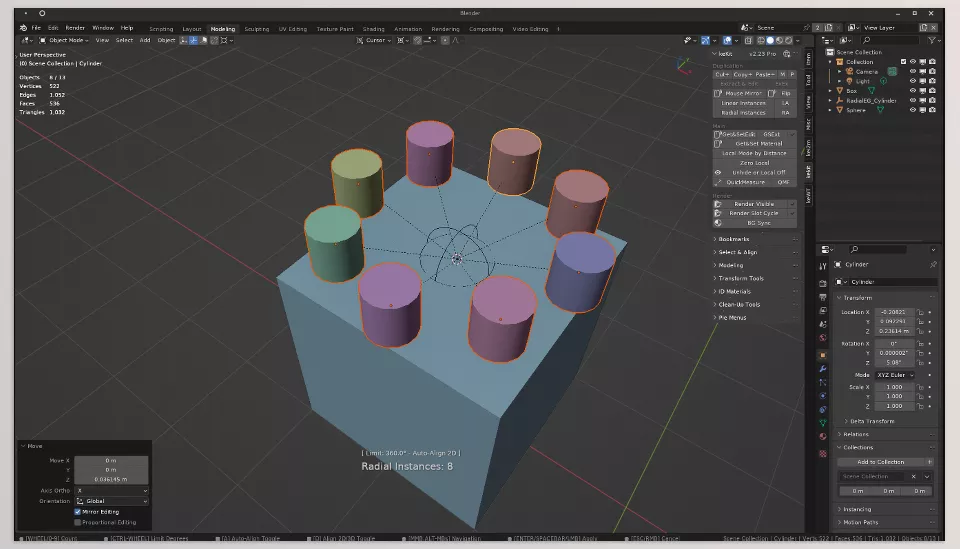
keKit itself is also available in the 3D Viewport and N-panel for faster access to these tools. You can hover over Scripts and tools to display the Tooltip for each item and understand what the tool does more easily before running it.
Macros: Multiple Steps in One Workflow
One important part of keKit is Macros. A Macro is useful when a specific task consists of several steps in a row and manually performing all of them becomes time-consuming.
Instead of running each step separately, a Macro can turn the process into a single operation. This is especially valuable for repetitive Workflows, because you don’t have to go through the same path from the beginning every time.
For example, recent versions of keKit include an Unwrap Macro designed for some common UV Unwrapping Workflows, which can perform several usual tasks in this stage through a faster process. This Macro is intended for Workflows such as preparing UVs for Reference Texture Mapping or quick Packing, and it requires TexTools for some uses.
Pie Menus; Frequently Used Tools Always Within Reach
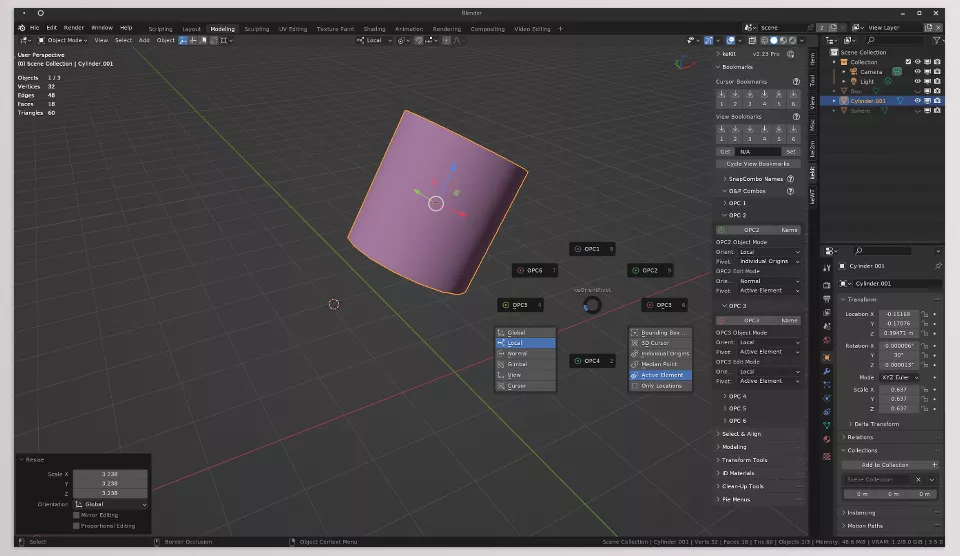
keKit also uses Pie Menus to give you quick access to related tools and commands.
A Pie Menu is especially useful when you regularly switch between several specific commands. Instead of opening different Blender menus every time or searching for an Operator, you can run related tools from a quick menu.
Across different versions of keKit, a collection of Pie Menus has been developed for different Workflows, including sections related to Snapping, Materials, Shaders, Bool, and Overlays. These sections have also changed and been updated throughout the Add-on’s development, so the Pie Menus aren’t a fixed set of basic commands; they’re part of keKit’s Workflow system.
Modular Structure; Only the Tools You Actually Need
One of keKit’s key features is its modular structure. The Add-on consists of several independent sections, and you can enable or disable different Modules based on your needs.
This becomes more important when you work with a specific Workflow. For example, if some Modeling or Viewport tools are highly useful to you but you don’t use other sections, you don’t have to keep all the features enabled.
As a result, keKit can have a different Setup for different users; one user may rely more heavily on Modeling tools, while another may focus on UV, Shading, or fast Viewport Workflows.
No Forced Shortcuts
One important difference with keKit is that it doesn’t assign default Shortcuts to its tools. This means the Add-on provides its tools without filling Blender’s existing Keymap with new shortcuts.
If you want, you can assign personal Shortcuts to the tools you need. You can even define Shortcuts for tools using the Right Mouse Button from within the keKit interface.
This is especially important for users who have already created their own Hotkeys, because they don’t have to change their entire Shortcut system to use keKit or worry about conflicts with predefined Shortcuts.
Direct Access from the 3D Viewport and N-panel
keKit is accessible from the 3D Viewport and N-panel, so the tools in the collection are available right inside the main working environment and you don’t need to constantly open a separate window or workspace to use them.
Tooltips also mean that when you hover over a Script or tool, you can see its description. This is especially helpful when there are many tools, because it allows you to quickly understand what each option does.
Alongside this interface, the Shortcuts you assign to frequently used tools can make access even faster, giving you both a visual way to run tools and the ability to create a Hotkey-based Workflow.
Transferring Preferences and Settings Between Systems
keKit doesn’t only let you customize its tools; the Add-on’s own settings can also be transferred. You can export and Import keKit Preferences and move the settings file between different Blender installations or even different computers.
This feature is very useful for someone who has built a personal Workflow. For example, if you install Blender on a new system, you don’t have to configure all of keKit’s settings again from scratch; you can transfer your saved Preferences and have your previous Setup available again.
The keKit documentation even mentions transferring the Preferences file between different Blender installations, so the Add-on’s personal settings can become part of your transferable Workflow.
One Collection of Tools for Different Workflows 🎯
In practice, keKit’s value becomes clearer when you consider the number of repetitive tasks in a project. Imagine that you’re constantly working with Objects, Transform, Snapping, Overlays, and different Viewport tools. Having related tools in one collection and being able to access them quickly means you don’t have to follow a separate path for every small operation.
In a Modeling Workflow, you may also repeat a specific set of operations over and over again. Here, you can use the appropriate Tools, Pie Menus, or Macros to make frequently repeated steps easier to execute. Especially when a project is large and these small operations add up throughout the day, these few-second savings can significantly improve your overall workflow speed.
This is also relevant to Motion Graphics and Animation in Blender. When the number of Objects, Viewport settings, Transforms, and repetitive operations increases, faster access to the tools you need can reduce time spent on side tasks and let you focus more on building the project itself.
Customizing the Workflow Based on the Way You Work
Ultimately, keKit is more than just a long list of tools; it focuses on Workflow customization. You can choose the Modules you need, make frequently used tools available through your own Shortcuts, use Pie Menus for related commands, and turn to Macros for certain multi-step Workflows.
On the other hand, because keKit doesn’t impose default Shortcuts on your workspace, you have more control over exactly how the tools are integrated into your current Blender Setup. This flexibility, along with the ability to transfer Preferences, makes keKit feel more like a customizable toolbox for a personal Workflow than an Add-on with a limited purpose.
How to Build a More Organized Workflow with keKit? ✨
To get real results from a large Tool Kit, it’s better not to bring all its features into your Workflow at once. A few simple tips can help:
- Only activate the Modules you need: If you don’t use a section of keKit, disabling it can keep the environment less cluttered.
- Choose Shortcuts smartly: Assign Shortcuts to tools that you actually use frequently; don’t define a key for every tool.
- Keep Macros for repetitive tasks: If you regularly repeat a multi-step Workflow, check whether keKit has a suitable tool or Macro for that task.
- Use Pie Menus for frequently used tools: Commands that are usually used together are good candidates for quick access.
- Prioritize your own Workflow: keKit isn’t meant to have the same settings for every user; its strength is that you can arrange tools and shortcuts around how you work.
Ultimately, the goal isn’t to add more tools to Blender; it’s to get the right tools faster.
A Toolbox for a Faster Workflow in Blender 🚀
If you spend much of your time in Blender on repetitive tasks, opening menus, and searching for tools, keKit can streamline the process. Instead of manually going through several steps for every task, you can access different tools in one place.
From Tools and Scripts to Macros and Pie Menus, you can access the tools you use most quickly and activate only the Modules you need. You can even configure your own Shortcuts so that keKit fits your current Workflow exactly.
Especially in large projects, these small tasks repeat over and over and can take a lot of time. keKit helps you manage these repetitive parts faster and gives you more energy to spend on the actual Modelling, Design, and Animation, without forcing you to change your Workflow from the ground up. 🚀
If your goal is to master Blender tools and improve your workflow, our Blender Tools article provides step-by-step guidance on every tool and its practical applications.



