

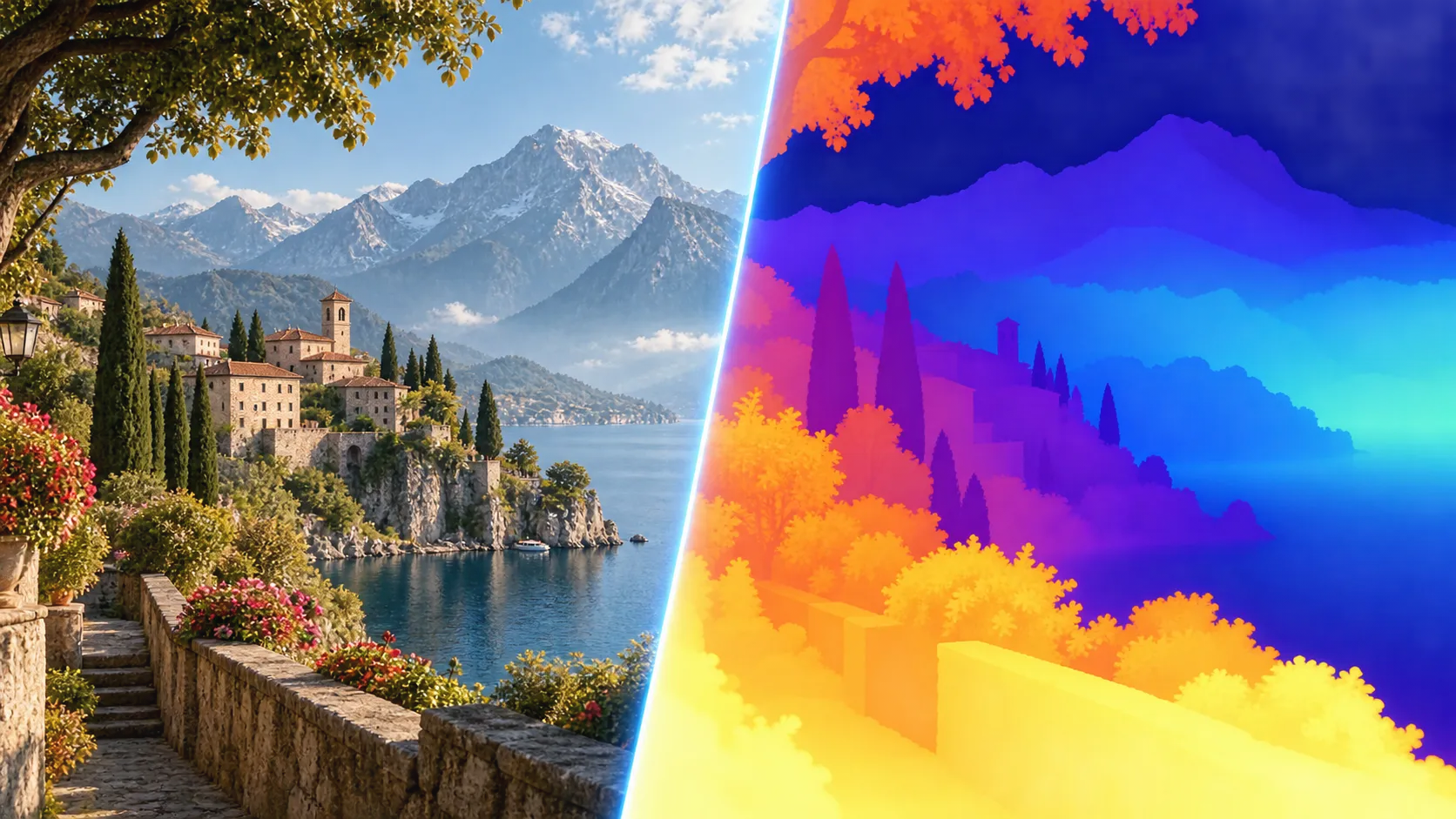
When a 2D Image Needs More Depth ✨
Are you familiar with the features of the Instant Depth Map Plugin by aescripts? Have you ever wanted to turn a still image into a moving, living scene? For example, you might want the camera to slowly move toward the subject, separate the background from the subject, or add blur to give the image the feel of a cinematic lens. You might also want to add more engaging 3D movement or lighting effects to an ordinary video.
To achieve these results, simply animating Position and Scale isn’t enough. You need to know which parts of the image are closer to the camera and which are farther away. With this information, you can create movements and effects that interact more naturally with the space within the image. The good news is that you don’t always need a 3D model or special filming equipment to get started.

What Is a Depth Map, and How Does It Help Create Animation? 🧩
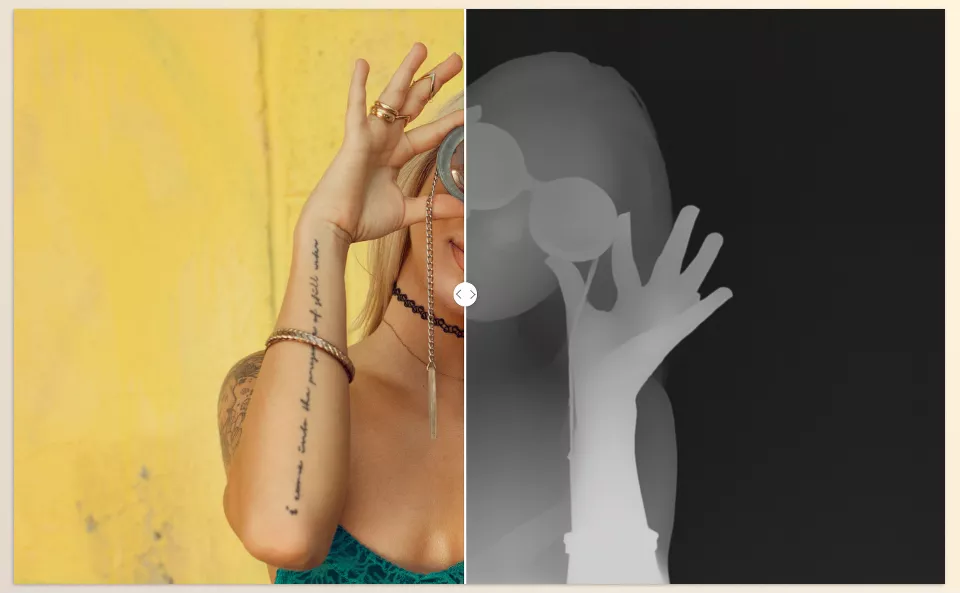
A Depth Map is an image that shows information about the approximate distance of different elements in a scene from the camera. This map usually appears as a grayscale image, where light and dark areas represent different distances, depending on how the map is displayed and configured.
Unlike an ordinary photo, which only records color, light, and visual details, a Depth Map provides information about the spatial arrangement of a scene. This information can be used to control various effects in video editing and motion graphics software.
Creating Parallax Movement from a Still Image
Imagine you have a photo of a street, a forest, or an urban landscape. Using a Depth Map, you can move the foreground and background differently to create a greater sense of depth as the camera moves. This technique, known as 2.5D Parallax, is widely used in trailers, music videos, documentaries, and photo-based motion graphics.
However, a Depth Map alone doesn’t reconstruct every element of a 3D scene. For better results, you may still need to separate the image into layers, fix hidden parts, or adjust camera movement.
Controlling Focus and Blur Based on Distance
In a real image, not every element necessarily appears equally sharp. A central subject may be sharp while more distant parts of the image are blurred. Using depth information, you can create this effect on a photo or video and guide the viewer’s attention toward a more important part of the frame.
For example, in a product advertisement, you can keep the product sharp and gradually blur the background to give the image a more professional appearance.
Adding Depth-Based Effects
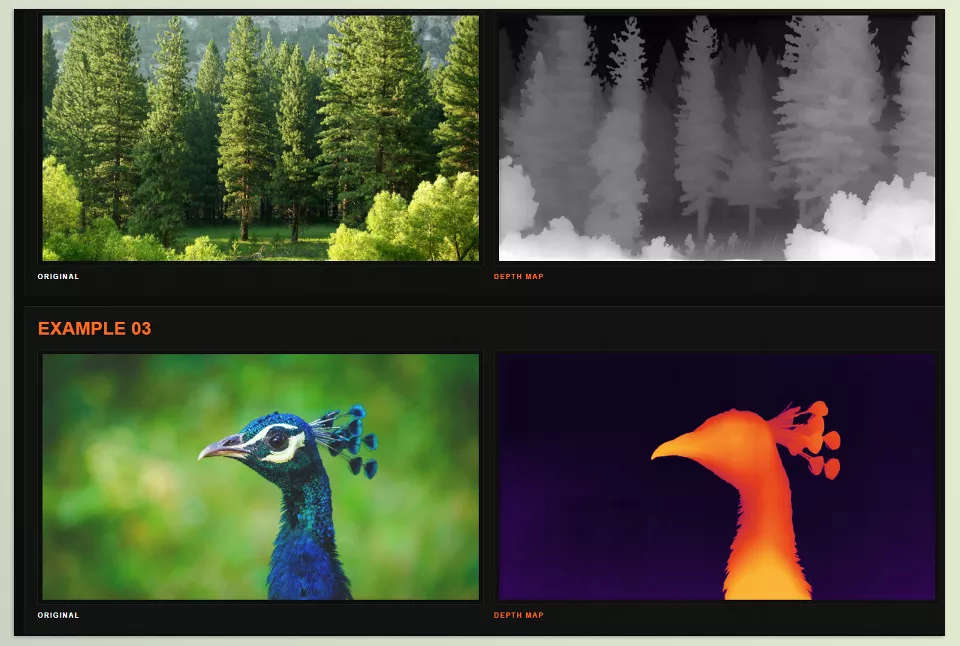
A Depth Map isn’t only useful for camera movement or blurring an image. You can also use it to control effects such as fog, Displacement, and certain lighting effects. For example, in a forest shot, you can adjust fog intensity across different parts of the image, or create a different look by distorting the image based on depth.
This approach lets you adjust effects based on the scene’s structure instead of applying the same effect across the entire image.
🛠️ Traditional Methods for Creating Depth Maps in After Effects and Premiere Pro
Before AI tools became available, creating depth-based effects in After Effects and Premiere Pro required a combination of masking, subject separation, and built-in effects. The workflow depends on the type of project, and you can use different techniques to achieve the desired result:
- ✂️ Separating Subjects with Roto Brush and Mask: In After Effects, you can separate a subject from the background and place different parts of the image on separate layers.
- 🎥 Creating 2.5D Parallax Movement: By using separated layers, Position and Scale settings, and the After Effects 3D camera, you can create movement that resembles a camera moving through 3D space.
- 🌫️ Controlling Blur with Camera Lens Blur and Compound Blur: These effects let you blur different parts of an image at different intensities. For more precise control, you can use a grayscale image as a Blur Map.
- 🎬 Using Blur and Mask in Premiere Pro: If you want to blur a specific area of a video, you can use a mask to define the area affected by the effect.
These methods are still useful and allow you to create a variety of effects, depending on the image. The main difference is that manual workflows require you to do most of the work of preparing layers, masks, and the information needed to control the effects.
⚠️ Why Does Creating a Depth Map Manually Take So Much Time?
The biggest challenge with these methods is the time and precision required to prepare the image. When you only have a simple subject in the frame, separating it from the background isn’t difficult. However, busy images, scenes with multiple depth levels, or videos with a lot of movement require more time to refine masks and adjust layers. Also, separating subjects doesn’t necessarily give you a true, continuous Depth Map, and precisely controlling effects like depth of field may require extra steps. When creating parallax, parts of the image hidden behind the subject may become visible as the camera moves and need to be fixed. If you repeat this process for many photos and videos, manually preparing each shot can slow down your Workflow.
Instant Depth Map: Creating Depth Maps and 3D-Style Animations with AI 🚀
Instant Depth Map is an AI-powered plugin from MahiCG for Adobe After Effects and Premiere Pro. Using the Depth Anything V2 model, it generates a Depth Map from a still image or video in seconds. This map helps you identify the approximate distance of different parts of an image and use that information to create cinematic effects, 3D-like movements, and creative compositions.
Instead of creating masks from scratch for every image and manually separating scene elements, you can generate a Depth Map directly in the software and move on to creating the effect you want. In addition to generating grayscale maps, Instant Depth Map offers features such as animation presets, colorized depth visualization, edge refinement, and Depth of Field creation. This makes it useful for motion designers and video editors who want to get more engaging results from ordinary images.
🎯 Automatically Generating Depth Maps from Images and Videos
Instant Depth Map’s main feature is one-click Depth Map generation. Simply apply the effect to your desired layer, and the tool uses the Depth Anything V2 AI model to extract approximate depth information from the image. The result is a grayscale map that you can use to control effects, visually separate different parts of the image, and create depth-based visuals.
This feature works with both still images and video footage. For example, if you want to create 3D-like camera movement from a landscape photo or distinguish the background from the main subject in a product advertisement, a Depth Map can be a good starting point. According to the developer, the tool is designed for fast processing inside a composition. However, the map’s quality depends on the image content, and complex shots may need additional refinement.
🎬 Six Animation Presets for Ready-Made Motion
One useful feature of Instant Depth Map is its six motion presets, which let you apply different effects to an image without building an animation from scratch. These presets are suitable for Reveals, transitions, photo animation, and visual effects. You can also adjust their timing to match your shot length.
- Reveal: Gradually reveals the image or different parts of it. This preset suits introducing a subject, showcasing a product, or gradually revealing an image.
- Wave: Creates a wave-like effect across the image and can be used for stylized animations or creative photo presentations.
- Near to Far: Moves the effect from the closer parts of the image toward the more distant areas, making it useful for depth-based Reveals.
- Far to Near: Reverses the direction of the movement so that the effect progresses from the farther areas toward the closer parts.
- Scan: Creates a scan-like movement that can be used to reveal an image in stages or create technological-looking effects.
- Dissolve: Gradually changes the appearance of the image or fades it out, making it useful for transitions and visual endings.
The advantage of these presets is that you don’t have to design a new animation structure from scratch for every project. You can start with a ready-made movement, adjust its timing, and match it to the editing rhythm and visual style of your project.
🧭 Adjusting Reveal Direction to Match the Image Composition
Beyond choosing a preset, the movement direction also affects the final result. Instant Depth Map offers a Reveal Direction option that lets you change the direction the image appears and match the movement to the frame’s composition.
For example, if the main subject is on the right side of the image, you can adjust the Reveal direction to guide the viewer’s attention toward the subject more naturally. In an architectural shot or landscape, you can also match the movement direction to the lines within the image or the camera movement. This control lets you create different versions of the same movement without rebuilding the animation, so you can adapt the result to your project’s needs.
🌈 Fifteen Color Presets for Visualizing and Stylizing Depth
The main Depth Map output is grayscale, but you don’t always have to stick to this appearance when examining or creatively using depth information. Instant Depth Map offers fifteen thermal color presets that display the map using different color combinations.
The collection includes the following presets:
- Radiant Spectrum: A colorful display with a variety of hues.
- Ember Heat: A warm appearance with a thermal feel.
- Chromatic Flux: A varied color combination for displaying depth levels differently.
- Neon Plasma: A bright, neon appearance.
- Cryo Flame: A combination with both cool and warm tones.
- Subsurface Glow: A glowing effect for stylized visualization.
- X-Ray Amber: An X-ray-inspired appearance with amber colors.
- Abyssal Blue: A dark blue palette with a deep, atmospheric feel.
- Volcanic Glass: A color combination with a volcanic look.
- Aurora Field: A color scheme inspired by the Northern Lights.
- Cyber Heat: A thermal appearance with a cyber-style aesthetic.
- Ultraviolet: A purple and ultraviolet color spectrum.
- Sunset Chrome: A combination inspired by sunsets and metallic colors.
- Acid Lime: Energetic lime-green colors.
- Hologram: A colorful appearance inspired by holographic effects.
These presets are useful for visually inspecting a Depth Map and creating distinctive color effects. For example, you can use neon or holographic looks in a technology-themed motion graphic, or choose one of the color combinations to make differences between depth levels easier to see.
However, it’s important to distinguish between a colorized Depth Map and actual depth information. Changing the colors doesn’t improve the accuracy of the map by itself. If you need a grayscale output to control Blur or Compositing, make sure you’re using the appropriate map for that stage.
✂️ Refining Depth Map Edges for Cleaner Compositing
One problem you may encounter when generating AI-powered Depth Maps is accurately identifying the boundaries between a subject and the background. This issue is more noticeable around hair, foliage, thin objects, and complex edges. It may also cause halos or unnatural blurring in subsequent effects.
Instant Depth Map provides Edge Refinement tools to help clean up the map’s boundaries. This feature is particularly useful when you want to use a Depth Map to create Depth of Field, visually separate a subject, or apply depth-based effects.
For example, if a portrait has an unclear boundary between the subject’s hair and the background, edge refinement can help reduce visible issues during compositing. However, the final result depends on the quality of the original map, and difficult images may still require additional corrections.
🎥 Creating Cinematic Depth of Field on Footage
Depth of Field refers to differences in sharpness across an image. In a cinematic shot, the main subject may stay sharp while the background gradually blurs. This effect separates the subject from its surroundings and guides the viewer’s attention.
Instant Depth Map allows you to create a Depth of Field effect based on a Depth Map. With this feature, you can apply different blur levels to closer and farther parts of an image without creating separate masks for every area.
For example, in a product video, you can keep the product relatively sharp and blur the background. In a portrait shot, you can also strengthen the sense of separation between the subject and the environment. This method is useful for footage that doesn’t originally have the desired Depth of Field. However, the final result depends on the map quality and the effect settings. If the depth information around the subject’s boundaries isn’t accurate, the blur may look unnatural around the subject.
🌫️ Using Depth Maps for Compositing and Cinematic Effects
The generated Depth Map isn’t only useful for ready-made animations or Depth of Field. You can also use it as part of your visual effects Workflow. Depth information can help control effects such as Fog, Relighting, and Displacement, allowing them to behave differently across parts of the image.
For example, in a landscape shot, you can use depth information to create fog with varying intensity at different distances. In an advertising composition, you can also adjust effects so that specific parts of the image are affected more strongly. A Depth Map can also be used to create Parallax effects and combine image layers.
Remember, generating a Depth Map doesn’t automatically create all these effects. Depending on the result you want, you may need to use other After Effects or Premiere Pro tools and use the map as an input to control those effects.
⚙️ GPU Processing, Multi-Frame Rendering Support, and Color Depth
According to the developer’s specifications, Instant Depth Map supports GPU Accelerated processing, meaning that some processing tasks can use the graphics processor’s capabilities. Combined with the tool’s design for processing within a composition, this feature helps support image- and video-based Workflows.
The plugin is also Multi-Frame Rendering Ready. This feature is related to After Effects’ multi-frame processing system and can help make better use of system resources in compatible projects. However, support for this feature doesn’t guarantee a specific processing speed in every project. Performance depends on the hardware, settings, and type of processing involved.
For colour depth, the tool also supports 8, 16, and 32 BPC. These options refer to the color depth per channel in a project and help the tool work with different Workflows. However, choosing a color depth doesn’t make the AI’s depth estimation more accurate by itself. The map’s quality still depends on the input image and the model’s performance.
💻 Compatibility with After Effects, Premiere Pro, and Operating Systems
Instant Depth Map works in Adobe After Effects and Adobe Premiere Pro. The developer says it supports Windows and macOS. This allows you to incorporate Depth Map generation into your editing or motion graphics Workflow.
Support for both still images and video footage also means the tool isn’t limited to a single type of project. Its applications range from photo animation and advertising trailers to cinematic effects and Compositing. To confirm compatibility, compare your software version and operating system requirements with the information provided for the current plugin version on the developer’s website.
Overall, Instant Depth Map brings together several important stages of a depth-based Workflow in one tool: automatic map generation, edge refinement, Depth of Field creation, color visualization, and motion presets. This combination lets you design and adjust your final effects faster, instead of spending a lot of time manually preparing depth information. However, to get accurate, natural-looking results, you still need to review the output and adjust it for each shot.
🚀 Professional Tips for Setting Up Instant Depth Map for Depth-Based Animations
To make depth-based effects look more professional, don’t rely solely on generating a map or choosing a ready-made preset. The input image quality and how you adjust the effects also significantly affect the final result.
- Start with a suitable image: Photos with clearly defined subjects and backgrounds usually work better for creating depth-based effects. For busy images, inspect the output more carefully.
- Control the intensity of Parallax movement: Excessive layer displacement can reveal hidden parts of the image or create unnatural gaps. Adjust camera movement to match the photo’s structure.
- Match Blur to the subject’s distance: Excessive blur can make the image look artificial. Keep sharpness changes gradual, and ensure the main subject remains clearly visible.
- Check the edges before exporting: Inspect areas around hair, foliage, thin objects, and complex boundaries. If you notice any issues, use edge refinement tools before finalizing the composition.
- Match motion presets to the editing rhythm: The animation’s duration and direction should match the camera movement, music, and shot length. A simple Reveal with well-timed animation can sometimes deliver better results than several complex effects.
- Compare the output with the original image: Before finalizing your work, check that the Depth Map and applied effects haven’t created unnatural boundaries or unwanted changes in the image.
Finally, remember that a Depth Map is an estimate of an image’s spatial structure, not a real 3D model. No matter how powerful the tool is, reviewing the output and carefully adjusting the effects are still essential parts of achieving professional results.
From a Simple Photo to Depth-Based Visual Effects 🎬
If you work in After Effects or Premiere Pro and regularly need to create Parallax movement, Depth of Field, distance-based effects, or creative animations from photos and videos, Depth Map generation can be an important part of your Workflow. However, manually preparing this information isn’t always quick, and some projects require extensive masking and refinement.
Instant Depth Map simplifies this stage with AI. Along with one-click Depth Map generation, it provides tools such as six motion presets, fifteen color presets, Reveal Direction control, edge refinement, and Depth of Field creation. This allows you to spend more time designing movement and shaping the final look of your project.
If you want different results from ordinary footage, test Instant Depth Map on several images with different characteristics. See which types of shots produce better Depth Maps and which effects best match your style. This experience will help you decide whether Instant Depth Map can become a useful part of your Workflow or whether the software’s built-in features are sufficient for your current needs.
Not sure whether you should install a plugin, use a script, or try an extension? Our comprehensive beginner’s After Effects Tools guide compares all three and more, explains their purposes, and helps you build a more efficient workflow.





