From Glitch and VHS Effects to Creative Distortions in Motion Graphics 🎬
Have you ever heard of the GPUDog Plugin by aescripts? When you’re creating a commercial, music video, or motion graphics project, the right effect can make the whole project look more appealing. For example, you might want to add a glitch effect to text, make an image look like liquid, wavy glass, or create a retro atmosphere with digital noise and VHS lines. You might even need geometric patterns and fractal designs for your background.
You can create these effects with standard tools, too, but to get a precise result, you may need to combine several effects and repeatedly adjust their settings. This process can get time-consuming, especially when you have several ideas and want to try them quickly.
This is where ready-made effects can make your work much easier. You can quickly try different looks, adjust the settings to match your style, and spend more time making your projects look great instead of repeating the same steps over and over.

How Do GPU Effects Make Visual Effects Run Faster? 🚀
GPU effects are visual effects whose main processing takes place on the graphics card. This approach can speed up some effects and make setting changes appear in the image instantly. However, the final speed also depends on the graphics card’s performance, the complexity of the effect, and the project settings.
These effects have a variety of applications in video editing and motion graphics. For example, you can use glitches and digital distortions in a music video, give commercial text a distinctive graphic look, or add printed textures and old display lines to create a retro atmosphere. Even creating abstract backgrounds and geometric patterns can become easier with these effects.
One of the main advantages of this approach is that you don’t always have to wait to see every small change while adjusting an effect. You can change the distortion intensity, colors, noise levels, or pattern shapes and see the result quickly. This capability is especially useful when you haven’t decided on the project’s final look and want to experiment with several ideas until you achieve the result you want.
Creating Glitch and Distortion Effects in After Effects Without Plugins 🎨
After Effects includes plenty of built-in tools for creating visual effects, and you can combine them to achieve impressive results. For example, to create glitches, distort images, build retro textures, or design abstract backgrounds, use several native effects and adjust their parameters to achieve the look you want.
Creating Glitch and Distortion Effects: Use Turbulent Displace and Displacement Map to distort an image. You can also use Noise and Shift Channels to add noise and shift the color channels.
Creating a Retro and Pixelated Look: Effects such as Posterize and Mosaic help change color appearance and create pixelated visuals. Combining them with noise can also enhance the look of old footage.
Designing Abstract Patterns: With Fractal Noise, you can create a variety of textures and patterns. Shape Layers and Repeater also help you create repeating geometric designs.
Creating Custom Animations: With Keyframes and Expressions, you can control how effects change over time and sync their movement to the music’s rhythm or events in a scene.
Why Isn’t Creating Effects Manually Always Quick and Easy? ⏳
Although After Effects’ built-in tools offer plenty of capabilities, achieving a specific result may require combining several effects, carefully adjusting parameters, and going through a lot of trial and error. When you want to reproduce the same look across multiple shots or create several effect variations for comparison, managing the settings also takes more time. More complex visuals may require advanced setups or custom expressions and shaders. Therefore, if you regularly work with a variety of effects, having a collection of ready-made, adjustable effects can simplify your workflow.
GPUDog: 47 GPU Effects for After Effects and DaVinci Resolve 🐶
GPUDog is a collection of visual effects from TiM that lets you apply various graphic effects, image distortions, glitches, color effects, and generative designs in After Effects and DaVinci Resolve. Instead of focusing on a single effect, this plugin brings a range of tools into one environment, so you can find the right effect for each project and adjust its parameters to suit your needs.
One of GPUDog’s key differences is that its effects run on GPU shaders, and you can see setting changes in real time. Beyond its ready-made effects, the Pro version lets you edit shaders and create custom visuals, while the Deep version offers a node-based environment to build effects without writing code.
The collection contains 47 effects in total, including 13 free effects and 34 Pro effects. Below, we’ll explore the different effect categories and the features available in each version to see exactly what GPUDog can do and which projects it can help with.
Glitch Effects: From Digital Noise to VHS Looks 📺
If you need digital visuals and image glitches for a music video, commercial, or motion graphics project, the Glitch category is one of GPUDog’s key sections. It contains nine effects designed to create different looks involving noise, visual errors, and disruptions associated with image display and compression.
- Decoder Glitch (Free): Used to create glitch effects and digital disruptions in an image. It can help create shots that look like they contain a faulty signal.
- Tape Noise (Free): Adds noise and the visual feel of old tapes, such as when you want your video to have an archival or VHS look.
- Errors Render: Used to create visual effects based on errors and disruptions. It can be used to design digital and surreal-looking shots.
- Fast JPEG and JPEG: Used to explore JPEG compression effects and create degraded or pixelated image looks.
- MPEG Glitch: Suitable for creating visual disruptions reminiscent of video compression errors.
- Noise Filter: A tool for working with noise-related effects and changing an image’s appearance in digital styles.
- VHS and VHS Pro: Create looks inspired by VHS videos and retro visual effects.
For example, in a music video, you can start a shot with digital interference and then switch the effect back to normal. Alternatively, in a technology commercial, you can use compression artifacts and glitches to create a digital feel. You don’t need to use all these effects at once; choosing a suitable effect and adjusting its intensity can produce a cleaner result.
Distort Effects: Image Warping and Surreal Visuals 🌊
The Distort category includes eight effects for warping images, creating visual distortions, and applying different looks to footage. This category is suitable for projects where you want the image to move away from a natural appearance or introduce a specific movement or deformation.
- Chromabba (Free): Creates chromatic aberration, an effect in which color channels separate, giving the image a more distorted appearance.
- Field Debug: A tool associated with displaying and inspecting fields used in distortion effects. It helps you examine how an effect behaves with more complex visuals.
- GPUts: One distortion effect in this category, ideal for graphic image warping.
- Liquid Glass: Suitable for creating liquid-glass-inspired visuals and image distortions, such as for abstract shots or distorting a background image.
- Psycho: An effect for creating distinctive and unusual image looks that can be useful in experimental motion graphics and music videos.
- Sine Wave: Creates wave-like distortions and deformations based on a sine-wave pattern.
- Swirl Bokeh: Creates bokeh effects with a swirling appearance and helps you design distinctive visual backgrounds.
- Wide Me: Another effect in this category, included for experimenting with creative image alterations and distortions.
For example, if you’re creating a product commercial, you can use Chromabba to introduce controlled chromatic aberration or use wave effects to make a simple background more dynamic. In a music video, combining distortion with camera movement or musical beats can also help create visual rhythm.
Generative Effects: Creating Geometric and Fractal Designs 🌀
Some effects are designed to generate patterns and visuals rather than simply modify an existing image. GPUDog’s Generative category includes eight effects for creating abstract forms, geometric patterns, and images based on mathematical calculations.
- Diamond Grid (Free): Creates geometric patterns with diamond-shaped structures and can be used to design graphic backgrounds.
- Greedy (Free): One of the collection’s generative effects, ideal for experimenting with effect-generated visual patterns.
- Multi Gradient (Free): Creates gradient effects and combines colors in visual designs.
- Gutsy: One of the generative effects in this category, suitable for creating abstract visuals alongside other tools.
- Juliabulb: Used to experiment with generative designs and mathematical forms in abstract images.
- KIFS Fractal: Suitable for creating fractal patterns and repeating geometric structures.
- Ripple Warp: Included in this category and used to create wave effects and image distortions.
- Wormhole: Creates abstract visuals resembling tunnels and spatial structures. It can be used to design science-fiction and technology-inspired backgrounds.
These effects are useful when you need a distinctive background for a logo animation, commercial, or music video. For example, you can create a color combination with Multi Gradient, use geometric patterns to establish a visual structure, or design an abstract environment with Wormhole and place text or a logo over it.
Stylize Effects: From Halftone to Old Display Looks 🎨
The Stylize category includes nine effects that give images a graphic, print-inspired, pixelated, or retro look. This category is particularly useful for video covers, titles, music videos, and projects with a distinct visual identity.
- Bars (Free): Creates graphic effects based on bars and linear patterns.
- Bokeh Glow (Free): Creates glow and bokeh effects in an image and can produce lighting-based backgrounds.
- SDF Dither (Free): Uses Dither patterns and Signed Distance Field-based methods to create graphic effects.
- CRT: Creates a look inspired by old displays and can give an image a retro feel.
- Dither: Creates dotted visuals and changes an image’s appearance using Dither patterns.
- Halftone: Gives an image the look of halftone printing, a style widely used in poster design, covers, and print-inspired graphics.
- Lens Blur: Creates lens-related blur effects and can change an image’s appearance and visual emphasis.
- SDF Steps: One of the collection’s Signed Distance Field-based effects, used to create stepped graphic appearances.
- Shades: Used to create and modify shading and visual effects in graphic styles.
For example, use Halftone to give a singer’s image a printed look, use CRT to create a title with an old-display feel, or add appealing points of light to a background with Bokeh Glow. These effects are particularly useful when you want the image and typography to share a consistent visual style.
Typography Effects: Designing Digital and Animated Text 🔤
GPUDog also includes tools for working with text and characters. Its Typography category contains five effects that you can use to design graphic titles, opening credits, and technology-inspired text.
- Glyph Demo (Free): A demonstration effect that you can explore to understand how effects work and create custom modifications.
- ASCII: Used to create effects involving ASCII text characters. For example, you can make an image or text look like text-based graphics.
- Headline: Included in the typography effects category and designed for titles and graphic text.
- Matrix Rain: Suitable for creating text effects inspired by falling digital characters, useful for technology commercials or cyberpunk designs.
- Typewriter: Can be used to create the appearance of text being typed out gradually in graphic projects.
For example, in a technology commercial, you can use Matrix Rain to create a digital background and place the main title over it. Alternatively, when introducing a software product, you can combine an ASCII text appearance with movement and scaling to make the text look less ordinary.
However, these effects aren’t necessarily complete replacements for After Effects’ typography and text animation tools. Instead, they help you experiment with distinctive looks more quickly.
Filter Effects: Changing Image Color and Contrast 🌈
The Filter category includes five effects designed to change an image’s color and tonal appearance. These tools help you experiment with different color looks without building a long chain of effects.
- Color Temperature (Free): Changes an image’s warm or cool feel and can help harmonize a shot’s color.
- Color Grader: A tool in the collection for modifying and adjusting an image’s color appearance, which you can explore to achieve the desired visual result.
- Cool Contrast: Used to experiment with looks featuring a cool color feel and different contrast.
- Cream Fade: Can be used to create softer, more faded looks in different visual styles.
- Starea: Another Filter effect you can use to experiment with changes to an image’s appearance and color.
For example, if you’re creating a commercial with a cool, technology-inspired atmosphere, you can explore Cool Contrast. For a warmer or softer look, try Color Temperature and Cream Fade. However, precise, professional color correction still requires you to consider the footage’s characteristics and the project’s needs.
Matte Effects: Bevel, Stroke, and Long Shadow for Edges and Shadows ✍️
The Matte category includes three effects designed to work with edges and add graphic details. These tools help you create different looks for titles, logo animations, and graphic elements.
- Bevel (Free): Used to create a raised appearance along edges and can give text or graphic elements a sense of depth.
- Stroke (Free): Used to create outlines or emphasize the edges of elements, such as making a shape or text stand out against a background.
- Long Shadow: Creates elongated shadows and can be applied to graphic titles, animated posters, and logo animations.
For example, you can use Bevel to make text look more raised, use Stroke to separate its edges from the background, and add a long shadow with Long Shadow if needed. Alongside your main text design tools, these effects give you more options for achieving the look you want.
Live GPU Processing: Adjust Settings Without Long Waits ⚡
One of GPUDog’s key features is that its effects run on the graphics processor. The collection’s effects run as WGSL shaders and, depending on your system and the visual complexity, let you see changes quickly. When you change an effect’s parameters, the result updates in the composition or clip, making it easier to experiment with intensity, colors, and other adjustable values.
This capability is especially useful in projects that require extensive visual experimentation. For example, you can try several intensity levels for a Glitch effect, change the colors of a generative pattern, or adjust the amount of distortion in an image to match the scene’s movement.
GPUDog also supports 8-bit, 16-bit, and 32-bit color depth, plus Multi-Frame Rendering in After Effects. GPU processing uses Metal on macOS and Vulkan or Direct3D 12 on Windows. However, actual performance depends on your graphics card, shader complexity, image resolution, and project conditions, so it’s worth testing the performance on your own system.
Using GPUDog in DaVinci Resolve: Effects on Clips, Controls in the Inspector 🎞️
In addition to After Effects, GPUDog is available in DaVinci Resolve as an OpenFX plugin. This lets you apply the collection’s effects directly to timeline clips and change the image’s appearance without leaving Resolve to run each effect.
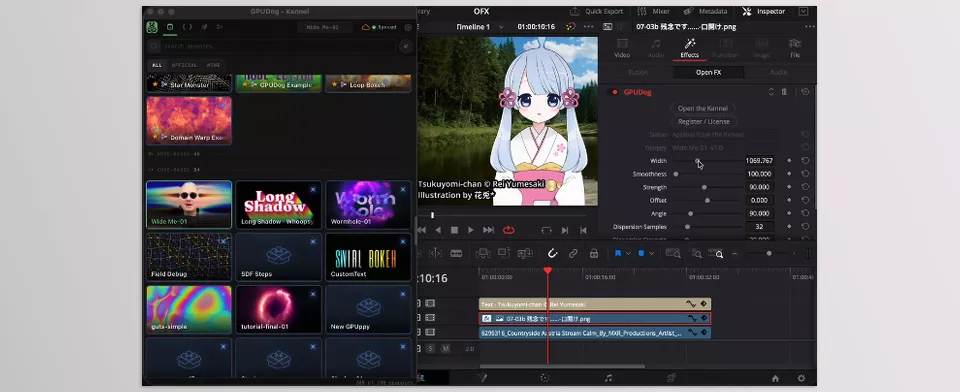
After applying GPUDog from the OpenFX section, you can select Open the Kennel in the Inspector. This opens GPUDog’s dedicated window, giving you access to the effect collection, personal effects, and code editor. Changes are applied to the same clip to which you added the effect.
Effect parameters can also appear in the Inspector. If you define a value as an adjustable parameter in the editor, it becomes available in the Inspector, where you can modify it. This feature helps users keep frequently used controls accessible in Resolve’s main interface.
In Resolve, GPUDog can be used on both the Edit page and as a tool on the Fusion page. This means you can use the effects in a standard editing workflow or in Fusion-based projects. You can also register and activate the license through the GPUDog window.
The WGSL Editor in the Pro Version: Creating and Customizing Effects 💻
In the Pro version, GPUDog is more than a collection of ready-made effects; it also provides a live shader editor. Shaders are instructions that define how an image is processed on the GPU, and by editing them, you can change an effect’s behavior and appearance.
In this editor, you can choose an existing effect as a starting point, modify its code, and create your own customized version. You can also save personal effects to the gallery, so you don’t have to make the same changes from scratch every time.
Another feature in this section is the Import GLSL tool. If you find a shader in a supported format, you can import its code so GPUDog can convert it for use within its own system. The tool recognizes formats such as Shadertoy, ISF, and standard GLSL, and converts syntax and data types while preserving variable names as much as possible.
After conversion, the code is validated using the compiler responsible for running the effect. This process can simplify the setup of shader-based effects, but complete compatibility with every piece of code isn’t guaranteed, and complex shaders may require manual adjustments.
You can also define adjustable parameters for your own shaders, letting you change the required values through effect controls instead of editing the code every time you use them. This capability is especially useful for creating custom tools and reproducing the same look across projects.
The Deep Version: Building Effects with Nodes Without Direct Coding 🧩
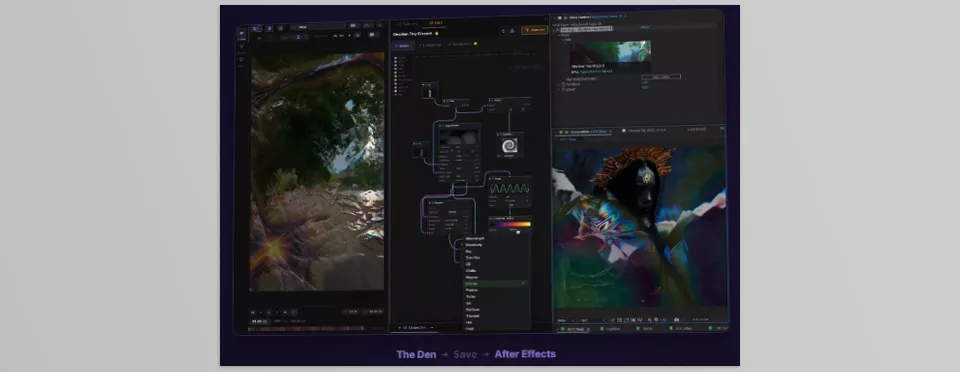
If you want to create custom effects but don’t want to write code for the whole process, the Deep version adds extra capabilities. It includes all Pro features and adds an environment called The Den, a node-based editor that lets you build effects by connecting different components.
In this environment, you can connect nodes, shape the effect’s structure, and select Save to see the result applied live to an After Effects composition or a DaVinci Resolve clip. This approach is suitable for experimenting with different combinations and creating custom visuals, especially if you prefer a visual environment over writing shaders directly.
The Deep version also includes several other features:
- Live Sync: Changes saved in The Den can be applied to the composition or clip connected to GPUDog.
- Publishing and Receiving Effects: With The Pack, you can publish effects, receive effects from other users, and modify or combine existing versions.
- Cloud Sync: Synchronization across devices lets you access synced content on different systems.
- Access to New Effects: According to the product description, new Deep effects are also available to users of this version.
This version suits users who want to go beyond ready-made effects, build a collection of custom visuals, and develop them across projects. If you only need a few ready-made effects, the Free or Pro version may be enough for your workflow.
What’s the Difference Between the Free, Pro, and Deep Versions? 💳
GPUDog is available in three tiers, each offering different features. The free version is a fully usable version of the plugin, not just a trial. You can run free effects at full quality and preview Pro effects with a watermark.
- Free — Free of Charge: Includes 13 free effects at full quality and lets you preview 34 Pro effects with a watermark. The custom shader editor is locked in this version.
- Pro — $19 per month or $99 for a perpetual license: Includes all Free features, unlocks all 34 Pro effects without watermarks, and provides the WGSL editor and new Pro effects released in the future. The license is intended for one user.
- Deep — $199 for a perpetual license: Includes all Pro features, plus the node-based environment The Den, live sync, effect publishing and receiving features, cloud sync, and new Deep effects.
One important point: according to the product description, a single download and license are sufficient to use GPUDog in both After Effects and DaVinci Resolve. In addition, holders of a perpetual Pro license can receive a 50% discount when upgrading to Deep by signing in to their account. This discount isn’t available for the monthly Pro subscription.
GPUDog System Requirements and Compatibility 🖥️
GPUDog is available for different systems, but before installing it, check compatibility with your software and operating system. According to the published product information, the main requirements are as follows:
- After Effects: 2023 or later.
- DaVinci Resolve: 19 or later.
- macOS: Supports Apple Silicon and runs shaders using Metal.
- Windows: Windows 10 or later, using GPU processing through Vulkan or Direct3D 12.
Since the effects run on the GPU, graphics card performance and driver compatibility also affect performance. If you work on demanding projects or use complex shaders, it’s best to try the free version on your own system before purchasing a paid version.
Overall, GPUDog is an extensive collection of ready-made effects and tools for creating custom effects. From glitches and retro looks to fractal patterns, image distortions, typography effects, and color adjustments, everything is gathered in one plugin. The ability to adjust effects live, use them in two software applications, and develop custom visuals makes this tool worth considering for motion designers and video editors who regularly work with a variety of visual styles.
Practical Tips for Adjusting Glitch, Distortion, and Color Effects in GPUDog 🎯
GPUDog’s variety of effects gives you room to experiment with different styles, but to achieve a professional result that fits your project, it’s best to understand how to use each effect and how intensely to apply it. Following a few simple tips can help you maintain greater control over the image’s appearance and reach your desired result more easily.
- Choose effects that match your project’s style: Glitch effects can be a good choice for energetic music videos, while subtle distortion or controlled color changes may work better for a minimalist commercial.
- Increase effect intensity gradually: Start with mild settings, then adjust the effect’s strength so important image details don’t disappear under heavy effects.
- Sync changes with the music’s rhythm: In music videos or beat-driven commercials, change the intensity of glitches or distortions at key moments to match the editing rhythm.
- Avoid combining effects without a clear reason: If you use several effects simultaneously, make sure each one has a specific purpose and that the final result doesn’t become too cluttered.
- Compare different settings: Before choosing the final result, create several effect variations and see which one works best with the project’s overall color, lighting, and movement.
- Monitor system performance: When using demanding effects or custom shaders, check the preview and rendering time because performance depends on the hardware and the complexity of the effect.
- Modify custom shaders step by step: If you’re using the WGSL editor in the Pro version, make a few specific changes at a time and review the result to maintain greater control over the output.
Ultimately, remember that an effect’s appeal isn’t determined solely by its complexity or intensity. What matters is how much it contributes to the project’s main idea. By choosing the right effects and carefully adjusting their parameters, you can leverage GPUDog’s capabilities to create visuals that stand out without cluttering the image.
Can GPUDog Make Your Projects’ Visual Effects More Varied? 🚀
If you’re looking for effects like glitches, distortions, glows, and retro looks for a commercial, music video, or motion graphics project, you probably know creating and adjusting each one can be time-consuming. GPUDog offers 47 effects, letting you explore ideas faster than starting from scratch, then customize each effect’s appearance to match your project’s atmosphere by adjusting its settings.
The interesting thing is that GPUDog isn’t just for using ready-made effects! If you want to go further and create your own visuals, the Pro version’s shader editor and the Deep version’s node-based environment give you room to experiment and customize. GPU-based processing also helps you review effects as you work and switch between different settings more easily. Plus, you can use this collection in both After Effects and DaVinci Resolve.
If you regularly work with a variety of visual effects and want more options for creativity and experimentation without building everything from scratch, GPUDog can be a useful tool for your workflow. You don’t even have to start with a paid version. The free version gives you access to 13 effects, allowing you to see how well the collection’s style and features match your project needs before deciding whether to upgrade.
Not sure whether you need a plugin, script, or extension for your After Effects project? Check out our After Effects Tools guide. It explains what each tool does, when to use it, and how to choose the right one to save time and make your creative work easier.