

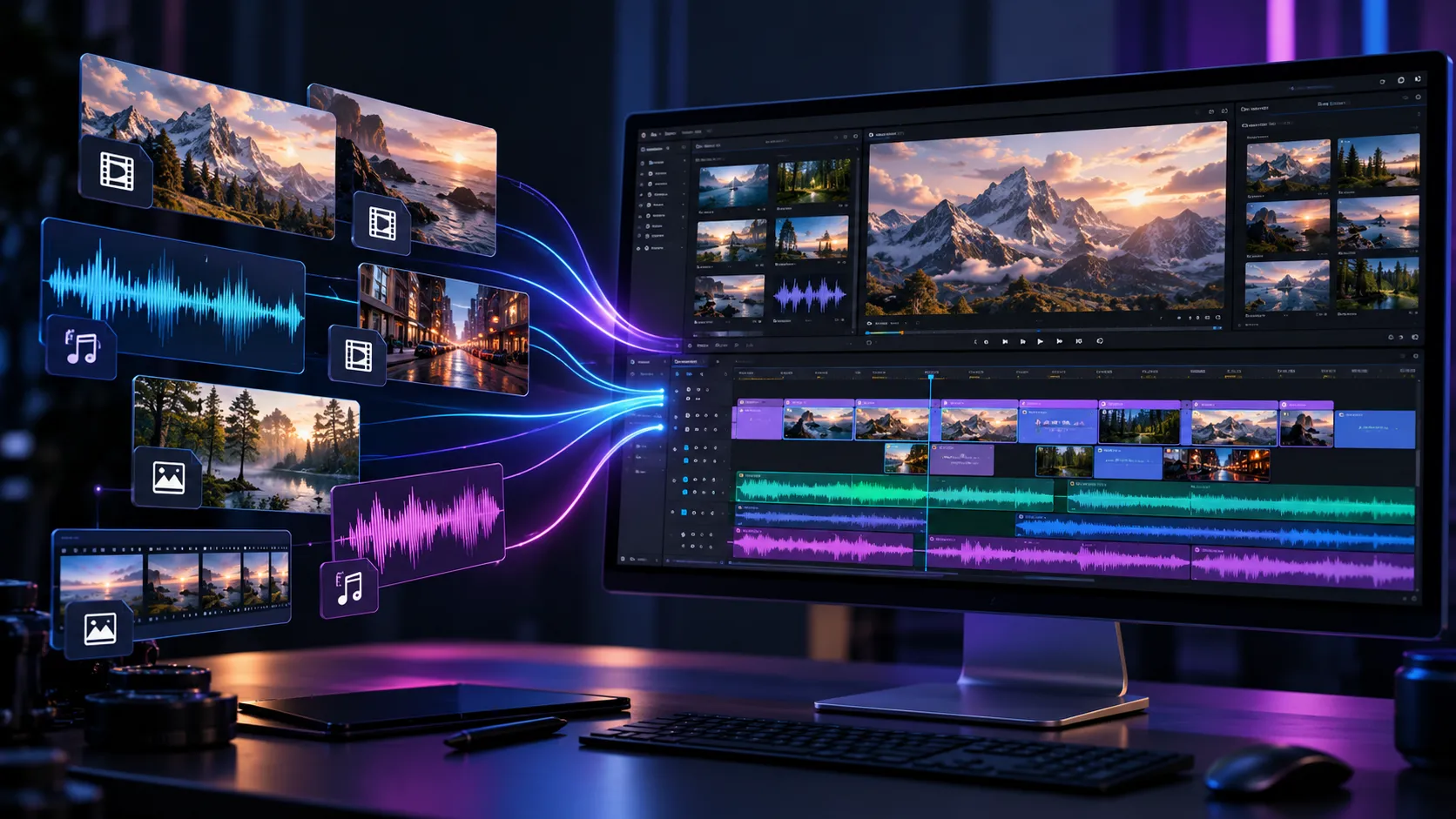
Importing Different Video and Audio Formats into Adobe Software 🎬
Do you know anything about the Influx Plugin by aescripts? Sometimes, just when you’re ready to start editing or import footage into After Effects, you run into a problem: the file won’t open, or its audio and video don’t work properly. That’s when you need to make the file compatible with your software so you can use it in your project.
Usually, the first solution that comes to mind is converting the file with another program. But this isn’t always easy, especially when you have multiple files in different formats and need to prepare each one before you can start editing. On top of that, converting files takes time, and you may need extra storage space for the new versions.
Now imagine importing many of these files directly into Adobe software without converting each one separately, so you can get to the main part of your work faster. This capability can smooth out editing and motion graphics workflows and free up time for other important tasks, especially when you regularly work with a variety of footage and audio files.

Why Won’t Some Video Files Open in Adobe? 🎥
A video file isn’t just a collection of moving images. Video and audio data are usually stored using specific compression methods called codecs. Formats such as MKV, MOV, and WebM act as containers that hold video, audio, and related file information. That’s why supporting a format doesn’t necessarily mean software can process every codec inside it.
This difference becomes important when you want to import files from different sources into your project. For example, you might have recorded a video with OBS, captured footage from a camera using a specific codec, or received an audio file in an unusual format. If your editing software can’t read the file, you’ll need to find a way to make it compatible with your workflow.
How Does Support for Different Formats Help Your Project?
- Start editing faster: Instead of using file conversion software for every incompatible file, you can check whether you can import it directly.
- Save storage space: When you don’t need converted versions, you can avoid creating extra files.
- Manage footage more easily: When you work with different sources, support for various formats can make importing files into your project easier.
- Gain more flexibility in your content creation workflow: You can move more easily between video editing, compositing, and processing audio and video files.
For example, when creating a promotional video, you might use camera footage, screen recordings, and several audio files. The more compatible these files are with your software, the less time you’ll spend preparing them.
Common Ways to Import Incompatible Files into Premiere Pro and After Effects 🛠️
When Premiere Pro or After Effects can’t open a file, you have several ways to fix it. The right method depends on the file type and its codec, and you can try the following options:
- Convert the file with HandBrake or FFmpeg: You can convert files like MKV into a format your editing software can read more easily.
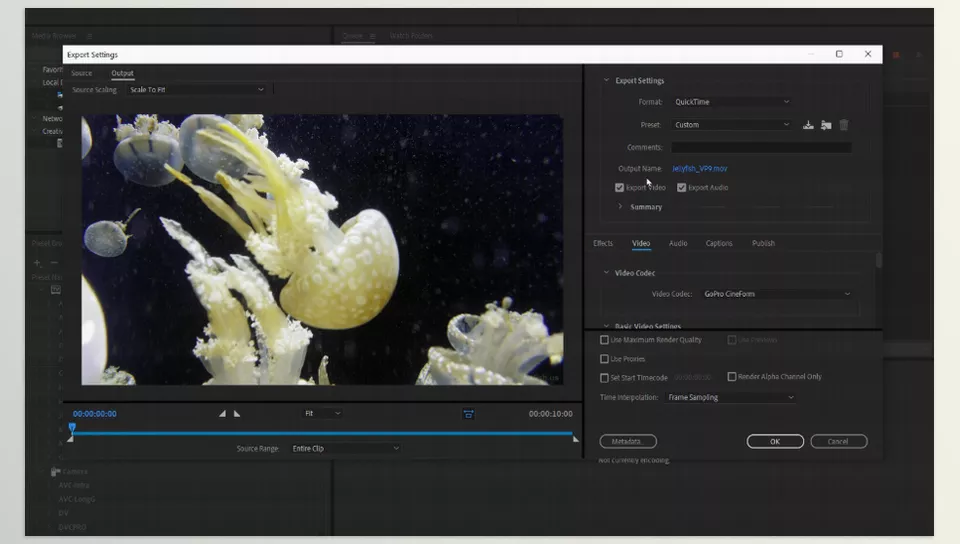
- Use Adobe Media Encoder: If the file is compatible, you can use Media Encoder to convert and prepare it.
- Adjust the output format when recording: If you record with OBS or similar tools, choose a format and codec that’s more compatible with your editing software from the start.
Why Can Repeated File Conversion Slow Down Your Editing Workflow? ⏳
These methods help, but each has its own drawbacks. File conversion can take time, require more storage space for new versions, and, depending on the settings, reduce image quality. Also, when you receive files from different sources, you can’t always change their original formats. As a result, if you regularly work with varied footage, preparing files can take up a lot of your time and delay the start of your actual work.
Influx: Import More Formats into Adobe Software 🚀
Influx is a specialized plugin from Autokroma that lets you import audio and video files into Adobe software. It expands support for different formats and codecs, letting you bring files directly into your workflow when Adobe’s default importer may struggle to read them. This means that when a file is supported by Influx, you don’t necessarily have to convert it with another program before starting an edit or creating a composition.
Influx works with Premiere Pro, After Effects, Adobe Media Encoder, and Adobe Audition. It’s designed for people who regularly work with a variety of audio and video sources. From videos recorded with OBS to footage in specific codecs and audio files in less common formats, this tool gives you more options for importing media. The important thing to understand is that Influx is an importer. It focuses on reading and importing files, not creating effects or animations or replacing editing tools.
Extensive Support for Audio and Video Formats and Codecs 🎥
One of Influx’s main features is its support for a wide range of formats and codecs. To better understand this feature, you need to know that a video’s format is different from its codec. For example, MKV is a container for storing audio and video data, while H.264 and AV1 are video encoding and compression methods. As a result, software may support a particular format but still be unable to read all the codecs contained in a file.
Influx is designed to cover a broader range of these formats and codecs, and it supports the following options.
Video Formats and Containers
- MKV: For videos recorded with OBS, for example, or obtained from other sources.
- WebM: For web-based video files.
- AVI and QuickTime MOV: For working with a wide variety of video files.
- WMV and FLV: For older or less common video formats.
- VOB: For video files associated with DVDs.
- MJPG, OGV, 3GP, and Y4M: For a range of video files with different uses and structures.
- GoPro 360-degree videos: For working with files from these types of cameras, within the tool’s supported range.
Having these formats available gives you more options when importing footage from different sources. However, support for a particular file extension doesn’t guarantee compatibility with every file that uses it.
Video Codecs
Influx supports a variety of codecs, each of which is useful in different situations:
- H.264 and H.265/HEVC: Two common codecs for compressed video, frequently found in camera footage, screen recordings, and online content.
- AV1: A codec used in some newer video files. Support for it can be useful when importing this type of content.
- VP8 and VP9: Codecs commonly found in web-based content.
- Hap and Hap Q: Codecs suited to certain video workflows and graphical content playback. Influx also supports versions with and without alpha.
- FFV1: A lossless codec used in some video archiving and preservation workflows.
- Canopus HQ: Another video codec included in the product’s list of supported formats.
For example, imagine you have a video file encoded with AV1 and want to edit it in Premiere Pro. If the default importer can’t read the file, Influx may let you import it, provided the file matches its capabilities.
Audio Formats and Codecs
Influx’s support isn’t limited to video. It also covers several audio formats:
- FLAC: For losslessly compressed audio files.
- Opus and OGG Vorbis: Compressed audio formats used in different applications.
- DTS and DTS-HD Master Audio: Audio formats and codecs associated with multichannel content.
- AC3: For audio files based on Dolby AC-3.
- AIFF: A common format for storing digital audio.
- MKA: An audio container based on Matroska.
- WMA: The Windows Media audio format.
- Speex: An audio codec associated with speech.
This feature comes in handy when the music, recorded audio, sound effects, or other audio files in your project come from different sources, and you want to use them in Adobe software.
Still Image Formats
Influx also supports the QOI, JPG, PNG, and TIFF image formats. These formats are useful for editing and motion graphics projects involving still images, graphics, and visual elements. However, support for these formats doesn’t turn Influx into an image-editing tool; its purpose remains file importing.
Importing and Editing Files in Premiere Pro 🎬
In Premiere Pro, Influx helps you work with files that Adobe’s default importer may struggle to read. This is particularly useful when you receive project files from different sources and don’t want to convert all of them to a specific format before editing.
For example, imagine you’re editing an educational video and have several camera clips, OBS screen recordings, and a number of sound effects. If one of the files won’t open because of its codec or structure, Influx may still let you import it, provided the file is supported, so you can use it on the timeline.
This feature doesn’t guarantee that every file will play faster. Actual performance still depends on the codec, resolution, frame rate, hardware, and file structure. Influx’s main advantage is that it gives you more options for reading files.
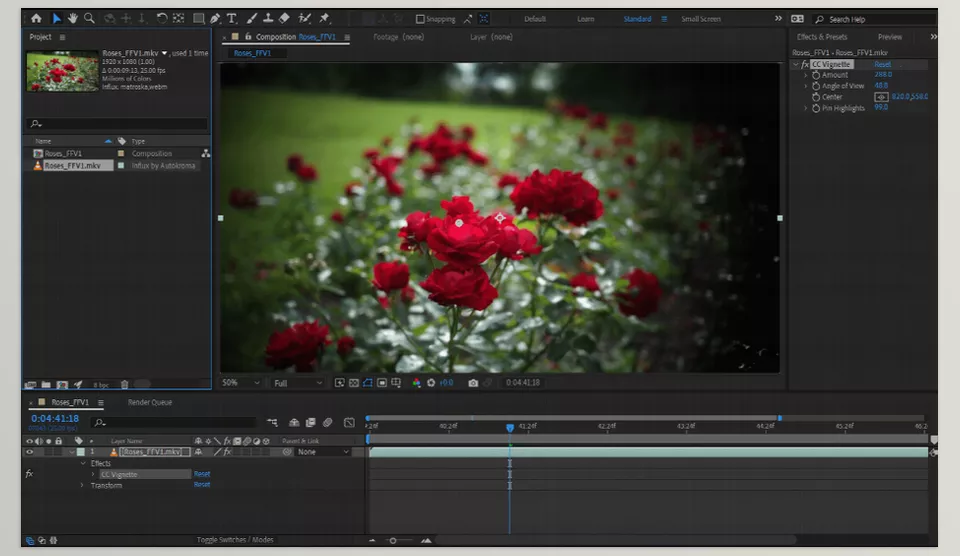
Working with Different Footage in After Effects ✨
In After Effects, you may also encounter files that don’t import easily when creating a composition. For example, you might want to combine a screen recording with graphic layers, create a visual effect on footage, or use video from multiple sources to make a promotional video.
Influx lets you import more formats, so when a file is supported, you may not need to convert it separately before you start. This lets you spend less time preparing footage and move on sooner to adjusting layers, creating animations, and combining visual elements.
However, this plugin doesn’t create animations, expand compositing capabilities, or replace After Effects effects. Its purpose is to make more input files available to your workflow.
Working with Files in Adobe Media Encoder 🔄
Influx also works with Adobe Media Encoder and can help you import and process files. Media Encoder converts videos, prepares files, and processes exports from Premiere Pro and After Effects. Influx lets you read more formats in this workflow.
For example, if you have several files in different formats and want to prepare them for a project, broader format support makes importing easier. You can also use Media Encoder for editing and compositing projects, while Influx handles file import.
One important point is that Influx doesn’t replace Media Encoder’s export engine. This plugin focuses on importing and reading files, while conversion and export capabilities still depend on Media Encoder’s own features.
Audio File Support in Adobe Audition 🎧
If you also edit audio alongside video and motion graphics, Influx’s support for Adobe Audition can be useful. This software is used for audio editing and processing, and Influx gives it access to more audio formats and containers.
For example, your project’s music might be in FLAC format, the sound effect you want might be saved as an Opus file, or you might need to work with a WMA audio file. If the file falls within Influx’s supported range, you can use this importer to access it in your Audition workflow.
This feature is useful for projects where audio comes from a variety of sources, and you need to review or edit it before using it in a video. However, support for a particular format doesn’t guarantee compatibility with every feature of that file.
Importer Settings and Control Over Supported Formats ⚙️
One useful feature of Influx is the ability to configure how it handles different formats. In the product’s Settings window, you can specify which file extensions Influx should process or let the tool decide which files its importer should handle based on its own capabilities.
This is important when you want to use Influx to import a specific format but still leave other files to Adobe’s importer. Instead of always routing every file through the same process, you can adjust the importer’s behavior to suit your needs.
However, in some newer versions of Premiere Pro and Media Encoder, Adobe may natively support certain files that previously required third-party importers. In these cases, Adobe may process the file directly without calling Influx at all. That’s why file-extension and import-method settings matter.
Using a Custom Extension to Call Influx
For certain situations, Influx also allows you to use the custom .influx extension. By adding this extension to a filename, you can specify that the file should be imported through Influx rather than Adobe’s default importer.
For example, if an MKV file opens directly in a newer version of Premiere Pro but you want to make sure Influx handles it, you can use this method. Beyond solving certain import problems, this feature also helps with troubleshooting by determining whether the issue comes from Adobe’s file processing or another part of the workflow.
Influx also supports filenames that use the filename!options.influx structure. This feature lets you define options in the filename. For example, in supported configurations, you can use options related to the image width or height. If you change only the width or only the height, the tool can preserve the original aspect ratio.
These features aren’t necessary for every user, but they can be useful when working with specific files or when you want more precise control over the importer’s behavior.
Better Handling of Certain Problematic Files and Improved Video Reading 🧩
Influx has also focused on improving video file processing in its updates. For example, the descriptions of recent versions mention improvements to AV1 decoding, playback and seeking in long videos with GOP structures, and fixes for certain frame display issues when navigating through H.264 and H.265/HEVC files.
These improvements matter to editors who need to move back and forth along the timeline, inspect specific frames, or navigate through long files. However, these improvements don’t mean that every file using these codecs is fully supported.
According to the product documentation, certain AVCHD, MTS, MPEG-TS, and VOB files may still have limitations. The stated limitations also include QuickTime Reference files, which point to media stored in separate files and don’t contain video data themselves.
Influx has also improved error reporting and diagnostic messages, including clearer messages for certain errors involving decodable frames and fewer repetitions of some warnings. These changes can make it easier to identify the cause of a problem, but a corrupted file or structural incompatibility may still require further investigation.
Compatibility with Windows, Mac, and Different Adobe Versions 💻
Influx is available for Windows and macOS. According to the product’s published specifications, it supports Adobe software within its supported range. The listed specifications cover Premiere Pro, After Effects, and Media Encoder from CC 2019 through 2026, along with the listed Audition versions. Newer and beta versions should be checked against the product’s latest information.
On Windows systems, Windows 10 and Windows 11 are listed in the product specifications. On Mac, systems with Apple Silicon processors and Intel-based systems are supported, but the minimum macOS version depends on the product’s updates. So, check the minimum requirements before installing.
According to the product information, one Influx license can be used by one user on up to two computers, as long as the software isn’t used on both systems at the same time. This can be useful for people who work on both an office computer and a personal system.
The developer also emphasizes product updates and compatibility fixes. However, it’s best to check Influx’s compatibility before upgrading Adobe software or switching to a newer operating system, since compatibility depends on the plugin version, operating system, and target software.
Ultimately, What Does Influx Add to Your Workflow? 🚀
Influx is primarily designed to reduce the hassle of importing files. Support for a variety of formats and codecs, compatibility with multiple Adobe applications, control over supported file extensions, and options for managing how files are imported give you more ways to work with different types of media.
If you regularly work with OBS recordings, videos using specific codecs, varied footage, or less common audio files, this tool can reduce the need for separate file conversions when those files are supported. On the other hand, if your usual files open in Adobe without any problems, you may not need all of Influx’s features.
The best approach is to identify the formats you most often have trouble with before choosing a tool, then check Influx’s list of supported formats. This way, you can decide whether the plugin will genuinely simplify your editing and motion graphics workflow or whether Adobe’s built-in features already meet your current needs.
Tips for Working More Effectively with Influx 🎨
To get the best results from this tool, pay attention not only to the file format but also to how you use it in your workflow.
- Check the format and codec first: If a file won’t open, don’t rely on its file extension alone. The problem may be the codec inside the file, not the container format itself.
- Test important files first: Before importing many files into a project, test a few samples in the target software to make sure the video and audio play correctly.
- Bypass Adobe’s default importer when necessary: Influx lets you configure which formats it should process. For certain files, you can also use the custom
.influxextension to make the software open the file through Influx. - Pay attention to quality and performance: Codec support doesn’t guarantee smooth playback for every file. Resolution, frame rate, codec structure, and hardware performance also affect playback.
- Check your software version: Before installing or updating, make sure your version of Influx is compatible with your operating system and the Adobe software you’re using.
Ultimately, it’s best to think of Influx as part of your file management workflow rather than a guaranteed solution to every media importing problem. If a specific file still produces an error, examine its structure and test a converted version to identify the cause.
Influx: A Way to Work with Different Formats and Codecs in Adobe 🚀
If you regularly work with files that don’t open easily in Premiere Pro or After Effects, you probably know preparing footage can take as much time as editing. By letting you import more formats and codecs, Influx cuts down on that hassle and gets you to the main stage of your project faster.
One useful thing about Influx is that it works with several Adobe apps, including Premiere Pro, After Effects, Media Encoder, and Audition. This means you can use it at different stages of your work without switching to another tool. It also supports a wide range of audio formats.
Whether you need Influx depends on the files you use. If Adobe opens your files without any problems, you may not need this tool. But if you often work with different video formats or files that Adobe cannot open, Influx can help.
First, check which files cause problems. Then see if Influx can make your work easier and save you time.
After Effects has an incredible ecosystem of tools that can dramatically improve your workflow—but knowing which ones you actually need isn’t always obvious. Our in-depth After Effects Tools guide breaks down the main categories, explains their real-world purposes, and helps you choose the right tools with confidence.






