


Strokes: The Magic of Movement in Animation
Have you ever heard about the magic of the Volna Plugin? Dynamic line and stroke effects are a staple of motion graphics and animation. Moving lines and strokes are those awesome vibrant lines that will transform any composition into something moving and active. With these lines, you can show the path of an object’s movement, create sparks and energy effects, or even highlight text and graphic elements with a dynamic and engaging feel.
Using these lines makes your scenes look much more natural and alive, even when the movements are complex and busy. Designers are always looking for ways to create these lines with full control over thickness, color, noise, and animation, without having to draw every detail manually.

What a Stroke Is and Its Applications in Animation and Motion Graphics
Simply put, a stroke is a line or path you draw that can have color, thickness, gradient, or even texture, and most importantly, it can move and be alive. The real purpose of these lines is to give scenes a sense of motion and energy, turning dry and lifeless visuals into engaging, lively ones.
Applications of Strokes
- Motion Trails of Objects:
When an object or character moves in a scene, its movement alone usually isn’t enough to capture the viewer’s attention. This is where strokes come in: lines that remain behind the object, clearly and attractively showing its path. For example, the motion trail of a thrown ball or a fast-moving character in an animation conveys speed and direction. - Energy Waves and Spark Lines:
To create fantasy effects like electric energy, flames, sparks, or magical effects, strokes are perfect. These lines can have color, thickness, and noise, and their natural movement brings the scene to life. You can even animate the lines with sinusoidal or random noise to create a more realistic and captivating effect. - Motion Typography:
Strokes can animate text or letters. For instance, lines that rotate around letters, emerge from inside text, or grow along with letters make text more attractive and readable. This helps messages or brand names appear visually more impactful. - Audio-Responsive and Rhythmic Effects:
Stroke lines can sync with sound; for example, the intensity of noise or line movement can change according to the music rhythm. This gives the scene life alongside the audio and visually represents sound in an artistic way.
In short, strokes are what give scenes life and movement. Even the simplest motions become appealing and understandable, making viewers feel that everything is alive and dynamic.
Creating Strokes in After Effects: How and What Limitations Exist
If you want to create moving lines or strokes directly in After Effects, there are tools to help, but the process can be time-consuming and limited:
- Shape Layer and Stroke:
With Shape Layers, you can draw simple lines and set their color and thickness. You can animate their paths and show movement. But when you want complex or multi-layered lines, everything quickly becomes messy and confusing. - Trim Paths:
This tool lets lines grow, shorten, or disappear. For example, you can draw a line and animate it from start to end to give a sense of motion. However, control over variable thickness or natural line noise is limited, and creating artistic effects takes a lot of time. - Repeater and Wiggle:
To add noise and random motion, you can use Repeater or Wiggle. This makes lines appear slightly more natural and lively. The problem is that precise control over noise, waves, or complex line behavior is difficult and often time-consuming. - Creating Arrows or Special Effects at Line Ends:
Adding specific shapes to line ends without extra tools requires masks and separate animations, which is time-consuming and cumbersome.
Using After Effects tools, you can create moving lines and simple effects, but if you want complex, natural, and artistic lines with full control over motion, thickness, and noise, everything quickly becomes complicated and time-consuming. When building complex or multi-layered lines, scenes can get cluttered and hard to manage. Control over variable thickness, natural noise, or artistic line effects is limited and labor-intensive, and even small changes can disrupt the entire animation. Adding details like arrows or special effects at line ends also requires separate masks and animations, making the process tedious and exhausting.
Bringing Lines to Life with Volna Plugin
As mentioned, creating complex, natural, and dynamic lines with After Effects’ default tools is time-consuming and limited. This is where Volna Plugin comes to the rescue. With Volna, you can create professional, animated lines and strokes without spending hours on details.
Let’s look at Volna Plugin’s main applications:
- Dynamic and Animated Strokes:
You can create lines that follow motion paths, change thickness, and give energy and flow to a scene. - Natural Noise and Wave Effects:
By controlling line noise and deviation, you can create entirely natural and artistic lines, such as spark trails, energy waves, or magical effects. - Advanced Gradients and Colors:
Each stroke can have a custom gradient, unlimited colors, and various fill modes, producing highly attractive visual effects. - Parametric Arrows at Line Ends:
You can easily mark line ends with arrows or special shapes and even animate them without creating extra masks and paths. - Audio and Music Synchronization:
Lines can react to sound; for example, line noise intensity or movement can change according to the music rhythm, giving scenes a greater sense of life. - Diverse Artistic Styles:
You can create anything from rough, grainy lines to soft chalk-like lines or dotted strokes, generating any artistic style you want.
With Volna Plugin, you no longer need to struggle with masks, paths, and complex settings for hours. Everything is ready and controllable for creating dynamic, natural, and artistic lines. With a few clicks, you can create lines that move, have energy, sync with sound, and adopt any artistic style. In short, Volna Plugin empowers you to bring your ideas to scenes faster, easier, and more attractively, making every scene you create look alive and dynamic.
To better understand the power of strokes, simply compare these simple scenes with dynamic lines.
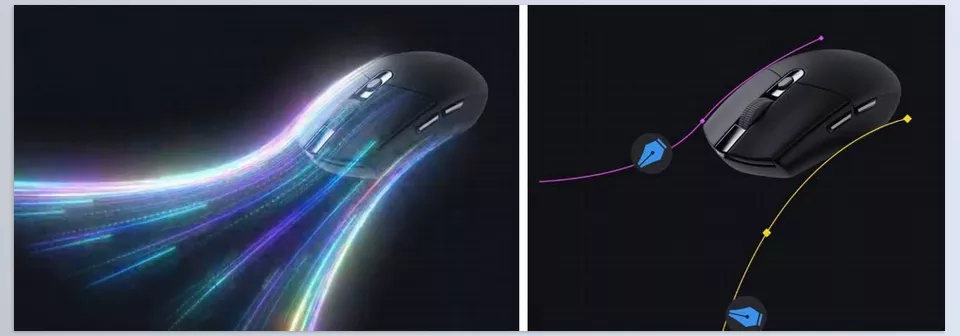
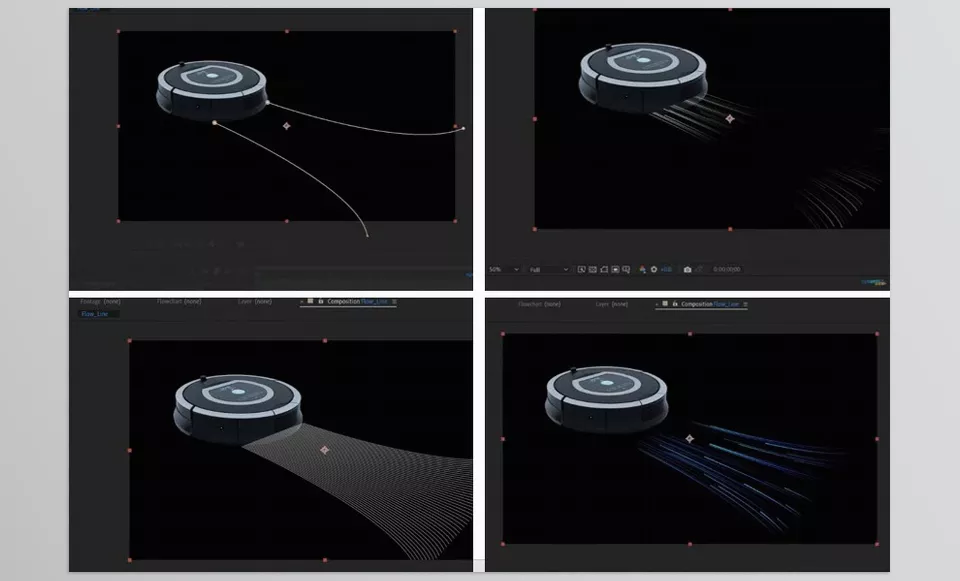
Professional Techniques and Tips
A few simple tips can make your strokes more professional and natural:
- Sync with Background and Camera Movement:
Lines that align with camera or object movements give a more realistic feel to scenes. - Use Gradient and Variable Thickness:
Changing line color and thickness makes the scene appear more alive and adds depth. - Add Natural Noise or Waves:
Small noise and wave variations make lines look more natural and artistic, not stiff or artificial. - Focus on Key Details:
Add lines only to key scene elements; too much clutter confuses the viewer. - Sync with Music or Audio Rhythm:
Lines that match audio rhythms enhance the sense of energy and flow.
By following these techniques, even the simplest lines can add movement, energy, and professional appeal to your scenes.
The Final Touch for Unforgettable Scenes
Overall, using the Volna Plugin allows any animator to bring scenes to life with dynamic, professional strokes. Dynamic lines and strokes can truly bring scenes to life and energize them. Object paths become clearer, sparks and energy waves stand out, and even text and elements gain an engaging feel.
With standard tools, you can create simple lines, but building a complex, professional scene quickly becomes tedious and time-consuming. By following a few simple tips—such as varying thickness and color, adding subtle natural noise, and syncing lines with camera movement or audio rhythm—you can create lines that are dynamic, natural, and visually stunning.
Ultimately, dynamic lines aren’t just decorative; they genuinely add spirit and motion to scenes. Any scene created with proper lines immediately conveys to viewers that everything is alive and in motion. In short, dynamic lines can make scenes magical and unforgettable.
You probably already know that Volna is an After Effects plugin. If your knowledge of After Effects is limited, don’t miss our guide on After Effects tools to discover how to make the most of it.



