

When Colors Come to Life 🎨
Are you familiar with how the Gradient8 plugin works? Sometimes a plain background won’t cut it. Sometimes, you want colors to not only transition but also, shift, move, and pulse with rhythm. Do you want to emulate a digital sunrise where the orange turns to blue over time? Do you need a motion graphics background that implies luminescence? But default tools are limited: you can only create a simple two-color gradient with almost zero control over the details.
Imagine having a colorful gradient where every point is adjustable: color, radius, position, and even dynamic movement with natural noise. Something that easily captures the viewer’s eye and makes your projects look more professional. Once this is possible, there are no limits to your creativity—you can shape the world of colors exactly the way you want.

Multi-Point Gradients and Their Uses ✨
A gradient means colors gradually transition from one point to another. Instead of abrupt changes, the viewer’s eye is gently guided from one color to the next, creating harmony and depth in the design.
Applications in Motion Graphics
- Dynamic Backgrounds: Instead of plain, static backgrounds, multi-point gradients can be used so that colors move slowly, giving a sense of life and energy.
- Soft Lighting and Shadows: Gradients give light and shadows a natural and appealing look without needing complex renders.
- Conveying Emotions Between Scenes: Gradual color changes can evoke feelings of calm, excitement, or seasonal shifts.
Applications in Design
- Buttons and Icons: Multi-point gradients make buttons and icons stand out and appear more attractive.
- Banners and Digital Illustration: Smooth color transitions in backgrounds or graphic elements guide the viewer’s eye naturally along text or images.
Why It Matters
Smooth, gradual colors not only make a project look professional and cohesive but also guide the viewer’s eye easily and convey a sense of depth and life. In other words, multi-point gradients are a small tool with a big, tangible impact on the final quality of designs and animations. With tools like the Gradient8 plugin, achieving smooth and natural gradients becomes effortless compared to default options.
Traditional Methods: How to Do This Without a Plugin 🤔
In After Effects and many default motion graphics tools, you can create gradients, but there are many limitations:
- Limited Number of Colors: Usually, you can only combine two or three simple colors in a gradient. To create a gradient with 5 or 6 points, you have to use multiple layers and combine them with masks or opacity—time-consuming and complex.
- Almost No Control Over Radius and Position: Default tools don’t let you adjust the radius or influence area of each color, making gradients look uniform and flat.
- Adding Noise or Dynamic Movement is Difficult: To add subtle noise or natural movement, you must use separate effects, which is time-consuming and cumbersome.
- Advanced Color Spaces Are Not Supported: After Effects doesn’t support OKLCH color space, and even HSV has limited control. The result is that color transitions often look unnatural and sometimes artificial.
💡 Summary: You can create gradients without a plugin, but precise control, multi-point colors, and dynamic effects are nearly impossible. For professional or fast-paced projects, this method is limiting and time-consuming.
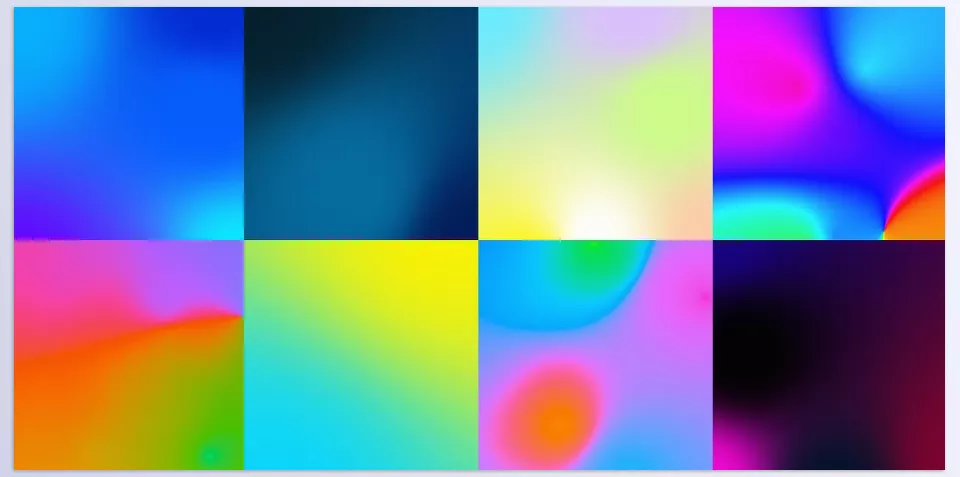
Introducing the Professional Tool: Full Gradient Control 🛠️
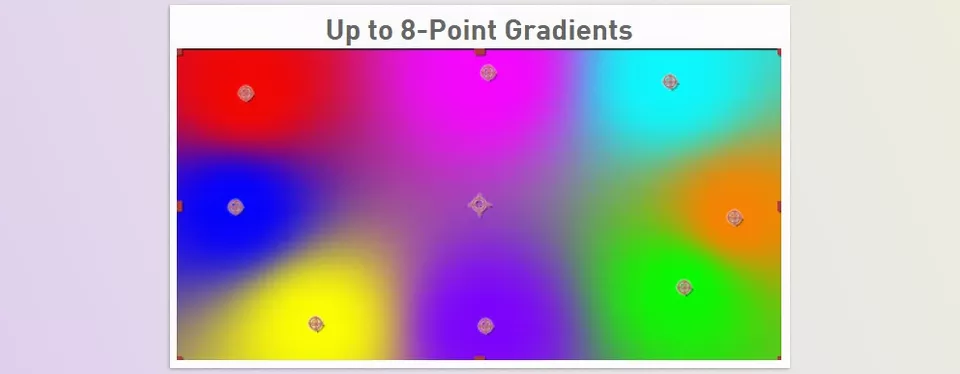
Gradient8 plugin is designed to give you full, professional control over gradients—something very hard to achieve with default tools. Key features include:
- Gradients with 2 to 8 Color Points
You can select each color point, adjust its position and radius. This allows you to create complex and precise gradients where each point has its own influence and color transitions occur naturally and controllably. - Radius and Blend Control
Control the spread and influence of each color in the gradient. This makes gradients not just beautiful but dynamic and perfectly suited for your project without needing multiple layers or separate effects. - Color Space Selection
Supports RGB, HSV, and OKLCH:- RGB: Simple and fast, suitable for most projects.
- HSV: Smooth, uniform transitions between colors, perfect for colorful gradients.
- OKLCH: Natural, harmonious color blending that looks professional and pleasing to the eye.
- Blend Methods
- Smooth Blend: Soft, balanced color transitions, ideal for backgrounds and classic designs.
- Gaussian Blend: Gradient with a concentrated, soft effect, similar to focused light or shadow, adding depth and focus.
- Dynamic Noise
Add natural motion and noise to gradients, making colors appear alive and dynamic. Perfect for modern animations and motion graphics, giving a cinematic touch to your projects. - Simple, Minimal UI
Despite all these features, the interface is intuitive and easy to use—even beginners can create professional gradients without getting confused.
💡 Result: Gradient8 plugin gives full control over multi-point gradients, colors, and movement, completing in minutes what default tools take hours to achieve.
Professional Techniques and Tips 💡
The Gradient8 plugin offers plenty of flexibility, but mastering its settings can make your results even more professional. To make gradients look natural, dynamic, and professional, follow these tips:
- Control Radius and Point Blending
- Reduce the radius of nearby points for smooth transitions without abrupt lines.
- Adjust blend strength so each point has the right influence, creating uniform, harmonious gradients.
- Use OKLCH Color Space
- OKLCH provides visually uniform, natural-looking color transitions.
- Smooth and precise changes make gradients look professional and eye-catching, especially for backgrounds and sensitive motion graphics elements.
- Add Noise and Dynamic Movement
- Introduce subtle dynamic noise gradually for lively, natural-looking gradients without creating a busy or artificial effect.
- Proper combination of motion and noise adds the feel of natural light, energy, and depth without straining the viewer’s eye.
- Extra Tips for Professional Results
- Use multiple color points to add depth and complexity.
- For animations, change point positions and radii over time to create smooth, natural movement.
- Always preview on a small scale to ensure colors and blends appear as expected on the final screen.
In Conclusion: Bring Colors to Life 🌈
Imagine your project coming alive: colors move, the viewer’s eye flows naturally across the scene, and everything feels dynamic and organic. Multi-point gradients give your work this exact feeling. Even a simple background can gain energy, depth, and professionalism with just a few color points.
With the Gradient8 plugin, you have full control. You can precisely adjust each color point, radius, and blend strength. No need for multiple layers or extra effects to achieve natural gradients—everything is fast, precise, and easy. Add noise and motion to make your gradients feel alive and real.
With a little practice, this tool becomes your creative companion. Every project, simple or complex, becomes more engaging and memorable with multi-point gradients. Try it and see how it elevates your work to the next level.
Take a closer look at After Effects and the tools that make it more powerful — our detailed article about After Effects Tools covers everything from essential plugins to advanced scripts.



