

The Magic of Living Images
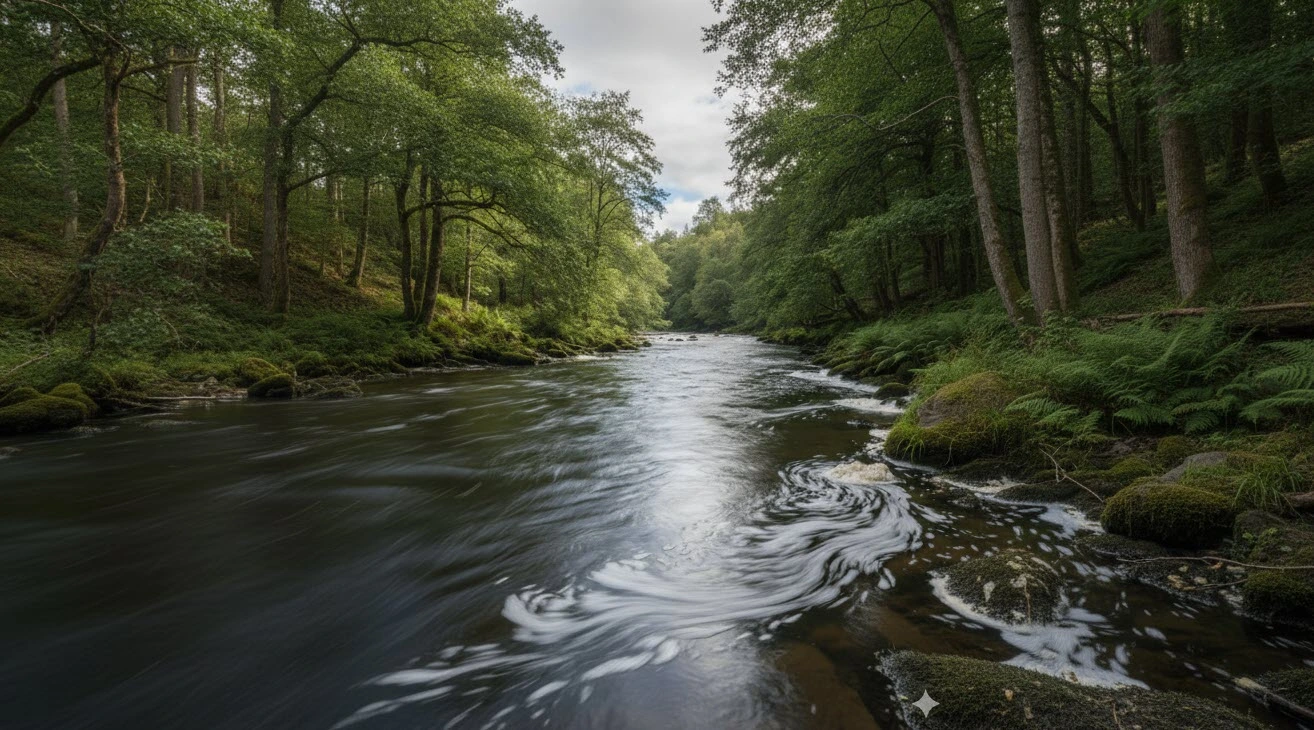
Have you gotten a chance to try the LoopFlow Plugin? Imagine a photo of a river, or a digital painting of soft smoke or fabric fluttering in the wind. Everything in the image is still, yet the sense of life and flow is absent. What if we could make these images move smoothly and continuously without spending hours keyframing and dealing with complex settings?
The gentle, uninterrupted flow of water, smoke rising slowly, hair and fabric swaying with the wind, or even patterns and textures coming to life… all of these can become alive, right before our eyes.
Now close your eyes and imagine: with just a few clicks, your still image starts to breathe and move. Get ready for curiosity, because a world of creative and natural motion in images awaits you—a world that can elevate your design and motion graphics projects from ordinary to fully alive and captivating.

Traditional Methods and Limitations
Before professional tools for animating images were developed, the only way was to rely on After Effects’ default effects and techniques:
- Displacement Map: Moves the pixels of the image but precise control over flow and speed is very difficult.
- Puppet Tool: Makes specific parts of the image flexible, like bending branches or moving fabric, but every small change requires separate keyframes.
- Turbulent Displace: Used to create waves, smoke, or uneven flows, but achieving smooth, natural motion is time-consuming and complex.
The main problem?
- Creating smooth loops was hard: Movements often had jumps or pauses.
- Lots of keyframes required: Every small motion demanded hours of work.
- Natural flow was difficult to control: Achieving a realistic sense of moving water, smoke, or fabric required extensive trial and error and high skill.
In short, these methods got the job done, but they were complicated, time-consuming, and often unnatural. This led to the development of specialized tools like LoopFlow Plugin, which eliminate these limitations.
Introducing loopFlow: Easy Image Motion
This is where LoopFlow Plugin comes in: a small but powerful tool that transforms still images into smooth, loopable videos. No more spending hours keyframing and adjusting complex settings—just define the motion area and watch your image come alive. This tool is perfect for anyone who wants their images to breathe and live, without spending hours on intricate motion graphics details.
Key Features:
- Define motion area with two simple masks: Just draw two masks on the image to set the area and direction of flow. This ensures the motion occurs exactly where you want it.
- Automatic, smooth looping: The motion loops infinitely without any jumps or stops. No complex adjustments are needed for continuity.
- Forward or backward movement with various blends: Choose between linear, soft/noised, and wiped modes to control exactly how the motion appears while maintaining a natural feel.
- Natural distortion: Adding a bit of distortion makes the motion look more realistic and organic, like real water, smoke, or fabric in the wind.
- Speed Ramp: Dynamically and momentarily adjust the speed of the flow to create acceleration or calm movement, giving full control over the animation rhythm.
- Simplicity and speed: Create professional loops in just a few clicks without hours of keyframing or trial and error.
A practical example:
Imagine you have a photo of a river. Before LoopFlow Plugin, creating a smooth loop would take hours, and even with careful work, the motion might look artificial. With loopFlow, simply draw two masks and make a few basic adjustments, and the water begins to flow smoothly and naturally, looping infinitely. The same process applies to smoke, hair, fabric, particles, and even abstract patterns, bringing your motion graphics projects to life quickly and attractively.
In short, LoopFlow Plugin works like the magic of living images, giving you full control over image flow without complexity—a result that previously required hours of effort and advanced techniques.

Professional Techniques and Tips
To make your image motion look more realistic and professional, here are a few simple but effective tips:
- Draw masks in the same direction: When the two masks are aligned, the flow feels more natural and continuous. This is especially important for water, smoke, or fabric motion.
- Use different blends: Linear, soft/noised, and wiped modes can change the feel of the movement. Trying each mode helps you find the best combination for your image.
- Speed Ramp for dynamic motion: Use this feature to accelerate or slow the flow. It gives full control over animation rhythm and makes the motion more natural and engaging.
- Add a little distortion: A touch of distortion makes the motion more organic and alive, rather than artificial or stiff.
Friendly tip: Experimenting with combinations of these features will enhance your experience and make motions appear naturally captivating in your motion graphics projects.
The Final Motion: Still Images, Alive and Smooth
With LoopFlow Plugin, your still images can become alive and smooth without the hassle of complex processes or hours of keyframing and trial and error. The flow looks natural and realistic, loops are seamless and jump-free, and your motion graphics projects instantly appear more engaging and dynamic.
Whether you want to animate flowing water, soft smoke, fabric in the wind, hair, or even abstract patterns, the LoopFlow Plugin makes it possible with a few simple clicks and full control. No more time-consuming, complex techniques—you can now focus your energy and creativity on design and creating captivating ideas.
Ultimately, LoopFlow Plugin is something of a wizard. If you want speed, professionalism, and fun, then you’ve got to give this a plugin a shot for your static pictures.
For creatives and motion designers wanting to explore After Effects in depth, our extensive guide to AE tools is an invaluable resource.



