


Maps Come to Life!
Are you up to date with the GEOlayers 3 Plugin? If you’re into motion graphics, you’ve probably dealt with maps before. Maps that you need to include in your projects—but they always seem to lack one thing: life. Streets don’t move, rivers don’t flow, buildings stay exactly where they are, and there’s no interaction or motion. You want to show a driving route or a point of interest, but in the end, all you have is a simple PNG map that doesn’t really do anything 😅
Now imagine being able to transform that dry, lifeless map into a living, dynamic scene. Streets move, buildings pop out, rivers flow, and even travel routes or movements on the map are animated. You feel like you’re rendering the world at your fingertips, every keyframe a new narrative.
But do you know how much of a hellish disaster it is to do it without professional equipment? Rendering requires preparing each layer, collating every piece of information, hand-written labels, and even then it’s ultimately limited with 2D rendering. Don’t even get me started on how long it would take to render everything and get the scaling and colors right.A proper tool acts like a golden shortcut, making all of this fast, accurate, and alive.

When You Build Everything Manually…
Without professional tools, working with maps in After Effects can truly be a time-consuming nightmare. First, you need to download images or SVG files from map websites and make sure everything is accurate and up-to-date. Then, you have to convert each building, road, and river into separate shape layers, so they are animatable. And that’s just the beginning; you also have to type and adjust the labels and location information manually to ensure everything is correct and readable.
In practice, this process is not only exhausting and time-consuming, but also prone to errors. Managing large projects that include multiple cities or regions becomes a real challenge, and even a small mistake can ruin everything. Moreover, when you want to make quick changes or create advanced animations, you face many limitations and often have to rely on temporary, manual solutions.
In short, without the right tools, creating animated maps is complex, stressful, and time-consuming, and the final result rarely feels as alive and dynamic as you’d hope.
GEOlayers 3: When Maps Come to Life
GEOlayers 3 Plugin is a tool that transforms dry, lifeless maps into vibrant, dynamic, 3D animations—exactly what every motion graphic designer has always dreamed of. With this tool, you no longer need to spend hours manually preparing data and layers; everything becomes fast, precise, and visually stunning.
Exciting Features:
- True 3D Animation: Rotate, zoom, and tilt your map while controlling everything with keyframes. It feels like holding the world in your hands!
- Ready-to-Use Online Data: From cities and roads to buildings and points of interest, search and add everything directly to your map—no more manual downloads.
- Custom Map Styling: Change colors, lines, fonts, shadows, and even fine details directly in After Effects to create a map that perfectly matches your project.
- Automatic Labeling: Add city and place names with a single click, no manual typing or complicated adjustments.
- Data Visualization: Import CSV or TSV files and visualize the data on the map—perfect for statistical or information-driven projects.
- 3D Landscapes and Buildings: Use Helium X and similar tools to create height and 3D details, giving your maps a more realistic feel.
Some Practical Examples:
- Animate a car moving through a real city on the map.
- Highlight buildings in a neighborhood and zoom into their 3D details, just like a real scene.
With GEOlayers 3 Plugin, your maps are no longer static images; they are alive, tell stories, and take your projects to a whole new level.
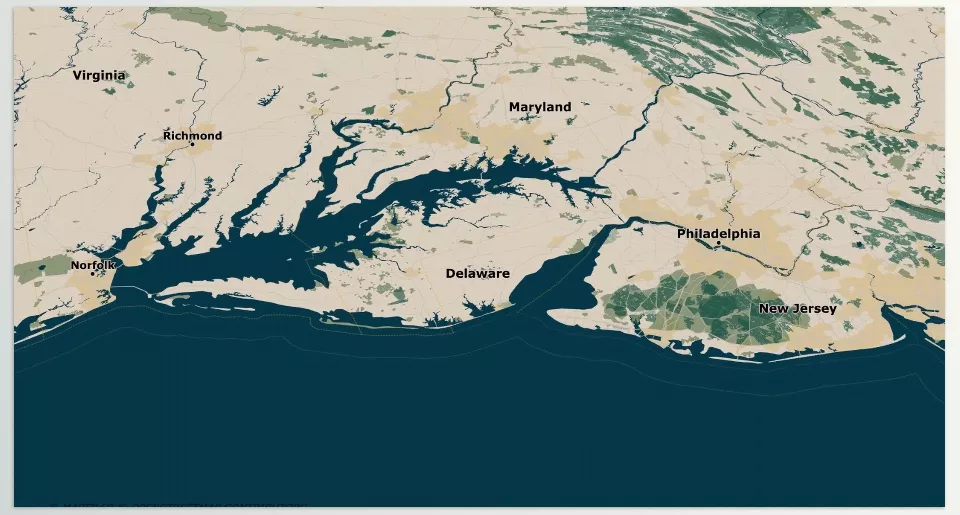
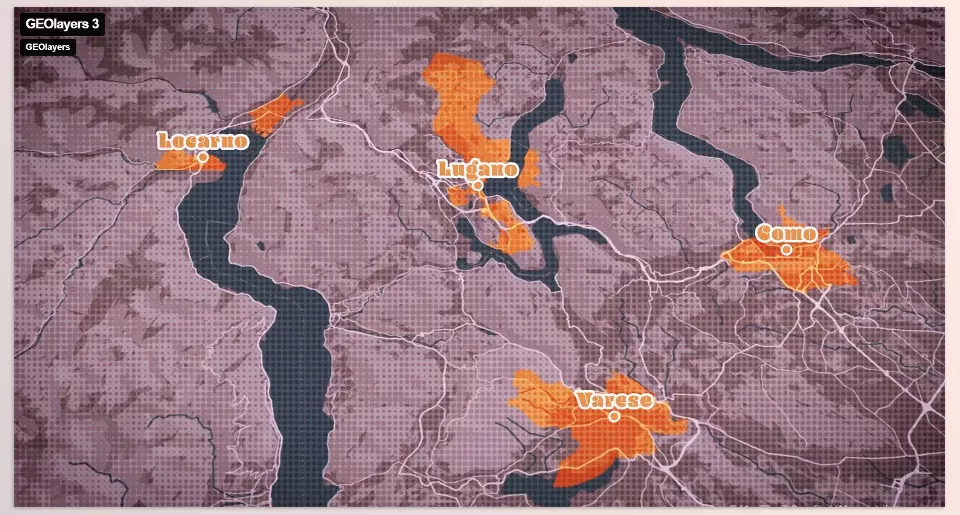
How to Make Maps Look Natural and Engaging
When you start creating animated maps, the difference between a “regular map” and a “living map” is in the details. With a few simple tricks, you can transform your maps from a flat image into a real visual experience:
- 🗺️ Use Online Data: Always use up-to-date data so cities, routes, and locations are accurate and realistic. A more realistic map makes animations more believable.
- ✏️ Play with Label Styles: Change font, size, and label layout to make them readable and match your project’s style. The right font can make the whole map look more professional.
- 🌍 Don’t Underestimate 3D Plugins: Tools like Helium or Plexus add depth and natural movement to your maps. Combining them with GEOlayers 3 Plugin makes your maps feel truly three-dimensional.
- 🎨 Maintain Color Harmony: Match your map’s colors and style to your project’s palette or background. When everything shares a color family, the final output looks polished and professional.
Remember, the beauty of a map isn’t just in the details—it’s in harmony, creativity, and the care you put into small choices. These are the elements that turn a good project into a lasting masterpiece.
Maps Are No Longer Static
With GEOlayers 3 Plugin, maps are no longer just static images; they become a living, dynamic element of your motion graphics and animation projects. From animating routes and building movements to data visualization and highlighting different areas, everything is done quickly and accurately, producing a professional and engaging result.
This tool not only saves your time but also unlocks your creativity. You can freely style your maps, add 3D details, and visualize data in an appealing way—a process that would otherwise take hours and rarely deliver the desired result.
If you need speed, accuracy, and that professional look for a project, you can make your maps animated and GEOlayers 3 is a product that will help transform the map (which is often merely a secondary component) into the true center of attention, impressing all involved.
If you want to understand After Effects thoroughly and learn how its auxiliary tools can streamline your workflow, our complete guide about AE Tools is not to be missed.



