


When Eases Become a Hassle…
Are you familiar with how the EaseCopy Plugin works? Even the most professional animators sometimes face a common challenge: how to create movements that feel real, smooth, and natural.
All your keyframes might be placed correctly, but when multiple layers, motions, and projects come into play, achieving that same precise and fluid feel again becomes a time-consuming nightmare.
You might have experienced spending hours in the Graph Editor only to find that the motion of a button or a ball still doesn’t feel as natural as expected. Or when applying an animation to a new project, you have to manually adjust all the eases again—a task that is not only tedious but also drains your creativity.
Imagine being able to transfer that smooth, professional feel with a simple action on any keyframe or layer—no hours of manual tweaking, no errors, and no fatigue. Just one click, and your movements instantly gain that natural, appealing feel. This is exactly where smart tools come into play, rescuing you from endless hassle.

Eases: The Soul of Motion
Ease in animation means the smoothness and natural flow between two keyframes. Without ease, everything looks stiff and mechanical—like a toy car moving in a straight line at a constant speed. With ease, your motion breathes: slow start, acceleration, and gentle slowdown—exactly what the human eye expects.
Imagine a ball falling from above:
- Without ease: The ball falls at a constant speed and looks completely unnatural.
- With ease: The ball’s speed changes—starting slowly, accelerating, and then slowing down before hitting the ground. The result? A natural, believable motion that is pleasing to the eye.
Real-world applications of ease:
- Character movements: In motion graphics or animation, ease makes a character’s movements appear alive and natural.
- UI transitions: Animations for buttons, windows, and sliders become smoother and more appealing, enhancing the user experience.
- Graphic element animations: Any moving shape, logo, or icon gains a sense of weight and real-world speed through ease.
With proper ease, your animation not only looks more natural but also gains charm and engagement, drawing viewers into the motion and story. Simply put, ease is the soul of motion that brings your animation to life.
The Classic Way: Slow and Limited
In After Effects, there are built-in tools to create smooth, natural movements:
- Easy Ease / Ease In / Ease Out for smoothing between keyframes
- Graph Editor and Keyframe Velocity for precise speed control
However, when it comes to large projects or complex animations, these tools have serious limitations:
- Time-consuming:
Even with just a few keyframes, manually adjusting each keyframe in the Graph Editor can take hours. Every small change requires rechecking and adjusting all motions. - Difficulty transferring ease between keyframes:
If target keyframes have different distances or directions, even the best eases may behave stiffly or unnaturally when copied and pasted. - High precision needed across multiple layers and keyframes:
With multi-layered projects or multiple elements moving together, each movement must perfectly align with the others. In default methods, you need to spend a lot of time on every layer and keyframe to achieve acceptable results.
Result: For professional animations, large projects, or situations where speed matters, default methods are not only insufficient but can also leave you exhausted and frustrated.
Create Eases Once, Use Them Everywhere
Imagine being able to apply those professional and precise eases you crafted over hours in the Graph Editor to any other keyframe or layer with a single click—without any hassle or loss of motion quality. This is exactly what EaseCopy Plugin does.
Key Features:
- Copy and paste eases without quality loss: All curves and speeds are preserved, even if the keyframes have different distances or directions.
- Smart scaling: Eases automatically adjust based on the distance and direction of the target keyframes, keeping motion natural.
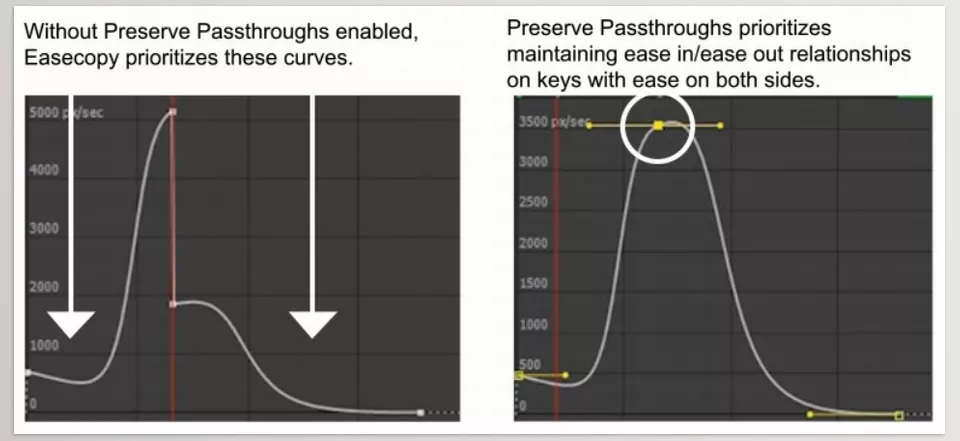
- Pass-through option: When dealing with multiple consecutive keyframes, this ensures speed between keyframes remains fully synchronized and smooth, with no jumps or awkward stops.
- Support for multiple keyframes and properties simultaneously: No need to spend separate time on each layer or property.
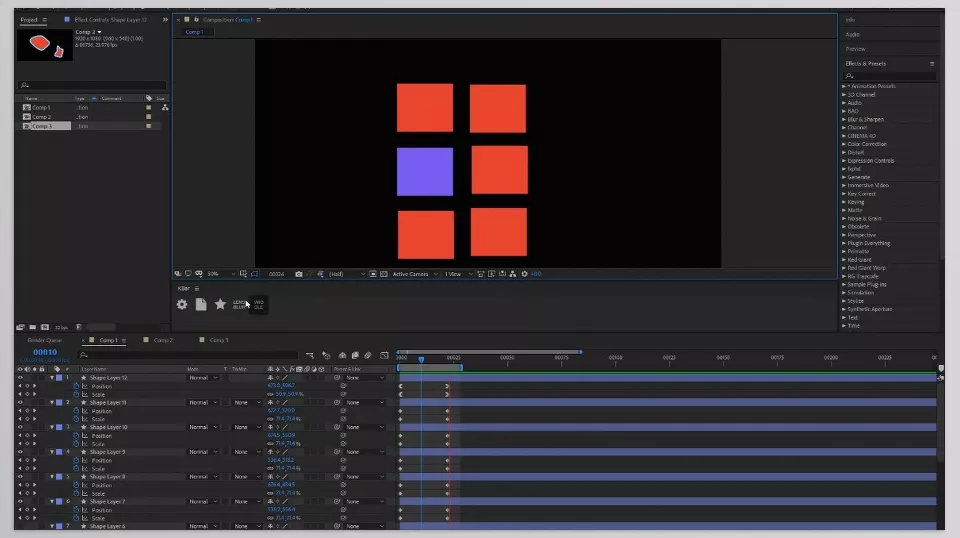
- Integration with KBAR and shortcuts: With a single button or shortcut, all EaseCopy Plugin features are accessible, dramatically speeding up your workflow.
Practical example:
Imagine a UI project with multiple buttons and sliders that need subtle, smooth movements. Using traditional methods, you’d have to adjust each keyframe individually and ensure synchronized motion. With EaseCopy Plugin, you simply create the eases once and instantly make all keyframes smooth and synchronized in seconds—no manual tweaking and zero errors.
In short, EaseCopy Plugin makes your animations faster, smoother, and more professional, freeing your time for creativity.
Tips for Professional Results
Using EaseCopy Plugin is simple, but a few tricks can help you achieve even more natural and professional results:
- Use Pass-through for multi-keyframe animations:
When multiple consecutive keyframes exist, Pass-through ensures speed and motion flow remain fully synchronized, preventing stops or jumps. This is crucial for long or complex animations. - Optimize source keyframes before transferring:
Make sure your source keyframes are accurate and natural. The better your source keyframes, the smoother and more realistic the result on the target keyframes. - Leverage shortcuts to speed up workflow:
EaseCopy integrates easily with KBAR or shortcuts. One click performs all copy-paste operations, drastically increasing workflow speed—especially for large projects. - Don’t forget Flip Ease for opposite directions:
When target keyframes move in the opposite direction, eases need to be flipped to remain natural. Flip Ease automates this process, eliminating manual adjustments.
💡 Following these simple tips, your animations will not only be smoother and more natural but also faster and hassle-free. These small details distinguish a professional project from an ordinary animation.
Professional Ease, Hassle-Free
Stop wasting hours in the Graph Editor or bending every keyframe just to achieve perfect ease. With the EaseCopy Plugin, you can finally create realistic motion without sacrificing time, quality or flow. EaseCopy makes even the most extensive projects— dozens of layers and keyframes— in no time at all.
The speed and precision of the EaseCopy Plugin ensure your projects are accurate and coordinated. Eases are applied intelligently to other keyframes, even if their distance or direction differs. The result? Smooth, natural animations that engage viewers without any moments of stiffness or mismatch.
In other words, the EaseCopy Plugin gives you more room for creativity. With no need to worry about manual keyframe adjustments, you can focus your energy on design, storytelling, and the finer details of your animation. If you want your motions to be real, professional, and appealing—and save your time—this tool is a truly worthwhile investment.
Dive deep into the world of After Effects and its wide range of supporting tools — our detailed article about AE Tools will help you unlock its full creative potential.



