

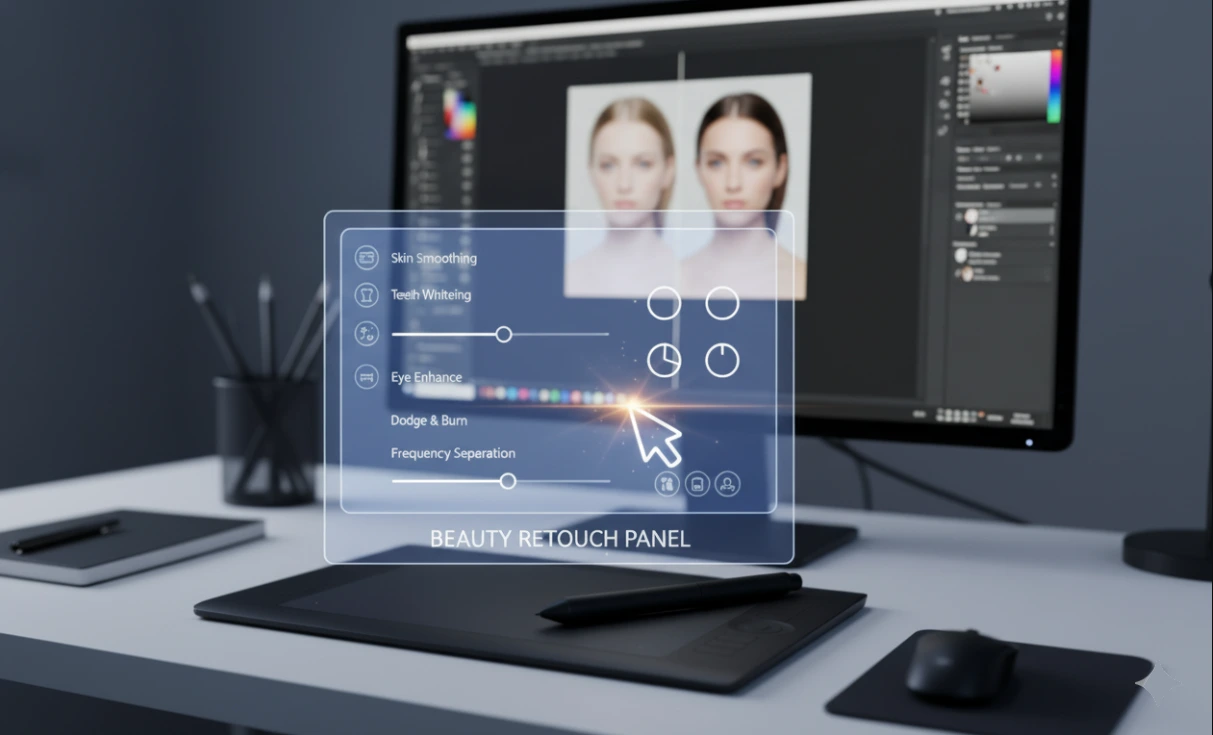
When Skin Retouching Takes Up Your Time…
Do you know how the Beauty Retouch Panel operates? Imagine You’ve captured the perfect portrait. The lighting, angle, and positioning are impeccable, but the moment you load your image into Photoshop, everything goes wrong. Small blemishes, a hint of redness, and barely visible differences in color render the image not completely perfect. Each of these minutiae can cost you hours out of your day and dramatically impact your creative flow.
You may have asked yourself countless times: “Do I really have to fix all these details manually?” or “Is there a way to speed up my workflow while keeping results natural and professional?” When dealing with a large number of images, repeating steps and managing layers and masks can become exhausting and time-consuming.
The good news is that there are methods to make portrait retouching both faster and simpler while giving you precise control over details and colors. With these methods, you can spend more time on creativity and professional refinement, focusing on the final result rather than tedious details.

When You Only Have Photoshop…
Even without any extra plugins or panels, many portrait retouching tasks can be done with Photoshop’s default tools. However, experience shows that these methods are time-consuming and error-prone, especially when aiming for professional and natural results. Below are common tools and techniques:
Frequency Separation
Smooth and even out skin texture without losing important facial details.
Dodge & Burn
Adjust highlights and shadows to enhance details and create a natural effect on the skin and face.
Spot Healing & Clone Stamp
Remove blemishes, pimples, or any small imperfections in the image.
Layers and Masks
Provide precise control over every part of the image and maintain flexibility in editing.
But what are the problems with these methods?
- All steps are entirely manual and must be repeated every time.
- The smallest mistake can ruin the natural look of the image.
- When working with many images, speed drastically decreases and the creative process slows down.
In other words, traditional methods can achieve results, but the process is long, time-consuming, and sometimes exhausting. This is where professional tools and retouch panels come in to simplify and speed up your workflow.
When You Simplify Professional Retouching…
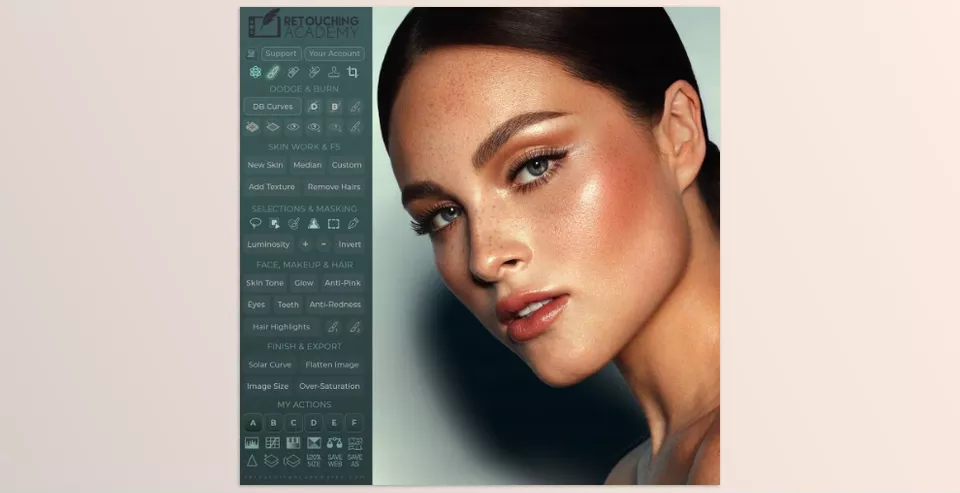
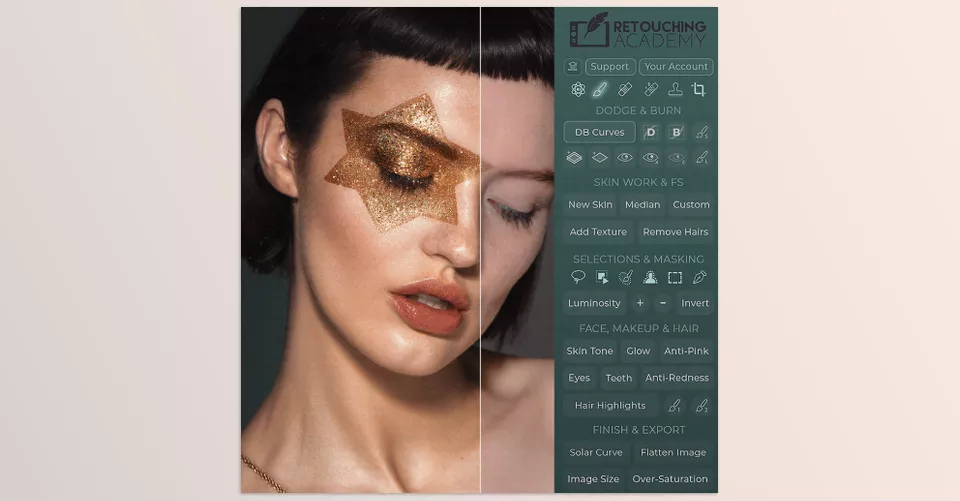
This is where the Beauty Retouch Panel by Retouching Academy comes in, making portrait retouching faster and more precise. With this tool, you no longer need to spend hours on layers and masks; all essential steps are combined in one panel, ready to use. The panel is specifically designed for those who want professional quality while optimizing their time.
Key Features and Applications of the Panel:
Skin Retouch & Frequency Separation
Smooth and even out skin with just a few clicks, without losing natural skin texture. Pre-made masks and settings are included, but you still maintain full control over details. This means faster workflow and more natural results.
Ready-to-Use Dodge & Burn
Adjust highlights and shadows with professional settings and standard brushes. No need to create layers or complex setups manually. This tool helps you enhance facial details, making the final image natural and dynamic.
Blemish Removal & Color Correction
Optimized Spot Healing and Clone Stamp tools remove pimples, redness, or minor imperfections with just a few clicks. Even color tools like Anti-Pink and Skin Tone Correction help keep the skin tone uniform and natural.
Face, Eyes & Hair Tools
Special effects for eyes, teeth, and hair make portraits look more attractive and natural. Tools like Magic Eyes and Hair Highlights quickly and accurately refine fine details, so you don’t have to fix each part manually.
New AI Tool
AI capabilities help quickly correct time-consuming details, such as small imperfections, unwanted lighting, or even adding tiny refinements — without errors. This tool is especially useful when working under time constraints or needing high speed.
Customization and Personal Actions
The panel allows you to add personal Actions and modify each tool’s settings. You can optimize your workflow and complete all necessary steps without leaving the panel, significantly saving time.
With Beauty Retouch Panel, you can drastically reduce the time spent on retouching, maintain precise control over details, and focus on the creative and professional aspects of your images. Manual detail corrections are no longer necessary, and the final result is delivered faster and with higher quality.
Tips for More Natural Retouching
Even when using professional tools like the Beauty Retouch Panel, following a few simple tips can make results look more natural and professional:
- Always use non-destructive layers
Non-destructive layers and masks let you make changes without affecting the original image and allow you to revert or refine details at any time. Essential for client projects and important work. - Control the intensity of AI tools
AI tools are extremely useful, but if applied too strongly, the image may look artificial. Adjusting the intensity finds the best balance between speed and natural-looking skin. - Combine Dodge & Burn with Frequency Separation
This technique makes skin appear more vibrant and dimensional without losing natural texture. Highlights and shadows are controlled on separate layers, keeping facial details natural. - Use Visual Aid for color and light control
Before final output, use Visual Aid tools to review colors and lighting precisely. This ensures consistent skin tone and natural-looking color throughout the image. - Edit details step by step
Start with primary tasks like skin smoothing and lighting adjustments, then move to small details such as eyes, lips, and hair. This ensures a harmonious and natural final image while preventing over-editing. - Use personal Actions and shortcuts
The panel allows adding personal Actions. Repeating your workflow with a single click lets you focus more on creativity and professional refinement.
Following these tips, even complex and detailed images can achieve fast, professional, and natural results — without spending hours on tiny details.
Save Your Time and Go Professional!
Say goodbye to the time-consuming, hours-long professional retouching process. It’s quick and easy with the right tools, like Beauty Retouch Panel, to help you get portrait quality to a professional standard. There’s no need to go over every little imperfection with retouching software and no fear of unrealistic results. Pro tools allow complete control and adjustment at your fingertips.
Even beginner photographers and retouchers can get professional, stunning results with these tricks. The blend of basic tools and advanced, AI-powered tools creates seamless, quick, easy, and detailed retouching that maintains a natural, colorful image.
It’s time to leave behind slow, traditional methods and use the right tools to make your work simpler, faster, and more enjoyable. Try Beauty Retouch Panel once and see how professional retouching becomes faster, more effective, and more fun!
If you enjoyed reading this article and want to take your Photoshop skills to a whole new level, while getting acquainted with a variety of additional tools and features, make sure you don’t miss our comprehensive guide to all Photoshop tools.



