When a Great Take Only Needs a Small Fix 🎬
Have you spent any time learning the Face Director Plugin by aescripts? Sometimes, almost everything looks good in a video. The lighting is good, the camera angle looks right, and the actor does a great job. But one small problem can still happen in the middle of the shot. For example, the actor may smile at the wrong time, look in the wrong direction, or move their mouth in a way that does not match the next shot.
The first idea might be, “Let’s film it again!” 😅 But this is not always possible. The location may not be available anymore, or the actor may be busy with another project. Also, if the problem is very small, filming the whole scene again may not be worth it.
This is why changing the face after filming can be very useful. You can adjust the actor’s facial expression, eye direction, or head movement. This helps you fix small problems without filming the whole scene again. 👀

When You Want to Change a Facial Performance Later 🎭
Facial Performance Editing is all about changing certain facial movements and expressions after a video has already been recorded. You can subtly adjust where the actor is looking, correct their mouth shape, or even change the direction of their head.
Imagine an actor is supposed to stay completely serious, but smiles briefly during the take. Or maybe two consecutive shots have different mouth positions, making the cut feel distracting. If you can fix those small details afterward, you don’t have to throw away an otherwise great performance.
And it’s not just about correcting mistakes. Sometimes you want to exaggerate an expression, redirect a character’s gaze, or create more stylized facial movements for a creative video. That’s where facial performance control really opens up new possibilities. ✨
Traditional Ways to Fix a Face 🎭
Before specialized facial performance tools became part of the Workflow, changing facial expressions meant combining traditional compositing tools with lots of manual adjustments. In After Effects, you could isolate parts of the face using Masks and Tracking, then reshape them with tools like Puppet Tool and Mesh Warp.
For simple edits, these methods are still useful and can produce great results:
- Mask & Tracking: Isolate part of the face and follow its movement throughout the shot.
- Puppet Tool: Adjust the shape and movement of facial features.
- Mesh Warp: Stretch or reshape specific areas of the image.
- Position & Scale: Make simple corrections like moving or resizing part of the face.
- Keyframes: Control how the edits evolve over time with the actor’s movement.
For a small correction, this combination is often enough. But as facial movement gets more complex, the manual work grows.
When a Simple Fix Becomes Complicated 😅
The biggest challenge with traditional methods is that a face is never static. As the actor turns their head, talks, blinks, or changes expression, the Tracking and Masking need constant adjustment. If you’re trying to modify the eyes, mouth, facial expression, and head direction at the same time, the number of Keyframes and manual tweaks increases very quickly.
As a result, a correction that only lasts a few seconds can easily turn into a lengthy frame-by-frame editing process.
Face Director: Easier Control Over Facial Performance 🎭
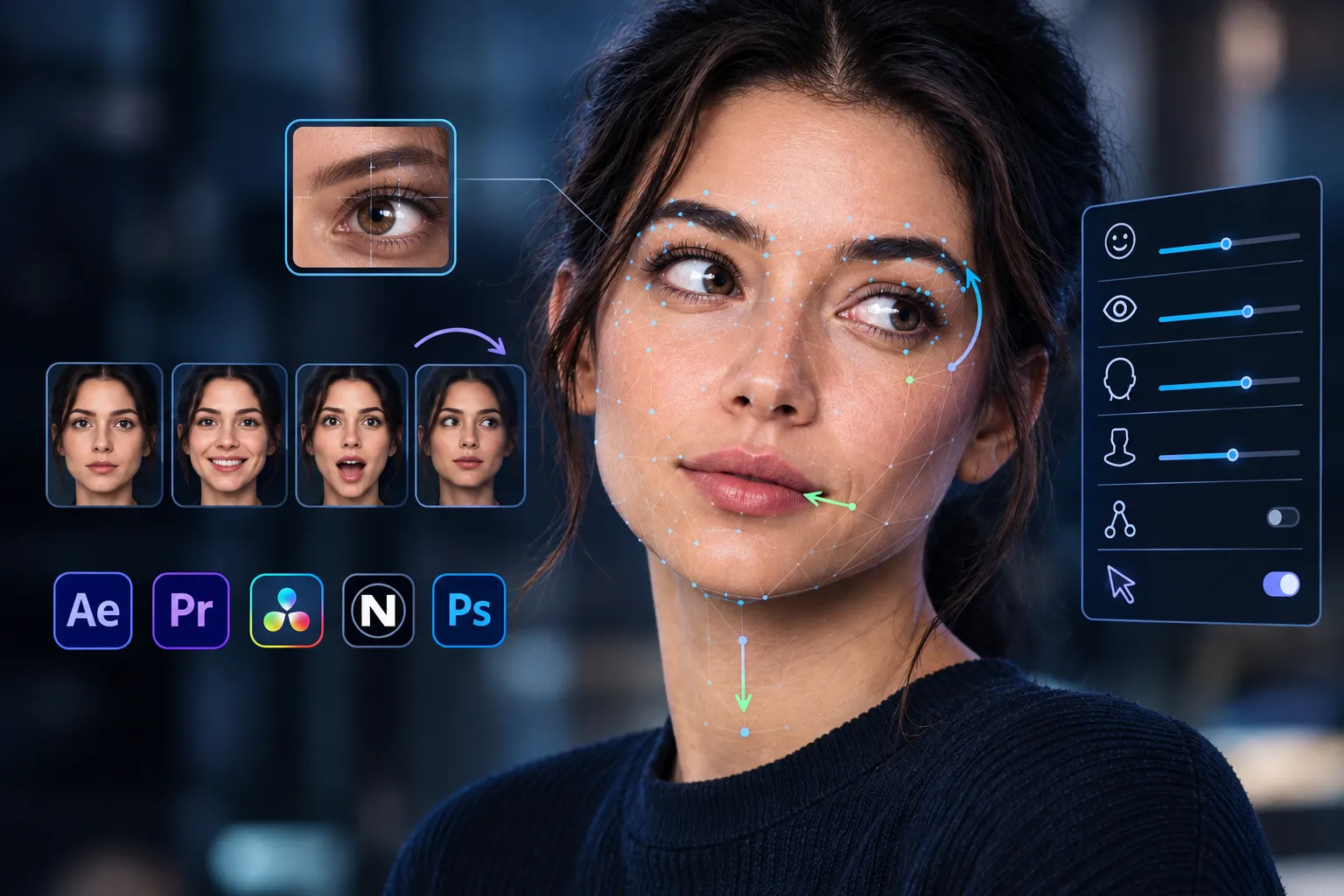
This is where Face Director by Baskl.ai fits into the Workflow. It lets you edit different parts of an actor’s facial performance after filming, including facial expressions, eye direction, head direction, and neck height. If a great performance only needs a few subtle facial corrections, you can make them during Post-Production.
One of the most interesting parts of Face Director is how you interact with the face itself. Instead of constantly switching between sliders and settings, you can simply Drag directly on the Preview to manipulate facial features and see the result immediately. It’s especially useful when you’re quickly testing different expressions and ideas.
Refine the Actor’s Performance 🎬
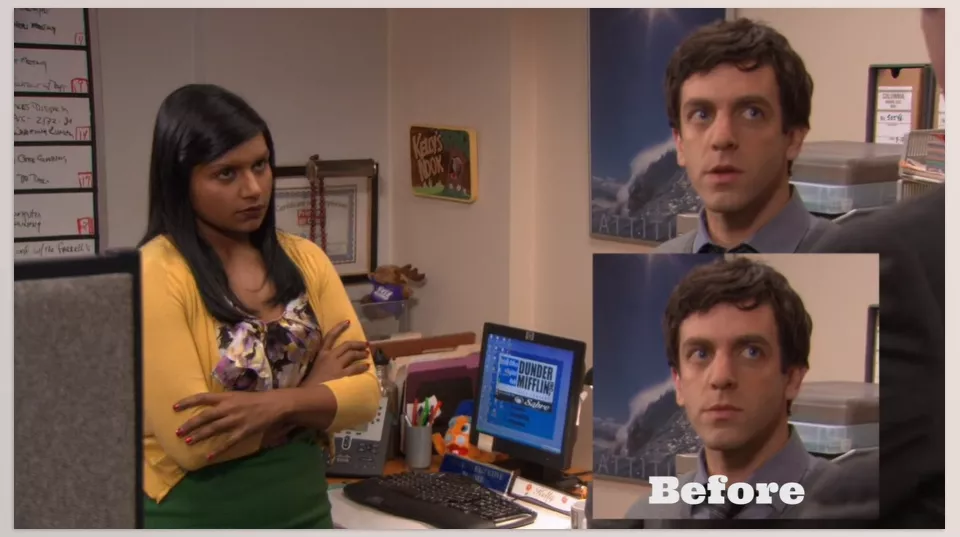
One of Face Director’s primary uses is correcting an acting performance. Imagine the actor delivers an excellent performance throughout most of the scene, but one brief facial expression changes the emotional tone of the shot.
Instead of discarding the entire take, you can modify only that part of the facial performance. Small corrections that once required a reshoot can now be handled during Post-Production.
Fix Continuity Issues 🔄
Sometimes the problem isn’t the acting or the shot quality. Two consecutive shots simply don’t match. For example, the actor’s mouth is open in one angle but suddenly closed in the next shot.
These small inconsistencies become very noticeable during editing. Face Director lets you adjust the facial expression in a specific shot, creating smoother Continuity between cuts.
Even Rescue Bloopers 😅
Sometimes a take is almost perfect, except the actor laughs for a brief moment or breaks character. If the rest of the performance is great, it feels wasteful to discard the entire footage.
Face Director is useful here too. You can modify the facial expression during that section and potentially turn the same footage into a usable take, making it valuable for fixing Bloopers and small performance mistakes.
Change Eye Direction 👀
Eye Direction is one of Face Director’s key features. It lets you adjust where the actor is looking and redirect their gaze toward a more appropriate target.
Maybe the actor was supposed to look at another character, the camera, or a point outside the frame, but their eyes drifted slightly during filming. Instead of reshooting, you can correct the gaze afterward.
Control Head Direction
Face Director isn’t limited to the eyes. It also includes Head Direction, allowing you to modify the orientation of the actor’s head within the footage.
This becomes useful when you want the head position to better match the eye direction, camera angle, or the action happening in the scene. It gives you greater control over the relationship between the face, body, and camera.
Adjust Neck Height
Another control available in Face Director is Neck Height. This feature lets you adjust neck height and refine how the head sits on the body.
Combined with Head Direction, it can help improve the character’s overall posture, especially when you’re matching one shot to another.
Push Facial Expressions to the Extreme 🎨
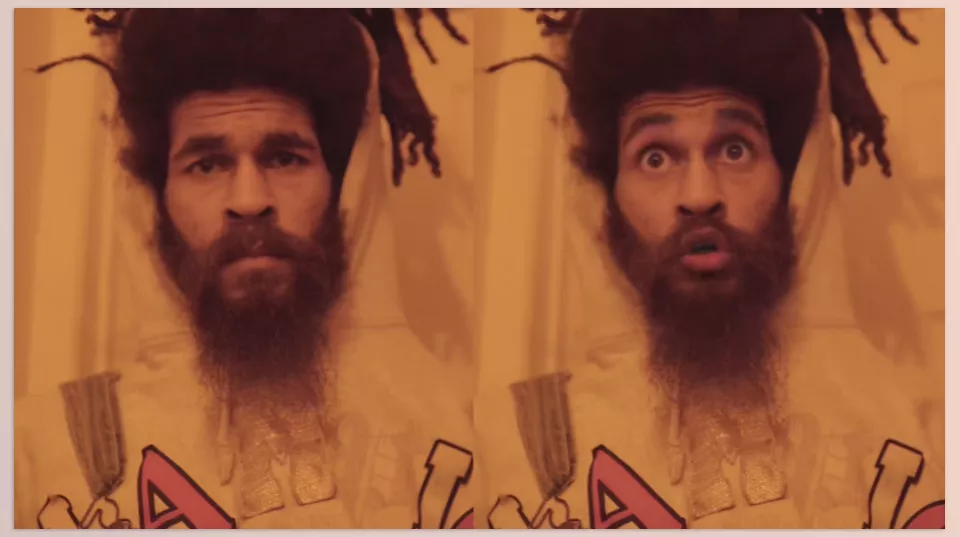
Face Director isn’t designed only for corrections. If you’re creating something more stylized, you can push facial features into exaggerated or Extreme expressions.
For commercials, music videos, or highly stylized projects, this feature lets you create expressions that go far beyond the original performance.
A normal piece of footage can become the starting point for experimenting with different facial performances—from subtle refinements to dramatic transformations.
Use One Video to Drive Another 🎥
Puppet Mode is one of Face Director’s most distinctive features. In this mode, you can use another Layer as a Driver Video.
Instead of animating everything manually, a second video controls the facial performance of your target footage. This can help you create unique movements, test different performances, or transfer one motion pattern to another clip.
It’s especially interesting when you want to quickly compare multiple performances on the same footage and see which one works best.
Everything Happens by Dragging 🎯
One reason Face Director feels intuitive is its direct manipulation system. Rather than entering menus and adjusting numerical values, you simply Drag facial features directly inside the Preview Window.
This makes finding the right expression much faster. Move a feature, preview the result, adjust it again, and compare multiple variations within seconds.
For Workflows that involve lots of experimentation, this direct interaction keeps you focused on the image instead of constantly jumping between settings.
From Subtle Corrections to Creative Manipulation
Overall, Face Director isn’t limited to a single use case. You can use it to refine an actor’s performance, solve Continuity problems, rescue Bloopers, adjust eye and head direction, modify neck height, or create exaggerated facial expressions.
Puppet Mode and direct Drag controls also make the workflow more flexible, letting you experiment with different facial performances instead of relying only on traditional manual edits.
The tool works with After Effects, Premiere Pro, DaVinci Resolve, Nuke, and now also supports the latest versions of Photoshop, making it easy to integrate into your existing Workflow.
In short, Face Director gives you greater control over facial performance—from correcting a smile or misplaced glance to matching shots, adjusting head direction, and creating stylized expressions. The combination of direct Drag controls, Puppet Mode, and editable facial features makes both subtle corrections and creative edits much more accessible.
Now let’s look at a few tips for getting the most natural-looking results. 💡
A Few Tips for More Natural Results 💡
Face Director delivers the best results when your edits are intentional. In many cases, subtle adjustments look much more believable than dramatic changes, making the edit virtually invisible to the audience.
- Start small, then increase the intensity. Start with subtle facial adjustments and push them further only if needed.
- Always check the shots before and after. Don’t evaluate a shot in isolation—review the surrounding cuts to keep facial performance consistent.
- Keep eye direction consistent with the scene. When adjusting Eye Direction, consider the camera position, other characters, and what’s happening within the frame.
- Don’t be afraid of Extreme expressions in creative projects. For music videos, commercials, or stylized work, exaggerated expressions can give a character a unique identity.
Finally, always review the result by playing the entire shot instead of judging a single frame. Facial movement should feel smooth and consistent throughout the clip—because realism lives in those small details. ✨
More Control Over the Footage You’ve Already Shot 🎬
You don’t need a major mistake in your video for a tool like this to be useful. Sometimes it’s just an unwanted smile, a misplaced glance, or a small mismatch between two shots that prevents the scene from feeling right. Being able to correct those details after filming gives you much more flexibility during editing.
That’s exactly what Face Director is built for. It gives you control over facial expressions, eyes, head, and neck, and lets you create exaggerated, creative facial performances when needed. Since it works in After Effects, Premiere Pro, DaVinci Resolve, Nuke, and even the latest versions of Photoshop, you can use it without changing your existing Workflow.
If your projects regularly involve actor footage, Continuity fixes, or VFX work, Face Director can become one of those tools that quietly eliminates a huge amount of repetitive manual work, letting you spend more time focused on the final result.
Many tools can enhance your After Effects workflow, but knowing what each one does isn’t always easy. Our After Effects Tools guide explains the main categories—including plugins, scripts, extensions, presets, and more—to help you choose the right tools for your needs.