

If Your Idea Is Ready, Why Should Creating It Take So Long? 💭
Do you know the Creator MAX Plugin by aescripts? You’ve probably been in the middle of designing a poster, storyboard, or a scene for a motion project when you suddenly need a specific image—a different background, a new object, or even a small change to a photo you already have. But instead of continuing your design, you have to visit several different websites, create the image, download it, and then return to Photoshop. 😅
The problem is that much of the time spent in the design process is NOT spent on coming up with ideas. Rather, it is spent on the time and energy required to switch between programs over and over again. Exporting, importing, and creating multiple versions disrupt the creative process. 🎨
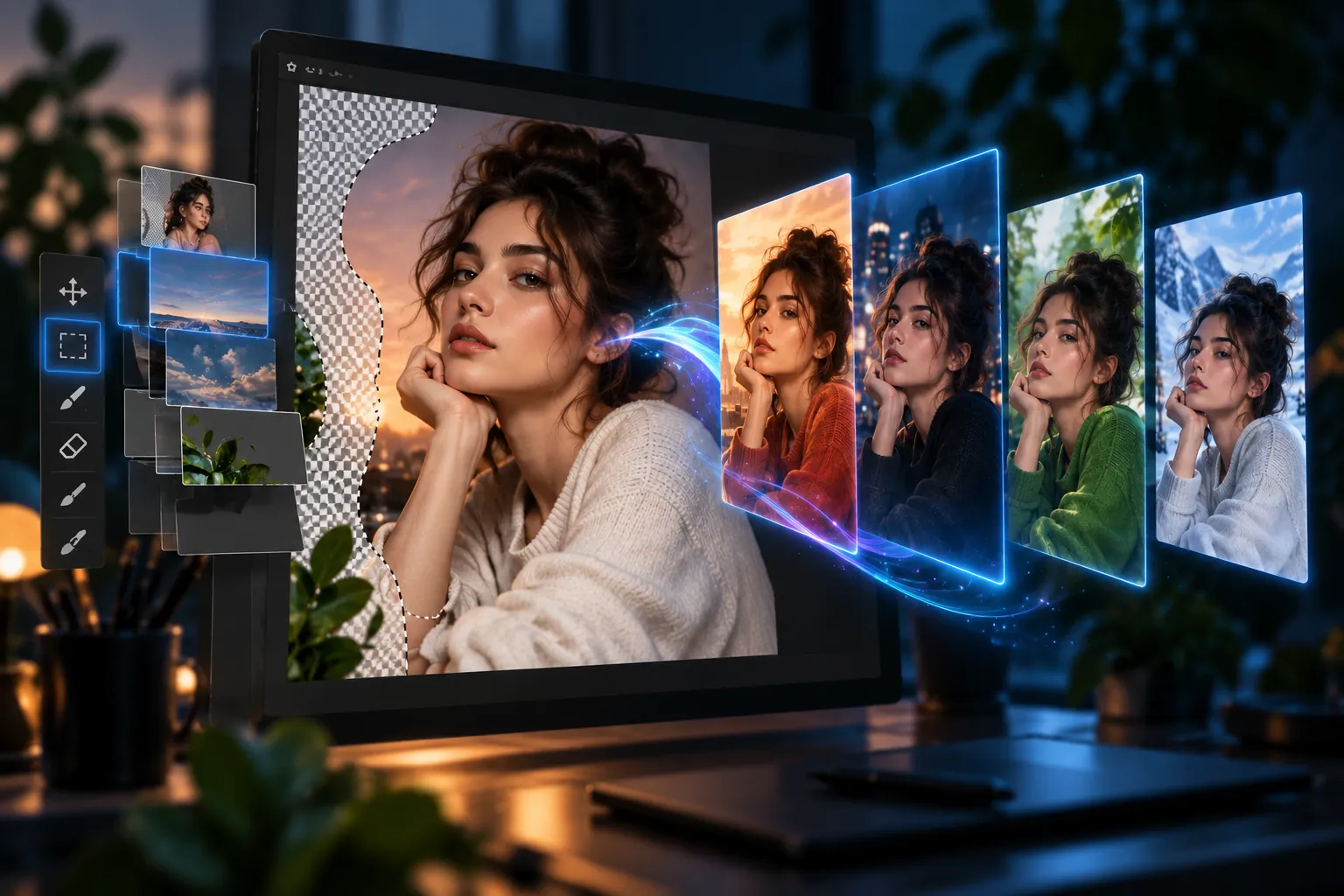
Now imagine there’s some breaking news… 🚨 What if all of this could be done without leaving Photoshop? You simply select the area you want, write your idea, and a few seconds later, receive several ready-made variations on new layers. If such a tool exists, for many designers, it’s truly nothing short of a miracle. ✨

What Does AI Image Editing and Generation Mean? 🖼️
AI image generation means creating a new image or changing part of an existing image simply by writing a text description. The important point is that the entire image doesn’t have to be recreated from scratch; sometimes, only the selected area is edited.
A Few Real-World Uses You’ll Probably Find Helpful
- Replacing a background without manually cutting out and compositing the image
- Removing or adding subjects such as objects, clothing, or advertising elements
- Repairing damaged parts of an image such as hands, edges, or textures
- Creating concept art and storyboards for motion and advertising projects
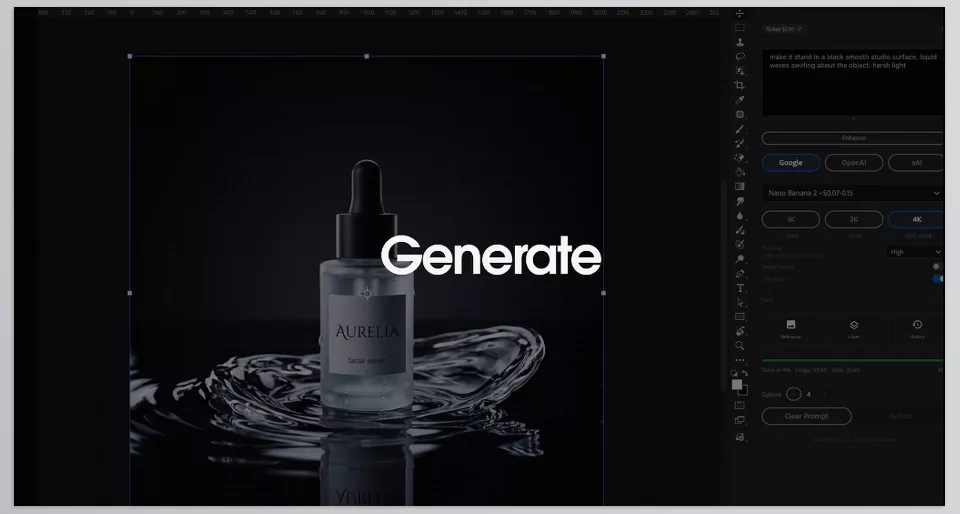
- Generating product images with completely new lighting and environments
For designers, this means that instead of spending hours searching through stock images, they can create exactly what they have in mind and quickly move on to the design stage.
How Can We Do This Without a Dedicated Tool? 🛠️
Before AI tools made their way into Photoshop, designers spent years doing these same tasks using the software’s built-in features. These methods are still useful, but for projects that require speed and ideation, they usually take more time.
Traditional Methods for Editing and Creating Images 🎨
Photoshop itself has powerful tools for removing objects, retouching photos, and compositing images. If you want to work without any plugins, you’ll usually use these tools:
- Remove Tool: Intelligently removes objects and unwanted elements from an image
- Clone Stamp: Copies textures for manual retouching
- Healing Brush: Smooths skin, blemishes, and image details
- Content-Aware Fill: Fills empty areas using content from the surrounding image
To create completely new images, you’ll usually need to use web-based AI services, download the result, and then import it into your PSD file.
Why Does This Method Gradually Become Exhausting? ⏳
The main problem isn’t Photoshop itself; it’s the constant switching between several different tools. Each time, you have to leave the project, create a new image, save the file, and return to Photoshop. When you generate multiple variations, managing prompts, versions, and layers also becomes harder, and those seemingly small delays can add up to hours of lost time on larger projects.
Creator MAX: AI That Lives Inside Photoshop ✨
Until recently, if you wanted to use models like GPT Image or Google Nano Banana, you had to leave Photoshop, open a website or application, generate the image, and then import it back into your project. Creator MAX was built specifically to eliminate this back-and-forth process; it’s a UXP panel that installs inside Photoshop 2025 and brings the world’s best image models directly into the Photoshop environment.
The key point is that Creator MAX isn’t an independent AI; instead, it acts as a bridge between Photoshop and the official models from OpenAI, Google, and xAI. This means you connect to these services using your own personal API and, without leaving your PSD file, generate images, edit them, and receive the results on new layers.
All Powerful AI Models Inside One Panel 🤖
One of the biggest advantages of Creator MAX is that you don’t have to rely on just one model. Inside the panel, you can switch between different models depending on the project type and choose the best option each time.
The main supported models include GPT Image from OpenAI, Nano Banana Pro and Nano Banana 2 from Google, and Grok Imagine from xAI. Each one has a different personality; some are ideal for final renders and exceptional detail, some for rapid ideation, and others for generating advertising images in different aspect ratios.
Does It Really Work as Well as GPT? 💬
Yes, because Creator MAX isn’t a replacement version of GPT—it uses the same official GPT Image model. This means the output quality depends directly on OpenAI’s model, not the plugin. The same applies to Google and xAI models; Creator MAX simply provides their professional working environment directly inside Photoshop.
Only the Part You Selected Gets Changed 🎯
The most important feature of Creator MAX is Selection-Based Editing. All you have to do is use a Selection tool to select part of the image—for example, only the sky, clothing, product, or the subject’s face. Then write your prompt, and the AI reconstructs only that area without changing the rest of the image.
This feature is incredibly useful for professional retouching, removing unwanted objects, changing clothing colors, replacing products, repairing hands, or even fixing damaged textures, and it gives you much more control compared to editing the entire image.
Create Images From Scratch or Completely Redesign a Photo 🖼️
Creator MAX isn’t just an editing tool; it’s also a complete Text-to-Image system. This means that even if you don’t have any image at all, you can create new images simply by writing a prompt—from concept art and character design to posters, product photography, and advertising visuals.
Even more interestingly, you can use images and text at the same time. This means you can give the AI an existing photo and ask it to completely change its style, color, lighting, or even its overall atmosphere—something that’s truly valuable for creating different versions of an idea.
Up to 15 Reference Images for More Accurate Results 🧩
One of Creator MAX’s professional features is support for up to 15 reference images simultaneously. You can import these images from your system’s hard drive or select them from layers within the same Photoshop file.
Imagine you want to combine the lighting of one photo, the color palette of a second photo, and the product style of a third; Creator MAX sends all these references to the model so the final output can get closer to what you have in mind. This feature makes a real difference for brand designers, advertising projects, and concept artists.
Four Variations at Once; Faster Decision-Making ⚡
Instead of generating only one image each time, Creator MAX can create up to 4 variations simultaneously. This means that within seconds, you have four different ideas from a single prompt and don’t have to keep running the prompt again and again.
For poster design, covers, storyboards, character concepts, or product advertising, this feature makes choosing the best idea much faster and keeps the creative process smoother.
Fully Layered Output Inside the PSD 🧱
One feature that may seem simple at first but is incredibly important in practice is layered output. Every image that Creator MAX generates or edits is added to the PSD file on a new Layer rather than being saved over the original image.
This means you can create masks, change the Blend Mode, adjust Opacity, or compare several different outputs side by side—exactly the professional Workflow that Photoshop designers are used to.
Smart History; No Idea Gets Lost 📚
How many times have you written a great prompt, only to later forget exactly what you wrote? Creator MAX has Visual Prompt History specifically for this problem.
It saves all generated images, the full prompt text, the model used, the number of variations, and even the cost of each generation. Whenever you want, you can rerun the same output with just one click or export the history in JSON, CSV, or Markdown formats.
Dedicated Settings for Each Model ⚙️
Each AI model has different capabilities, and Creator MAX manages these differences intelligently. As soon as you switch models, the panel changes and displays only the settings for that model, such as output quality, resolution, aspect ratio, or service-specific options.
As a result, you’re not faced with a cluttered and confusing panel, and for each project, you see exactly the tools that are actually available to use.
What Kinds of Projects Does Creator MAX Excel At? 🚀
This plugin isn’t just for creating fantasy images; in fact, its greatest strength shows up in real-world design projects. You can turn a simple portrait into a cinematic poster, create professional storyboards before starting motion graphics, generate several different advertising scenes from a single product photo, or add new elements such as smoke, fabric, flowers, and decorative objects directly into the PSD file as part of the composite.
All of these tasks are done without leaving Photoshop, making the design process—from idea to final output—integrated and much faster than traditional methods.
A Few Tips for Getting More Natural Results 🎯
Creator MAX is a powerful tool, but output quality doesn’t depend only on the AI model; how you use it also plays a very important role. By following a few simple tips, your results can look more professional and natural.
- Keep your selection clean: Before generating an image, carefully define the selected area. The more precise the selection edges are, the more naturally the final edit will blend with the image.
- Use reference images: If you have a specific style, color, or material in mind, add several reference images so the AI can more easily get closer to the result you have in mind.
- Create variations first, then refine the details: Don’t try to create a perfect prompt from the very beginning. Generate several different versions, choose the best idea, and then make subtle changes to that output.
- Keep the original layer untouched: Always keep AI outputs on separate layers so you can compare, mask, or modify them whenever you want.
- Choose the right model for each project: For final renders and high-quality images, more precise models like GPT Image or Nano Banana Pro are better choices; but for rapid ideation, lighter versions offer much greater speed.
Ultimately, the best results usually come from a combination of a good prompt, precise selection, and the right model. When these three things come together, Creator MAX truly becomes one of the most practical tools for Photoshop. ✨
Photoshop That Isn’t Just an Editor, but an Image Creator 💡
Today, the difference between a professional designer and everyone else isn’t just Photoshop skill; it’s also the speed at which ideas can be turned into results. When you can build and test an idea inside the same PSD file the moment it comes to mind, the design process is completely transformed, and you’ll spend less time on repetitive tasks. 🎨
Creator MAX was built for this: instead of switching between your browser, AI websites, and Photoshop, you do everything in a single panel. From image generation and retouching to background replacement, inpainting, and generating multiple variations, you can do everything without leaving the project, while the file stays fully layered. ⚡
This tool isn’t just another Photoshop plugin if you’re already very used to Photoshop. It enables faster brainstorming, more iterations, and professional results with less effort. Sometimes, the right tool in hand is all it takes to bridge the gap between a great concept and an amazing outcome. ✨
Looking to expand your After Effects toolkit? In our After Effects tools guide, we explore the different types of tools you can use in After Effects—from plugins and scripts to extensions, presets, and more—and explain how each can help you work faster and create better results.



