

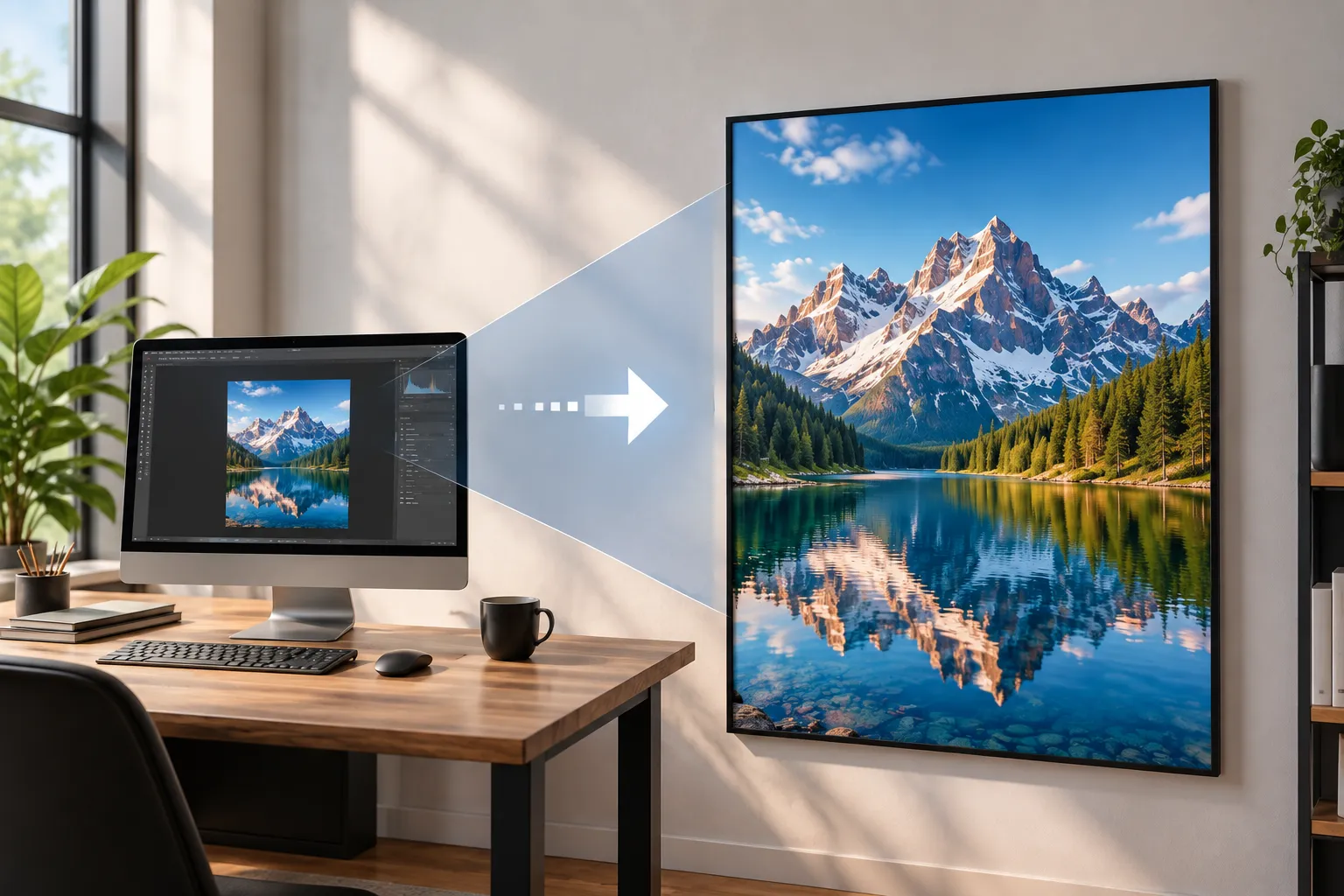
When the Image Is Small, but We Need a Large Output! 📐
Are you familiar with the Blow Up Plugin by 2026 Exposure Software? Have you ever had a high-quality image and wanted to use it for a large poster, wall print, or even a billboard, but as soon as you increased its dimensions, you noticed the details became softer? The edges no longer had their previous sharpness, and some parts also started to look artificial.
The problem is that when we increase an image’s dimensions, the software has to generate information for new pixels that didn’t exist in the original file. If this process isn’t done properly, the result can be an image with less sharpness and detail than the original.
That is why enlarging an image is not simply about entering a larger number in the Resize section. Especially when the output will be printed, the enlargement method, sharpness, and even the paper type can affect the final result.

What Exactly Does Image Enlargement Mean?
Increasing an image’s pixel dimensions is called image enlargement, or Upscaling. For example, you might have an image that’s 2000×3000 pixels and want to prepare it for a much larger print.
During this process, the software calculates new pixels based on the information available in the image. That is why the quality of the Resize method matters.
This process is useful in different projects:
- 🖼️ Poster and Wall Art Printing: When you print a regular image on a wall at a large size, maintaining edge clarity is very important.
- 📸 Photography: Sometimes the original file is smaller than what you need for the desired print size.
- 🎨 Illustration and Artwork: Illustrations may need to be prepared for printing at larger dimensions than the original file.
- 🏢 Advertising and Billboards: Very large outputs require files that do not become excessively soft or artificial during Enlargement.
- 🖨️ Preparing for Print: In addition to enlarging the image, you also need to consider sharpening based on the type of output and paper.
This can also be important in design and motion projects, because sometimes an image or Artwork needs to be larger than its original size or used at different dimensions.
Before Blow Up 3, how did we enlarge images? 🖼️
If you didn’t want to use a specialized tool, you could handle the entire enlargement process in Photoshop. Usually, the process started with Image → Image Size; you would increase the image dimensions, choose a suitable Resampling method, and then check the result for detail and clarity.
To improve the output, several techniques were usually used together:
- Preserve Details 2.0: For enlarging the image and better preserving details during Resampling.
- Smart Sharpen: After resizing, you can use it to increase edge and detail clarity.
- Unsharp Mask: An older, useful method for strengthening edge contrast and making the image look sharper.
- High Pass: Add a High Pass layer and use a suitable blend mode to make some image details clearer after enlargement.
- Step-by-Step Resize: If the image needs to become much larger, some people prefer increasing its dimensions in several steps instead of doing it all at once, and then checking the result after each step.
In fact, the usual Workflow was very simple: Resize → Check the Image → Sharpen → Check Again. If you were preparing the image for print, you also had to consider the final size, Resolution, and even the type of paper in advance.
Why Isn’t Enlarging an Image in Photoshop Always Quick and Hassle-Free? 🤔
Photoshop has the tools for this process, but much of the result depends on settings you have to adjust manually. For example, you need to decide how much to enlarge the image, which Resampling method is best, and how much sharpening it needs after resizing. If you increase Sharpening too much, the edges may start to look artificial, and if it is too low, the image may still look soft. For large prints, it is not only about increasing the dimensions; you also need to consider Resolution, the actual print size, and the type of paper. As a result, when you only enlarge an image occasionally, this Workflow is completely usable; but when you regularly work with large images, professional prints, or a large number of files, manually adjusting and checking each image can take more time than you might expect.
Blow Up 3: When a Small Image Needs to Be Prepared for a Large Output 🔍
This is where Blow Up 3 from Exposure Software comes in. This tool is designed to enlarge images and prepare them for large outputs; in other words, when you increase an image’s dimensions, the focus is on keeping it as clear, sharp, and clean as possible.
Blow Up 3 is not just a simple tool for changing an image’s width and height. From enlarging an image for a wall print to preparing a file for a poster, Artwork, commercial printing, or even a billboard, it has different features that make the Enlargement process more controlled.
Enlarging Images Without an Artificial Look 🖼️
The most important use of Blow Up 3 is Image Enlargement with a focus on image quality. When you enlarge an image, the software has to calculate the information needed for new pixels, and this stage can soften edges or create digital artifacts.
Blow Up 3 focuses on this part and, according to the manufacturer’s description, its processing method is designed to keep image edges sharper and create fewer computer-generated artifacts. This becomes especially noticeable in images with fine details, defined lines, or clear edges.
For example, imagine you have an image that was suitable for display on a screen, but now you want to use the same image for a large print. Instead of simply multiplying its dimensions and ending up with a soft, low-detail image, Blow Up 3 is designed specifically for this Enlargement stage.
Preparing Images for Large Prints 📐
One of Blow Up 3’s main uses is preparing images for large-format printing. When you print a photo on a wall, poster, or large surface, even a small loss of clarity becomes more noticeable at a larger size.
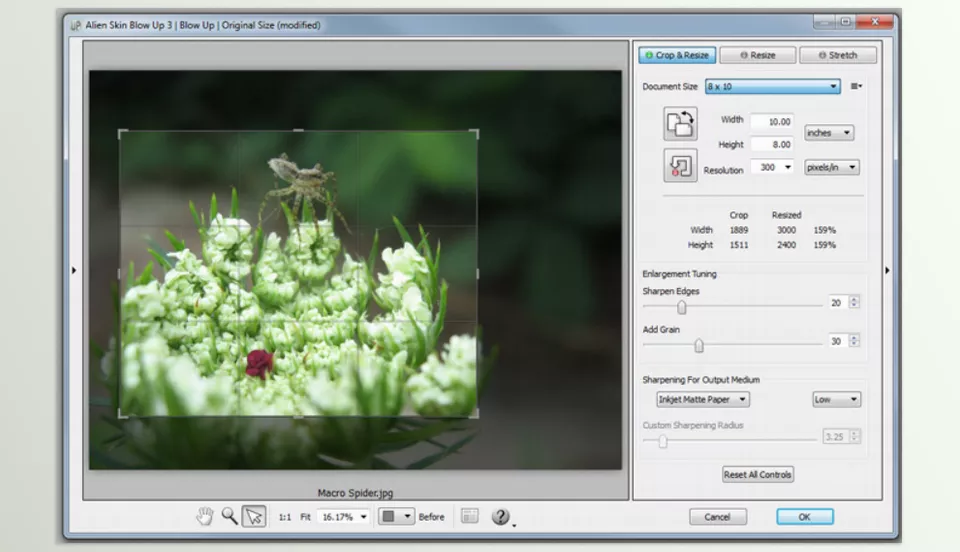
For this reason, Blow Up 3 lets you set the output size based on Paper Size. Instead of entering the Width and Height manually every time, you can use ready-made Presets for common sizes.
These Presets include common sizes:
- Photo Paper
- US Paper Sizes
- European Paper Sizes
- Japanese Paper Sizes
This makes it easier to reach the right settings quickly when you already know the print dimensions.
Better Crop Control During Resize ✂️
Along with setting the paper size, Blow Up 3 also allows you to specify the Crop Region. This feature is useful when you want to select a specific area of the image for the final size before exporting.
As a result, you can specify both the output size and which part of the image should appear in the final frame, especially for projects with a specific aspect ratio or print size.
Sharpening Based on Paper Type 🖨️
One important part of Blow Up 3 for a print Workflow is Output Sharpening.
When you print an image, the paper type and how ink spreads can affect the final clarity. That is why the right amount of Sharpening isn’t the same for all paper types.
Blow Up 3 also accounts for this stage; you can select the Paper Type so the software applies an appropriate amount of Sharpening to compensate for ink spreading.
This means that after enlarging the image, you don’t have to adjust Sharpening through guesswork and trial and error and hope the result looks good on paper.
Suitable for Extremely Large Outputs 🚀
If you have a project with very large output dimensions, Blow Up 3 is also designed for this type of work. According to the manufacturer’s information, this tool can resize images up to 300,000 pixels on each side.
This capacity becomes important for projects that require extremely large outputs; for example, when an image is going to be prepared for a Billboard, Large-Format Printing, or other huge outputs.
In such projects, the final file size can be much larger than what you need for normal monitor display, so a tool designed for very large images becomes even more important.
Preparing Files for Professional Printing with CMYK 🎨
If you work with professional printing, you have probably worked with CMYK. Blow Up 3 supports CMYK images, so you can also use it in Workflows where the file is being prepared for Offset Printing.
This means Blow Up 3 isn’t limited to images prepared for digital display; it can also be used in professional printing processes.
Working with 16-bit Images for a Professional Workflow
Blow Up 3 also supports 16-bit/channel images. This feature matters for photographers and professionals who work with image files, because their Workflow may start with 16-bit files.
In these situations, you can perform the Enlargement stage without limiting the image Workflow to an 8-bit file.
Enlarging Multiple Images with Lightroom ⚡
If you only have one image to Resize, doing it manually is not particularly difficult; but when you are dealing with dozens or hundreds of images, the situation is completely different.
Blow Up 3 integrates with Lightroom and provides Batch Processing. This means you can prepare a large number of photos for Enlargement within a specific Workflow, without opening and adjusting each file separately.
This feature can be useful for photographers who have many files to export after a Shoot, especially when the images need to be prepared for printing with specific dimensions or settings.
Easier Use in a Workflow Without Photoshop
Another useful point is that Lightroom Integration means you do not necessarily have to do everything in Photoshop for the Workflow related to Blow Up.
If you manage and prepare your photos in Lightroom, you can use the same Workflow for Enlargement and batch processing. This is especially useful when you have a large number of photos and do not want to enter a separate manual process for every file.
Suitable for Faster Work with a Simple Interface ⚙️
Although image processing is complex behind the scenes, the Blow Up 3 interface is designed to be simple according to the manufacturer’s description. To get started, you only need to specify the paper size and, if necessary, select the Crop area; the main processing happens behind the scenes.
As a result, you don’t need to deal with many complicated controls to use the Enlargement features. If you are familiar with Resize in Photoshop, the general logic of working with Blow Up 3 will feel familiar.
Suitable for Photography, Illustration, and Print Projects 🎨
Blow Up 3 isn’t limited to regular photos. When you have an Illustration, Artwork, or generated image that needs to be printed at much larger dimensions, you run into the same Enlargement issue.
Even in the manufacturer’s example on the product page, an illustrator explained that using Blow Up let them enlarge their Illustrations by up to 700% before noticing a significant loss of quality.
Therefore, Blow Up 3 can be used in projects where the initial file is not large enough for the final size, but you still want to get the highest possible quality from the existing file.
Overall, Blow Up 3 is a specialized tool for a stage of the Workflow that often seems simple but becomes critical for large outputs: turning an image with limited dimensions into a file suitable for large sizes, with a focus on clarity, printing, and better output control.
How to Get More Natural Enlargement Results with Blow Up 3? ✨
Enlarging a photo does not simply mean increasing the Width and Height values. If you want the image to look natural and clean after Enlargement, keep a few simple points in mind before and after resizing.
- Start the Enlargement with the Best Available File: Whenever possible, use the original, high-quality file. The more detail and information the initial image contains, the more data Blow Up 3 has available to create a larger output.
- Determine the Print Size Before Resizing: If the image will be printed, determine the final size first. Knowing the actual print dimensions helps you resize based on the final output rather than using an arbitrary enlargement percentage.
- Choose the Paper Type Based on the Print: If you are using Blow Up 3 for printing, specify the paper type so that Output Sharpening can be adjusted based on how ink spreads across that surface.
- Use the Paper Size Preset: For standard sizes, you do not need to manually enter the Width and Height every time. The ready-made Photo, US, European, and Japanese Presets can make setting the output dimensions faster.
- Check the Crop Before the Final Output: If the image will be printed at a specific size or aspect ratio, adjust the Crop Region so the main subject isn’t accidentally cut out of the frame, and the composition isn’t disrupted.
- Keep Sharpening Natural: Sharpening should not make image edges excessively sharp. If the result creates unnatural lines around subjects or an artificial appearance, review the sharpness amount again.
- Use Batch Processing for Multiple Photos: If you have a large number of photos, use Blow Up 3’s integration with Lightroom and its Batch Processing feature to make the Workflow faster and more organized, rather than resizing each file individually.
- Review the Output More Carefully for Very Large Prints: In projects such as posters, wall prints, or billboards, do not review the image only on a monitor. Evaluate the final result based on the actual size of use and the distance from which the audience will view the image.
Ultimately, you achieve the best result when you consider output size, paper type, Crop, and sharpening together with the quality of the original file. This way, Blow Up 3 doesn’t just enlarge the image; it lets you control the entire Enlargement stage based on the output you actually need.
When a Simple Resize Isn’t Enough for Professional Printing 🎯
Enlarging a photo may seem simple at first, but when the output will be placed on a large poster, wall art, or even a billboard, the quality of the Resize becomes much more important. Standard Photoshop methods are useful for this task, but in professional projects you may need more control over Enlargement quality and print preparation.
Blow Up 3 makes this process easier with a specialized focus on Image Enlargement, maintaining edge clarity, Paper Size Presets, and Output Sharpening for printing. Support for Lightroom, Batch Processing, CMYK, and 16-bit images also means it isn’t designed only for a simple Resize and can become part of more serious photography and printing Workflows.
If you regularly work with images that need to be output much larger than their original size, the most important thing to focus on is not just “enlarging”; it is how the image is enlarged and the quality that remains after the process.
The better you know Photoshop’s tools, the easier it becomes to create, edit, and work efficiently. Explore our complete guide to the most useful Photoshop tools to sharpen your skills and streamline your workflow.



