


Let’s Bring Back the Quality!
Have you explored the ScaleUp Plugin before? We all know that feeling when we watch a compelling video, and suddenly it gets blown up to a big screen or HD and comes in blurry with no detail. The colors are all faded, the edges blur, and the intricate details disappear. This problem is even more noticeable with older videos or animation projects, and sometimes it feels like the only solution is to re-render everything.
For designers and animators, this is a major headache. Imagine you created a motion graphics project a few years ago and now need to publish it in high resolution or on social media. The details aren’t sufficient, and manually reconstructing everything is both time-consuming and exhausting. Sometimes, the original files are incomplete, or re-rendering is simply not possible.
So the question is: how can we enhance videos without spending hours, without re-rendering, and without losing quality? How can we restore missing details, remove noise and compression blocks, and get a crisp, clear image? This is where AI technologies come in—they can solve this problem easily.

How the Old Way Works… and Why It Falls Short
When trying to upscale a video without a professional plugin or tool, we usually rely on traditional methods like bilinear or bicubic in After Effects and Premiere. These methods are simple: they average or stretch pixels to enlarge the image.
But what’s the problem?
- Blurry images: Fine details and textures are lost, making the image appear soft and unclear.
- Noise and blocks remain: Compressed videos still show compression artifacts like small squares or unnatural shadows.
- Time-consuming corrections: To achieve real quality, you’d have to spend hours manually fixing or re-rendering—something not always possible and very tiring.
In simple terms: traditional methods can enlarge a video, but they don’t preserve real quality or details, and the result is always less than professionally ideal.
ScaleUp Plugin: Exactly What You’ve Always Needed
Imagine you have an old or low-quality video that you want to publish on a large screen or social media, or an old motion graphics project that needs to be prepared for high resolution. Traditional methods or re-rendering are time-consuming, limited, and don’t provide real quality. This is where ScaleUp Plugin comes in.
This GPU-accelerated plugin for After Effects and Premiere Pro can enlarge your videos up to 10 times while preserving details without loss.
Professional Features:
- Intelligent Upscaling and Detail Preservation:
ScaleUp uses AI to analyze video pixels and restore lost details, textures, and fine lines. Even archival or low-quality videos gain remarkable clarity after processing. - Noise and Compression Block Reduction:
Compressed videos often have annoying noise and blocks. ScaleUp reduces these problems with advanced AI algorithms, resulting in a smooth and clean final image. - Different Modes for Different Needs:
- Sharp Mode: For live-action videos and films, enhances details and provides true-to-life quality.
- Cartoon Mode: For animations and cartoons; preserves edges, removes compression artifacts, and produces clear lines.
- LowLight/Noise Reduction: For low-light or noisy videos, it enhances clarity and brightness.
- Compressed Video Repair: Restores highly compressed or archival videos, fixing blockiness and blur.
- GPU Support and Acceleration:
ScaleUp leverages your graphics card for fast, smooth processing—no more waiting for hours. - Real-Time Preview:
Check results in the panel before final processing and quickly adjust settings. - Simple, User-Friendly Interface:
No unnecessary complexity; enhance videos, switch modes, and see the final result with just a few clicks. - Advanced Settings for Professionals:
- Choose the upscaling factor (up to 10x)
- Control detail enhancement
- Adjust noise reduction and block correction
- Apply to specific parts of the video
- Full Compatibility with After Effects and Premiere Pro:
- Works on Mac and Windows
- Compatible with versions 2020–2026
A Concrete Example of ScaleUp’s Impact
Imagine a 720p video:
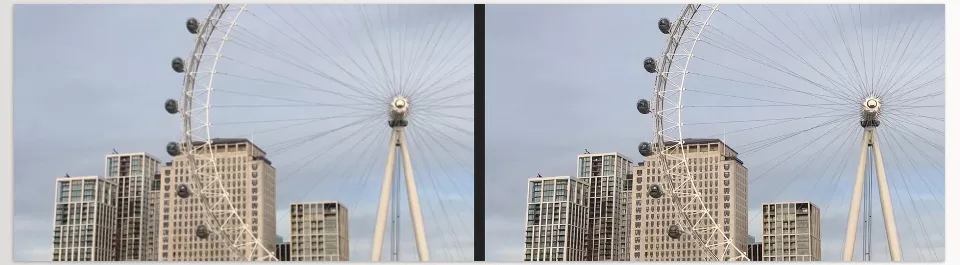
- Before ScaleUp: Blurry image, lots of noise, limited details
- After ScaleUp: Crisp image, close to 4K, details restored, noise and blocks removed
Even cartoons or archival videos become exceptionally clear and vibrant with Cartoon Mode or Compressed Video Repair.
With the ScaleUp Plugin, quality enhancement is no longer a tedious task. A few clicks, and old or low-quality videos look like fresh, professional projects.

Pro Tips for Using ScaleUp Plugin
Using the ScaleUp Plugin is simple, but these tips can make your results even more professional and natural:
- Start with the highest original quality:
The higher the original quality, the better ScaleUp can restore details. Always use the original file or a high-quality version for the clearest output. - Choose the appropriate mode:
- Sharp Mode: For live-action videos, films, and clips, it enhances details naturally.
- Cartoon Mode: For animations and cartoons; preserves edges and removes compression artifacts.
Select the mode according to the project type for natural, professional results.
- Combine with color and light correction:
Using color grading or light correction layers before or after ScaleUp can make the final output even better. Even a simple contrast or brightness adjustment can highlight the added details and make the image more vivid. - Always compare before and after:
A common mistake is accepting the output without comparison. Always check the video before and after to ensure no important details are lost, and the final result is exactly what you want. - Use selective areas intelligently:
If only part of the video needs enhancement, apply ScaleUp there to speed up processing and reduce system load. - Test different settings:
For sensitive projects, try multiple modes and upscaling levels to find the best combination. This is especially effective for compressed or cartoon videos.
By following these tips, using ScaleUp becomes not only simple and fast but also precise, natural, and professional. Just maintain the original quality, select the right mode, and check before-and-after results to achieve the best possible clarity and details.
Higher Quality, Better Projects
With tools like the ScaleUp Plugin, enhancing videos is no longer hard, long, or exhausting. This plugin not only enlarges videos but restores lost details, reduces noise and blocks, and makes images clear and vibrant. Even old or archival videos can look like fresh, professional projects.
For designers and animators, this means projects are ready for release without hassle and in high quality. Motion graphics, clips, and animations appear more professional and visually appealing—whether on large screens, social media, or client presentations.
Ultimately, ScaleUp Plugin allows you to convert low-quality videos into near-4K or even higher-quality output with just a few clicks, without spending hours on manual reconstruction or detail correction. In short, it makes a task you thought was hard and time-consuming easy, fast, and professional, taking your projects to the next level.
Whether you’re designing animations, visual effects, or cinematic sequences, our ultimate guide to After Effects Tools provides step-by-step insights, recommended plugins, and pro tips to maximize your creativity.



