

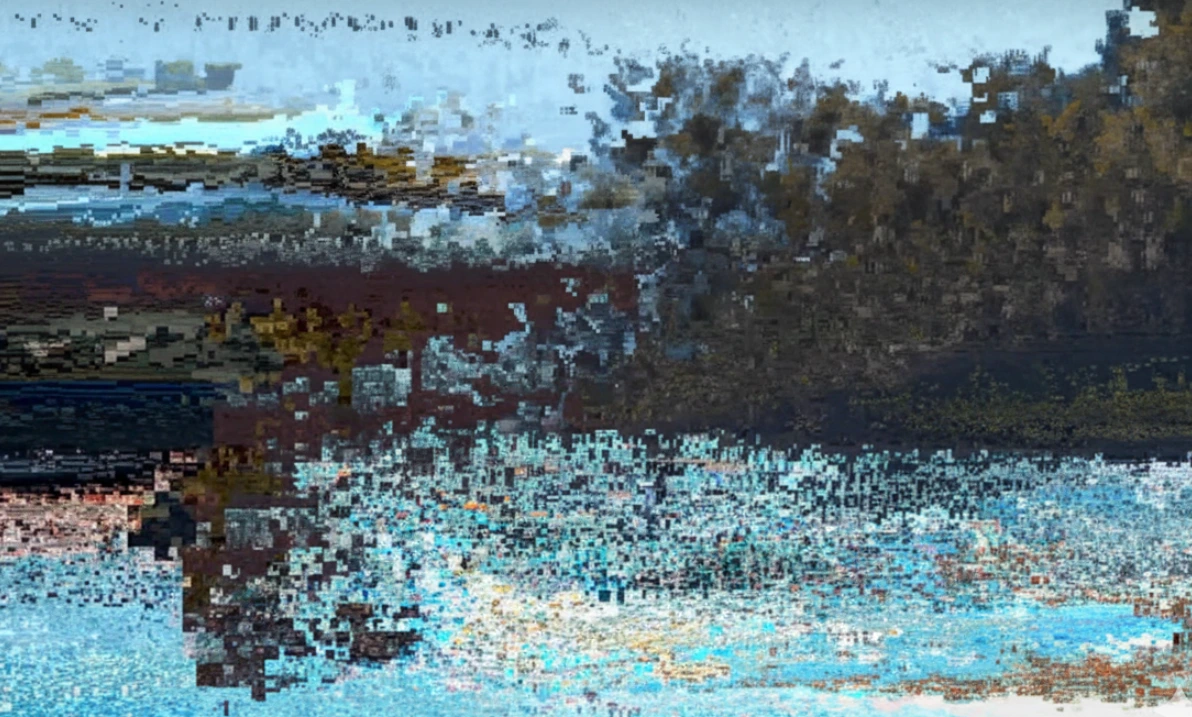
When Glitch Becomes a Tool
Have you tried the Datamosh Plugin? In the world of motion or video, sometimes things are just a little too perfect. Every frame does what it’s supposed to do, every movement goes exactly where it’s supposed to go. Well, that’s good…but not good enough sometimes, especially when you’re going for a certain vibe, an aesthetic impact, or something out of the ordinary.
Sometimes the image needs to learn a bit of mischief! Whether you want to convey an explosion, create a sudden collapse, or just have movements break from their usual rhythm, default After Effects tools usually can’t deliver that “attractive chaos” for you. The result is either too artificial or too hard to control.
This is when you crave something that intentionally distorts the image—but in a way that is beautiful, controlled, and adds a special feeling. A kind of artistic sabotage that, instead of making the result look ruined, turns it into the moment that separates your work from the rest.

What is Datamosh and why is it Important?
Datamoshing is essentially a way to play with video compression structure. This means:
- Some frames are fully stored (I-Frame)
- Others only contain motion information (Motion Vectors)
When you manipulate this process, the image starts to:
- Blend pixels
- Combine frames together
- Follow movements that don’t belong to that scene
Result? Glitches that suddenly take the image out of its normal form.
Real-World Applications of Datamosh
- Creating cinematic glitches and pixel collapse
- Smooth transitions of shapes between two videos without a real cut
- Producing music-driven effects for electronic clips
- Generating a sense of interference, scattering, and motion hijacking in motion graphics
Why It Matters
- No standard After Effects effect reproduces pixel behavior like this.
- Glitches created through datamosh are more natural, unpredictable, and creative.
- A way to control chaos; an effect that is both engaging and has its own visual signature.
Traditional Methods – When After Effects is Alone
Without specialized tools, you have to rely on After Effects’ default effects for creating glitches, such as:
- Turbulent Displace → distorts the image, creating waves and deformation
- Bad TV → simulates a broken TV, adding noise and shake
- Wave Warp → adds wavy movement to the image
- Displacement Map → bends and twists the image using another layer
- Posterize Time → changes frame speed, chopping, and lagging motion
- Time Remapping → manipulates the speed and timing of frames
These tools can create the appearance of a simple glitch, but the actual datamosh process—manipulating I-frames and Motion Vectors—is impossible. In simpler terms, default effects are more like surface-level imitation than real, creative sabotage of the image.
Problems with Default Methods
- Artificial glitch appearance: All effects follow a specific algorithm, making results predictable. The image neither looks real nor unexpected.
- No actual I‑Frame manipulation: I‑Frames are the main, full frames of the video. Without datamosh tools, you cannot delete them or transfer previous frame motion to the next frame, so real glitches aren’t created.
- Motion Vectors are uncontrollable: The real pixel motion that makes transitions smooth remains untouched. Default effects only change the appearance of movement, not the structure.
- Repetitive and predictable results: After a few uses, everyone recognizes the effect as standard, and it loses visual appeal.
- Creating complex glitches is time-consuming: To achieve a somewhat natural effect, you must combine multiple effects, pre-compose, build several layers, and test and adjust. Even with this effort, the output is usually limited and artificial.
With After Effects default tools, you can mimic the appearance of a glitch, but the true essence of datamosh—controlled sabotage of frames and pixel motion—is unattainable. For natural, unpredictable, and creative glitches, specialized datamosh tools are necessary.
Introducing Datamosh – Real Glitch, Real Control
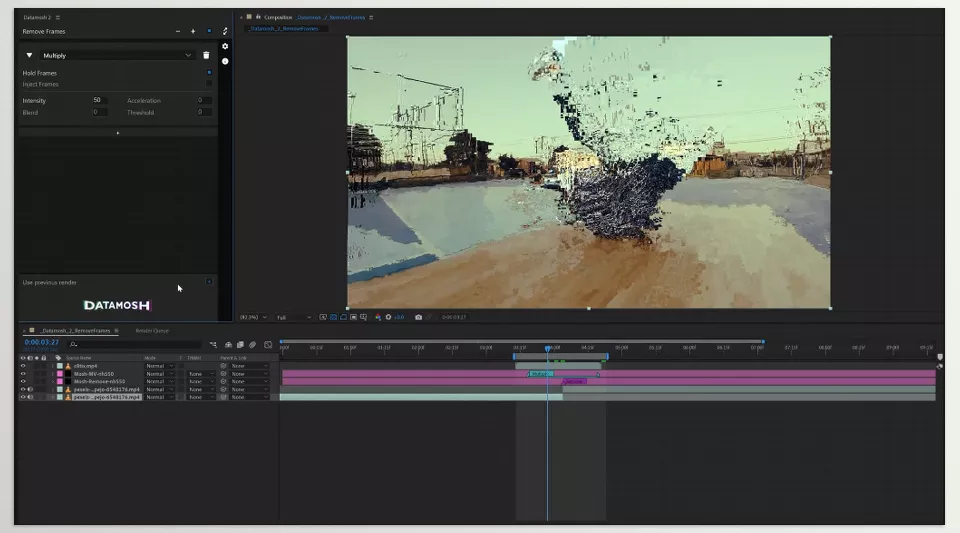
Datamosh Plugin is a professional After Effects plugin that, unlike regular effects, truly dives into the internal video structure. It manipulates Motion Vectors and I‑Frames, allowing you to create glitches that not only look strange and unexpected but also mimic real pixel and frame behavior. This means the output is a genuine glitch, not just a superficial simulation.
Main Features and Highlights
1) Mosh Maps — Regional Glitch Control
With Mosh Maps, you can decide where glitches occur and where they don’t. Just create a grayscale layer: white = more glitch, black = less glitch.
- Glitch only in the background while keeping the main subject clean
- Vary the glitch intensity from top to bottom
- Distort different areas of the image with different intensities
This lets you create targeted, beautiful, and fully controllable glitches, not random chaos.
2) Over 60 Ready-to-Use Glitch Algorithms
Datamosh Plugin offers over 60 algorithms, ranging from simple to complex, such as:
- Sin, Sweep, Average
- Random Blocks, Melt, Stretch
- Scanline and Distortion effects
For instance, if you want to make a music video where the image converts to strange pixels with the beat, or break apart a logo and reassemble it, these algorithms make it easy, producing unique and engaging output every time.
3) Precise I-Frame Removal (16x More Accurate)
I-frames are the full, main frames of the video. Removing them forms the heart of real datamoshing. Datamosh Plugin performs this with high precision:
- Glitches become more natural and cohesive
- Pixels move better across frames
- The image achieves that “stretched and scattered” look
Like classic internet datamoshes, but with professional and precise control.
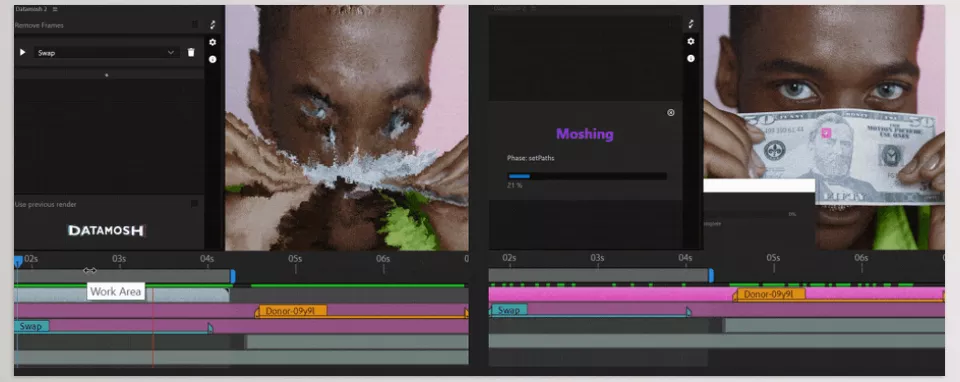
4) Swap Motion — Steal and Transfer Motion
This feature lets you take motion from one clip and apply it to another. For example:
- Hand movement of a dancer → transferred to a logo → the logo starts shaking and scattering
- Smoke or water movement → transferred to text → text flows like smoke or water
This is not possible with default After Effects tools and allows for completely unexpected and creative motion.
5) Marker Workflow — Precise Marker-Based Control
If you don’t want the whole video glitched, simply place markers, and the plugin understands where glitches should occur. Advantages:
- Localized, precise control of the timeline
- Ability to create multiple glitches within one clip
- Repeatable output and real-time editing
This is especially great for music videos and projects where rhythm and alignment with movements are important.
Datamosh Plugin gives full control over glitches—from I-frames to Motion Vectors. With Mosh Maps, any area can be glitched; over 60 algorithms handle any movement and distortion; Swap Motion allows motion transfer; Marker Workflow keeps everything localized and precise. The result? Real, unpredictable, and professional glitches unmatched by any default effect.
Professional Tips for Using Datamosh
When creating glitches, normal effects aren’t enough. Unexpected motion, pixel collapse, and strange transfers require a professional tool that provides real control over frames and Motion Vectors. Datamosh Plugin is exactly what turns your projects from surface-level effects to real, professional glitches.
- Use high-motion clips
- The more motion in your video, the more natural and impressive the glitches.
- Fast camera or subject movement → smooth, flowing glitch effect
- Static frames → glitches may look artificial and harsh
- Always check the overall motion and energy of the clip first.
- Be smart with Mosh Maps
- Allows you to glitch less important areas less and enhance target areas.
- Main face or logo → less glitch
- Background or environment → more glitch
- Ensures output is both appealing and readable.
- Always take test outputs
- Before applying glitches to the main video, create a quick proxy and test.
- Saves editing time
- Allows quick review of glitch intensity and algorithms
- Major mistakes are spotted before the final render
- Sync with music and rhythm
- For music videos, align glitches with the beat for rhythm and energy.
- Music beat → more intense glitch
- Silence or slow scenes → fewer glitches
- Makes effects appear natural and scene-consistent.
- Be cautious with Motion Swap overuse
- Motion Swap is exciting, but overusing it can:
- Make the image cluttered and confusing
- Mix movements and produce irregular output
- Use only at key, impactful moments for professional and understandable results.
Following these professional tips, from Mosh Maps to Motion Swap and proxy testing, you can create glitches that are natural, striking, and unpredictable. Datamosh is not just a tool but a way to add a unique, creative visual signature to your videos and motion graphics. With practice and attention to detail, your projects will shine.
Conclusion – Power That No Effect Can Provide
Datamosh Plugin makes possible what no default After Effects effect can: real and controlled manipulation of video structure. With this tool, you can precisely manipulate I-frames and Motion Vectors to create glitches that are natural and unpredictable.
With the Datamosh Plugin, you can create real glitches that collapse images from within, generate nonlinear transitions, and produce cinematic pixel effects reminiscent of classic or corrupted digital videos. Your projects will no longer be uniform and predictable, and you can play with each frame to generate fresh, engaging effects.
Ultimately, the Datamosh Plugin is a tool that will allow your creativity to run wild and establish a signature look. After learning the ins and outs and trial and error, your finished projects will be more engaging and professional, and will provide anyone viewing them a different, exhilarating experience of an actual glitch every time.
Whether you’re designing animations, visual effects, or cinematic sequences, our ultimate guide to After Effects tools provides step-by-step insights, recommended plugins, and pro tips to maximize your creativity.



