


When an Image Is More Than Just an Image
Do you happen to use the Plexus Plugin? Surely, you’ve seen in motion graphics some videos that feel like they’re born from sound, beats, light, or the invisible data around us. Points appear, connect to each other, turn into lines and surfaces, and rise and fall in rhythm with the music. These images aren’t just seen—they are felt and experienced, as if the visuals are reacting rather than just playing.
But what’s the secret behind it? Behind these captivating effects usually sits an intelligent tool that arranges the particles, creates connections, and allows the image to sync with data, sound, or camera movement. This is exactly what very few motion graphics tools do with such finesse, especially when it comes to 3D visuals, particle networks, or converting text and 3D models into particles.

Particles: The New Language of Visual Expression
First of All: Plexus Plugin Works with Particles
All effects, animations, and shapes created with this tool are made of countless tiny points called particles.
The exciting part? These particles don’t just scatter or fade like typical effects; they are the raw material for creating visuals—like bricks for building a wall.
Why Are Particles Important?
Because the Plexus Plugin allows you to connect these points.
- These tiny particles can form a logo, gradually create text, or turn into a 3D network.
- When lines connect them → the concept of connection is formed
- When triangles and surfaces are created → the concept of structure is formed
- When they move to sound → the concept of reaction is formed
Here, particles aren’t just a pretty effect; they become a visual language.
What Projects Are They Best For?
| Project Type | What Particles Do |
|---|---|
| Technology & Startup Intro | Show networks, connections, data |
| Scientific Projects | DNA, neurons, cells, waves |
| Digital Brand Teasers | Modern, futuristic textures |
| Music Videos | Visuals respond to the beat |
| Concept Storyboards | Built from nothing, merged, transferred |
| UI/UX & AI | Sense of algorithms and processing |
In fact, Plexus Plugin transforms particles into a storytelling tool—not just smoke or vapor, but visuals that say, “something is being created, transferred, or analyzed.”
Doing This Without a Plugin — Yes, It’s Possible… But Hard and Limited
In reality, you can create particles in After Effects itself. Tools like CC Particle World generate basic particles; you can connect points with lines, create masked networks, or combine effects for a 3D look. For small projects or simple tests, this works, and many people do it.
But when you want something more serious and dynamic—networks of particles reacting together, synced to sound, or forming text and logos—these methods fall short. The problems start here:
- Particles aren’t smart; if one moves, all lines and connections must be manually adjusted.
- Building 3D networks in AE is like juggling; it looks 3D but relies on manual, approximate work.
- Any change, adding particles, or new motion means redoing everything.
- Reacting to music or data is limited; you can simulate shakes but not real behavior.
- Creating surfaces, meshes, or 3D cuts is nearly impossible—like trying to carve stone with a fingernail.
Ultimately, you can make particle effects without a plugin, but what you want—a smart, responsive system that’s fast and controllable—is very hard to achieve.
In short, AE can work, but “real” particle creation is a whole different world.
Introducing Plexus Plugin — Where Data Becomes Visual
Plexus Plugin is a professional tool for creating particles and 3D graphics in After Effects. Imagine all those tiny particles we talked about interacting, reacting to sound, and forming complex shapes and networks. With the Plexus Plugin, these processes are no longer manual and time-consuming—it’s an intelligent system giving you full control.
What Plexus Plugin Offers:
- Create Particles, Lines, and 3D Surfaces
Build millions of particles and connect them with lines, triangles, and facets. Complex networks and forms can be built effortlessly. - Smart Particle Connections
Particles react to distance, sound, light, or camera movement, and lines and surfaces are created automatically—no manual drawing required. - Sound Effector
Import music or audio and make particles move, change color, or scale based on intensity and frequency. You can even create an Echo effect so particles “follow” the sound over time. - Text, 3D Models, and OBJ Input
Convert text and logos into particles. Import 3D models and OBJ files, shape them, or distribute particles on them. - Real Motion Blur and Depth of Field
Fast particle or line movements are captured with natural motion blur. True depth of field adds a cinematic effect to your project. - Slicer Object for 3D Cuts & Visualization
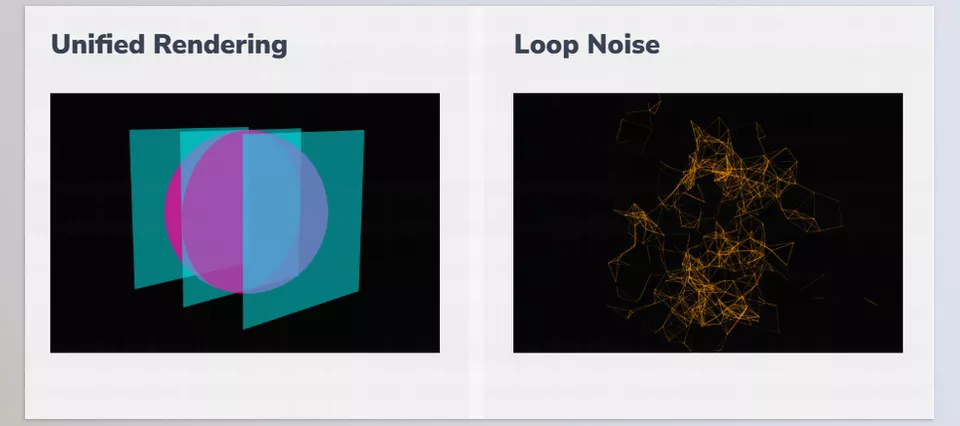
Slice shapes or meshes for a 3D inside view—perfect for scientific, tech, and sci-fi projects. - Loop Noise and Field Effectors
Create seamless, repeatable particle animations. Force fields and sine wave noise give natural, varied particle motion. - 3D Splines and Beam Lines
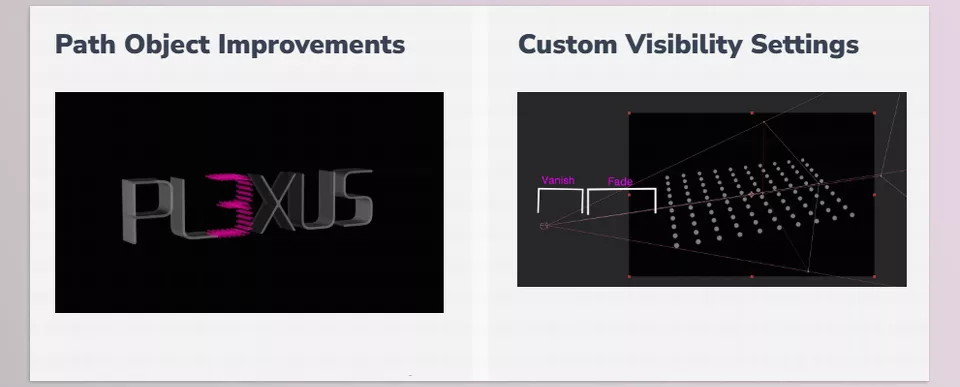
Draw paths in 3D and create lines or shapes along them. Beam Lines are perfect for energy, light, or connecting particles. - Visibility and Depth Map Culling
Fade or hide points, lines, or surfaces based on distance or camera angle. Combine with real 3D scenes for realistic effects. - Instances and Nested Compositions
Create a particle object and generate multiple instances. Nested instances allow for complex, repeating structures without losing control.
Plexus Plugin turns particles from a simple effect into a creative, smart, responsive, 3D tool that can turn data, sound, text, and 3D models into live visuals.
No more wrestling with keyframes and masks for hours; everything is ready and intelligent for amazing projects.
Pro Tips for Getting the Most Out of it
- Don’t Underestimate Loop Noise!
Make particle motions and effects fully seamless and repeatable—perfect for ads, social media videos, or music videos with smooth loops. - Sound Effector = Project Rhythm
Move particles based on the bass, not vocals or background sounds. Creates natural animation in sync with the beat and more energy. - Create Professional Motion Blur
Use a Custom Shutter for cinematic shots. Manual control ensures particle movement looks natural, not stiff or artificial. - Balance Surfaces and Lines
For a flat or minimal style, reduce facets and focus on lines and particle connections. Results look cleaner and modern. - Slicer = Inner Cuts & Visualization
Show internal structures of models or data. Perfect for medical, digital, data science, or sci-fi projects—gives a sense of depth and analysis. - Use Instances to Save Time
For multiple similar objects, use Instances and Nested Instances. Speeds up workflow and applies changes across all instances. - Control Color & Scale with Graph UI
Use graphs for particle color, size, and transparency to create natural, rhythmic motion. Makes projects look professional and dynamic. - Combine with Text & OBJ for Special Effects
Turn text or 3D models into particles and mix with effects. Perfect for logo motion, tech teasers, or data-driven projects.
By following these tips, your Plexus projects can go from “good” to “stunning and eye-catching.” The real magic happens when you combine the intelligent tool with your creativity. ✨
Conclusion — Why It’s Worth Using
Plexus Plugin isn’t merely a nice visual. It’s a new visual lexicon. It allows you to make particles, lines, and surfaces that come into being and respond to sound, camera moves and data. You’re making something more than just an image – a living, responsive element that will engage your audience.
Especially for those working with technology, data, innovative brands, or electronic music, the Plexus Plugin is a huge advantage. Instead of just adding effects, you create content with its own message, energy, and rhythm that interacts with the audience.
In an era where every brand and creative team is chasing unique and engaging visuals, the ability to create generative and responsive designs can make the difference between an ordinary project and a spectacular one. Learning Plexus Plugin means learning how to turn data, sound, and motion into live visuals—and that means every project you create will have a fresh story to tell. ✨
Transform the way you work in After Effects by exploring our complete guide about AE Tools, which details every essential plugin, script, and add-on that professionals use to speed up their workflow and elevate their projects.



