


How to Separate People from Backgrounds Without Hassle?
Have you ever used the Goodbye Greenscreen 2 Plugin? Imagine you’re working on a video and you want to separate people from the background—but you don’t have a green screen, nor the time to create frame-by-frame masks. Every frame is like a puzzle: hair full of details, fast movements, and some clothes blending into the background. Every time you try, it wastes hours, and the result is rarely what you want.
Even if you use common tools like the Roto Brush in After Effects, busy scenes or fast-moving subjects become a problem. Some frames don’t matte correctly, and you have to fix them manually. In short, it’s tedious and exhausting.
But what if I told you that there’s an easy way to get subjects cut out when you’re in a pinch without frame-by-frame, laborious, and time-consuming endeavors? Something that gets hair and intricacies right so you don’t have to waste your time on frustrating, brain-numbing obstacle courses, but rather, on the story and creatively explorative details of your project?

What is Matting and Why is it Important?
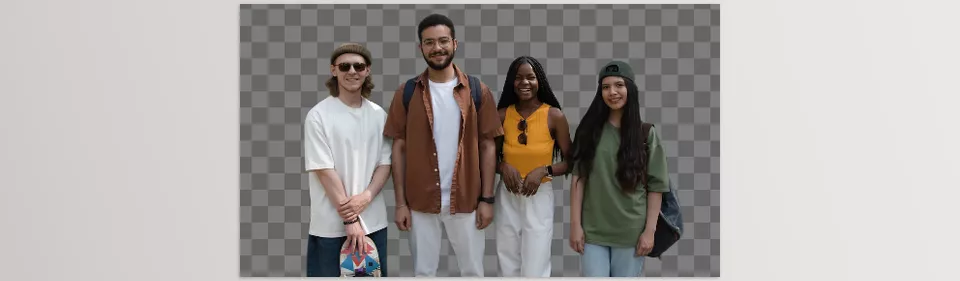
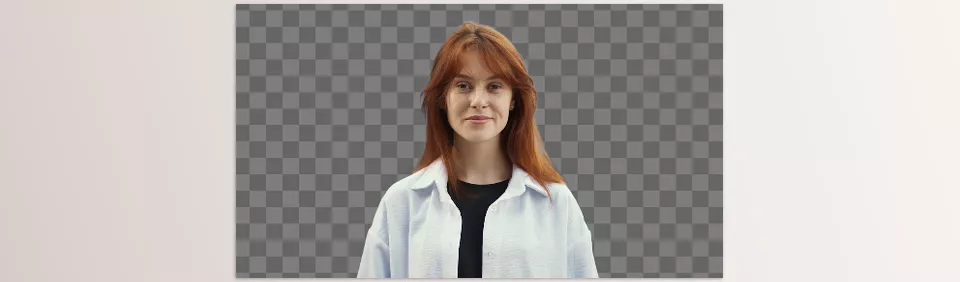
Simply put, Matting is something we all want to do but usually takes a lot of time: separating a subject from the background and creating a transparent mask you can use however you want.
Think about it: you have a person or object in a video, and now you want to place it in a forest, an imaginary city, or even another planet. Matting allows you to do this without spending hours creating frame-by-frame masks.
Its applications are tangible and exciting:
- Want to place your actor in a different scene? Matting lets you magically move the subject.
- Working with multiple videos or layers? A transparent mask lets everything blend seamlessly.
- Looking for special effects without a studio or green screen? Matting lets you build scenes and add impressive effects effortlessly.
In short, this technique gives you complete control over video elements. You can do anything you want without being limited to what was actually filmed. You can focus on story, movement, and effects—not clicking and fixing backgrounds.
Traditional Methods in After Effects
When separating a subject from the background in After Effects, there were a few main methods:
- Color Keying: Works with green or blue screens; using tools like Keylight or Color Key, you could remove the background color and isolate the subject.
- Roto Brush: When there’s no green screen or the scene is complex, Roto Brush allows you to select areas to separate the subject.
- Manual Frame-by-Frame Masking: For precise scenes or fast movements, sometimes you have to create masks frame by frame using the Pen tool.
Problems with Traditional Methods:
- Time-consuming: Frame-by-frame masking or Roto Brush adjustments take hours.
- Low accuracy: Especially with long hair, fine details, and busy backgrounds, results are often imprecise.
- Constant adjustments required: Even after applying Color Key or Roto Brush, each frame must be reviewed and fixed for natural output.
In short, traditional methods work, but they’re slow, tedious, and not accurate for complex scenes. That means a lot of your creative time is spent fixing backgrounds rather than creating engaging, professional scenes.
Goodbye Greenscreen 2 Plugin: AI Magic for Hassle-Free Subject Separation ✨
If you’re tired of traditional methods and want a fast, precise way to separate subjects from backgrounds, Goodbye Greenscreen 2 Plugin is an excellent choice. This plugin uses AI to automate Matting completely, saving you tons of time and energy. No more hours spent on frame-by-frame masking or background fixes.
Key Features
Automasking:
- Creates precise masks for portraits or full bodies.
- Accurately detects long hair, detailed clothing, and small components.
- Get ready-to-use output in just a few clicks—no frame-by-frame adjustments.
Stable Mattes:
- Offers 7 different AI models so you can choose the best one for any scene.
- Each model is optimized for specific backgrounds or lighting, ensuring high-quality, natural mattes.
Clean Plate Matting:
- Combine your video with an empty background (Clean Plate).
- This means you can separate subjects without a green screen.
- Ideal for projects without a studio or when you don’t want to use a green screen.
AI Color Keying:
- If you still have a green screen, AI handles color keying.
- Results are more natural and free from issues like color spills or halos around the subject.
Supports Complex Scenes and Long Hair:
- Unlike traditional tools, it performs accurately even in crowded scenes, fast movements, or intricate hair details.
Speed and Time Efficiency:
- The entire Matting process is extremely fast.
- No need to waste hours on tiny frame adjustments.
Practical Example:
Imagine an actor filmed in front of a busy wall or complex lighting. With the Goodbye Greenscreen 2 Plugin, you can place them in an imaginary scene or any desired background without frame-by-frame masking or green screens. This allows full focus on creativity and visual effects, not background fixes and tedious work.
With these features, Goodbye Greenscreen 2 Plugin is a fast, accurate, and practical tool for motion graphics, animation, and VFX artists, making the workflow professional and enjoyable.
How to Get the Best Results
Even the best tools can’t deliver great results if used incorrectly. These professional tips will help you get the most out of Goodbye Greenscreen 2 Plugin:
- Try Multiple AI Models:
The plugin has 7 different models optimized for specific backgrounds or lighting.
Test several models for subjects with long hair or complex details to find the best matte. - Prepare a Precise Clean Plate:
If working without a green screen, ensure the Clean Plate (empty background) is accurate.
Any flaw can cause halos or mask issues, so take your time to get it right. - Adjust Scene Lighting and Color:
Properly matching the subject’s lighting and color with the background creates more natural mattes.
Even AI may struggle with fine details if the lighting difference is too high. - Check Fine Details:
After masking, review edges, hair, and corners.
Minor manual tweaks or feathering can make the output look very natural.
These simple yet practical tips significantly improve your final project quality. With careful AI model selection, Clean Plate preparation, and lighting adjustment, you can achieve professional, natural results without spending hours on manual corrections.
Time for Creativity, Not Hassle
Finally, Goodbye Greenscreen 2 Plugin lets you focus your time and energy on what truly matters: creativity, storytelling, and visual effects—not frame-by-frame corrections and repetitive tasks.
Whether you’re working on motion graphics or professional VFX, this plugin speeds up your workflow and makes video editing more enjoyable. Automatic tools produce more accurate and natural masks, saving hours on tedious background fixes or halo corrections. This means you can turn ideas into reality more easily, making your projects look more professional.
Goodbye Greenscreen 2 Plugin not only improves speed and accuracy but also gives you the freedom to focus on creativity instead of old matting hassles. In short, it’s a professional companion for anyone who wants to separate subjects from backgrounds quickly, accurately, and effortlessly.
Don’t settle for just using After Effects — learn how to harness the power of its plugins, presets, and scripts with our complete guide about After Effects Tools, which includes tips, examples, and insights from industry professionals.



