

A Familiar Problem for Motion Designers
Do you have prior experience with the Easy Bounce Plugin? Have you ever dropped a ball or a logo in After Effects and tried to make it bounce naturally… but no matter what you do, it just doesn’t feel “real”?
Or you end up wrestling with tons of keyframes and the Graph Editor until you finally get something that kind of looks like a bounce?
The truth is, creating physics-based motion—especially bouncing—takes much more time than it seems.
Energy loss, impact intensity, peak timing, the decreasing height of each bounce… all of these need to be carefully adjusted so the motion doesn’t look artificial.
This is usually where you either lose a lot of time or the result doesn’t match what you had in mind.

What Exactly Is Bounce Animation and Where Is It Used?
Bounce in animation isn’t just about an object going up and down. You’re actually simulating the real behavior of a body upon impact. When something hits the ground, its speed changes, some of its energy is lost, it rises a little less each time, and eventually it comes to rest. Sometimes, at the moment of impact, it slightly squashes (that famous Squash) to make the weight and impact feel more realistic. All these subtle details together are what make the motion feel natural—not just movement between a few keyframes.
On the other hand, Bounce is used in many types of projects. For example, a logo that drops from above and bounces on the ground, an energetic cartoon ball, an object that hits a wall and rebounds, or even typography that enters the scene with an impact. These kinds of motions make your work feel more alive and engaging. In fact, it’s exactly these motion details that define the difference between an ordinary animation and a professional one.
Traditional Methods of Creating Bounce in After Effects
If you want to create a Bounce without any helper tools, you have to set everything up manually. The process usually starts with simple keyframing, but to achieve a natural result, you’ll need to dive into more details and control multiple tools at the same time.
Typically, we do the following:
- Setting Position keyframes for the fall and bounce path
- Applying Easy Ease to soften the motion
- Precisely adjusting speed in the Graph Editor
- Using Expressions to simulate energy loss
- Coordinating Scale or Rotation for a more natural result
All of these methods are possible—but they’re completely dependent on your time and precision.
Challenges That Come Up Along the Way
The problem starts when you want the motion to truly feel natural. Adjusting the energy decay of each bounce, controlling the moment of impact, and keeping all keyframes synchronized is time-consuming. Even a small change in timing can send you back to the graphs for more corrections. Especially in tight-deadline projects, this process can pull your focus away from creativity and turn into an exhausting technical task.
Easy Bounce Plugin; When Physics Calculates Itself
This is exactly where the Easy Bounce Plugin comes in and makes everything several times easier. It’s a script for After Effects that helps you create a natural and believable bounce without getting involved in complex graphs and time-consuming adjustments.
The workflow is very simple:
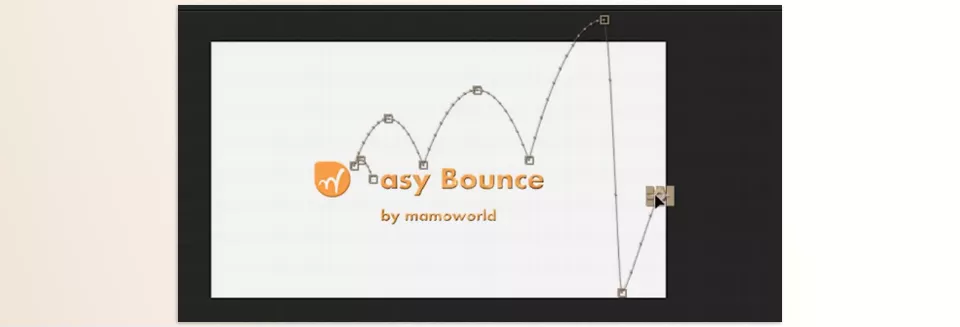
You just roughly keyframe the overall motion path—define the impact points and peaks. Then you click the Easy Bounce Plugin button, and the tool automatically calculates gravity, energy loss, and impact timing. No need to manually dive into the Graph Editor and tweak velocity curves.
The result? Motion that is more natural—and ready much faster.
Key Features of the Pro Version
- Intelligent Bounce Simulation: The tool automatically simulates gravity and gradually reduces the height of each bounce in a logical way—exactly like what we see in the real world.
- Ground and Wall Bounce: It’s not limited to the ground. You can also simulate wall collisions and create more dynamic movements.
- Keyframe Synchronization: If you have keyframes for Rotation or Shape Path in addition to Position, the Pro version synchronizes them with the new timing. That means you don’t have to manually readjust everything.
- Squash on Impact: For cartoony work or soft logos, the squash effect at the moment of impact makes the hit feel more realistic and visually appealing.
- Advanced Controls: You can adjust gravity intensity, set Subframe precision for smoother motion, and even use KBar support and scripted execution—features that are highly practical in professional projects.
Imagine a logo entering from above, hitting the ground, bouncing twice, and then settling.
Instead of placing twenty keyframes, adjusting graphs, and revising timing multiple times, you simply define the path and let the tool handle the rest.
This means less time spent on technical adjustments—and more focus on creativity.
A Few Professional Tips for a More Natural Result
When using a tool like the Easy Bounce Plugin, much of the technical calculation is handled. However, there are still subtle details that can elevate your work from “good” to “professional.” These tips help make the final motion feel more natural, believable, and engaging.
- Design the Path Carefully First
Even if the tool handles the rest, the foundation of the motion is still your initial keyframes. Place impact points and peaks logically, and gradually reduce bounce distances for a more natural result. - Adjust Gravity Based on the Project’s Mood
For cartoony work, use lower gravity to make the motion more springy and playful. For serious or realistic projects, higher gravity adds a sense of weight and heaviness. - Use Squash Subtly
A gentle squash at impact is very effective, but too much exaggeration can make the work look amateur. Subtlety is the key to professionalism here. - Enable Motion Blur
Especially during the fall and impact moments, Motion Blur significantly enhances the sense of speed and energy, making the motion feel more natural. - Add Slight Rotation or Scale Variation
Objects in the real world don’t move strictly up and down. A slight rotation or controlled scale change can increase the sense of dynamism and energy.
In the end, tools make the process faster—but it’s these subtle refinements that make your output look professional and eye-catching.
When Speed and Quality Come Together
Creating a natural bounce animation has always been one of those tasks that takes more time than it appears. It’s not impossible, but creating a truly natural feel requires precision and many fine adjustments. If there’s a deadline, these details often become the main challenge of the project.
The Easy Bounce Plugin helps you achieve results faster and more naturally. It shifts your focus away from technical calculations and back to design and creativity. There’s so much more to creative work than the technical side of things. Your energies should be invested in the idea, style, and overall execution of the scene.
If there’s limited time to invest in a project or you just want to deliver a clean and professional result, having a tool like the Easy Bounce Plugin can truly transform your workflow.
If you want to work smarter in After Effects, our in-depth AE Tools guide walks you through the tools, plugins, and workflow techniques that professionals use to speed up their projects.



