

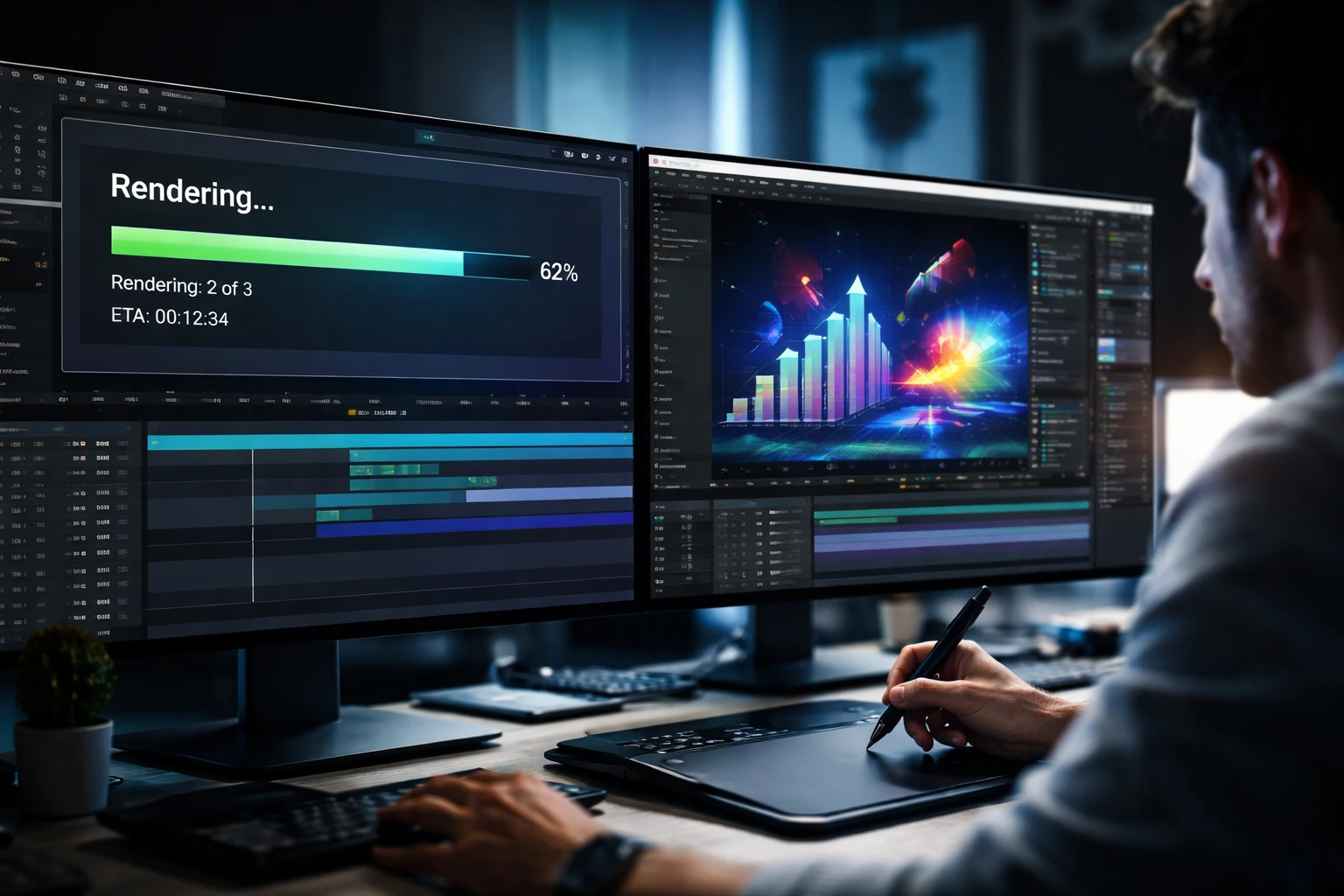
That Moment When the Project Is Done, But You’re Not
Have you tested the BG Renderer MAX AE Plugin by aescripts before? At some point in the animation production process, everything’s ready. You’ve fixed the final animation, the timings are OK, and all that’s left is the final output. At least, that seems to be the case. When you click on the render button, you ultimately lock yourself into that whole creative process. You’re either sitting there watching the percentages climb, or you’re carefully trying to do some light work so the system doesn’t run out of breath.
It’s not just about slowness; it’s about the fact that rendering usually crashes right into your best creative state. Once your rhythm breaks, getting back into that same focus mode is harder than we think.

What Does Background Rendering Mean and Where Is It Useful?
When we say “background rendering,” we mean the system handles the rendering process, but you don’t stop working. The render is running, and you can still keep moving forward in After Effects or even on another project. For people who live by deadlines, this idea is much more than a “luxury option”—it’s practically a time-saver.
Here are some real situations where this type of rendering is seriously useful:
- When you need to deliver both an Image Sequence and an MP4 file for quickly sending to the client
- When a project needs multiple outputs (for example, ProRes for editing and MP4 for publishing)
- When you have several projects back-to-back and don’t want your creative timeline interrupted by rendering every time
- When you want the system to render overnight and just check the result/status remotely
The main advantage here isn’t just speed; it’s preserving your workflow. In motion design, if that flow gets interrupted, getting back to your previous level of focus can take a lot of time.
Traditional Output Methods
If you don’t use any additional tools, you usually export in one of two ways: the Render Queue inside After Effects or by sending the project to Adobe Media Encoder. Both methods are common and usable, and many people have worked with them for years.
The workflow usually looks like this:
- Render Queue for direct output from inside After Effects
- Media Encoder for compressed formats like H.264
- Adding multiple output settings to create different versions
- Manually managing the render queue
For simple projects, these methods work perfectly fine and get the job done.
The Issues That Gradually Start Showing Up
But when the project gets heavier, or you have multiple renders in a row, the limitations become clear. Render Queue usually ties up the system and makes working simultaneously difficult. Media Encoder isn’t always flawless either; sometimes, queues get messed up, or new changes don’t transfer correctly. In the end, you can still finish the job, but managing renders and producing multiple outputs isn’t as easy and flexible as it could be.
BG Renderer MAX AE Plugin: Rendering with Full Control, Without Stopping Work
If you’ve ever had to leave your system alone just to wait for a render to finish, this is exactly where the BG Renderer MAX AE Plugin comes in. The main issue with rendering inside After Effects is that once the render starts, the software gets busy, and working at the same time becomes difficult or practically impossible.
BG Renderer MAX AE Plugin steps in to solve this bottleneck.
The idea is simple: rendering is done with After Effects’ own engine—but in the background. Instead of your entire workflow turning into “waiting for output,” the render moves to the background, and you can keep working on other projects.
In simpler terms: the system isn’t the only thing rendering—you’re not stuck either.
What Exactly Does BG Renderer MAX AE Plugin Improve?
✅ Background Rendering with After Effects’ Native Engine
Unlike some methods that send the render to another application, this still uses AE’s own engine.
The only difference is that it’s not locking you out. You can:
- Open another project at the same time
- Make adjustments
- Even continue designing or animating
For beginners, this means: you don’t have to choose between “working” and “rendering.”
✅ Better Use of System Power (Multi-Threaded)
If you have a stronger system (multi-core CPU and sufficient RAM), theBG Renderer MAX AE Plugin can make better use of that power. That means:
- Rendering moves faster
- System resources are managed more intelligently
An important note for beginners: a powerful CPU alone isn’t enough. If your RAM is limited, even the best tool will be restricted. The combination of CPU + RAM is what really matters.
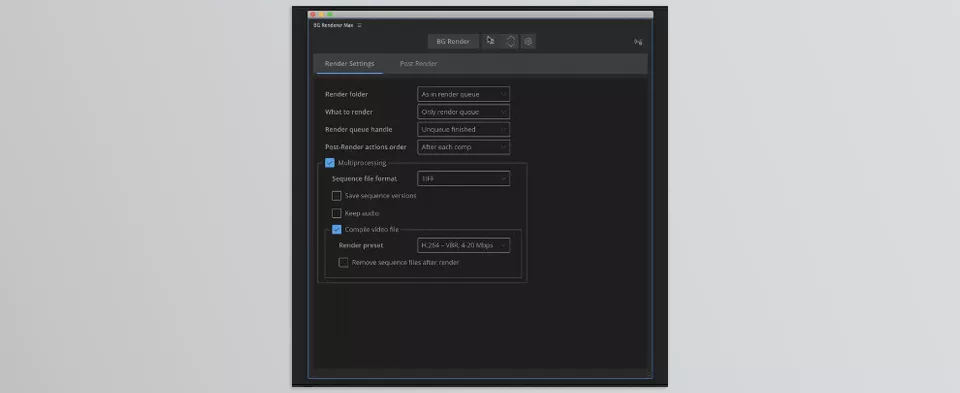
✅ Multiple Outputs at the Same Time, Without Extra Hassle
Normally, you might have to:
- First, render an Image Sequence
- Then render the same project again as an MP4
- Or convert the file separately
Here, you can have simultaneously:
- A high-quality Sequence for archive or editing
- MP4 or ProRes for quick delivery or publishing
For someone just starting out, this means:
You don’t need to render multiple times or convert files separately.
✅ Notifications After Render Completion
It might sound simple, but it’s very useful.
Once the render is finished, it can notify you:
- Via email
- Inside Slack
- Or even through automation services like Zapier
So you don’t have to keep checking “is it done yet?”
✅ Remote Monitoring
If you have a separate render system (for example, at the studio or a more powerful machine), you can check the render status without physically being at that system.
This is especially useful for teams or heavy projects.
BG Renderer MAX AE Plugin isn’t meant to complicate your workflow or force some strange new system on you; it simply makes the same rendering you’ve always done inside After Effects smarter and more flexible. Instead of everything stopping during a render and you being forced to wait, the work happens in the background, and you can keep moving forward. For someone just starting out, this alone is a big difference: you don’t have to choose between “continuing your work” and “waiting for output.”
If you’re more advanced, the advantages go beyond that; managing multiple outputs at once, better system utilization, and automation options make your workflow more organized and faster. In both cases, the result is the same: the rendering experience becomes less exhausting and stressful—and in real projects, that extra calm and control truly matters.
Follow These Small Details for Better Results
When working with multi-threaded and background rendering, a few small decisions can have a big impact on speed and system stability. These tips help you get faster renders while keeping your system from running out of breath:
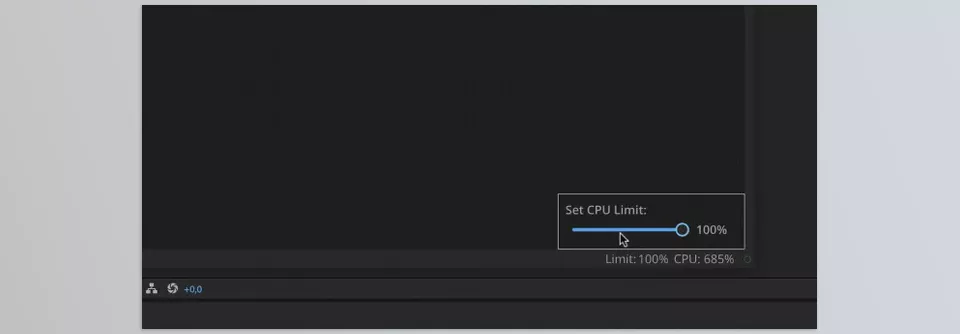
- Don’t push the Thread count up temptingly high. More isn’t always better; often, the main limitation is RAM, not CPU.
- Start with a lower number and increase gradually. Test with reasonable settings first, then raise the Thread count if the system stays stable.
- If you’re working simultaneously, leave part of your resources free. Don’t let the render consume all system power and lock up your work.
- Schedule very heavy renders. For example, run them at the end of the day or at night when you’re not doing heavy work.
- Define your output workflow from the beginning. If you need both a Sequence and MP4 or ProRes, set them up simultaneously to avoid rework.
- Enable notifications. That way, you don’t have to constantly check whether the render is finished.
- Sometimes, slower but more stable is better. An unstable render that crashes midway is much worse than a slightly slower one.
These tips may seem small, but when projects pile up or you’re handling multiple outputs at once, these exact details are what save you more time and keep your nerves intact.
Instead of Waiting, Work
BG Renderer MAX AE Plugin is built for people who don’t want their workflow rhythm to be interrupted. In motion graphics, rendering is a natural part of the job—but it shouldn’t become an obstacle. When rendering can happen in the background, you can simultaneously move revisions forward, prepare the next project, or simply do real work instead of staring at the progress bar.
If your projects are heavy, your outputs diverse, or you deal with tight deadlines, these kinds of tools optimize exactly the part of the process that usually takes the most time—without feeling promotional or exaggerated. Just a logical improvement in your workflow.
To work more confidently and efficiently in After Effects, check out our complete AE Tools guide covering essential tools, plugins, and real-world workflow solutions.



