

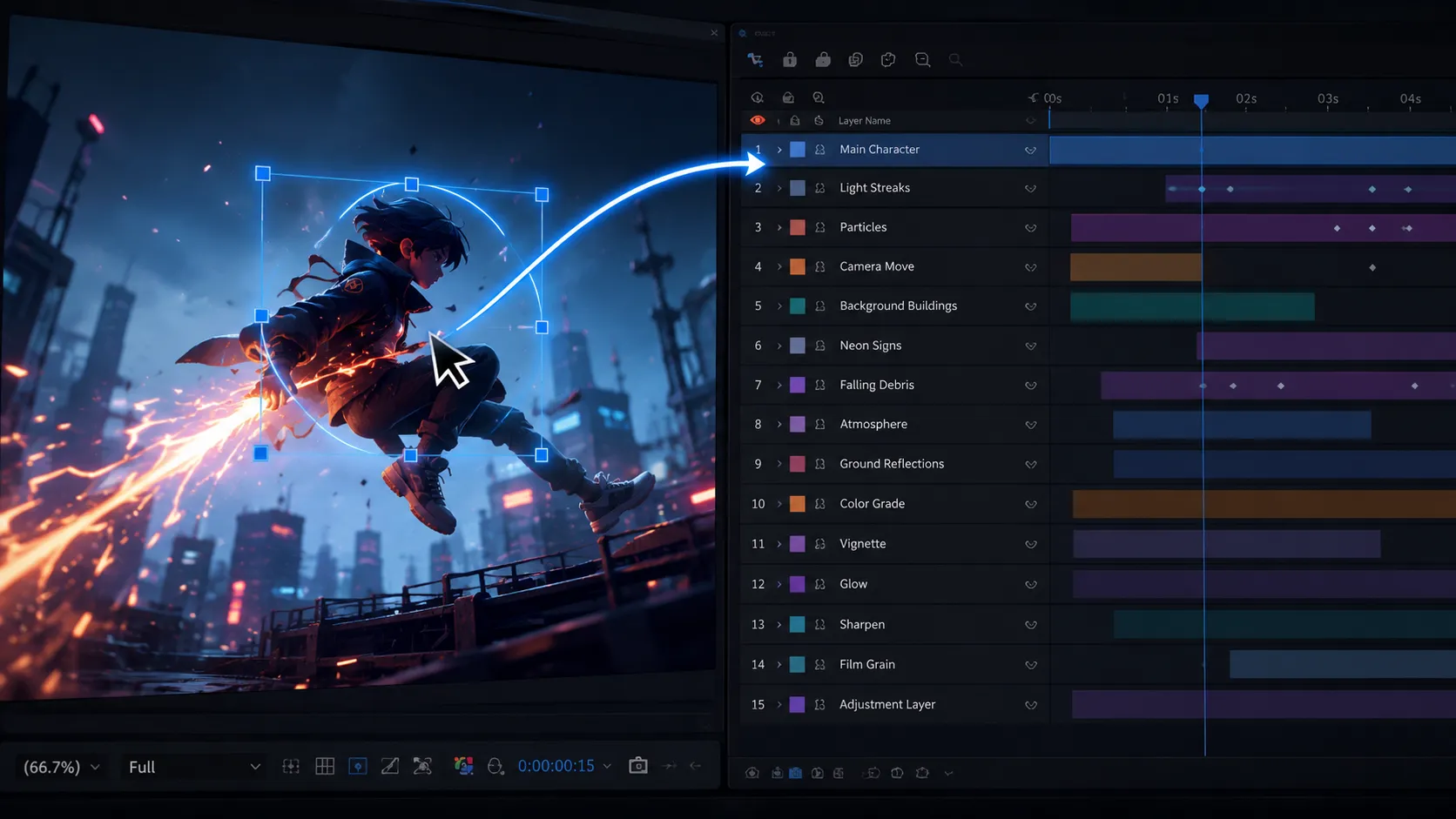
🎯 When Finding a Layer Becomes Harder Than the Design Itself
Are you aware of the Smart Selector Plugin by aescripts? If you’ve worked with After Effects, this scenario is probably a familiar experience. You can clearly see an object in the composition—it’s exactly the thing you need to work on—but no matter how much you look for it, it feels like it has vanished into thin air. You head to the timeline, expand the layers one by one, check their names, move through precomps, but nothing is clear enough to say, “I’m here.”
Little by little, what started as a simple search turns into a repetitive cycle: toggling layer visibility on and off, soloing layers, diving into multiple nested precomps, and then returning to square one. The strange part is that there’s nothing wrong with the design or the animation itself; the only problem is finding that one layer. Yet this single, simple step, when it happens inside large, multi-layered projects, can completely disrupt your workflow and pull your focus away from what actually matters.
In the end, what was supposed to be a quick, obvious action becomes part of the workflow that takes more time than the design itself. Instead of thinking about motion, lighting, or composition, your mind gets stuck on, “Where exactly is this layer hiding in the project?” That’s where the real pain reveals itself—not because the software is complicated, but because finding something that’s right in front of you becomes unnecessarily difficult.

🧩 When “Seeing” Isn’t Enough
On the surface, selecting a layer should be the easiest part of the job. You see something, you select it, and you move on.
But inside the complex structure of After Effects, that’s often not how things work. A visual element might be buried inside several nested precomps, hidden beneath adjustment layers, or even difficult to identify because of transparency.
In situations like these, you’re no longer designing—you’re doing detective work. Instead of focusing on motion, lighting, or composition, you’re asking yourself, “Where exactly is this thing?”
🧠 Traditional Methods Always Work… But They’re Slow
Before smarter tools came along, this was the path almost everyone followed. Whenever a layer disappeared, you had to hunt for it manually, gradually digging through the project’s structure like a complicated map.
The most common methods were:
- Going inside nested precomps and expanding layer hierarchies
- Turning layer visibility on and off to guess the correct location
- Soloing layers to isolate specific elements
- Using Timeline Search (if the layer names are organized properly)
- Visually tracking the element through the project structure based on its appearance
These methods seem simple on paper, but as projects grow larger, these ordinary tasks become a long, repetitive cycle that must be repeated over and over again.
⏳ Where’s the Real Problem?
The problem with these methods isn’t that they don’t work—they absolutely do. The issue is that they’re incredibly time-consuming and constantly interrupt your workflow.
In large projects, finding a single layer can easily take several minutes. When that happens repeatedly throughout the day, your attention gradually shifts away from design and animation and turns into repetitive, mechanical searching. Instead of focusing on creativity, your mind becomes occupied with managing and searching through layers, slowing down the rhythm of the entire project.
⚡ This Is Exactly Where Smart Selector Comes In
Smart Selector for Adobe After Effects was built to replace a long, frustrating process with something much simpler:
Instead of searching through layers, precomps, and the timeline, you simply select what you can already see.
The idea sounds simple, but behind it is an intelligent layer-selection system that understands exactly what you’re looking at and where it actually exists inside your project.
🎯 Direct Selection from the Composition (Core Idea)
The biggest strength of Smart Selector is that it brings the entire concept of layer selection back to seeing.
Instead of dealing with layer names, timeline structures, or complicated paths through nested precomps, everything starts from one simple point: what you see on your screen.
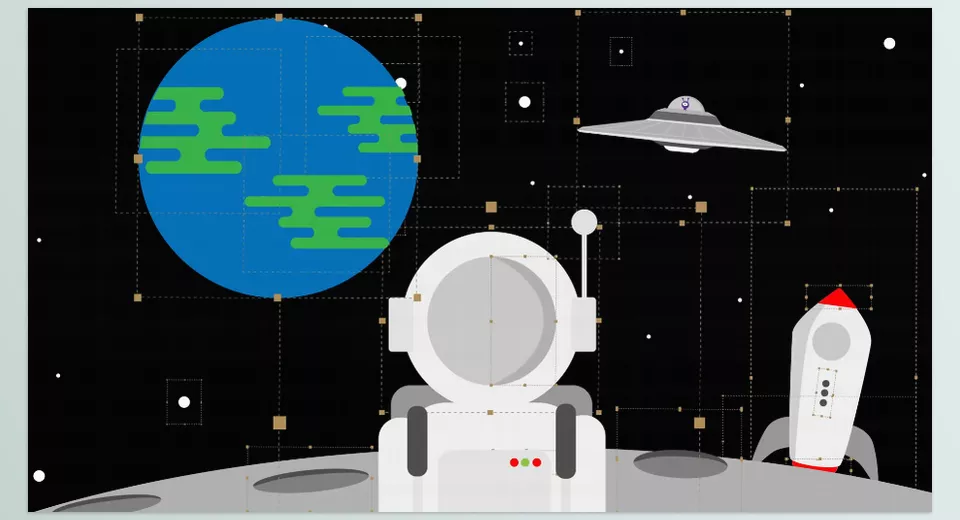
You simply click the object within the composition, and the tool intelligently determines which layer the visual element belongs to—even if it’s buried beneath multiple layers and nested precomps.
🧠 Deep Layer Detection
This is where the tool truly shines—in complex projects.
Smart Selector doesn’t just work on the surface. It can:
- Enter deeply nested precomps
- Locate the original source layer at the deepest level
- Navigate through complex project structures without requiring any manual work
Even if an object is hidden five layers deep, it still takes you directly to the correct layer.
🚫 Control Over Interfering Layers
One particularly useful feature is the ability to clean up the selection path.
For example:
Ignore Adjustment Layers
If adjustment layers interfere with the selection process, you can skip them to select only the target layer.
That means your focus stays on what you really want—not on the layers that just happen to be in the way.
🛠 Simple Workflow
Using Smart Selector is straightforward:
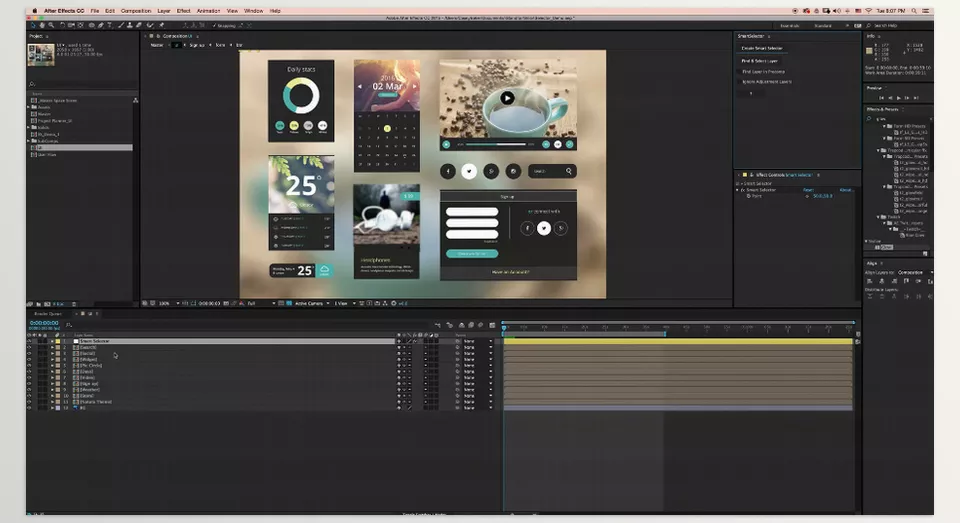
- Create a Smart Selector inside the composition.
- Use the selection point to click the object you want.
- Run the Find & Select command.
- The original source layer is selected immediately.
That’s it.
No digging through the timeline.
No opening nested precomps.
🎬 The Real Impact on Projects
The biggest benefit of this tool isn’t just speed—it’s the change it brings to your workflow.
The entire experience shifts away from searching through layers and navigating complex project structures, becoming a smoother, much more direct process. When you no longer spend your time looking for layers, your attention naturally stays on the design itself and on your visual decisions.
Your focus moves entirely from finding to creating. The creative flow remains uninterrupted, and design decisions happen faster and without hesitation. Especially in large projects, this simple change creates a much more consistent working experience and gives you greater control over the entire process.
🧪 Tips for Getting Better Results
To get the best possible experience with Smart Selector, there are a few simple but important practices that improve both its accuracy and your workflow. They may seem minor at first, but they make a noticeable difference in real-world projects.
Keep Your Layers in 2D
This tool has limitations when working with 3D layers, so before using it, make sure the layers you want to work with are set to 2D. This ensures more accurate and error-free selections.
Enable Show Layer Controls
Keeping this option enabled helps place the selection point more precisely on the object, allowing the tool to identify the layer’s position more accurately—especially in busy or complex compositions.
Use Ignore Adjustment Layers Wisely
In projects with many Adjustment Layers, enabling this option keeps the selection path cleaner, allowing the tool to reach the actual target layer directly rather than through controller layers.
Keep Your Project Structure Organized (Precomps)
The cleaner your project structure is, the faster and more accurate the selection becomes. The tool is a huge help on its own, but when your precomps are heavily disorganized, you’ll always get better results if you’ve already arranged the project into a more logical structure.
Overall, these simple practices make the tool behave more accurately and predictably while providing a much smoother experience for larger, more demanding projects.
🧭 Bringing the Focus Back to Design
Ultimately, Smart Selector is more than just a simple utility—it represents a genuine shift in the way you work with After Effects projects. What once consumed a considerable amount of time and energy searching for layers, opening precomps, and navigating complex timeline structures has now become a direct and intuitive interaction: simply see and select, without unnecessary steps or distractions.
Once this repetitive and exhausting part of the workflow disappears, a hidden but significant source of creative friction disappears with it. You no longer have to constantly interrupt your design process just to locate a single layer, allowing you to stay focused on building visuals, refining motion, and making creative decisions. In projects where both speed and precision matter, this seemingly small improvement can make a substantial difference in how quickly your work progresses.
In the end, what remains is a smoother workflow that’s much closer to the way creative thinking naturally works. When your tools interfere less with the design process, there’s more room for ideas to develop, and the work feels less mechanical. Smart Selector is designed with exactly this goal in mind: shifting your focus away from finding layers and back to creating the image.
Make your editing process in After Effects more efficient. Our guide shares useful tools that can help you save time on every project. Explore the After Effects Tools guide today.



