

When Smoke and Fire Are More Than Just Effects: They Bring Realism to Your Visuals 🔥
Are you familiar with the features of the Plumebus Plugin by aescripts? Have you ever been working on a motion graphics or VFX project and wanted to create realistic smoke, a compelling explosion, or cinematic fog, only to find that the final result didn’t match the vision in your head? In many cases, the problem isn’t the effect itself. What makes a scene look artificial is the unnatural movement and behavior of the smoke within it.
Smoke has a way of moving and dispersing in a manner that is much more natural than the way it may look within your composition. This subtle movement and behavior of the smoke in your composition is what makes it feel more realistic and cinematic in visual projects.
That’s why creating professional smoke and fire has always been one of the more challenging aspects of motion graphics and visual effects. Sometimes, the difference between an average result and a professional one comes down to these subtle details—such as how smoke spreads after an explosion or how it flows behind a title.

What Is 3D Smoke and Why Does It Matter? 💨
When we talk about 3D smoke, we don’t simply mean placing a pre-rendered smoke layer over footage. Instead, we’re working with a volumetric simulation that behaves like a real physical element.
This means the smoke can originate from a specific point, rise naturally, change direction with the wind, flow around objects, and respond to the lighting within the scene.
For example:
- A logo appears in the center of the screen while smoke emerges from between its letters.
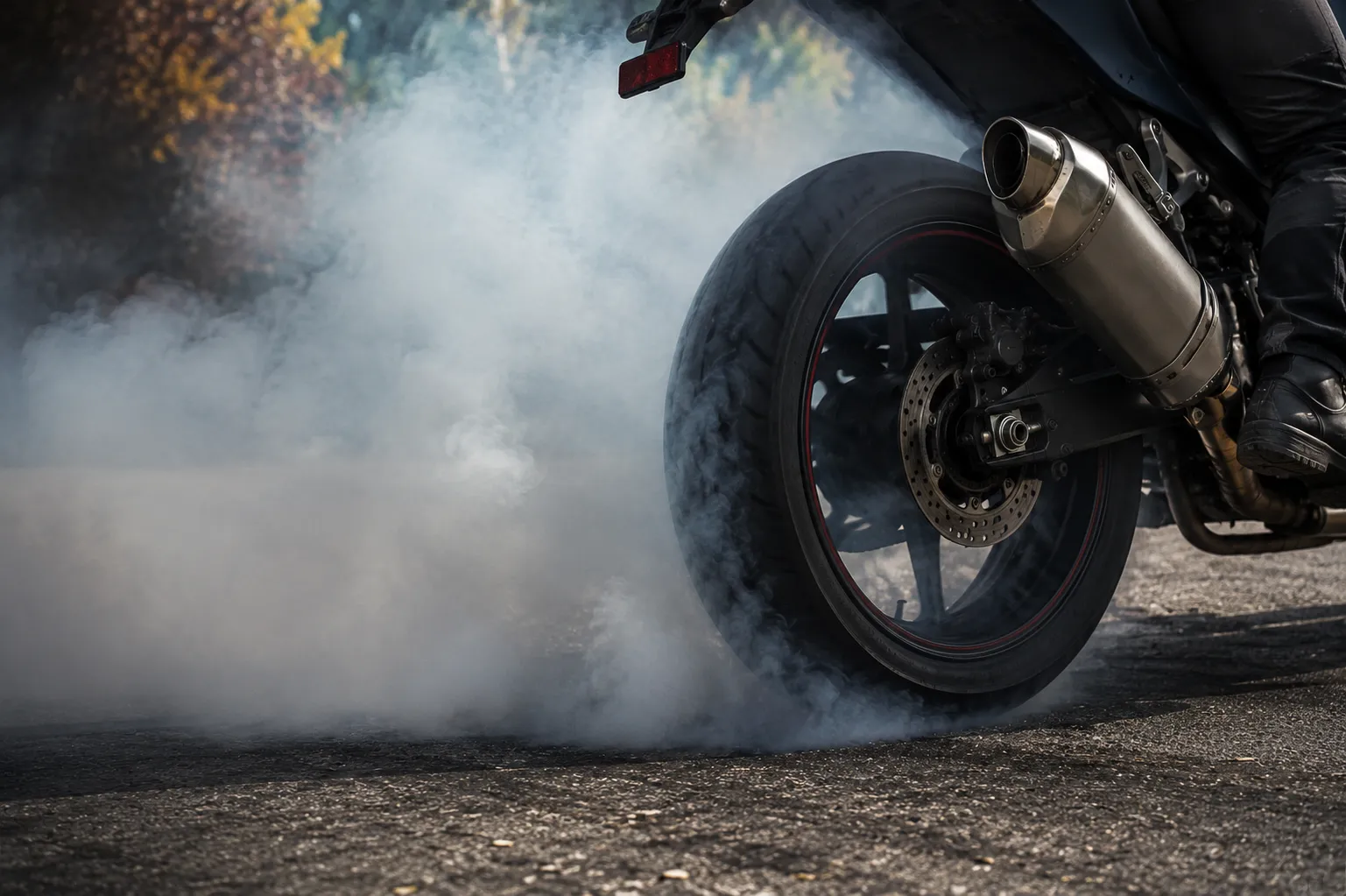
- A moving car leaves behind naturally dissipating tire smoke.
- A cinematic title is revealed through mist and smoke.
- A small explosion occurs in an action shot, with convincing depth to the smoke.
These natural behaviors make a project feel more than just “effect-heavy”—they give it a far more polished and professional appearance.
Traditional Ways of Creating Smoke in After Effects Without Plugins 💨
Before dedicated smoke simulation tools became available, most motion designers created smoke and fog inside After Effects by combining several built-in effects and techniques. These methods are still useful for lightweight projects or situations where you simply need a subtle smoky atmosphere in the background.
The most common approaches include:
- Creating Smoke with Fractal Noise
One of the most popular methods for generating smoke-like textures. By animating Fractal Noise and combining it with effects such as Turbulent Displace, Blur, and Levels, you can create soft, organic motion. - Using Stock Smoke Footage
To speed up production, many artists use real smoke footage and composite it into their scenes using Blend Modes, masks, and color correction. - Particle Systems
Particle systems can generate particles that resemble smoke, dust, or steam, making them suitable for many motion graphics applications. - Combining Multiple Effects
To prevent smoke from looking artificial, artists often stack multiple animated layers with different distortions, movements, and settings to create a greater sense of volume.
The Limitations of Traditional Methods: When Smoke Doesn’t Behave Naturally 🌫️
The biggest limitation of these techniques is that they primarily imitate the appearance of smoke rather than its physical behavior.
While you can certainly create moving smoke, you have very limited control over aspects such as:
- Natural volumetric rotation
- Collision with objects
- Wind-driven movement
- Proper interaction with 3D lighting
As projects become more complex, achieving believable results requires additional layers, more manual adjustments, and significant time spent refining details that would occur automatically in a true simulation.
For this reason, many artists turn to 3D applications such as Blender or Houdini for larger projects. However, this workflow also means leaving After Effects, building the simulation externally, exporting it, and then bringing it back into the project.
Plumebus: Real-Time Smoke and Fire Directly Inside After Effects 🔥
This is where Plumebus comes in. Plumebus is a professional After Effects plugin that allows for real-time 3D smoke and fire simulation directly within After Effects. With Plumebus, motion graphics designers can simulate smoke and fire without leaving After Effects or transferring their projects to another 3D application. Using the plugin, users can create smoke within their compositions and adjust its properties to obtain the desired effect. All of this can be done without constantly exporting, rendering, and importing effects across various applications.
One of the biggest reasons Plumebus appeals to motion designers is its GPU-accelerated simulation engine. Heavy simulation calculations are handled by your graphics card, allowing changes to appear much faster while you’re working. You can adjust smoke density, movement speed, or simulation forces and immediately see the results without waiting for long render times.
Live Simulation: See Every Change Instantly 🎛️
One of Plumebus’ core features is live simulation. As you scrub through the timeline, the simulation updates dynamically, allowing you to evaluate the smoke’s behavior in real time. This dramatically improves the creative process because instead of adjusting parameters, waiting for a render, and reviewing the results afterward, you’re interacting directly with the simulation itself.
Plumebus also lets you separate the simulation from After Effects and open it in its dedicated Real-Time Editor. In this environment, you can refine the smoke much faster without rendering the entire composition before sending the result back to your project.
Complete Control Over Smoke and Fire Behavior 🔥
Plumebus isn’t simply a smoke preset—it’s a complete volumetric simulation system that gives you extensive control over how smoke behaves. Inside the plugin, you can configure:
- Emission: Define where the smoke originates, along with its intensity and emission rate.
- Forces: Control movement using wind, turbulence, vortices, and other simulation forces.
- Simulation: Adjust physical behavior, diffusion, rotation, and volumetric motion.
- Rendering: Control the smoke’s final appearance, display quality, and volumetric rendering.
- Lighting: Determine how scene lighting interacts with the smoke volume.
All of these parameters are fully keyframeable, allowing you to animate smoke just like any other property inside After Effects. For example, smoke can gradually appear, deform as text passes through it, or expand naturally after an explosion.
Smoke Collisions and Integration with 3D Scenes 🌫️
One of the key elements that makes smoke feel realistic is how it interacts with its environment. Plumebus allows smoke to collide with layers and objects rather than simply move through empty space.
You can use:
- After Effects layers
- 3D objects
- Geometry
as colliders, allowing smoke to change direction when hitting surfaces, wrap around objects, or move behind obstacles. Plumebus also integrates with After Effects’ 3D camera system and can utilize native AE lights to illuminate volumetric smoke. This helps the effect blend naturally into the scene rather than appear disconnected from the original footage.
High-Quality Volumetric Rendering: From Fast Preview to Final Output ✨
Plumebus provides two rendering modes for smoke. During the design process, you can use a faster preview mode for smoother interaction, then switch to a higher-quality renderer for final output. Its volumetric renderer uses techniques such as ray marching and Path Tracing to produce:
- More convincing depth
- Softer shadows
- More realistic light scattering
As a result, smoke becomes more than a dark volumetric layer—it can receive light, cast shadows, and contribute genuine depth to the overall scene.
Generate Smoke from Text, Shapes, and Animated Objects 📝
One of Plumebus’ most appealing features for motion designers is the ability to use native After Effects layers as smoke emitters.
You can generate smoke from:
- Text Layers
- Shape Layers
- Masks
- 3D Objects
For example, a cinematic title can emerge from smoke, a logo can generate a smoky trail during its reveal, or a moving 3D object can leave a realistic smoke trail behind it. This transforms smoke from a simple visual effect into an integrated part of the overall motion design.
Ideal for VFX, Motion Graphics, and Creative Projects 🎬
Plumebus isn’t designed only for large explosions—it can be used across a wide range of creative projects.
- 💨 Action & VFX: Gun smoke, explosions, and cinematic effects
- 🚬 Atmospheric Scenes: Cigarette smoke, fog, steam, and mysterious environments
- 🚗 Vehicle Motion: Tire smoke and realistic movement trails
- ✨ Motion Graphics: Smoke transitions, logo reveals, and cinematic titles
- 🌫 Scene Enhancement: Adding depth and a cinematic atmosphere
In addition, Plumebus supports VDB Import and Export, allowing you to import OpenVDB files created in applications such as Blender or Houdini, or export your own simulations for use in other software. The Pro version also includes advanced features such as fire simulation, combustion, explosions, particles, sparks, and Path Traced rendering. With this extensive feature set, Plumebus is much more than a simple smoke generator. It is a complete volumetric simulation system designed to bring high-quality smoke and fire directly into After Effects—especially for artists who want greater control over VFX without ever leaving AE.


A Few Tips for Getting Better Results with Plumebus 💡
Although Plumebus provides a wide range of tools for creating smoke and fire, achieving natural-looking results isn’t just about the software itself. A few simple practices can help make your simulations look more realistic and professional.
- Start Small
Real smoke is usually not overly dense or excessive. Begin with lower emission and intensity, then gradually add more detail until the simulation feels natural. - Take Lighting Seriously
Even an excellent simulation can look artificial without proper lighting. Matching the smoke’s lighting to the overall scene helps it blend naturally into the composition and enhances its three-dimensional appearance. - Match the Smoke to Your Main Animation
If you’re using smoke with a logo, text, or a moving object, its timing and direction should align with the primary animation. This makes the effect feel like a natural part of the scene rather than a separate overlay. - Use Presets as a Starting Point
Plumebus includes ready-made presets for effects such as smoke, explosions, and fog, making it much faster to get started. However, it’s best to customize the preset settings to suit your specific project so the final result has its own unique character.
Ultimately, the best results come from treating the simulation as more than just a ready-made effect. Think of it as an integral part of your scene design, considering its movement, lighting, and fit within the project’s overall atmosphere.
When Effects Feel Real 🎯
The difference between ordinary smoke and professional-quality smoke isn’t just how it looks—it’s how it behaves within the scene. When smoke moves naturally, responds to lighting, and interacts with its surroundings, it becomes much more effective at adding realism and a cinematic atmosphere to your visuals.
For many projects, creating this level of detail can be extremely time-consuming. You either spend hours fine-tuning manual techniques inside After Effects or move your workflow into 3D software, dealing with simulations and constantly transferring assets between multiple applications.
This is where Plumebus can simplify the entire process. If most of your work is done in After Effects and you’re looking to create professional smoke, fire, and volumetric effects, having a tool that performs all of these tasks directly within your existing workflow gives you more time to focus on creativity and the final design.
Are you looking for a simple way to understand the different types of After Effects tools? Our guide explains the main categories, including plugins, scripts, presets, and project templates, to help you discover the right tools for your workflow.



