

When a Logo Needs to Be Replaced, That’s When the Trouble Starts! 😅
Are you familiar with the features of the LogoSwap Plugin by aescripts? Have you ever had a finished video and just wanted to replace the logo on a shirt, car, sign, or product? At first glance, it seems pretty simple: remove the old logo and put the new one in its place. But once that surface starts moving, rotating, or changing angles, that’s when the trouble begins!
It’s not as easy as simply dropping the new logo onto the video footage. The video software must track the movement of the item with the old logo so the new logo can be placed appropriately. This is even more challenging if the item with the old logo also deforms.
For a single shot, you might be able to put up with these steps, but when you’re dealing with several or even dozens of shots, this simple change can take hours. This is especially true for advertising or sponsored projects, where you need to create multiple versions of the same video with different logos.

What Does Replacing a Logo in a Video Actually Mean? 🔄
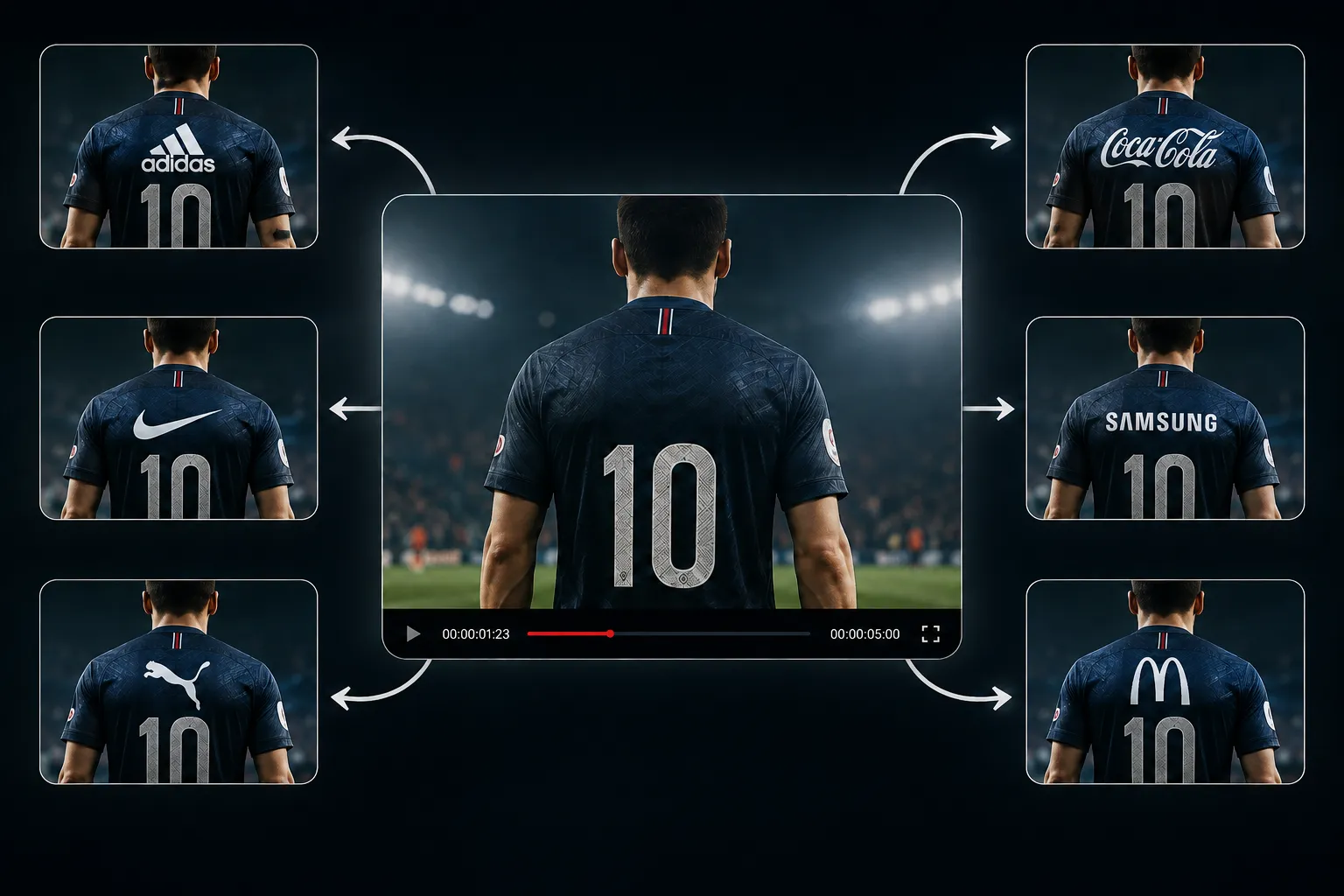
Simply put, logo replacement means removing the existing logo from the footage and putting another logo in its place so the new logo follows the same movement and angle as the original surface and doesn’t look out of place.
For example, imagine you have a football player with a brand logo on their shirt. Now you want to use the same video for a different sponsor. Instead of filming everything again, you can replace the old logo with the new one.
Or maybe there’s a logo on the body of a car, and the car is moving within the frame. The new logo also needs to move with the car, change its angle, and stay in the correct position until the end of the shot. You can even use an animated video or composition instead of a static logo and create multiple different versions from the same footage.
Can It Be Done Without a Plugin? Yes, but… 🛠️
You don’t necessarily need a plugin to replace a logo. After Effects itself has various tools that you can combine to get the job done. Depending on where the logo is placed and how much it moves, these methods are commonly used:
- Motion Tracking: For tracking the movement of the logo or the surface it’s placed on.
- Planar Tracking with Mocha: When the surface is more complex or involves more movement and rotation, this is considered a more accurate option.
- Masking and Rotoscoping: For isolating parts of the image or when part of the logo is covered by subjects.
- Manual Adjustments: After tracking, you usually need to check the placement, size, angle, and alignment of the new logo and make corrections on certain frames.
The Problem Starts When the Project Gets Bigger
For one or two shots, these methods work perfectly well and may even be faster than using automated tools. But when the number of shots increases, or the logo is placed on clothing, a car, or a surface that constantly moves and deforms, the process gradually becomes time-consuming. The tracking may need to be corrected several times, some areas may need to be masked manually, and you may constantly have to go back to frames where the logo has drifted out of position. In projects like these, a lot of time is spent on repetitive tasks rather than the actual design.
So What Does LogoSwap Do Here? 🤖
That’s where LogoSwap comes in. This tool is built for After Effects and Premiere Pro and uses artificial intelligence to make finding, removing, and replacing logos in videos much easier. LogoSwap’s AI model can find logo instances it has been trained on within the footage and replace them with new content, so you don’t have to manually track every shot from scratch.
Automatic Logo Detection and Replacement
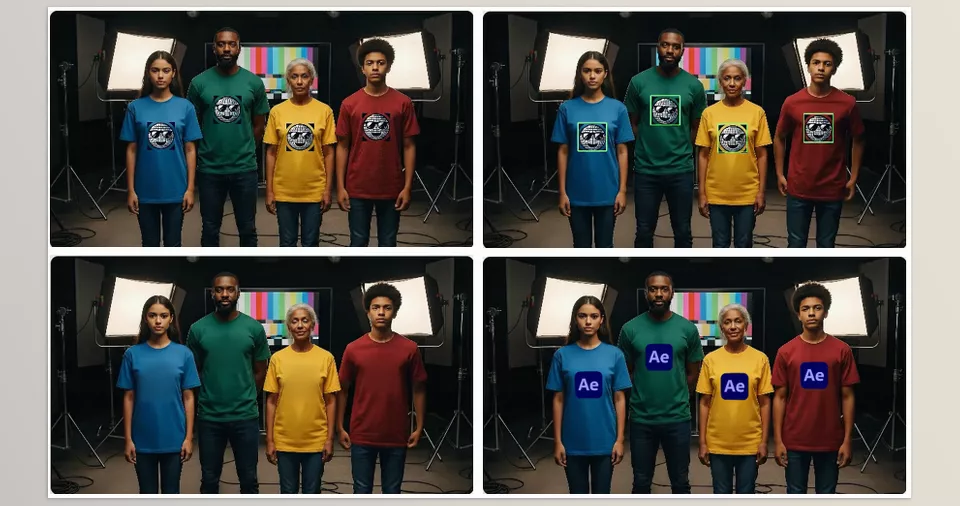
LogoSwap’s most important feature is that it doesn’t rely on manual tracking to find and follow a logo. The AI model can detect instances of logos it has been trained on in the footage and replace them.
That means that instead of manually following the logo’s movement, extracting tracking data, and then attaching the new logo, the AI engine handles most of the process. This can significantly reduce repetitive work, especially when you’re dealing with a large number of shots.
Working on Moving Surfaces
One of LogoSwap’s most interesting capabilities is that replacement isn’t limited to static surfaces. A logo can be placed on a moving surface and move throughout the video.
For example, a logo might appear on someone’s clothing, the body of a car, a sign, or any other moving surface. Instead of manually tracking each surface, LogoSwap can find and replace the target logo across frames.
Replacement on Different Types of Surfaces
This capability means LogoSwap isn’t limited to one specific type of footage. Wherever the target logo is visible on a surface, you can use the model to find instances of that logo.
This is particularly useful for advertising projects, commercial videos, sponsored content, and even sports footage, because logos commonly appear on clothing, equipment, signs, products, and various other surfaces.
Replacing with Video or an Animated Composition
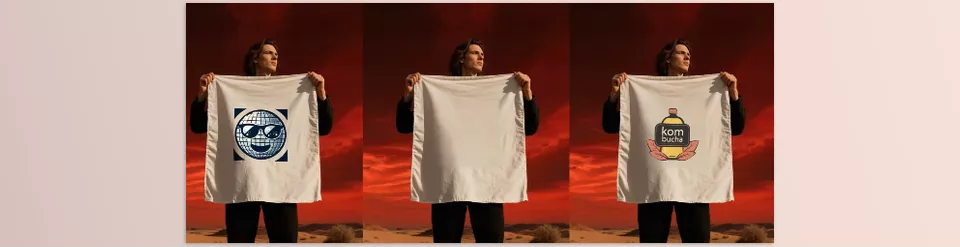
LogoSwap isn’t limited to replacing one static logo with another. You can also use an animated video or composition as the replacement content.
For example, imagine you have a display or advertising billboard inside a video. You can replace the existing content with a new advertising video so that the new content appears on the same surface. This means the tool’s functionality goes beyond “logo replacement” and can also personalize content within footage.
Creating Multiple Versions of a Video
One of the most useful applications of LogoSwap is for projects where you need to create several different versions from the same footage. For example, you might have an advertising video that needs to be used for several different brands. You don’t need to rebuild the entire project for each brand; you can replace the branding content, logo, or desired element and create different versions from the same footage.
This feature is also very useful for Content Personalization. In other words, you can have one main piece of content and personalize it for different clients, brands, or markets.
More Opportunities for Sponsored Content
For content creators, this capability can also be interesting. Imagine you have a finished video in which a specific logo appears on clothing, a product, or somewhere in the environment. With the ability to replace logos, you can create different versions of the same content for different sponsors.
As a result, instead of producing completely new content every time, you can use your existing footage and change the branding-related elements.
Applications in Broadcast and Sports Productions
LogoSwap also has clear applications in Broadcast and sports projects. For example, a match or program might be broadcast in several regions, and the advertisements or logos displayed in each version may need to differ.
In situations like these, you can use a single master footage and change the logos or branding content for each market. This becomes especially valuable when you need to produce a large number of output versions.
Using Pretrained Models
LogoSwap uses trained AI models for logo detection. There’s even an option to use a Pretrained Model, meaning that for logos with ready-made models available, you can simply use the existing model.
According to the developer’s description, for these ready-made models, you can download the corresponding logo sample and place it on the screen or canvas to use the pretrained model file.
Creating a Custom Model for Your Own Logo
If the logo you want to replace isn’t available among the existing models, there’s also an option to create a Custom Swapfile. In this case, you can order a dedicated training session for your logo so a model specifically designed for it can be created.
According to the product information, this custom training costs around $300, and you need to contact the developer to request it. This feature is more useful for projects that regularly work with a specific logo and want to have their own dedicated model.
Processing Entirely on Your Own System
One important thing about LogoSwap is that it processes locally. This means the video file isn’t sent to cloud servers for processing, and your data remains on your own system.
This is an important advantage for commercial, advertising, or confidential projects because you don’t need to provide your footage to an online service for processing.
Hardware Acceleration
In terms of hardware, LogoSwap supports Apple Silicon on Mac, while on Windows, it can use an NVIDIA GPU for acceleration.
According to the stated specifications, a Windows system with an NVIDIA graphics card and at least 8 GB of VRAM is recommended. Windows systems without NVIDIA can also run the software, but processing can be very slow. On Mac, Apple Silicon with macOS Sequoia or later and at least 16 GB of RAM is required; LogoSwap isn’t supported on other Mac systems.
A Few Tips for Getting Cleaner Results 🎯
LogoSwap makes a lot of time-consuming work easier, but keep a few things in mind if you want clean, natural-looking results. Paying attention to these small details can make a big difference in the final result.
- Choose clear footage. The clearer the original logo is, and the more visual detail and information there is on the surface where the logo is placed, the easier it will be for the AI to detect the logo and the better your chances of getting a good result.
- Match the new logo to the footage. If the replacement logo is much sharper, brighter, or cleaner than the footage itself, it will quickly become obvious that it was digitally placed onto the image. Match the lighting, color, blur, and quality of the new logo to the footage as much as possible so it looks more natural.
- Don’t use a complicated method for simple shots. If you only have one logo on a mostly static surface and can get the job done with a few minutes of regular tracking, After Effects’ own tools are perfectly sufficient. LogoSwap becomes more valuable when you have many shots or are dealing with moving and complex surfaces.
- Take advantage of creating different versions. If you need to prepare a project for several brands, sponsors, or markets, you can use LogoSwap’s replacement capabilities to change the branding content instead of rebuilding each version from scratch. This can take a significant amount of repetitive work off your shoulders.
Ultimately, LogoSwap isn’t meant to replace careful review and final checks. After the replacement, watch the output several times and pay particular attention to areas with more movement or greater angle changes, because these are the places most likely to need corrections.
When a Simple Change Shouldn’t Take Hours 🎬
Replacing a logo in a video doesn’t seem particularly difficult at first. You can do it using After Effects’ built-in tools and even Mocha. But when the number of shots increases, or the logo is placed on a moving surface, tracking and manual corrections gradually become the frustrating part of the process that takes a huge amount of time.
That’s where LogoSwap becomes interesting. You don’t need it for every project, but if you regularly work with advertising videos, sponsored content, branding, or Broadcast projects and constantly need to swap logos, automating this part of the process can free up a lot of time.
If you’ve ever had to manually track and correct multiple shots just to replace a logo, it’s probably worth trying LogoSwap to see how much of that repetitive work it can handle for you.
Are you finding it difficult to choose the right After Effects tools for your projects? Our After Effects tools guide provides a clear overview of different tool categories and explains the role of plugins, scripts, presets, and templates in the editing process.



