Caption Creation Shouldn’t Be Harder Than Editing! 🎬
Are you aware of the Superluminal Stardust Caption Creator Pack by NeoEditFX? Have you ever finished editing your video, only to find yourself just getting started with the captions? 😅 For every sentence, you have to adjust the font, color, shadow, and animation, and then sync the text timing with the video. It might not be a problem for a few lines of text, but when you’re dealing with dozens of captions, this process can become seriously time-consuming.
Especially in Reels and Shorts, captions aren’t just simple subtitles. Animated and engaging text can grab the audience’s attention and better reflect the rhythm of the video. That’s why, in many cases, the appearance of the captions becomes just as important as the editing itself. ✨
Now, if you could have these styles ready in advance and click a few buttons to apply them to your project, you’d save yourself all these headaches and have more time to edit and be creative. 🚀

What Exactly Are Animated Captions? 🤔
Animated captions are simply text elements that enter the frame with movement and effects, giving the video a more professional feel. Instead of simple text appearing on the screen, the words come to life with the rhythm of the speech or music.
For example, imagine you’re watching an editing tutorial. When important words appear one by one, or a sentence enters the frame with a glowing effect, you naturally pay more attention to the video.
This type of caption can be useful for all kinds of projects:
- Instagram Reels and Shorts
- YouTube videos
- Advertisements and product presentations
- Educational videos and vlogs
In short, anywhere you want text to be part of the video’s story.
Common Ways to Create Captions in DaVinci Resolve
DaVinci Resolve itself has great tools for creating and animating text, and you can create engaging captions without any additional tools. For example, you can use Text+ to create customizable text, use Titles for titles and ready-made styles, and use the Subtitles section to manage standard subtitles. If you’re looking for more advanced animations, Fusion gives you a lot of flexibility, allowing you to create text movements and effects using keyframes and nodes.
Depending on the type of project, you generally have these options:
- Text+ for creating text and precisely controlling its appearance and animation
- Titles for using ready-made titles and styles
- Subtitles for creating and managing video subtitles
- Fusion for creating more advanced text animations and effects
- Keyframes for controlling the timing, entry, exit, and movement of captions
What’s the Problem With Manual Methods? 😵💫
The main problem is that much of this process has to be done manually. For every caption, you need to adjust the text appearance, add animation, and synchronize the timing with the speaker’s voice. Now, if a video has dozens of captions, these repetitive tasks quickly become exhausting. On top of that, if you want to create multiple videos in the same style, you have to repeat these settings over and over, leaving less time for actual editing and creativity.
Caption Creator Pack: Everything With Drag & Drop 🚀
This is where Caption Creator Pack really makes things easier. This pack is made for DaVinci Resolve 20+ and works on the Edit Page, meaning you don’t need to go into Fusion or build a bunch of keyframes and nodes to use the captions. You choose the preset you want, drag it onto the timeline, and the caption immediately gets its own style and animation.
191 Caption Presets in 9 Different Styles 🎨
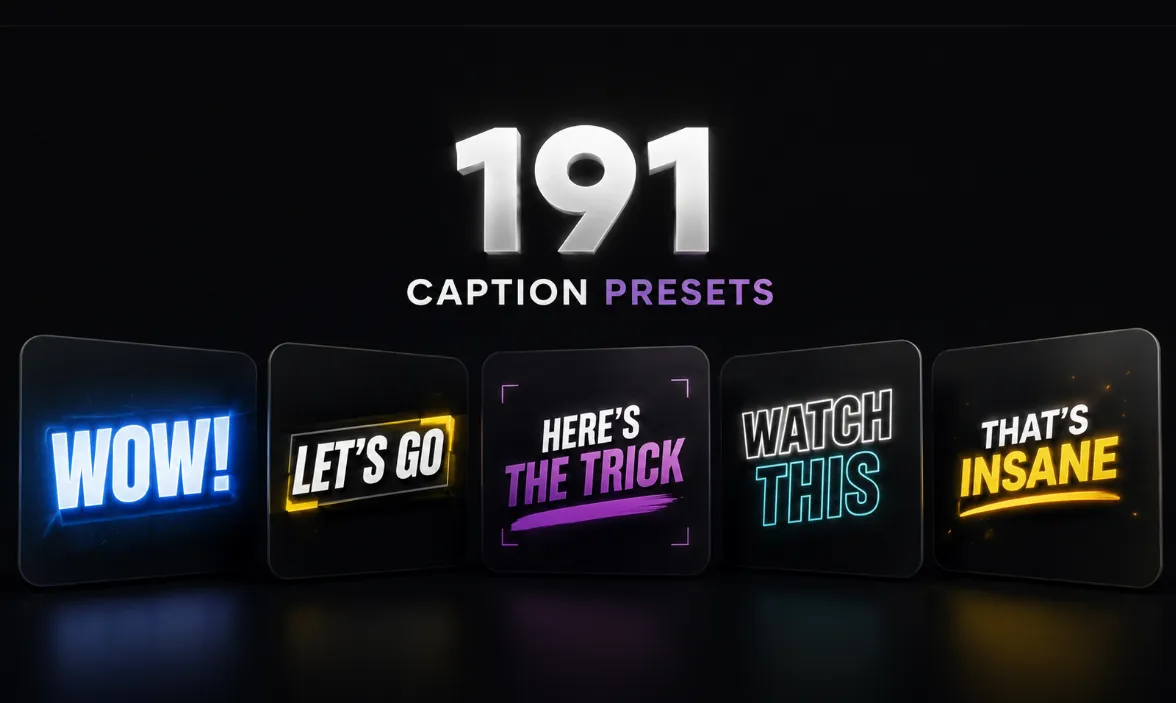
First, here’s the main part of the pack: 191 ready-made caption presets. These presets are designed in 9 different styles, giving you plenty of options for different projects, from clean and minimal captions for educational videos to more dynamic and eye-catching styles for Reels and Shorts.
The nice thing is that you don’t have to design every caption from scratch each time. You drop the preset onto your text, enter your own text, and the appearance and animation are ready. This means you can change your video’s caption style in just a few seconds and even use different styles for different sections of the same video.
Three Ways to Reveal Your Text ✍️
One of the interesting features of this collection is the Reveal Mode, or the way the text appears. So that your captions don’t always appear with the same rhythm, you get three different options:
- Letter by Letter: The letters appear one by one; great for typing-style animations and videos where you want the text entrance to feel a little more exciting.
- Word by Word: The text is built word by word and works especially well for Reels, educational videos, motivational content, and content that follows the rhythm of speech.
- Full Text: The entire sentence appears on the screen at once; a quick and clean option when you want the audience to see the full sentence immediately.
So even if you use the same caption style, changing the reveal mode can give that same text a completely different feel and rhythm.
21 Ready-Made Hooks for the First Three Seconds 🔥
In short-form content, the beginning of the video is extremely important. That’s why the pack also includes 21 stylized hooks specifically designed for the beginning of Reels.
These hooks are made for sentences that are supposed to grab the viewer’s attention in the very first seconds; for example, a sentence like “Secrets nobody tells you” or “Editing shouldn’t take hours.” Instead of designing a separate animation and style for this opening sentence, you can use one of the ready-made hooks and quickly move into the main part of the video.
Ready-Made Shaders: Captions Aren’t Just Plain Text ✨
The pack isn’t limited to caption presets and also includes several Caption Shaders. These shaders help you make the text look more attractive without creating the effect from scratch.
Glow Shader adds a soft glow to the text and includes a drop shadow, making it stand out from the image and easier to read.
Shine Shader creates a glossy, shiny appearance and can give simple captions a more complete, eye-catching feel. If you want text that stands out a little more in the frame, this option can be useful.
Stop Motion is designed for situations where you want text movement with a frame-by-frame, stop-motion feel. Instead of perfectly smooth movement, the changes appear more stepped, and you can use it for creative videos or different visual styles.
The important advantage of all three is that you don’t have to build the effect from scratch yourself; you can apply them with Drag & Drop and immediately see the result.
12 Fonts Are Included With the Pack 🅰️
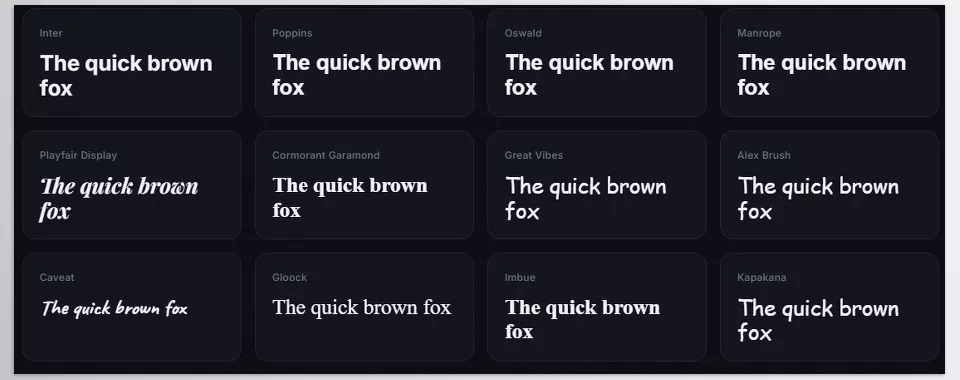
One common problem with ready-made presets is that you may not have the font used in the project, and after installation, the captions may look different from the preview. Caption Creator Pack also includes the 12 fonts used in the presets.
The fonts range from modern and simple options like Inter, Poppins, Oswald, and Manrope to more distinctive options such as Playfair Display, Cormorant Garamond, Great Vibes, Alex Brush, Caveat, Gloock, Imbue, and Kapakana.
That means you install the fonts once, and then the presets are ready to use. From bold and modern fonts for social media captions to more delicate and handwritten fonts for specific styles, you have different options to choose from.
For Free and Studio, on Mac and Windows 💻
When it comes to compatibility, you’re not limited either. Caption Creator Pack is made for DaVinci Resolve 20+ and works with both the Free and Studio versions. It works on macOS and Windows 10 and 11, with a main focus on the Edit Page and creating Reels and Shorts content.
As a result, you don’t need a complicated workflow: install it, add the fonts, choose the preset from the relevant section, and drop it directly onto the timeline. This simplicity is key to the pack’s value: something that normally requires several stages of manual setup becomes a fast, repeatable process here. 🚀
You Can See All 191 Presets on Real Text 👀
Another important point is that the presets aren’t presented using just a few mockups or sample images; the collection includes previews of all 191 caption presets on real text. This helps you see the different styles and differences between the presets before choosing one, making it easier to decide which model fits the feel of your video.
Overall, Caption Creator Pack brings several different elements together: 191 caption presets, 9 styles, 3 text reveal modes, 21 hooks, Glow, Shine, and Stop Motion shaders, plus 12 ready-to-use fonts. The result: instead of building every caption from scratch, you can spend more time choosing the right style and focusing on the video’s content. 🎬

A Few Tricks to Make Your Output Look Much More Professional 💡
Now that we’ve gone through the different features of Caption Creator Pack, it’s worth knowing a few simple tips to get the best results from these presets. Choosing the right style and using captions properly can make your video look much more professional.
- Keep the hook short 🔥: Write the first sentence of the video as short and direct as possible; sentences of around 4 to 8 words are faster to read and work better for the beginning of a Reel.
- Don’t overcrowd the caption 👀: Don’t make each line too long and give the text enough space on the screen. The caption should be easy to read, not become a distraction itself.
- Choose the right Reveal Mode ✍️: For educational and motivational videos, Word by Word can create an engaging rhythm; for short sentences, Full Text is a cleaner choice.
- Use effects for emphasis ✨: Don’t use Shine or Glow on every piece of text. Save them for important words or sentences, so they have a stronger visual impact.
- Keep a consistent style 🎨: If you’re creating content for a page or brand, choose a few specific styles and use them more often. This makes your videos look more consistent and gradually turns your captions into part of your visual identity.
In the end, you don’t need to use every feature of Caption Creator Pack in one video. Sometimes a simple caption with the right animation is much better than text packed with different effects. 😉
Less Time on Captions, More Time for Creativity 🎯
If you spend a lot of time working with DaVinci Resolve to create captions, Caption Creator Pack will save you time. Choose from various pre-made captions you can simply drop onto your timeline. 🚀
With 191 presets, 21 hooks, three text reveal modes, ready-made shaders, and 12 fonts, you have plenty of options for different content styles. From simple and clean captions to energetic styles for Reels and Shorts, everything is ready.
Ultimately, the main advantage of Caption Creator Pack is that it frees up your time from repetitive tasks. Instead of constantly dealing with keyframes and caption settings, you can put more energy into editing, ideas, and creating an engaging video. ✨
If you’re using DaVinci Resolve and looking for smarter ways to optimize your workflow and enhance your editing experience, we highly recommend checking out our comprehensive article on the most useful, time-saving DaVinci Resolve tools.