

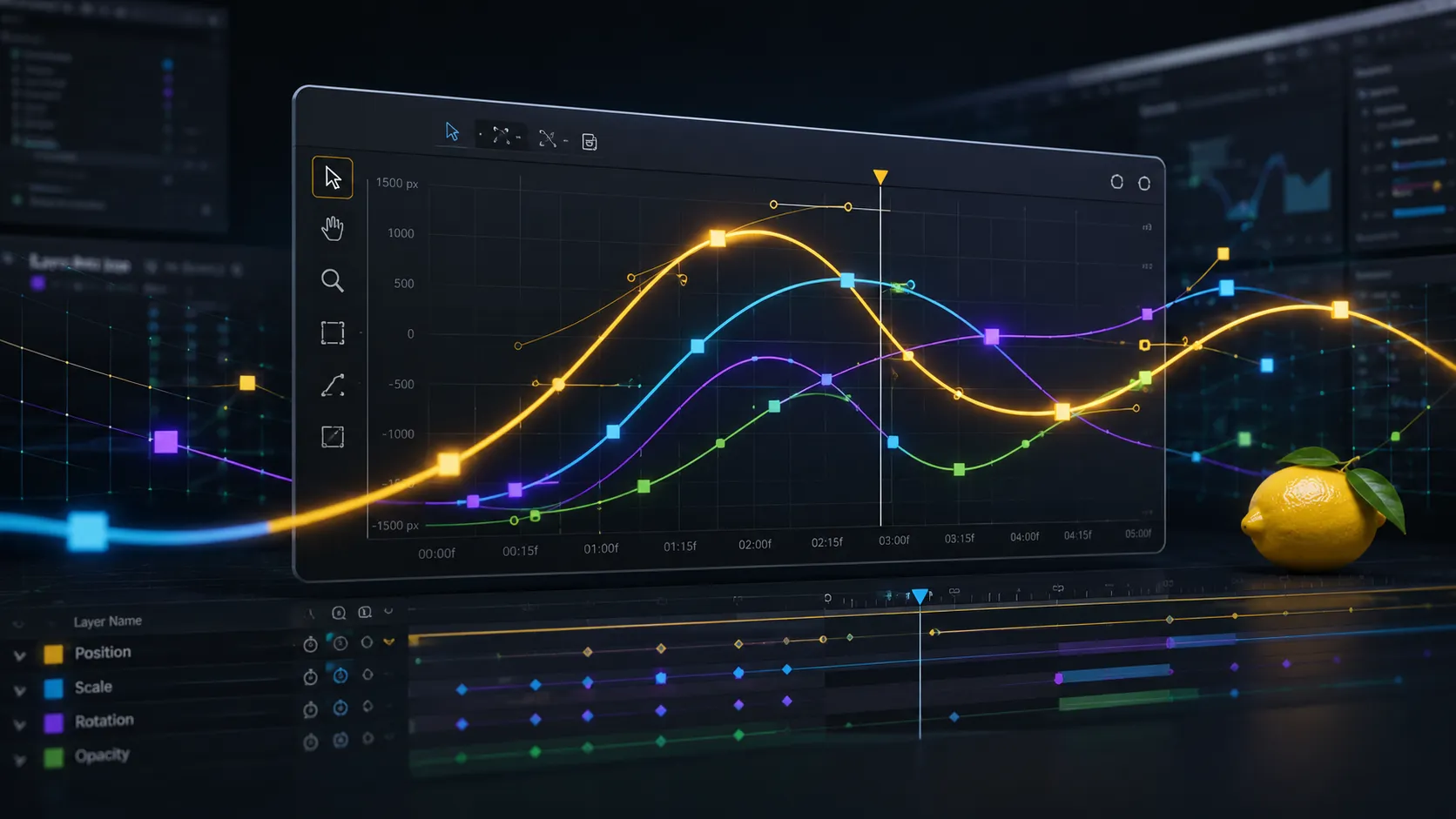
Why Does a Good Graph Editor Make the Difference Between an Average and Professional Animation? 🍋
Are you familiar with the Citron Plugin by aescripts? Have you ever spent hours working on keyframes, only for your animation to still look stiff and unnatural in the end? A lot of the time, the problem isn’t the number of keyframes; it’s the Graph Editor and the motion curve—the place where the real acceleration, pauses, and rhythm of an animation take shape.
A professional animation doesn’t just move from point A to point B; what matters is how it moves. Changing the shape of the curves makes objects enter and exit more smoothly, makes stops feel more natural, and makes the entire animation look more fluid and visually pleasing.
Professional motion designers spend less time using presets and more time fine-tuning motion curves to achieve the desired outcome. By designing the animation itself, they get a more life-like, cinematic, and professional final product.

What Exactly Is the Graph Editor and Why Is It So Important? 🎯
If you’ve worked with After Effects, you’ve definitely seen that keyframes only determine where an object moves from and where it moves to, but it’s the Graph Editor that determines how it travels along that path. In other words, it determines how fast the movement starts, where it speeds up, where it slows down, and ultimately how it comes to a stop.
For example, imagine you want a logo to enter the frame from the left. If you use only two keyframes, the movement looks simple and stiff. But by changing the motion curve, you can make the logo enter quickly at first, gradually slow down, and finally settle smoothly into place; these small details make an ordinary motion design look more professional.
The Graph Editor is useful in almost any project that involves animation—from logo motion and motion graphics to UI animation, promotional teasers, and social media videos. The more control you have over the motion curve, the easier it becomes to shape the exact rhythm and feel of the animation you have in mind.
Common Methods for Controlling Motion in After Effects 🛠️
Before turning to third-party tools, After Effects itself gives you several useful tools for controlling the speed and rhythm of animation. By combining these tools, you can smooth keyframe motion and change how objects accelerate and stop. The main methods include:
- Easy Ease: For smoothing the beginning and end of keyframe motion.
- Graph Editor: For viewing and modifying motion curves in Value Graph and Speed Graph modes.
- Bezier Handles: For changing the shape of the curve and controlling how motion enters and exits a keyframe.
- Keyframe Velocity: For precisely adjusting the incoming and outgoing speed of each keyframe.
In fact, with these built-in tools alone, you can create completely professional animations, and you don’t need anything more to get started. 👌
The Problem Starts When the Project Gets More Complex 😵💫
The problem starts to show itself when the number of keyframes and properties increases. For example, to adjust Position, Scale, and Rotation at the same time, you have to constantly move between properties and inspect their curves separately. On top of that, changing multiple curves simultaneously or adding a keyframe in the middle of a motion path without disrupting the movement isn’t particularly easy in the standard Graph Editor. As a result, instead of focusing on designing the motion, you may end up spending a large portion of your time managing and correcting the curves themselves. ⏱️
Citron: The Graph Editor After Effects Was Missing 🍋
Citron Plugin is a professional After Effects panel that brings the Graph Editor experience much closer to software like Maya, Blender, and Cinema 4D. Instead of dealing with just a few basic controls for smoothing motion, you get a complete environment for viewing, selecting, and shaping animation curves.
The important point is that Citron isn’t simply designed to add a few new presets to After Effects. Its main focus is on controlling the motion itself—from acceleration and speed to timing and curve shape. That’s why, if you work extensively with keyframes and the Graph Editor, its capabilities feel like much more than a simple additional tool. 🎬
Why Animators Need a Better Graph Editor in After Effects 🎬
The Graph Editor is one of the most important parts of creating professional animations in After Effects. While basic Keyframe controls can create simple movements, advanced animations often require much more precise control over Timing, Speed, and Acceleration.
Small changes in a curve can completely change the feeling of an animation. A logo reveal, character movement, camera motion, or kinetic typography sequence may look completely different depending on how the curve is shaped.
Citron supports this workflow by giving animators a more visual, flexible environment for refining motion. Instead of adjusting Keyframes repeatedly and guessing the right Ease, you can directly design the movement through the curve itself.
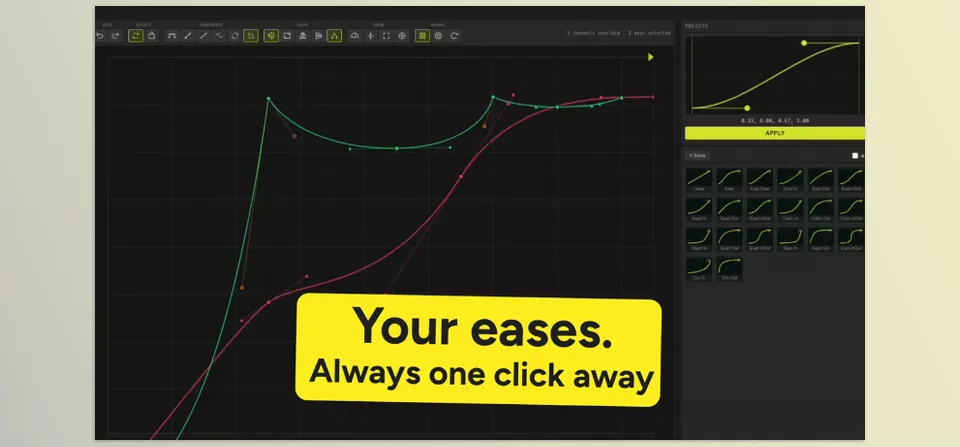
Citron’s Most Important Features 🛠️
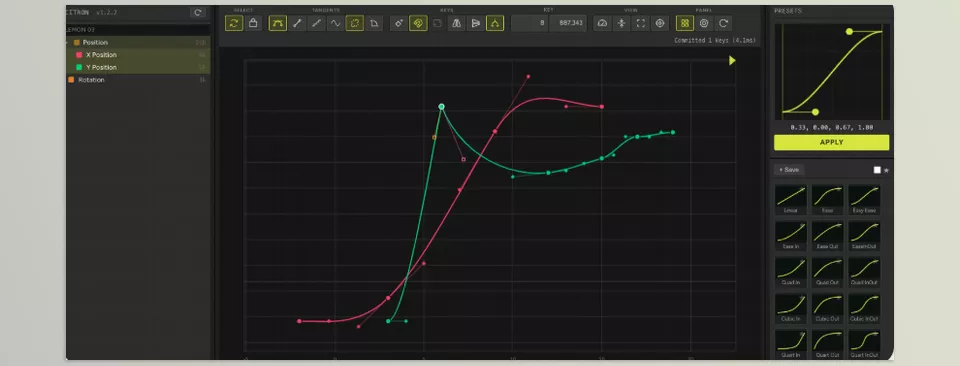
A Real, Dockable Graph Editor
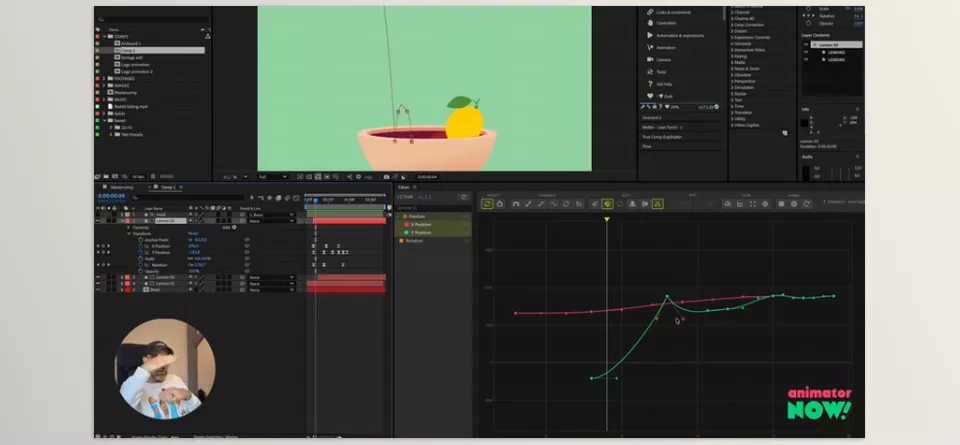
Citron for AE runs as a real panel inside After Effects, and you can place it next to the Timeline or any other part of your Workspace. This means you don’t need to switch between separate software and After Effects; you control the curves right where you create the animation.
Its interface is inspired by the Graph Editors found in 3D software, and its goal is to give you more tools and workspace for controlling curves when you spend hours adjusting motion.
View and Edit Multiple Curves Simultaneously 🌈
One of Citron’s important features is Multi-Channel Curves. You can view curves from multiple Properties at the same time, with each one displayed in a different color.
For example, imagine a logo is changing its Position, Scale, and Rotation simultaneously. Instead of opening each Property separately and switching between them, you can view their curves side by side and more easily adjust the timing relationship between the movements.
This feature becomes especially valuable when an animation contains multiple Properties and a large number of Keyframes. 👌
Maya- and Blender-Like Navigation 🔍
Citron doesn’t just have a different appearance; the way you navigate inside the Graph Editor is also designed for users who are accustomed to 3D environments.
You can zoom and Pan across the curves and press the F key to frame the graph around the Selection or the entire curve. As a result, when you’re working on a small section of an animation, you don’t have to spend much time finding the right viewing range for the curve.
Professional Tangent Control
This is where one of the key differences between Citron and the standard After Effects workflow becomes apparent. Citron gives you more precise control over curve Tangents—the handles that determine the shape of the motion entering and exiting a Keyframe.
You can Break Tangents, change their weight, and adjust the shape of incoming and outgoing motion with greater freedom. This means that instead of simply choosing a ready-made Ease, you can build the curve exactly the way you want.
Multiple View Types for Better Curve Readability 📊
Citron isn’t limited to just one way of displaying curves and gives you three different View types:
- Stacked: Displays the curves stacked and separated from one another.
- Normalized: Displays curve values within a normalized range for easier comparison.
- Absolute: Displays the actual Property values exactly as they are.
These modes help you choose a view based on the type of animation, making it easier to read and adjust the curves.
Lattice / FFD for Modifying Multiple Curves Together 🔄
One of Citron’s interesting features is the Lattice or FFD Cage. With this tool, you can create a Cage around a group of curves and then, instead of manipulating individual points one by one, change the shape of the entire group at once.
For example, imagine you have several Properties that all need to be slightly compressed or stretched. Instead of moving the Keyframes one by one, you can change the overall structure of the curves using the Lattice.
This feature can significantly reduce manual work when making Bulk corrections and group changes to Timing and Curves.
Add a Keyframe Without Changing the Curve Shape ✨
Imagine your animation is almost finished, but you need an additional Keyframe right in the middle of the motion. Normally, adding a keyframe can change the motion’s shape, forcing you to adjust the curve again.
Citron has an Insert Key feature that lets you click anywhere on the curve and add a Keyframe at that exact point without changing the curve’s current shape.
This feature is genuinely useful for final adjustments because it gives you more control over the motion without ruining the existing animation by adding a Keyframe.
Enter Exact Frame and Value 🎯
Sometimes moving a Keyframe with the mouse isn’t enough, and you want to specify exactly which frame the Keyframe should be placed on and what value it should have.
Citron for AE lets you enter the exact Frame and value for the selected Keyframe. So instead of grabbing the Keyframe several times and visually trying to place it in the right position, you can enter the exact value you want.
For projects where precise Timing and values matter greatly, this level of control can be very useful.
Speed Graph for Controlling Motion Speed ⚡
Citron also gives you the ability to work with the Speed Graph. In this mode, instead of focusing on the Property value, you see the speed at which it changes over time.
You can move the Keyframe to change the speed of the motion and use the Handles to shape acceleration and deceleration. This is especially useful for creating movements with smooth starts and endings or controlled acceleration.
Custom Motion Presets
Although Citron isn’t simply a Preset Library, it also gives you the ability to save and reuse your own custom Eases.
This means that if you create a motion curve that you repeatedly need in your projects, you can save it and use it again later. As a result, you have both manual curve control and the ability to use your own Presets for repetitive movements.
Everything Inside the Same Panel 🍋
One of the important things about Citron is that you don’t need to leave After Effects to use these features. You place the panel next to the Timeline, select the Keyframes and Properties you want, and work directly on the curves.
Additionally, according to the developer’s description, After Effects 2024, 2025, 2026, and Beta versions are supported on Windows and macOS, and version 1.x updates are also free for license holders.
What Types of Projects Is Citron Plugin Really Useful For? 🎬
| Project Type | Citron Application |
|---|---|
| Logo Motion | Precise control over acceleration, stopping, and motion rhythm |
| Promotional Motion Graphics | Creating smooth and controlled curves |
| UI Animation | Precisely adjusting the movement of buttons, cards, and interface elements |
| Complex Animations | Viewing and editing multiple Properties simultaneously |
| Social Media Videos | Quickly adjusting Timing and short movements |
| Infographics | Coordinating the movement of multiple elements |
| Character Animation | More precise control over the rhythm and speed of movements |
| Keyframe-Heavy Projects | Easier management of large numbers of Curves and Keyframes |
Overall, Citron’s main value isn’t that it adds a huge number of new effects to After Effects; its strength is that it makes motion-control tools much more extensive and professional. If a large part of your time in After Effects is spent adjusting Keyframes, Speed, and Curves, this is exactly where you’ll feel the difference Citron makes.
While Citron gives animators deeper control by letting them manually shape and refine animation curves, sometimes you need a faster approach to create smooth, reusable motion styles. In those situations, tools like the AE Flow Plugin can simplify easing by letting you design, save, and apply custom motion curves faster. If you want to learn more about creating smoother keyframe movements and managing animation easing efficiently in After Effects, check out our complete guide on AE Flow Plugin.
A Few Techniques for Making Animations More Professional 🎬
Even with professional tools, it’s how you use the curves that determines the final result. With a few simple tips, you can make your movements smoother, more natural, and more controlled, while reducing how often you have to keep reworking the animation from scratch.
- Start with the Speed Graph ⚡ For most motion work, the Speed Graph gives you a better view of acceleration and deceleration and helps you adjust the movement more naturally.
- Check multiple Properties simultaneously 👀 When you can see Position and Scale side by side, for example, it becomes easier to tell whether the two movements are synchronized or whether one changes earlier or later than the other.
- Add a new Keyframe for corrections ✨ If you need more control in the middle of a movement, instead of manipulating the entire animation, use Insert Key to add a new control point without disrupting the current shape of the curve.
- Don’t make the curves overly symmetrical 🎯 Natural movements don’t always start and end at the same speed. A slight difference between acceleration and deceleration can make the animation feel more alive and engaging.
Ultimately, the goal isn’t to make the curves more complicated; adjust them so the motion looks natural and appropriate for what is happening on the screen. This control over small details is what makes a simple motion design feel more professional.
Really Take Control of Motion 🍋🎬
If you work extensively with keyframes and motion graphics, you’ve probably found yourself spending more time than necessary trying to achieve a simple movement. Citron Plugin is built specifically for this stage—the point where you need to precisely adjust motion curves, view multiple Properties together, and change animation Timing without unnecessary hassle.
Citron’s main advantage is that it gives you greater control over the thing that directly affects animation quality: the motion itself. From precise Tangent and Speed Graph control to editing multiple curves simultaneously, using the Lattice, and adding a Keyframe without changing the motion’s shape, everything helps you reach the exact movement you have in mind faster. ⚡
If the Graph Editor is an important part of your workflow, Citron can become one of those tools that, after using it for a while, makes you wonder how you ever worked without it. Instead of constantly dealing with the limitations of the default Graph Editor, you get a more complete environment for designing motion—one that makes your animations smoother, more controllable, and your workflow faster. 🍋
Curious about all the different tools you can use with After Effects? Check out our complete guide to After Effects tools, where we explain the differences between plugins, scripts, extensions, presets, and other tool types, along with how they can help improve your creative workflow.



