When Every Image Has an Entire Process Behind It 🎞️
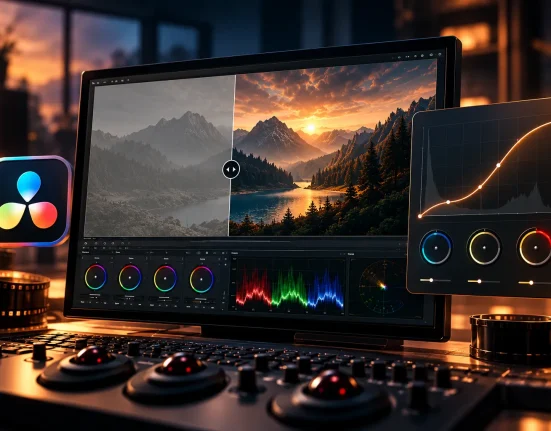
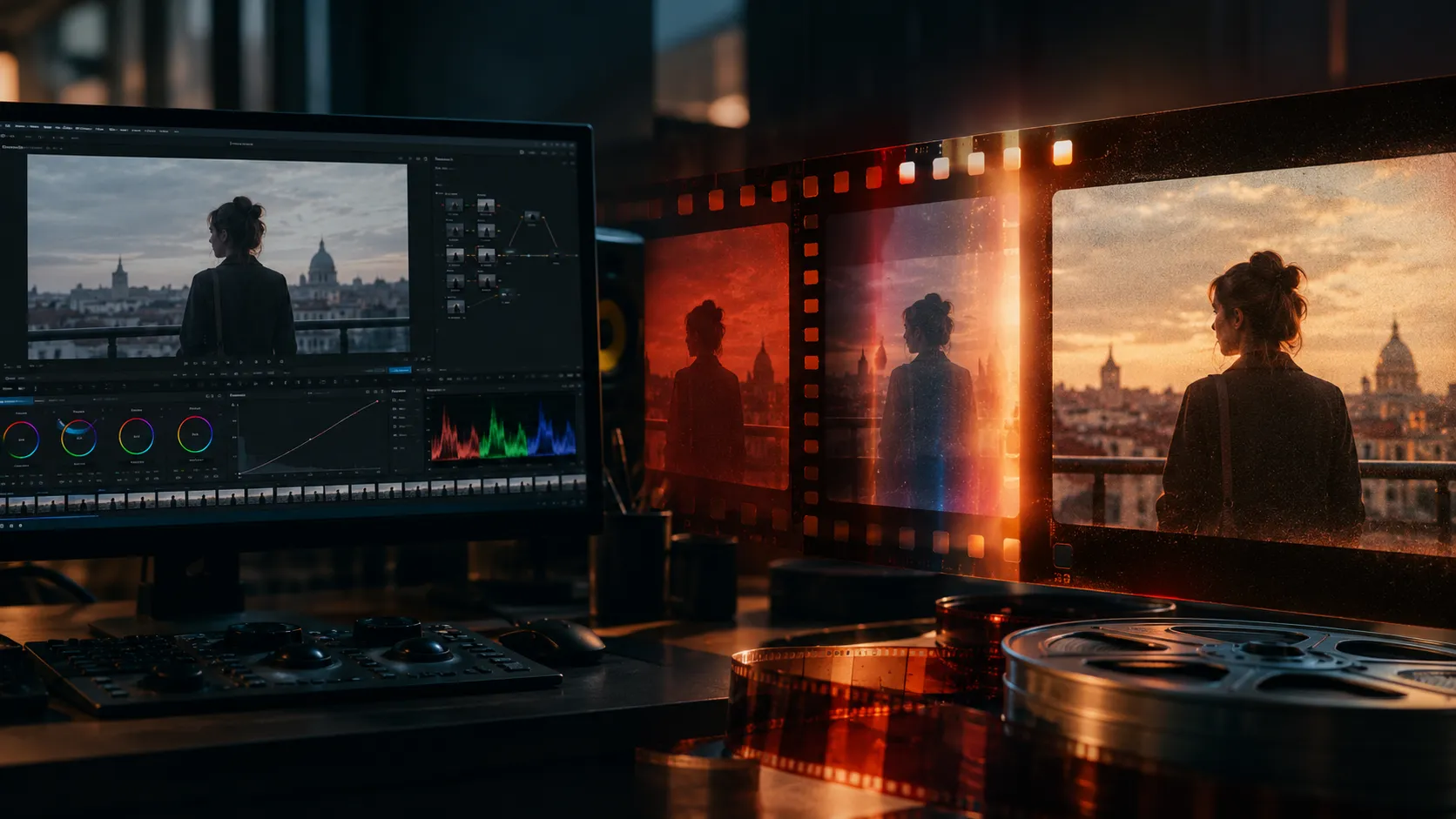
Have you played around with the Genesis Plugin by Cullen Kelly Color at all? When you watch a cinematic film, what you see on screen is not simply the result of a camera capturing an image. Before that frame becomes what we see, it goes through an entire chain of processes: light is recorded onto film, the negative is developed, color and contrast are formed, and finally the image is printed onto film. Even things like Grain and Halation are part of that process—not separate effects that are added afterward.
Now imagine applying that same logic to digital footage. Not by simply changing a few colors or placing a Grain layer over the image, but by actually recreating the behavior of film step by step. This is where the choice of negative, print stock, film processing, and even the printing method can all change the final result.
This approach creates a completely different path to achieving a cinematic look—a path that focuses on the process that creates the look, rather than imitating the look itself. That’s exactly where dedicated Film Emulation tools fit into the color grading workflow.

What Exactly Is Film Emulation? 🎨
Film Emulation is the process of recreating the visual behavior of photographic and motion picture film on a digital image. It is not limited to color alone—it can also include contrast, dynamic range, color saturation, Grain, and Halation.
For example, two different film stocks may capture the exact same scene with completely different color and contrast characteristics. One may produce richer saturation and stronger contrast, while another appears softer and more controlled. Film grain also varies by stock and format.
This matters especially for narrative films, commercials, music videos, and creative projects, because choosing a specific image behavior can dramatically affect a scene’s overall mood.
It’s Not Just About Color
One of the most common misconceptions is that creating a film look simply means making the image warmer or cooler. In reality, Film Emulation can involve multiple stages.
- Film Stock: The film stock influences the overall color, contrast, and image behavior.
- Film Grain: Grain is part of the image structure—not just ordinary noise.
- Halation: In real film, intense light can create a subtle glow around bright areas.
- Contrast: Film’s contrast curve behaves differently from a simple Contrast adjustment.
- Color Response: The way film reacts to different colors also shapes the final appearance.
When you control these elements together, the result can look far more natural than stacking separate effects.
Creating a Film Look with DaVinci Resolve’s Built-In Tools 🎨
If you want to build a film look without specialized tools, DaVinci Resolve already provides a wide range of features. You can control color, contrast, highlights, and shadows independently, then gradually shape the image by combining multiple nodes.
Common tools include:
- Color Wheels: Control color and brightness in Shadows, Midtones, and Highlights.
- Curves: Shape contrast and precisely adjust different tonal regions.
- HDR Wheels: Perform more detailed adjustments across different brightness ranges, especially Highlights and Shadows.
- Color Warper: Modify relationships between colors and build unique color palettes.
- Film Grain: Add grain while controlling its size and intensity.
- Qualifier & Blur: Manually create effects like Halation and control light diffusion in bright areas.
You can even organize multiple nodes into a dedicated workflow—for example, exposure and color correction first, contrast shaping next, color styling afterward, and finally Grain and Halation. This approach offers enormous flexibility, and if you’re comfortable working in DaVinci Resolve’s Color page, you can create a completely personalized Film Look. 🎬
When Building a Film Look Becomes the Difficult Part 😅
That creative freedom comes with its own challenges. If you want the result to genuinely resemble film rather than simply looking like a film filter, you’ll need to adjust many details individually and understand how each change affects the rest of the image. Once concepts like Negative, Print, Push & Pull, Grain, and Halation enter the workflow, the number of nodes and adjustments grows quickly, and finding the right combination can become very time-consuming. If you also want to recreate multiple Film Stocks, you have to repeat much of that process for each one. As a result, DaVinci Resolve’s built-in tools can create a film look, but achieving an accurate, repeatable Film Emulation often requires significant time, experience, and experimentation.
Genesis: Modeling Film Through Its Process, Not Just Its Appearance 🎞️
Genesis is a dedicated Film Emulation tool for DaVinci Resolve that approaches film simulation from a different perspective. Instead of simply changing the image’s color and contrast to resemble a specific film, it models the process that creates that appearance.
In this workflow, the digital image travels through a pipeline similar to real film production. You can control the behavior of the Negative, the processing stage, and finally the Print Stock. As a result, color, contrast, Grain, and highlights do not change as isolated adjustments—they interact within a film-like process.
Genesis provides colorists with a large collection of film models and photochemical processes, making it possible to work with a workflow much closer to real film rather than building every Film Look manually.
A Collection of Real Negative and Print Stocks 🎞️
One of Genesis’s biggest strengths is its Film Stock library. It includes 42 Negative Stocks and 13 Print Stocks, covering both historical and modern stocks from Kodak, Eastman, and Fujifilm.
Choosing a Film Stock is not simply selecting a preset color palette. Every stock has its own behavior and can influence color, contrast, saturation, detail, and the overall structure of the image.
Kodak & Eastman
The Kodak and Eastman library includes families such as Vision3, Vision2, Vision, EXR, ECN-II, and ECN-I.
Within the Vision3 family, several well-known stocks are available:
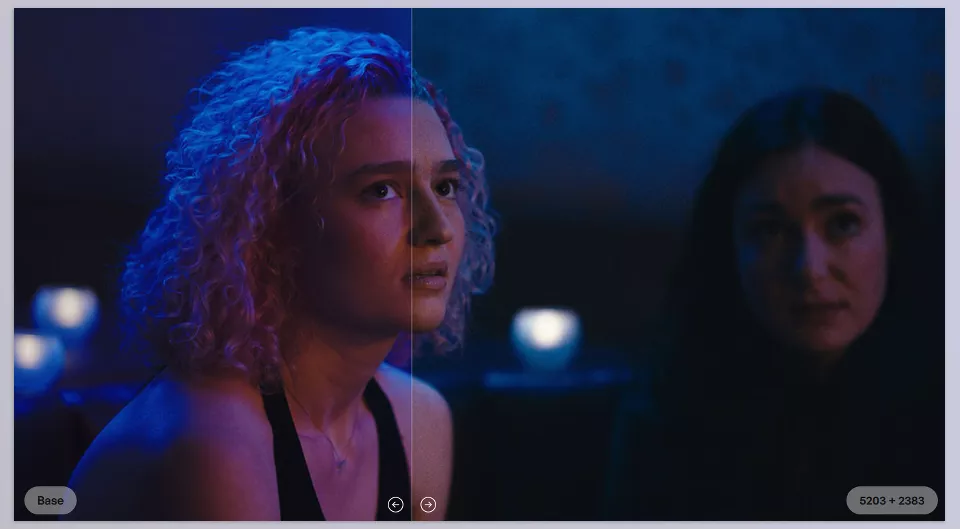
- 5203 50D: A daylight stock with rich color saturation.
- 5213 200T: Higher contrast with a slightly softer highlight shoulder than some Vision3 stocks.
- 5207 250D: One of the higher-contrast stocks in the Vision3 family.
- 5219 500T: Lower contrast than some of the other Vision3 stocks.
Vision3 is known for its cleaner shadow grain and wider exposure flexibility, so choosing between these stocks can noticeably change an image’s character.
Fujifilm
Alongside Kodak, Genesis also includes Fujifilm negative families such as Eterna, Reala, Super-F, and Fujicolor-A.
For example, the Eterna family is recognized for vivid color reproduction, strong color separation, and a finer grain structure. Different Eterna stocks are designed to deliver varying levels of saturation and contrast.
As a result, whether you’re looking for a warmer, more colorful, higher-contrast, or softer image, different stocks can serve as distinct starting points.
Print Stocks: The Stage You Shouldn’t Ignore 🎬
Genesis doesn’t stop at Negative simulation—it also includes a dedicated Print Stock section.
The Kodak and Eastman library features models such as 2383, 2393, 5386, 5384, 5380, 5381, 5385, and 5382, representing multiple generations of print stocks.
One of the most important examples is Kodak Vision Color 2383, widely recognized as a defining cinema print stock of recent decades. Its appearance is characterized by distinctive midtone contrast, shaped highlights, and relatively neutral color reproduction.
Genesis also includes Fujifilm Eterna-CP 3523XD, which offers higher contrast, stronger saturation, and a different response to colors like yellow, cyan, and blue compared to some Kodak print stocks.
This stage matters because the final image isn’t determined by the Negative alone—the Print Stock also shapes the image’s final character.
Printer Points: Color Control Like a Film Lab 🎨
One of Genesis’s most interesting features is Printer Points.
In traditional film printing, colorists adjusted the exposure of individual color channels during printing to control the final appearance. Genesis digitally recreates this Printer Lights workflow.
Instead of simply increasing Saturation or changing Temperature, you can make color adjustments using logic much closer to real Color Timing.
This makes Printer Points useful for quick color washes, subtle corrections, and unique looks. More importantly, the adjustments happen within the film model’s behavior rather than acting like a simple color overlay.
If you’ve worked with traditional film color timing before, Printer Points will feel familiar. If not, it offers a completely different approach to color control.
Push & Pull: Changing Film Behavior with a Single Control 🎞️
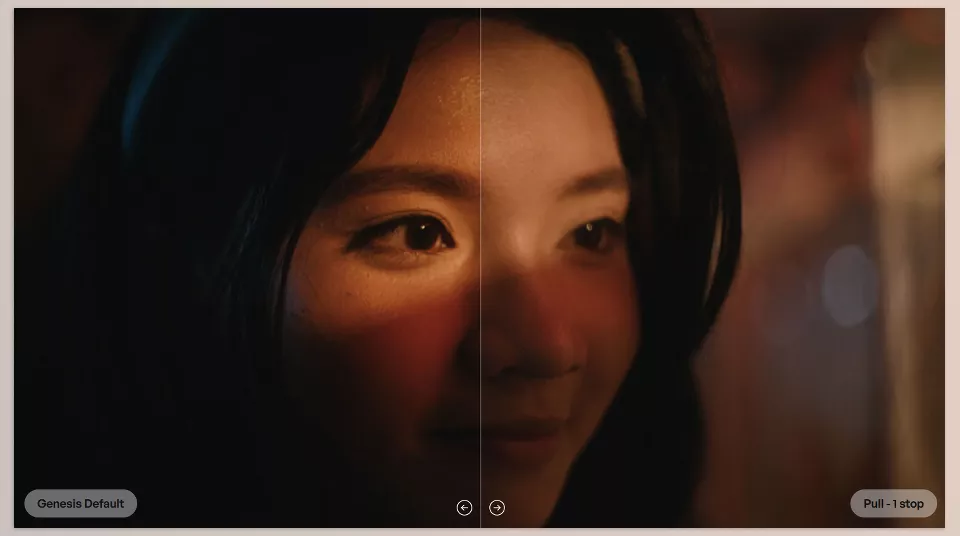
Genesis also recreates Push and Pull Processing.
In real film production, Push and Pull processing can alter how the negative responds to exposure, affecting characteristics like contrast and Grain.
In Genesis:
- Push: Produces stronger contrast, more visible Grain, and a rougher, more energetic appearance.
- Pull: Reduces contrast and creates a softer, more controlled image.
For example, if your favorite stock needs slightly more contrast for a project, you can introduce Push behavior directly into the workflow instead of rebuilding the look with multiple curves and separate adjustments.
This control is especially valuable when adapting a specific stock to different exposure conditions or visual styles.
Bleach Bypass: Independent Control for Negative and Print 🧪
Bleach Bypass is another classic film process recreated inside Genesis.
This process can push an image toward higher contrast, altered saturation, and more pronounced Grain, making it useful for creating distinctive visual styles.
What makes Genesis unique is that you can apply Bleach Bypass separately to the Negative and the Print. Instead of acting as a single global output effect, you can decide exactly where this process occurs in the film pipeline.
That provides much greater creative control when building different looks.
Interlayer: A Different Way to Shape Saturation 🌈
Interlayer is one of Genesis’s specialized tools for controlling saturation and color behavior.
In a typical digital image, increasing saturation simply makes colors stronger. Film behaves differently because the relationship between color layers is much more complex.
Interlayer is built around that idea, letting you modify Saturation and Color Separation with behavior closer to the modeled film process.
In simple terms, instead of merely making colors “more saturated,” you influence how colors behave within the image structure itself. This can be extremely useful for achieving richer color while preserving the character of a Film Look.
Film Grain: Grain with More Authentic Behavior 🎞️
Grain is one of the clearest signatures of a Film Look, but it’s also one of the easiest elements to make look artificial.
Genesis uses a Grain algorithm developed by Steve Yedlin, ASC. It simulates characteristics such as tonal distribution, grain shape, size, and rhythm.
Genesis also lets you choose between multiple film formats:
- 16mm
- 35mm
- 65mm
This means the same Grain isn’t applied to every project. The selected format changes both the scale and structure of the grain, giving each image its own personality.
According to Genesis, this Grain model has also been used in productions including Star Wars: The Last Jedi, Looper, Knives Out, and Wake Up, Dead Man.
As a result, Grain in Genesis isn’t simply a noise layer added at the end of the workflow—it’s treated as part of the overall image model.
Halation: A Glow That Shouldn’t Announce Itself ✨
Halation is another defining film characteristic. When parts of an image receive strong exposure, light can spread through the film structure and create a subtle halo around bright areas.
Genesis models this behavior using Steve Yedlin’s Halation algorithm, aiming to reproduce the physical behavior of real film as closely as possible.
The key idea is that good Halation usually shouldn’t be the first thing the viewer notices. It should be felt in the highlights rather than appearing as an obvious glow effect.
That’s why Genesis focuses on subtle light diffusion in high-exposure areas, treating Halation as part of the image structure rather than a decorative effect.
Modeling the Complete Journey from Negative to Print 🔬
One of Genesis’s biggest differences compared to tools that simply provide ready-made Film Looks is its multi-stage workflow.
You can begin with a Negative Stock, control processing characteristics such as Push, Pull, or Bleach Bypass, and then move into the Print Stock stage. From there, you can adjust Printer Points, Interlayer, Grain, and Halation within the same workflow.
This structure gives each stage a clear role and lets you make changes with the logic of a real film process.
Built with Film and Color Science Experts 🎥
Genesis isn’t built around a single LUT or a collection of color presets—the team behind it is central to its foundation.
Dr. Mitch Bogdanowicz, a film chemist and color science specialist, spent 32 years at Eastman Kodak working on Film Emulation, Color Science, and the development of the Kodak Look Management System.
Steve Yedlin, ASC, is the acclaimed cinematographer behind films including Star Wars: The Last Jedi, Knives Out, and Looper, and has contributed extensively to image formation, Grain, and saturation modeling.
Alongside them, Cullen Kelly has worked as both a colorist and color scientist across feature films, commercials, television series, and major productions, helping shape the Genesis workflow throughout its development.
Together, their expertise gives Genesis a foundation built on Film Chemistry, Color Science, and professional Color Grading rather than a collection of visual effects.
How to Get More Natural Results with Genesis
To make Genesis look more natural and closer to real film behavior, focus on the overall workflow rather than simply increasing effect intensity.
- Start with the Film Stock: Choose the right stock before adjusting Grain or Halation. The base stock has the biggest influence on color, contrast, and overall image behavior.
- Don’t overdo everything: Grain, Halation, and Saturation usually look more convincing when used subtly. Stronger isn’t always better.
- Use Push & Pull intentionally: These controls aren’t just for changing the look—they’re also useful for matching a stock to your footage’s exposure and lighting conditions.
- Correct the image first: Fix exposure and major image issues before the final Film Emulation stage so Genesis works from a solid foundation.
- Evaluate Grain in context: Grain should match the resolution, image size, and overall appearance of the shot—not become the first thing viewers notice.
Ultimately, the goal is for every adjustment to work together as one unified image. When each stage is tailored to the shot and the project’s needs, the result usually feels much more natural and controlled.
When Film Is More Than Just a Look 🎯
Creating a convincing Film Look isn’t simply about warming colors, reducing contrast, or adding Grain. What makes film unique is the combination of behaviors that occur throughout the entire process of capturing, developing, and printing an image.
Genesis brings that philosophy into the digital world. Instead of relying on a single preset appearance, it gives colorists access to a complete collection of Film Stocks and film processes—from Negative and Print to Printer Points, Push & Pull, Bleach Bypass, Grain, Halation, and Interlayer.
If you work in DaVinci Resolve and want to bring Film Emulation into your color grading workflow more seriously, Genesis is more than a collection of effects—it’s a dedicated system for working with film behavior, making the path to a cinematic, controllable image much more cohesive.
If you’re also a DaVinci Resolve user and you’re looking for ways to make your editing workflow faster, smoother, and more professional, we strongly recommend checking out our detailed article on the best DaVinci Resolve tools and features you shouldn’t miss.