

From an Ordinary Photo to a Painting🎨
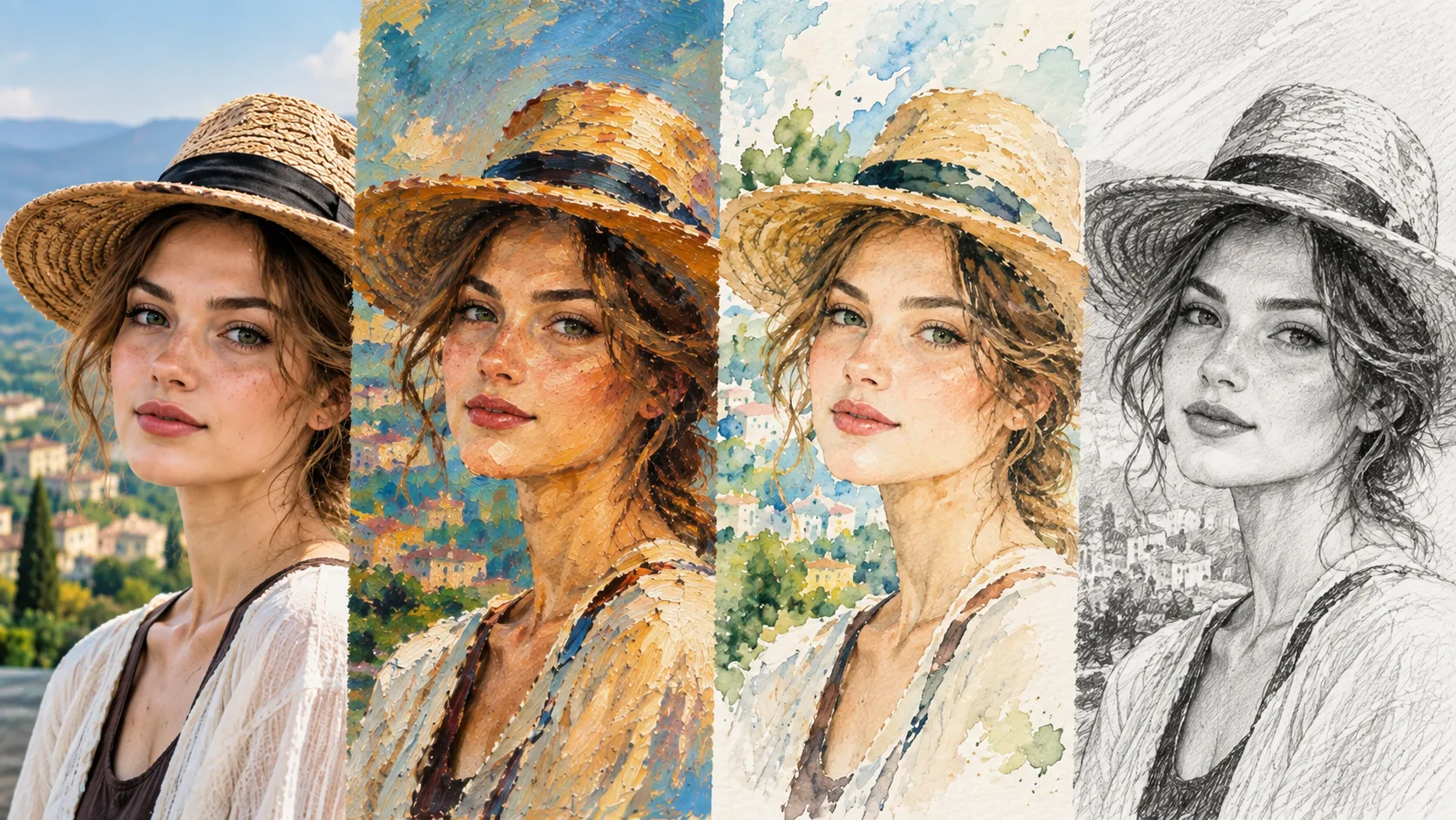
Are you familiar with using the Snap Art software by Exposure Software? Have you ever looked at a photo and thought, “This image would be much more interesting if it were a painting”? For example, a portrait that looks like it was painted with oil paint on canvas, a landscape with a watercolor appearance, or even a photo that looks like a pencil or colored pencil drawing. The problem is that you don’t achieve these looks just by changing the colors and lighting; you also need to change how the image’s details and texture appear.
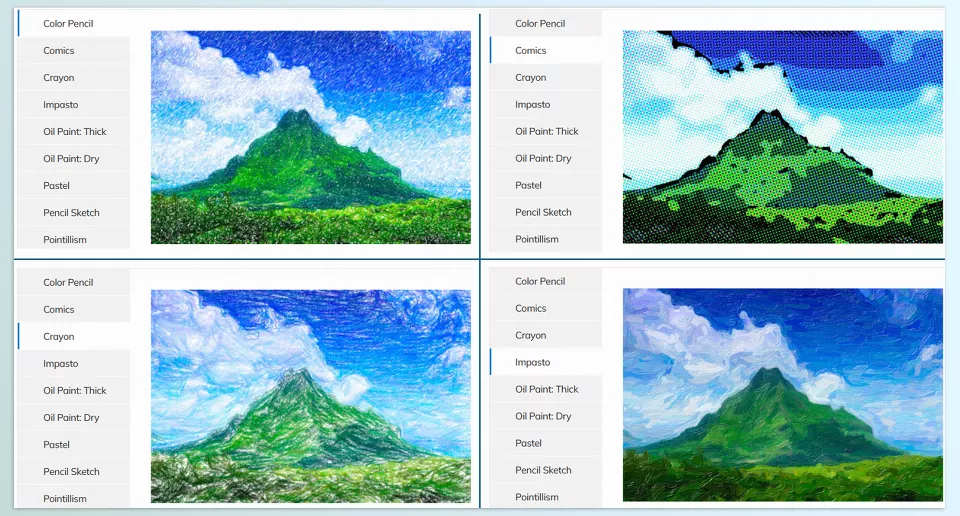
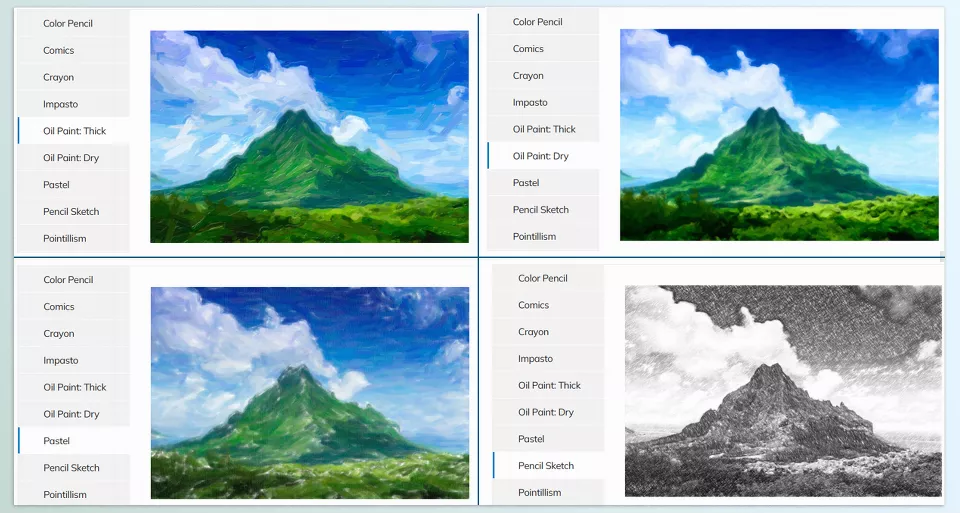
That’s where this editing style shines: one photo can become several completely different artworks. You can see the same image once with a thick oil paint texture, once as a Pencil Sketch, and another time with a Watercolor look. Styles like Crayon, Pastel, Pointillism, and Comics can completely change the image’s mood.
But when the number of these styles increases, creating each one manually comes with its own challenges. For every style, you have to work with different brushes, textures, filters, and settings, and then control important details of the image, such as the face in a portrait. This is where having a tool that puts different artistic styles in one place and lets you quickly try and customize each one can make the workflow much easier.

Turning Photos into Paintings, Pencil Drawings, and Graphic Styles
Turning a photo into an artwork means moving it away from its ordinary photographic appearance and giving it the characteristics of a specific artistic technique. For example, a portrait can look like an oil painting, a landscape can look like a pencil drawing or watercolor, and even an ordinary image can be turned into a comic or colored-pencil style.
This technique has different applications. For example, imagine you have a portrait photo and want the final result ready to print on canvas. Instead of keeping the image looking like a digital photo, you can give it a painterly appearance so the result looks more like a printed artwork.
You also have more freedom with landscape images. You can turn a nature photo into an oil painting or give it a completely different mood with a pencil-drawing style. You can even create several outputs from one photo using different styles, each with a different feel.
The same idea also works well for graphic projects. Styles such as Comics, Stylize, Crayon, and Pointillism can transform a photo from an ordinary image into a different piece of graphic artwork.
Creating a Painting Effect in Photoshop: From Brushes to Texture 🎨
Before using specialized tools, turning a photo into a painting or drawing usually requires combining several different techniques in software such as Photoshop. Depending on the desired style, you can use brushes, filters, Textures, and layer blending to gradually move the image away from its photographic appearance and closer to an artwork.
For example, you can use these methods:
- Painting brushes: To create brush strokes and a texture similar to painting.
- Artistic filters: To change the appearance of details and bring the image closer to painting or drawing styles.
- Paper and canvas Textures: To add surface texture and make the output look more natural.
- Blend Modes and layers: To combine the photo with different textures and effects.
- Color and lighting adjustments: To match the colors with the selected style and create a painterly mood.
- Masks and brushes: To control which parts of the image the effect is applied to and which areas should retain more detail.
Why Does Creating Artistic Styles Manually Take Time? ⏳
These methods offer a lot of freedom, but when you want a specific, natural-looking artistic style, the process can quickly get complicated. For example, creating an Oil Paint look isn’t just about adding a Texture or filter; the way details are displayed, the brush texture, and the overall shape of the image all need to work together. On the other hand, if you want to try a photo in several different styles such as Watercolor, Pencil Sketch, or Crayon, you have to test a different set of settings and steps for each style. This trial and error takes more time as the number of photos increases, and maintaining a consistent look across multiple images also becomes more difficult.
Snap Art 4: When a Photo Enters the World of Art 🎨
Snap Art 4 transforms photos into artworks with a more artistic, handmade look. This software analyzes the image’s visual elements and applies different artistic techniques, changing the photo’s appearance so the result looks more like something created with traditional techniques rather than a simple digital filter.
One of the main advantages of Snap Art 4 is that you don’t have to build everything from scratch to achieve these looks. A collection of artistic Presets is available, so you can find a suitable style for your image and customize the result further if needed.
From Oil Paint to Pencil Drawing 🎨
Snap Art 4 covers a wide range of artistic styles, and you can create a different appearance for your image based on the type of photo and the result you want:
- Oil Paint: To turn a photo into an oil painting look, with options such as Thick and Dry
- Watercolor: To create a watercolor appearance and turn a photo into an artwork with the feel of a watercolor painting
- Pencil Sketch: To create a pencil-drawing look
- Color Pencil: To create a colored pencil style
- Crayon: For a crayon-drawing appearance
- Pastel: To create a pastel look
- Impasto: To simulate paintings with more texture and thickness
- Pointillism: To create a pointillist painting appearance
- Comics: To create a comic and graphic look
- Stylize: To create more stylized and less realistic appearances
This variety means that a single photo isn’t limited to just one result. For example, you can see a portrait once as an Oil Paint image, then try Pencil Sketch, and create a Watercolor or Color Pencil version of the same image.
Creating Artistic Portraits with More Control
Portraits are one of the important uses of Snap Art 4. This software can turn portrait photos into artworks suitable for printing on Canvas or Fine Art Paper.
However, in portraits, details in areas such as the face are very important. That’s why Snap Art 4 includes the Detail Mask feature, giving you more control over key parts of the image.
With this feature, you can specify which parts of the image need more attention and detail, especially around the face and important areas of a portrait. As a result, the artistic effect isn’t applied equally and without control across the entire image, and you can adjust the result more precisely for sensitive areas.
Turning Landscapes into Paintings and Drawings ✏️
Snap Art 4 can also be used for outdoor and Landscape photos. You can turn a nature photo or landscape into an artwork with a painting or pencil-drawing appearance.
The interesting part is that one photo can be the foundation for several different artworks. For example, you can create multiple versions of one landscape with different styles and moods: one version with a Watercolor look, another with a pencil sketch, and another with an oil painting appearance.
This means you don’t need a separate image or project for every style, and you can create several artistic interpretations from one photo.
It’s Not Just Classic Painting; You Also Get Graphic Art 🖼️
The variety of Snap Art 4 styles isn’t limited to traditional techniques such as oil painting and watercolor. The software also includes more modern, graphic styles.
For example, you can use Comics to create a comic look, Stylize for a more distinctive result, or try looks like Crayon on your photo.
This way, depending on the project, you can switch between classic looks and more graphic styles.
Presets Aren’t Just a Ready-Made Effect
Snap Art 4 Presets aren’t meant to simply apply one fixed appearance to the image. You can choose a Preset as a starting point, then adjust it to fit what you want for the project.
Once you reach the result you want, you can save this new appearance as a custom Preset. For a saved Preset, you can specify a name, category, and description.
This feature is useful when you reach a specific style and want to use the same appearance again on future photos. Instead of repeating the settings from the beginning every time, you can save your own Preset and then apply it with one click to a photo or even a collection of images.
Finding the Right Preset Without Going Through Dozens of Options 🔎
As the number of Presets grows, finding the right style can become time-consuming. That’s why Snap Art 4 provides a visual Preset Browser for this part of the process.
In this browser, Presets are displayed with Thumbnails so you can see the overall appearance of the result more easily before choosing one. You can also filter Presets based on categories such as Impasto, Crayon, and Watercolor.
If you’re looking for a specific style, you can also search by a Preset’s name or description. You can add favorite Presets to Favorites to access them more quickly later.
Snap Art 4 also remembers the effects you have used recently. So if you usually switch between a few specific styles, you don’t have to search through all the options again every time.
The Software Interface Is Also Optimized for Working with Images
The Snap Art 4 user interface has been redesigned from previous versions, with a darker look and a more organized layout.
The panels are collapsible, meaning you can collapse sections you don’t currently need to create more space to view the image itself. This design helps you focus on the final result when reviewing styles and changing the photo’s appearance, without making the workspace feel cluttered.
This user interface also supports Retina and HiDPI displays, providing a suitable display of the software environment on high-resolution screens.
Processing One or Multiple Photos with Batch Processing
Snap Art 4 can run as a Standalone application and also supports batch processing for working with a large number of photos.
If you have several images that need the same look, you can process them as a group instead of repeating the steps for each photo. This feature is useful for photography collections and projects with many images, especially when you want a consistent style across the entire collection.
A Simple Path to an Artistic Look
Overall, Snap Art 4 brings different parts of this process together: from choosing a style and quickly viewing Presets to customizing the appearance, controlling important image details, saving custom Presets, and processing multiple photos.
At the same time, you don’t need advanced hand-eye coordination or specialized technical training to get started; Snap Art 4 handles the artistic appearance and Brushwork, so you can focus on choosing a style and reaching the desired result.
Tips for Choosing Styles, Presets, and Details in Snap Art 4 ✨
Snap Art 4 offers many styles and Presets, but choosing the right ones and controlling the result still matters. A few tips can help you achieve a more natural output that better fits the project.
- Start with the right style for the image: Not every photo suits every artistic style. A portrait may look great in Oil Paint, while a landscape may work better in Watercolor or Pencil Sketch.
- Consider the Preset a starting point: The first Preset you choose doesn’t have to be the final result. Start with a ready-made look and adjust the settings to fit the image.
- Focus on important details: In portrait images, the face and other key parts matter a lot. Using Detail Mask correctly gives you more control over these areas.
- Create a consistent style for each project: If you’re working on several images as part of one collection, create and save a custom Preset. This helps keep the appearance of the images more consistent.
- Try several styles before making your final choice: One advantage of this tool is that you can view one photo in different styles. For example, you can compare Oil Paint, Watercolor, and Pencil Sketch and see which style works better with your image.
- Don’t use an effect only to change the appearance: The goal is for the artistic style to match the content of the photo. Choosing an effect simply because it looks interesting may create a result that doesn’t fit the subject of the image.
In the end, Snap Art works best when you first decide what feeling and artistic style the photo should have, then adjust the tool to achieve that look.
One Photo, Countless Creative Paths 🎯
Turning a photo into a painting or hand-drawn artwork can give a project a completely different appearance; from a portrait with an oil paint look to a watercolor landscape or an image with a comic style. But creating these looks manually, especially with a large number of photos, can take a lot of time and trial and error.
Snap Art 4 makes this process easier with a collection of artistic styles, ready-made Presets, detail controls, and the ability to create and save custom styles. Alongside these features, tools like quick Preset browsing and Batch Processing make it easier to find and apply a specific look across multiple images.
If you want to bring ordinary photos into the world of painting, drawing, and traditional art, Snap Art 4 can be a great tool for trying different styles, especially when you want to spend more time choosing and customizing the final look instead of building everything from scratch.
If you want to take the painterly look beyond still images and bring it into your videos, MAD PAINTER is worth exploring. While Snap Art 4 focuses on transforming photos into artistic styles like Oil Paint, Watercolor, and Pencil Sketch, MAD PAINTER applies a similar idea to moving footage with animated Brush Strokes. Ready to turn your footage into a moving painting? Check out our MAD PAINTER guide and see how it works.

