When You Have to Leave Premiere Pro to Create a New Shot! 🎬
Have you ever heard of the DreamFerry Plugin by aescripts? While editing, you might need a specific image, a cinematic shot, or a short clip that isn’t available in your project files. For example, you might want to create B-roll for your video, add motion to a still image, or test several visual ideas before continuing with your edit.
For these tasks, you usually have to use AI tools, write a prompt, wait for the output, download the file, and import it back into Premiere Pro. When you repeat these steps repeatedly, the back-and-forth gradually takes up a lot of time and slows your editing workflow.
What if you could do all of this without leaving Premiere Pro? You could create images and videos, use frames from your project as references, and add the results straight to your timeline. This makes it easier to try new ideas and keep editing without switching between different tools.

What Are the Uses of AI Image and Video Generation? 🖼️
Generative AI tools allow you to create new visual content by writing a text description or providing reference images and videos. Depending on the model you choose, you can generate anything from a simple image to a video clip or use AI to explore new ideas.
These capabilities have many applications in video editing. For example, if you’re creating a promotional video, you can generate different concept images to showcase a product. For a documentary or educational video, you can also use supplementary shots to better illustrate parts of the narrative that weren’t filmed.
Another important application is turning a still image into a video. Imagine you have an image of a cinematic landscape and want to add camera movement or subtle changes to it. With the right model, you can provide the image as a reference and generate an animated clip. This approach helps you create B-roll, test visual ideas, and add variety to your edits.
However, output quality and how much control you have depend on the model, the prompt, and the resources you provide. That’s why choosing the right references and reviewing the results before using them in your final edit matters.
Common Methods for Generating AI Content in Premiere Pro
You can import AI-generated content into your project even without additional tools. The usual workflow is to use an online service to generate an image or video, then bring the output into Premiere Pro.
The Usual Workflow: From Browser to Timeline
- Generating content in a separate service: You visit an AI tool’s website, choose your preferred model, and create an image or video by writing a prompt.
- Downloading and organizing files: Once the output is ready, download the file and put it in an appropriate folder so you can find it later.
- Importing into Premiere Pro: You use the Import option or drag the file into the Project panel to bring the new content into your project and place it on the timeline.
- Using project frames as references: If you want to use a specific frame to generate new content, you may first need to export it as an image and then upload it to the AI service.
Why Is Generating AI Content Outside Premiere Pro Time-Consuming? 🤔
The main problem isn’t that these steps are difficult. The issue is that repeating them lengthens the workflow. Every time, you have to switch between Premiere Pro and your browser, manage files, and bring new outputs back into your project.
On top of that, when you generate multiple versions of an image or clip, keeping your files organized and finding the right result can also take time. Using timeline frames as references usually requires several additional steps, too.
If you regularly use AI in your editing projects, an integrated workflow can eliminate much of this repetitive work.
DreamFerry: AI Image and Video Generation Inside Premiere Pro 🚀
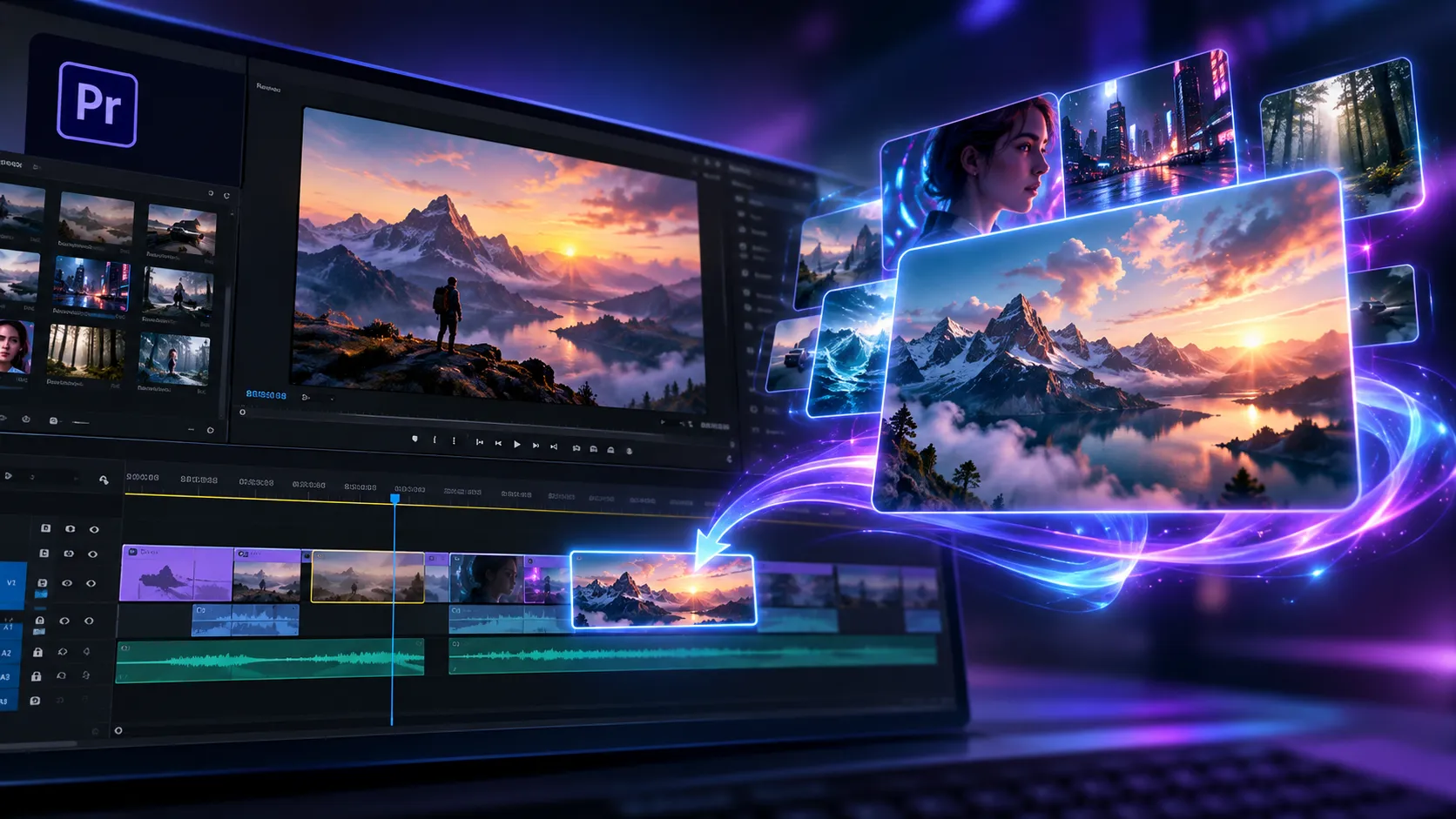
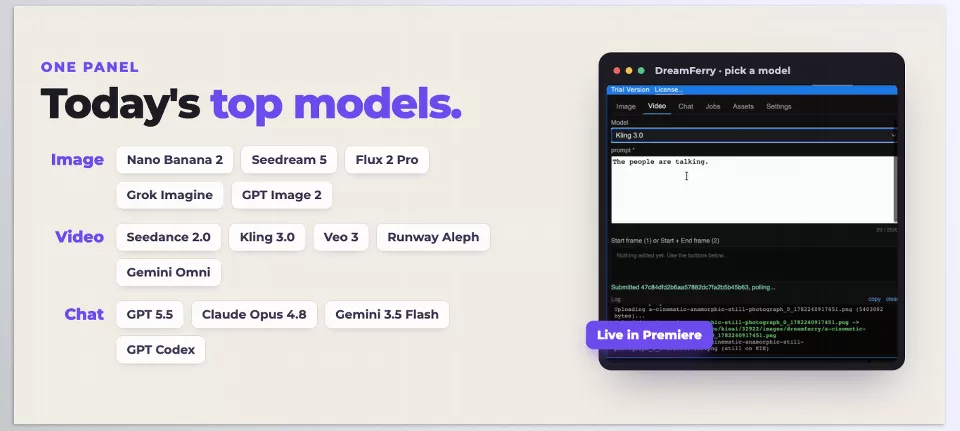
DreamFerry is a tool for Premiere Pro that combines three main capabilities in a single panel: image generation, video generation, and AI chat. With this tool, you can write prompts, use images and videos from your project as references, and create new content without having to leave your editing environment every time you generate something.
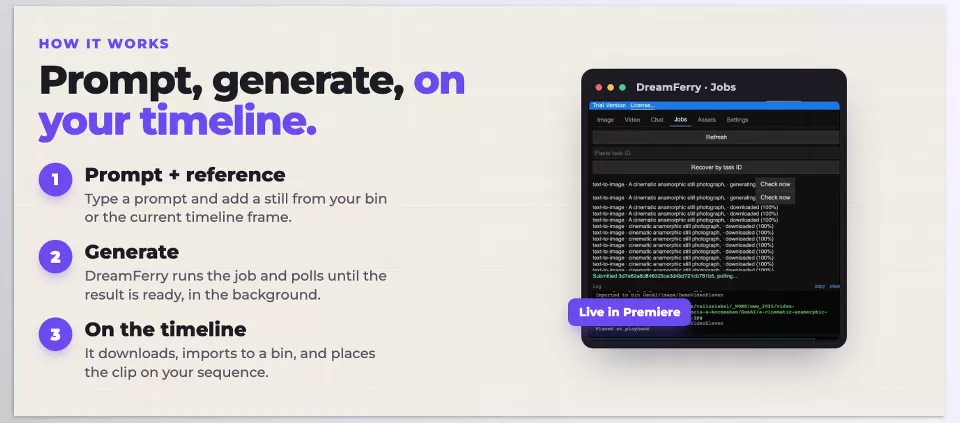
DreamFerry sends requests to the selected model through the KIE.AI service API. Once the output is ready, it downloads the file and imports it into your project. If the relevant option is enabled, it places the generated image or video directly on a video track at the current playhead position. Since the generation process runs in the background, you can continue editing while you wait.
Generating Images from Text and Reference Images 🖼️
With DreamFerry’s Image section, you can create images from text descriptions or provide existing images to the model so it can generate new outputs based on them. This section supports Nano Banana 2, Nano Banana Pro, Seedream 5 Lite, Flux 2 Pro, Grok Imagine, and GPT Image 2.
The image generation process depends on the resources you select. If you don’t add any reference images, the process uses Text-to-Image, meaning the model creates an image based on your prompt. However, if you add one or more reference images, DreamFerry automatically uses Image-to-Image so that the input images also play a role in the generation process.
This capability helps you create concept frames, design promotional images, experiment with different visual styles, and generate supplementary images for your edits. For example, you can create several images with different lighting setups and atmospheres for a product showcase video, then compare them alongside the original footage in your project.
Generating Videos from Text, Images, and Multimedia References 🎥
The Video section is designed to create new clips using text, images, and reference materials. Supported models in this section include Seedance, Seedance Fast, Kling, Kling Motion Control, Grok Imagine Video, Gemini Omni Video, Runway Aleph, and Veo.
Depending on the model you choose, you can use Text-to-Video to generate videos from prompts or Image-to-Video to animate still images. You can also specify a starting frame and an ending frame to define the initial image and the intended destination of the movement more precisely.
DreamFerry also supports Multi-modal References. This means that, with models that offer this capability, you can provide multiple images, a reference video, or an audio file to guide the generation process. These resources provide additional information about the appearance, movement, or atmosphere you’re aiming for.
For example, if you have an image of an interior and want to turn it into a moving shot, you can select the image as the starting frame. Or, if you need several supplementary shots for a promotional edit, you can use related visual references to generate different outputs and place them side by side on the timeline.
However, the available input types, movement control, and features depend on the selected model. So, check your preferred model’s capabilities before generating content.
AI Chat for Brainstorming and Prompt Creation 💬
The Chat section allows you to communicate with AI models without leaving Premiere Pro. The models available in this section include GPT, GPT Codex, Claude Opus, and Gemini Flash.
With this feature, you can brainstorm ideas for different shots, improve image and video prompts, or get fresh suggestions for the text you need. For example, if you’re creating a promotional video, you can ask the chat to suggest several B-roll ideas or rewrite your prompt with more detail about lighting, composition, and camera movement.
One of the key features of this section is conversation history and the use of a System Prompt. Conversations are saved, and the System Prompt can give the assistant relevant project information so its suggestions better match that project’s needs. This is useful for multi-stage projects because you don’t have to start the conversation from scratch every time.
Selecting References Directly Inside Premiere Pro 🎯
One of DreamFerry’s key features is selecting the resources you need directly in Premiere Pro. When using references, you don’t always have to export files separately, search through different folders, and upload them again.
The tool offers several ways to select your sources:
- Selecting images from the Project Bin: You can use images already available in the Project panel as references.
- Capturing a frame from the timeline: Select the current frame under the playhead and use it to guide image or video generation.
- Using the Asset Library: Access resources and outputs previously saved in the DreamFerry library and reuse them.
- Combining multiple reference sources: Depending on the model’s capabilities, you can add several images to guide the appearance and style of the output or use a starting frame, ending frame, reference video, and audio file.
For example, if you’re editing a video and want to create a new shot that looks similar to your existing footage, you can select one of the project’s images directly and use it in your request. This reduces the steps required to prepare files and helps you test new ideas alongside your project’s original content more quickly.
Managing Resources and Outputs with the Asset Library 📁
When you regularly generate images and videos, finding and reusing previous files becomes increasingly important. DreamFerry includes an internal Asset Library that stores uploaded reference images and generated outputs, along with their thumbnails, filenames, and creation times.
This library isn’t just for viewing files. You can preview any asset at full size or select it to reuse in a new generation process. This makes it easier to access a reference again if you want to create multiple outputs using the same source image.
This section also lets you reuse uploaded reference images for up to 14 days. During this period, reference resources are retained for reuse, so you don’t have to upload the same file again every time.
Automatically Transferring Outputs to the Premiere Pro Bin and Timeline
Once image or video generation is complete, DreamFerry automatically downloads the final file and imports it into your project. DreamFerry places outputs in a GenAI Bin, organized by content type and Sequence, to make generated files easier to manage.
If you’ve enabled the option to automatically place outputs on the timeline, the result is inserted on a video track at the current playhead position. Otherwise, you can keep the file in the Bin and manually bring it into your edit whenever you need it.
Importantly, DreamFerry doesn’t modify your original project files. New images and videos are added to the project as separate assets. This means you can review AI-generated outputs alongside your original footage, choose the best version, and keep editing without altering your source files.
Running Generation Tasks in the Background While Continuing to Edit ⚡
Generating AI content, especially video, can take time. DreamFerry runs requests as background jobs and tracks their status until the outputs are ready. As a result, you don’t need to keep the panel open or wait the entire time. In the meantime, you can work on other parts of your project.
The tool is also designed to resume tracking running requests after restarting Premiere Pro. This means that if you close Premiere Pro and launch it again later, it can continue tracking registered tasks. This feature is useful for generations that take longer to complete.
DreamFerry also includes a Debug mode that records details of API requests and responses. These logs are useful when investigating errors or troubleshooting problems. According to the developer’s description, the logs do not record the user’s API key.
Overall, DreamFerry helps you handle a large part of the AI content creation and brainstorming process without leaving Premiere Pro. From generating images and supplementary shots to animating still images, using reference materials, and managing outputs, everything is available in a single panel, and generated files are automatically imported into your project. If you regularly need B-roll, concept images, or fresh visual ideas for your edits, this tool reduces the back-and-forth between Premiere Pro and different AI services, helping you test ideas and reach your desired results faster and more efficiently.
How to Choose the Right Prompt, Reference, and Model in DreamFerry ✨
To get the most out of AI content generation, decide from the start what your timeline is missing and what role the output will play in your edit. A few simple tips can help you focus your workflow.
- Write a precise prompt: Instead of general descriptions, specify the subject, environment, lighting, and type of movement you’re looking for. For video generation, describing camera movement and the subject’s behavior can also help guide the result.
- Use relevant references: To make the output better match your project’s visual style, choose images that are close to your desired result in terms of composition, color, or appearance. Using unrelated references may lead the result away from your goal.
- Choose a model that matches your request: Before generating content, check which types of inputs and outputs the selected model supports. Image generation, video generation, and motion control capabilities vary across models.
- Compare multiple versions side by side: The first output isn’t necessarily the best option. Compare versions based on how well they fit your edit, their lighting, and how well they connect to the shots before and after.
- Review the output before using it in your final edit: Check the subject’s details, motion continuity, and how well the image matches your project’s overall style. If needed, generate it again or make the required adjustments during editing.
- Keep credit usage in mind: Since each generation uses KIE.AI credits, refine your prompt and reference materials as much as possible before submitting multiple requests, and check the cost of your preferred model.
By following these tips, you can use DreamFerry as part of your regular editing workflow and focus on selecting and improving the right output instead of spending time moving files between different tools.
DreamFerry: An Easier Way to Combine Video Editing and AI 🚀
If you regularly need new images, supplementary shots, or AI-generated clips for your Premiere Pro projects, managing this process through several separate tools can become time-consuming. By bringing image generation, video generation, and AI chat into a single panel, DreamFerry lets you handle these steps directly in your editing environment.
DreamFerry lets you use frames and images from your project as references, keep your generated files in one place, and send them straight to the Bin or timeline. This saves time when you’re trying different ideas and want to see how they look in your edit.
If you enjoyed this article and you work with Premiere Pro and want to get better at it, I recommend checking out our article on Premiere Pro tools, where we explain what tools are available and how each one can help you.